The Global Score is the summary indicator displayed on the Diagnostic page of your surveys. This article explains what it represents, how to configure it, and the key points to be aware of before modifying it.
🧱 What is the Global Score?
The Global Score is an average calculated out of 10 (always out of 10), based on a set of scored questions that you select within your survey's framework. It provides a single, easy-to-follow indicator throughout your campaign, without having to analyze each question individually.
A few key principles to know:
- You choose which scored questions contribute to the calculation.
- The selection remains editable after launch: either from the results (for past sessions), or from the survey creation or session addition for future sessions.
- The Global Score can display additional insights if they are enabled and applicable:
| Add-on | What it means |
|---|---|
| 🌐 Benchmark | Gap between the result of your filtered scope and the selected Benchmark |
| ↗️ Evolution | Gap between the results of the 1st and 2nd selected sessions |
| ⚠️ Discrepancies | Flags a significant spread in responses within the scope |
<aside> 💡
⚠️ Warning: Changing the question selection between two sessions may affect the reliability of the Global Score as well as the comparability of results over time.
</aside>
⚙️ Configuring the Global Score before launching your survey
You can select the questions contributing to the Global Score as early as the survey-building stage, before the first session is even launched. This configuration then applies to all future sessions of the survey, as long as it isn't manually changed from the results of a session that has already launched (see next section).
Step 1 – Access the configuration from the survey builder
- Log in to Zest.
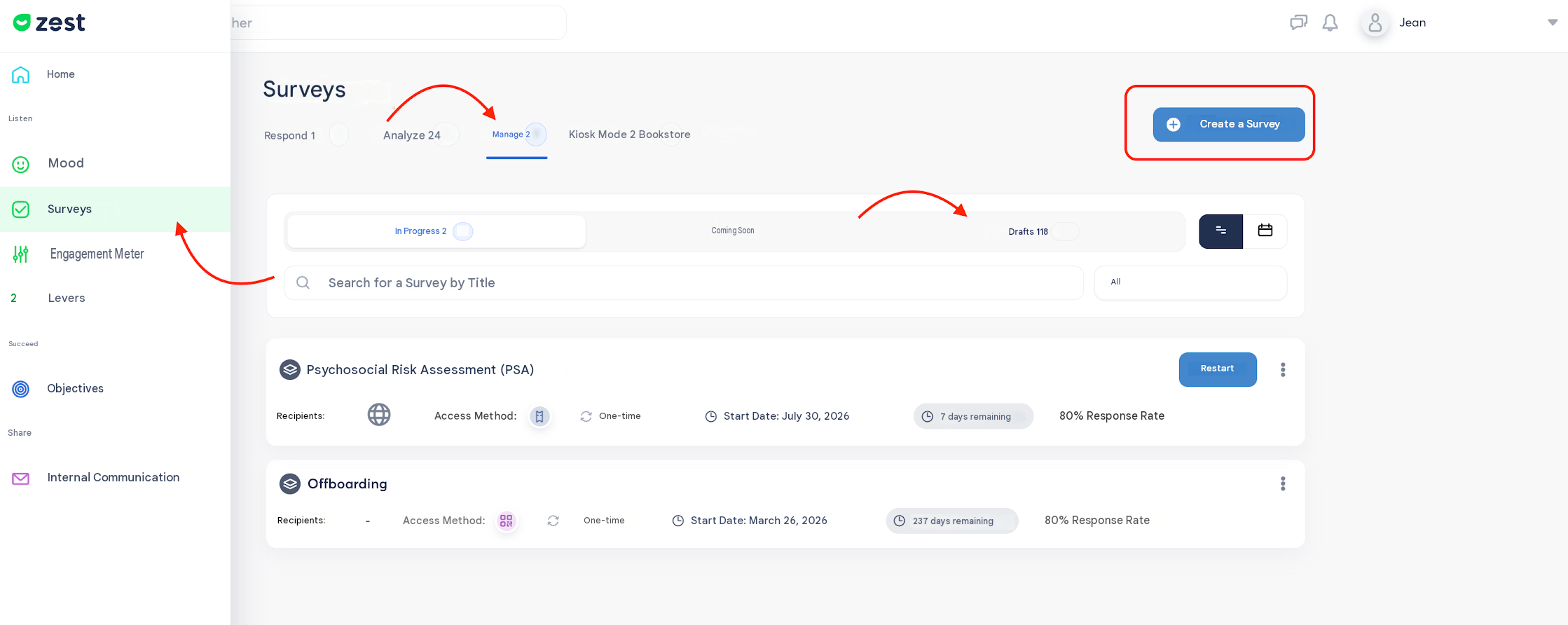
- Go to the Survey > Manage > Create a survey or from a survey template.
- If your survey already exists as a draft, go to Surveys > Manage > Drafts and click Edit 🔴
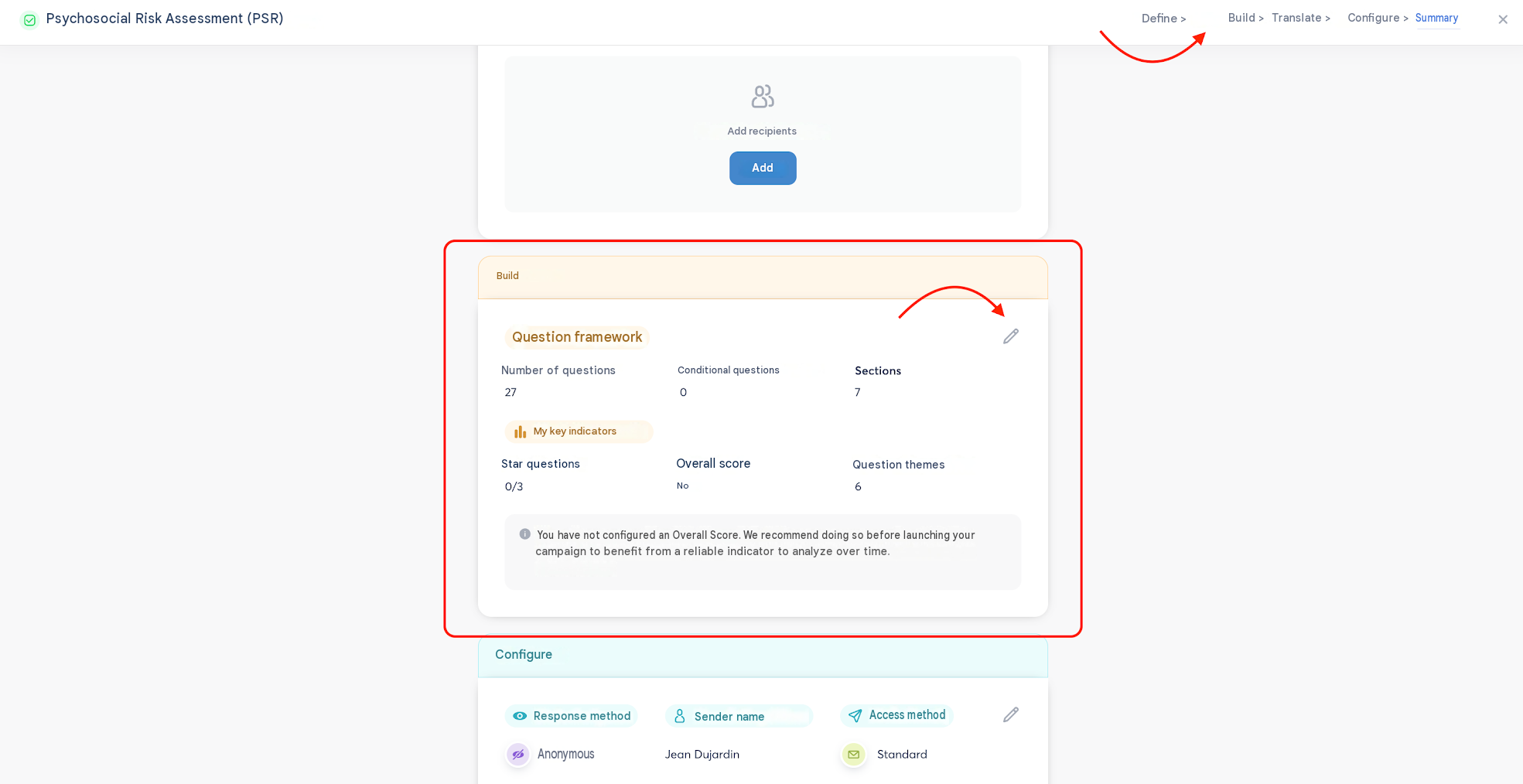
- Go to the "Build" step of the framework, dedicated to creating questions and section pages.
Step 2 – Select the contributing questions
- Browse the list of eligible scored questions in the framework.
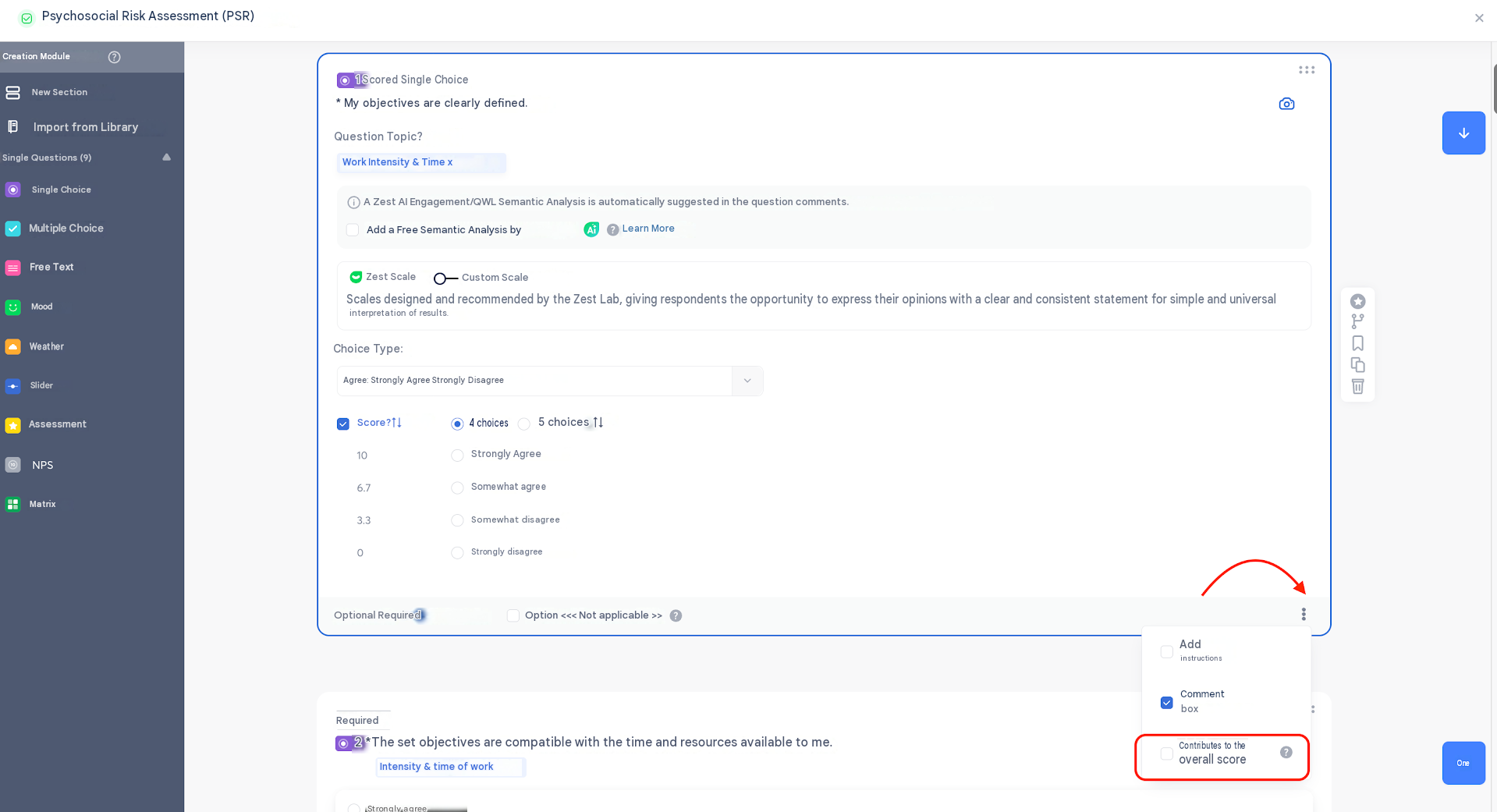
- On each question, in the bottom bar of the box, click the three dots and select the "Contributes to Global Score" option for each question you want to include in the calculation.
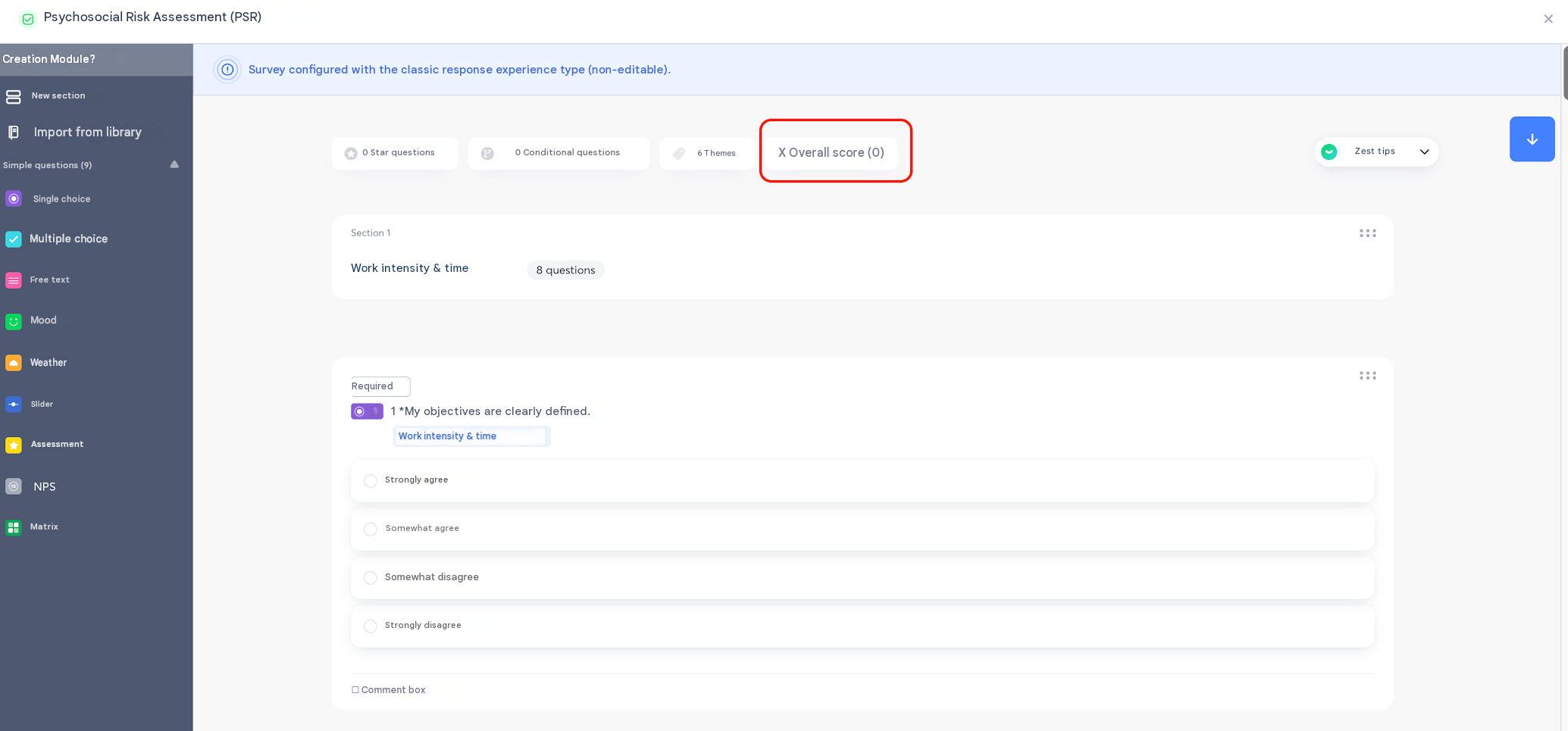
- Check the number of selected questions, displayed at the top of the window (e.g., "0 question contributing").
Step 3 – Save the configuration
- Click Save.
- This configuration will apply to the survey's future session(s) once launched.
⚙️ Configuring the Global Score after launching your survey
Step 1 – Access the configuration
- Log in to Zest.
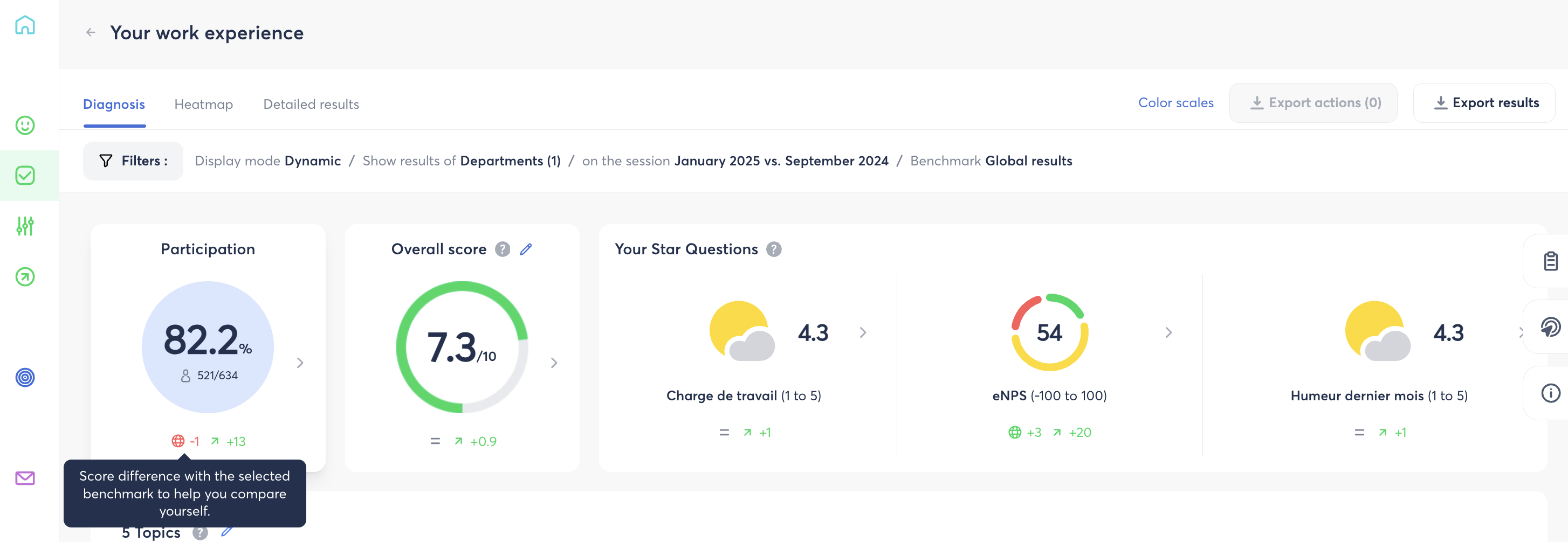
- Go to the Survey module, then open the Diagnosis page of the relevant campaign by clicking Analyze.
- On the Global Score card, click the pencil icon ✏️.
Step 2 – Select the contributing questions
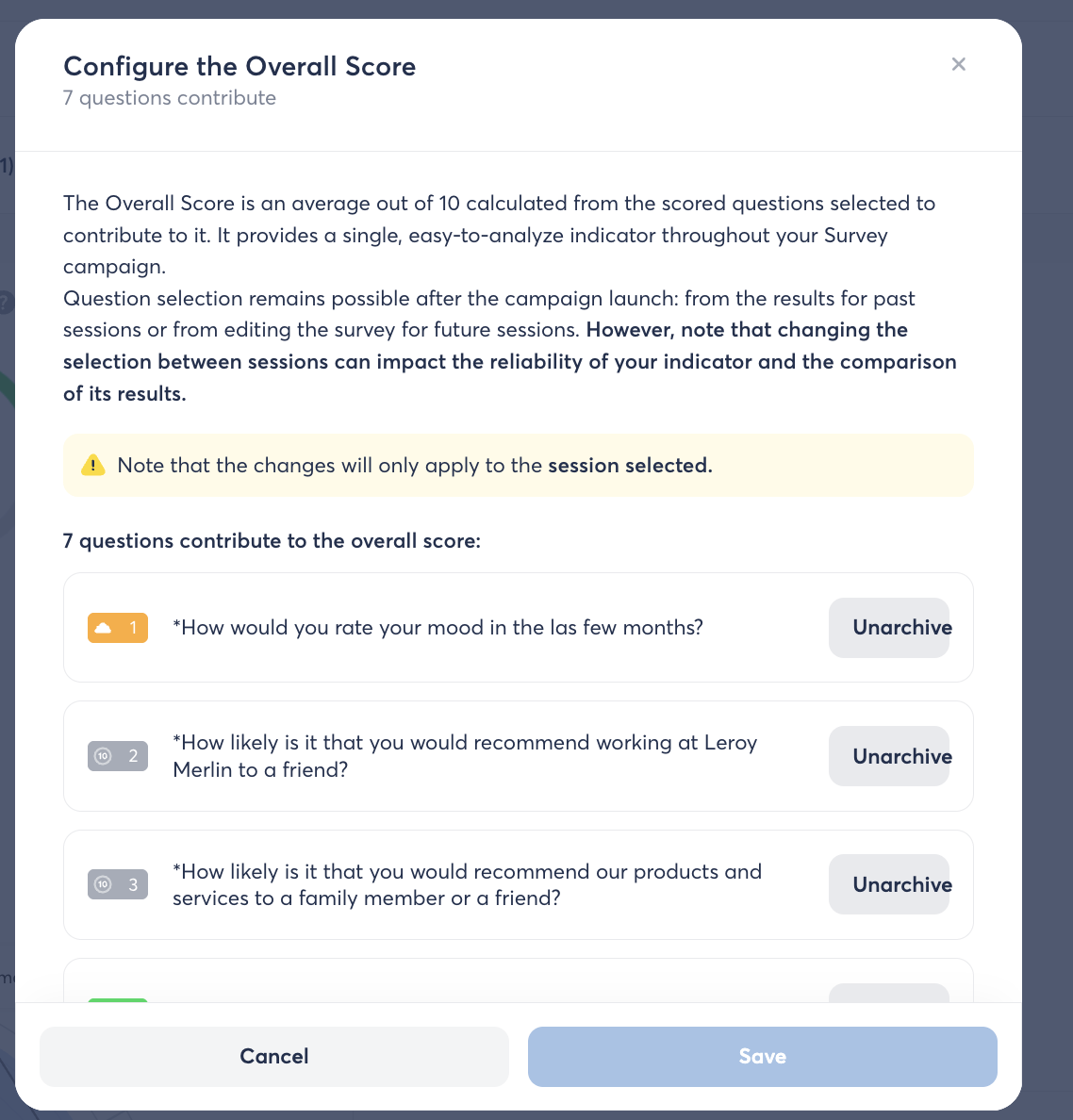
- In the Configure the Global Score window, browse the list of eligible scored questions in the framework.
- Click Add for each question you want to include in the calculation.
- Check the number of selected questions, displayed at the top of the window (e.g., "0 question contributing").
Step 3 – Save
- Click Save.
- If a Global Score was already configured for this session, a confirmation pop-up will appear, alerting you to the potential impact of this change on the indicator's reliability.
- Click Save changes to confirm, or Cancel changes to go back.
⚠️ Changes made from the results only apply to the selected session. To modify the Global Score for future sessions, you need to edit the survey from the survey builder.
ℹ️ What is a partial Global Score?
A Global Score is considered partial when, among the questions selected for the calculation:
- some have hidden results because the anonymity threshold hasn't been reached;
- or some simply have no result.
Hidden results are not included in the calculation — this is what makes the Score partial.
👉 We recommend staying cautious when using a partial Score: it is less representative and less comparable to a complete Score.
🔗 Learn more
👉 Also check out these articles: