🎯 Define survey recipients
Recipient selection is done from the very first step of your survey setup, in the “Define” tab.
During this setup, you will go through 3 pages:
- 📌 Survey subject, logo, and languages (page 1)
- 👥 Contributors (page 2)
- 📨 Recipients (page 3)
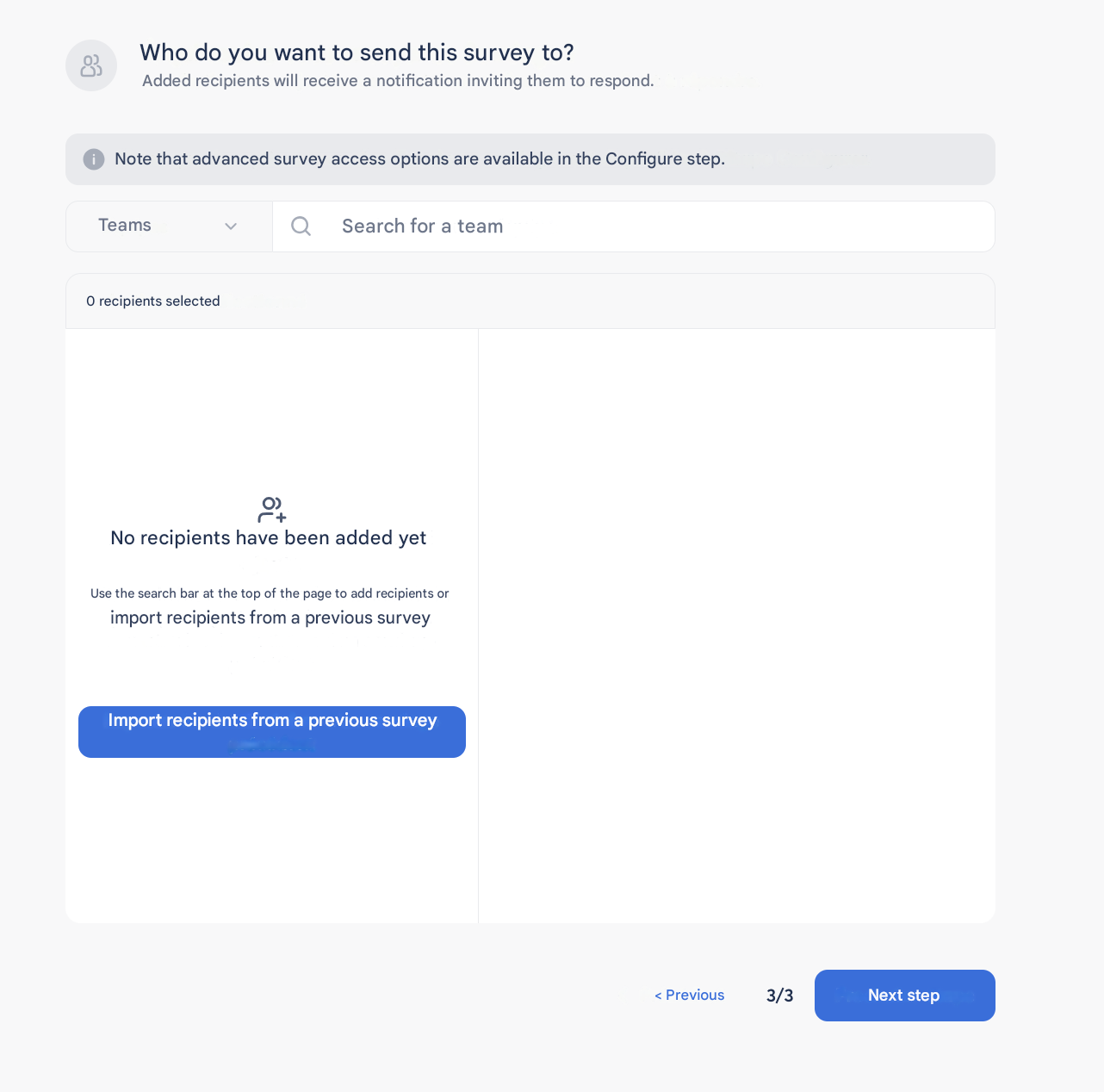
🧭 How to select your recipients?
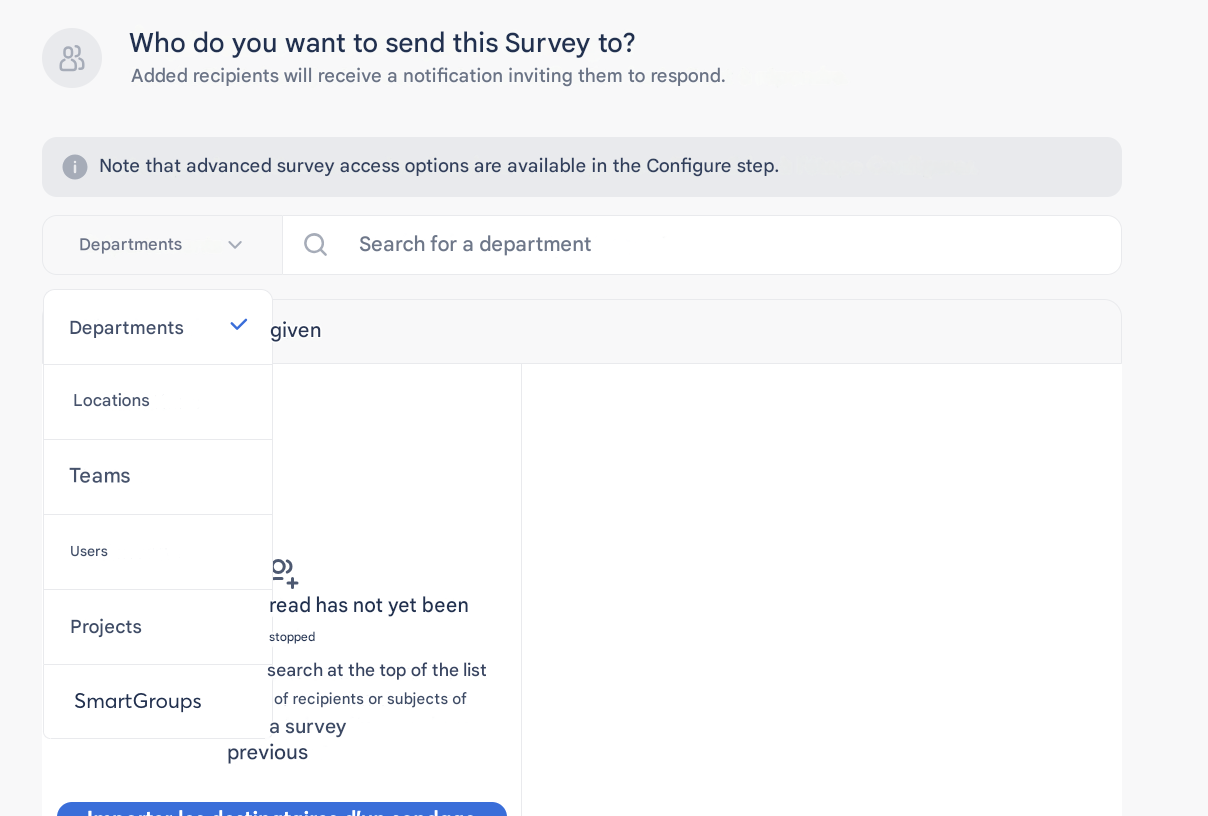
🔸 Department (default)
- By default, the system suggests 🌍 Entire company.
- You can expand the department hierarchy using the arrow ➡️ to refine your targeting.
🔸 Location
- Allows you to target one or more locations defined in your SmartOrg.
🔸 Team
- Targets managerial teams, defined from the hierarchy in your user import file.
🔸 User
- Individual sending to one or more specific people in the organization.
🔸 SmartGroup
- Selection of dynamic groups predefined in the back office (e.g., managers, permanent employees, new hires…).
➕ Combine multiple criteria
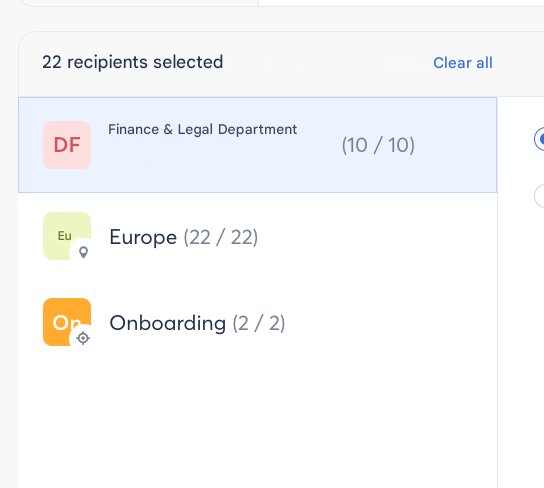
You can combine multiple filters for more precise targeting:
Example: 🎯 Department + 🗺️ Location + 👥 Team
🔍 Customize your selection
Once your criteria are added, they appear in a summary table.
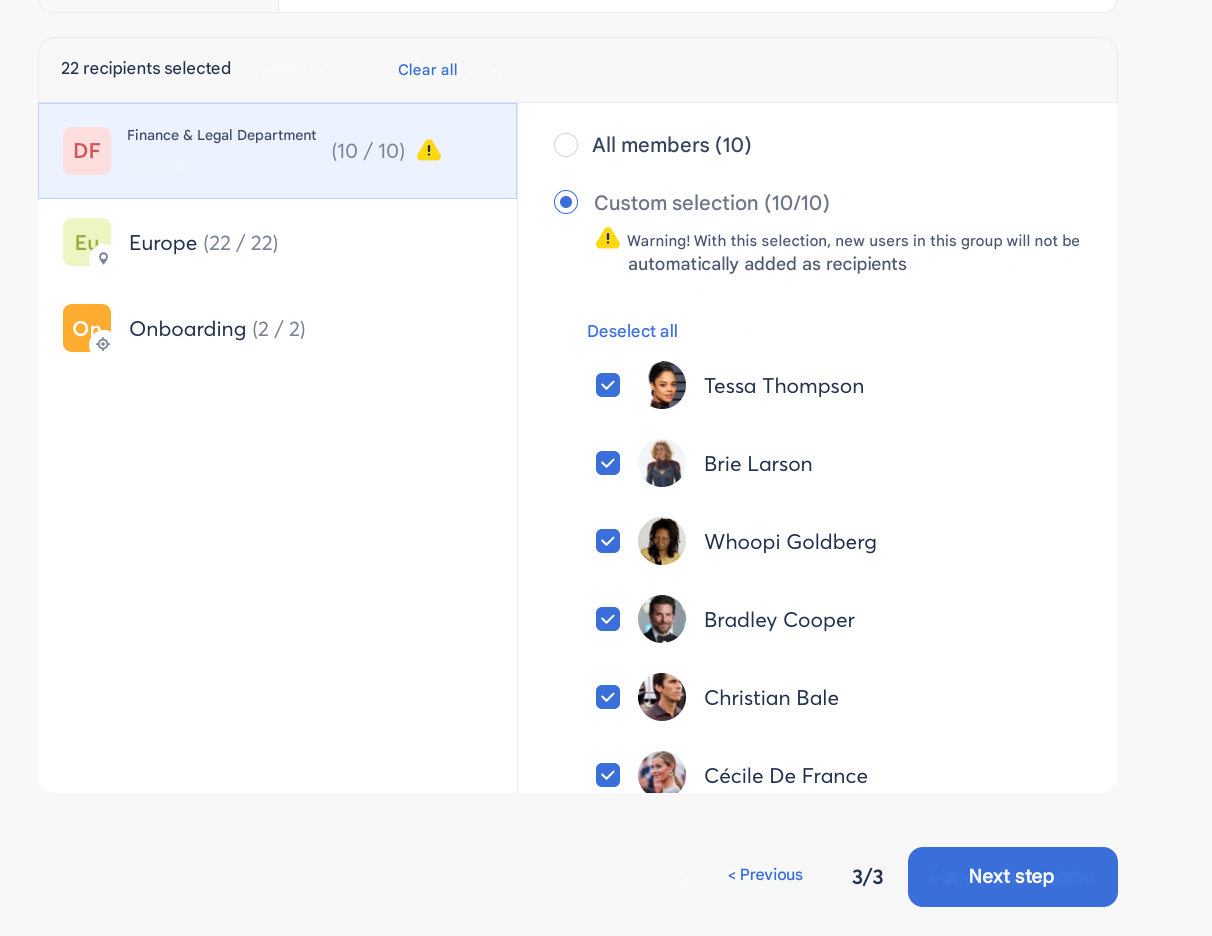
- Click on a criterion (e.g., department or location)
- Select “Custom selection”
- You will see all concerned employees, and can deselect specific profiles if needed
👉 Tip: This flexibility allows you to launch perfectly targeted surveys without missing any key segment of your organization.