The Zest Library
🎓 What can you find in the Library?
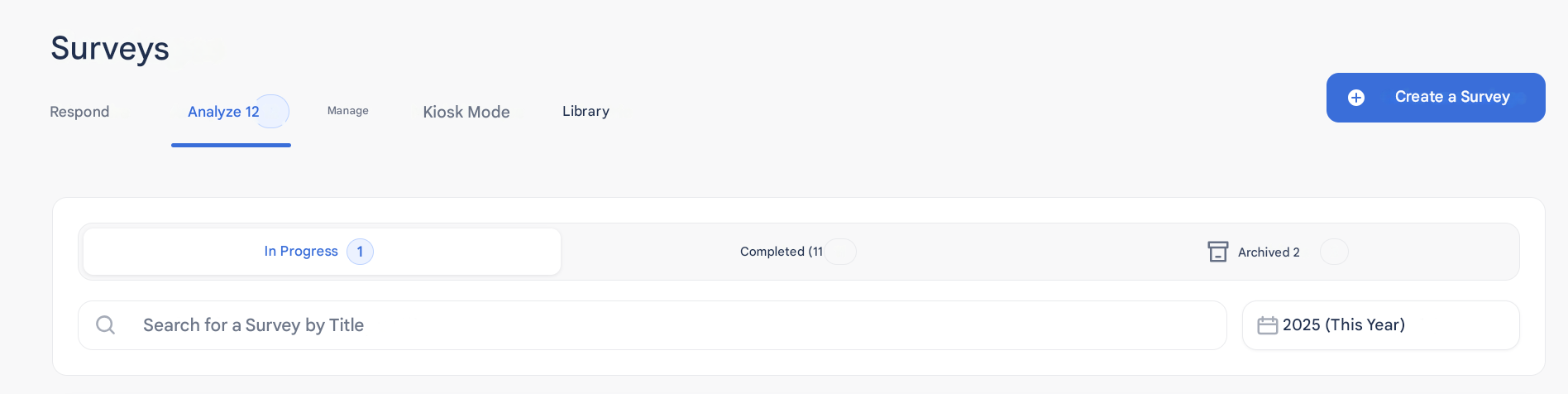
When you are in the Survey tab, you will find in the top bar access to the “Library” tab.
By clicking on it, you access the Zest library, a space gathering a selection of surveys designed by our LAB team, experts in human sciences and work psychology.
🔍 Two types of surveys are available:
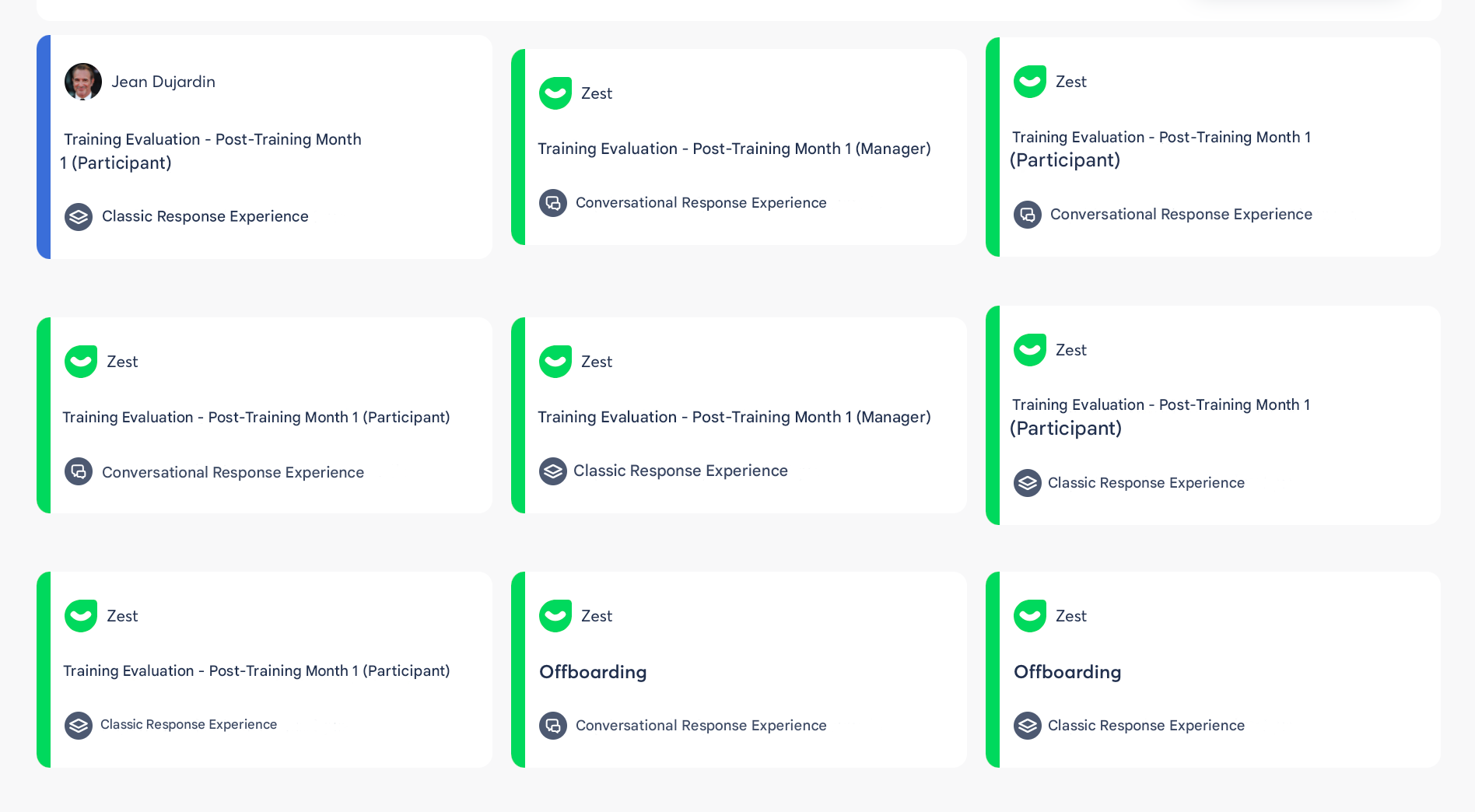
- Surveys with a green border: they were created by Zest.
- Surveys with a blue border: these are your own surveys, saved in the library for future use.
🎯 Two response experience styles
In the library, you will find two types of response experience:
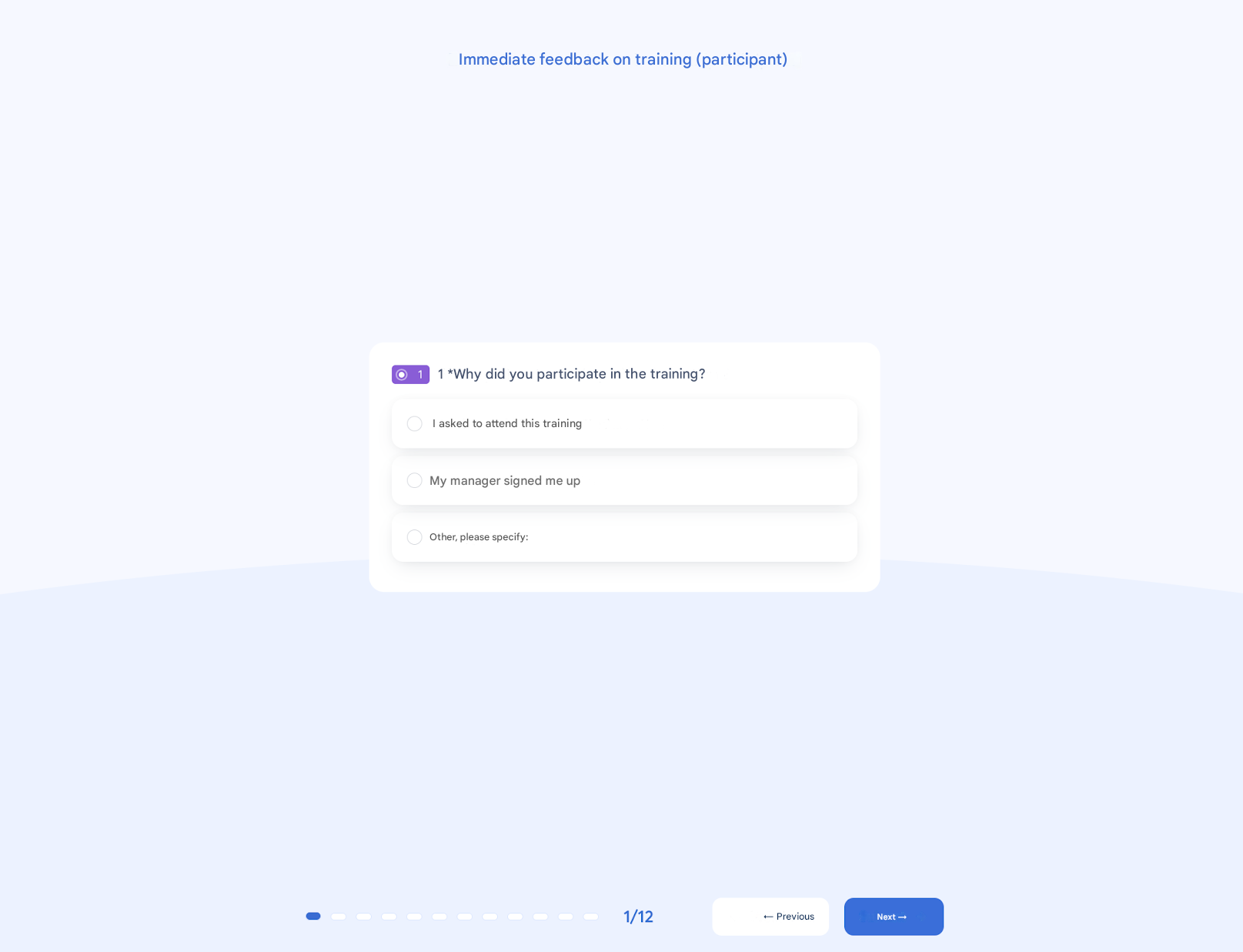
🌀 Classic format
A question carousel, simple and effective.
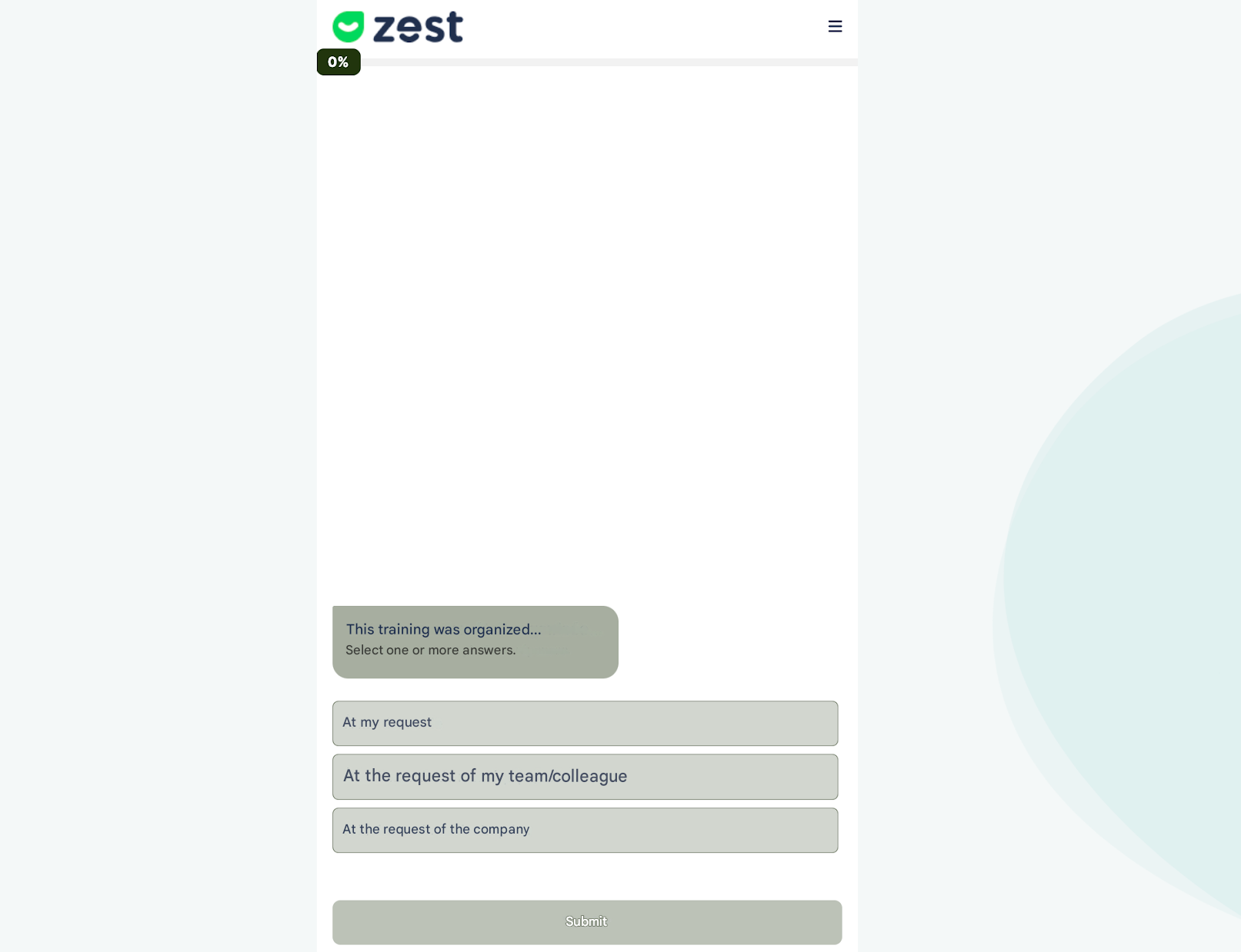
💬 Conversational format
An approach inspired by WhatsApp for a smoother and more engaging experience
✨ How to use a survey from the library?
From the library, hover over a survey to see two options:
- Preview
- Use
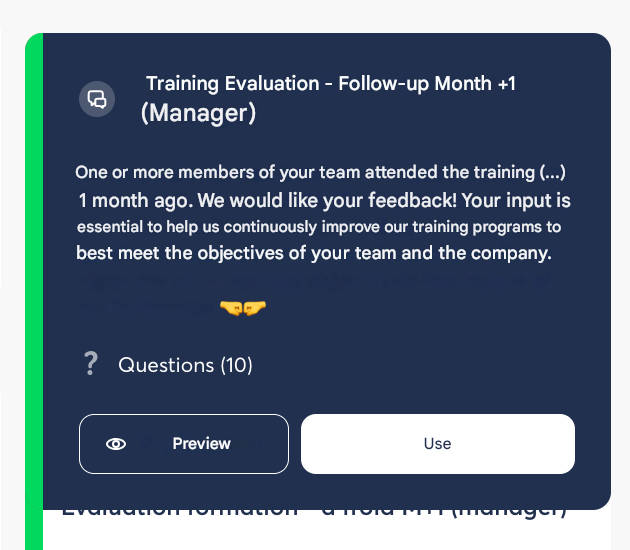
By clicking on “Use”, you will be redirected to the survey configuration page.
You can then customize:
- The title and description
- The available languages
- The recipients and contributors
- And of course, the questions: add, edit, or delete the ones you want.
Once ready, all that’s left is to schedule and then launch your survey 🚀
💾 How to save your own surveys in the library?
Have you created a survey that you want to reuse?
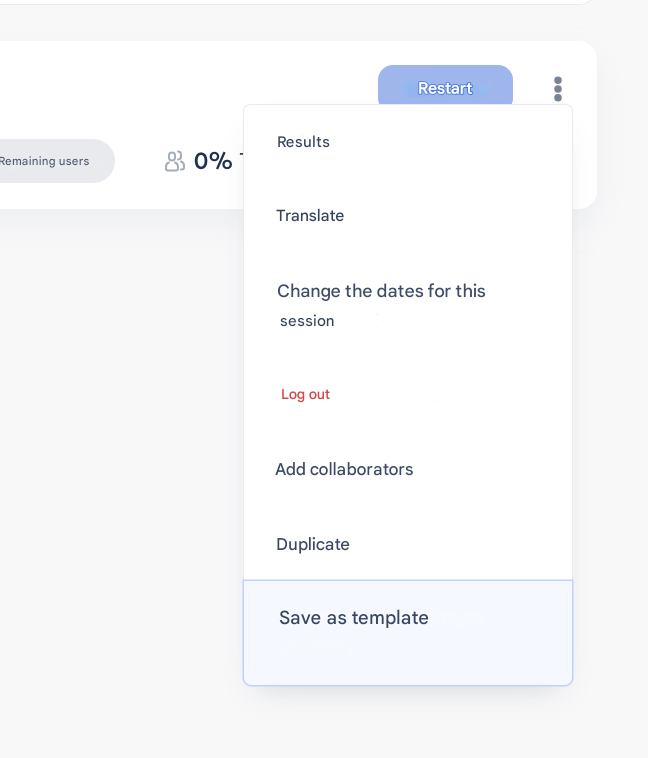
You can save it as a template in your library.
To do so:
- Go to a survey (ongoing, completed, or archived)
- Click on the three dots on the right
- Select “Save as template”
🔁 Duplicate or add a session to a survey
When you create and launch a survey on Zest, it is common to want to reuse it over time.
To do so, two options are available depending on your objective:
👉 Duplicate a survey
👉 Add a new session to an existing survey
📋 1. Duplicate a survey
You can duplicate a survey from the Analyze, Manage, Archived, or Draft tabs.
➡️ Click on the three dots on the right of the selected survey
➡️ Select “Duplicate”
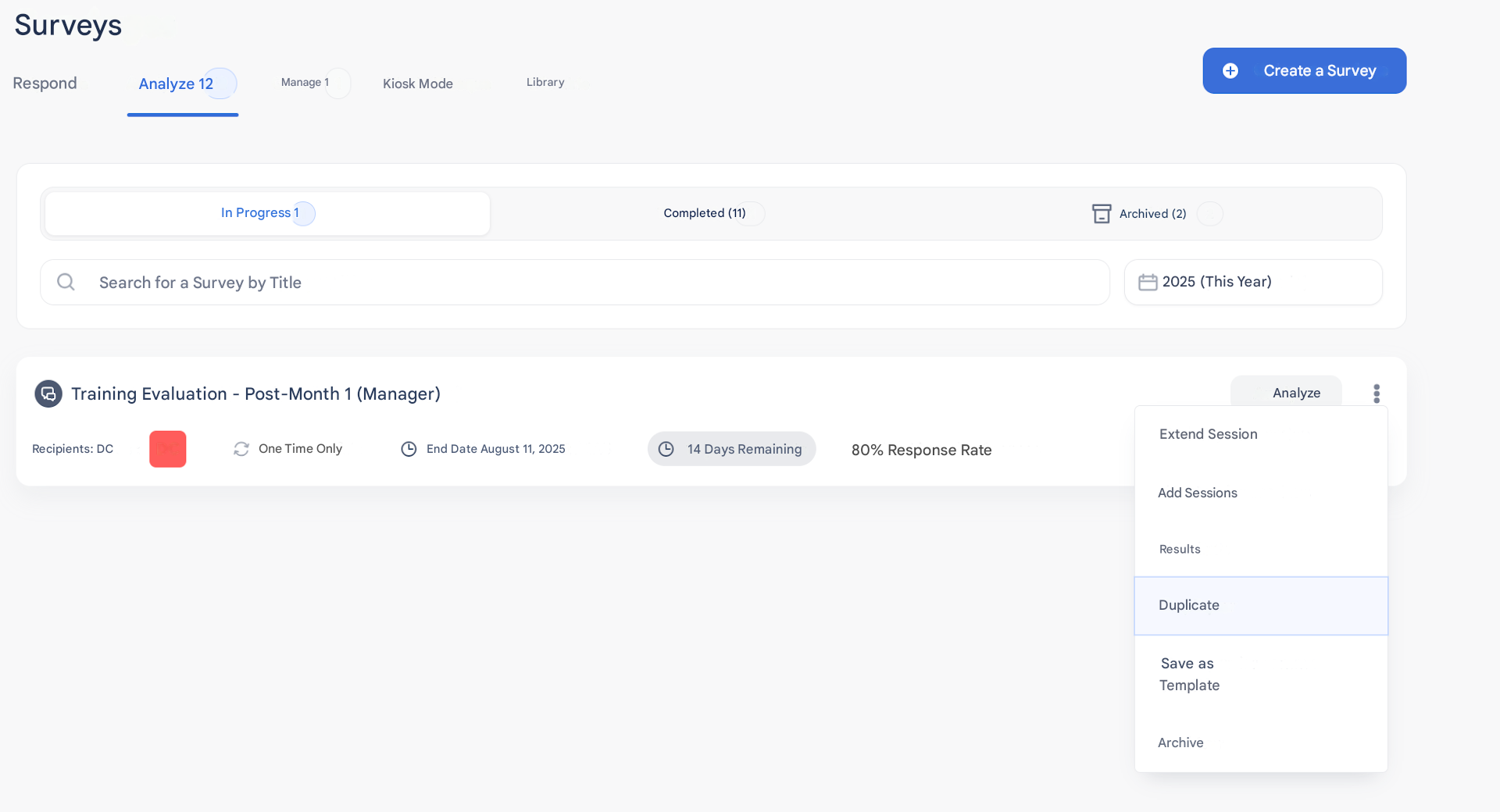
This action creates an exact copy of the survey. You can then:
- Edit the settings (title, description, languages…)
- Change the questions
- Select new recipients
💡 Note: Duplication does not allow you to track the evolution of results from one survey to another.
Each duplication is an independent survey.
🔄 2. Add a session to a survey
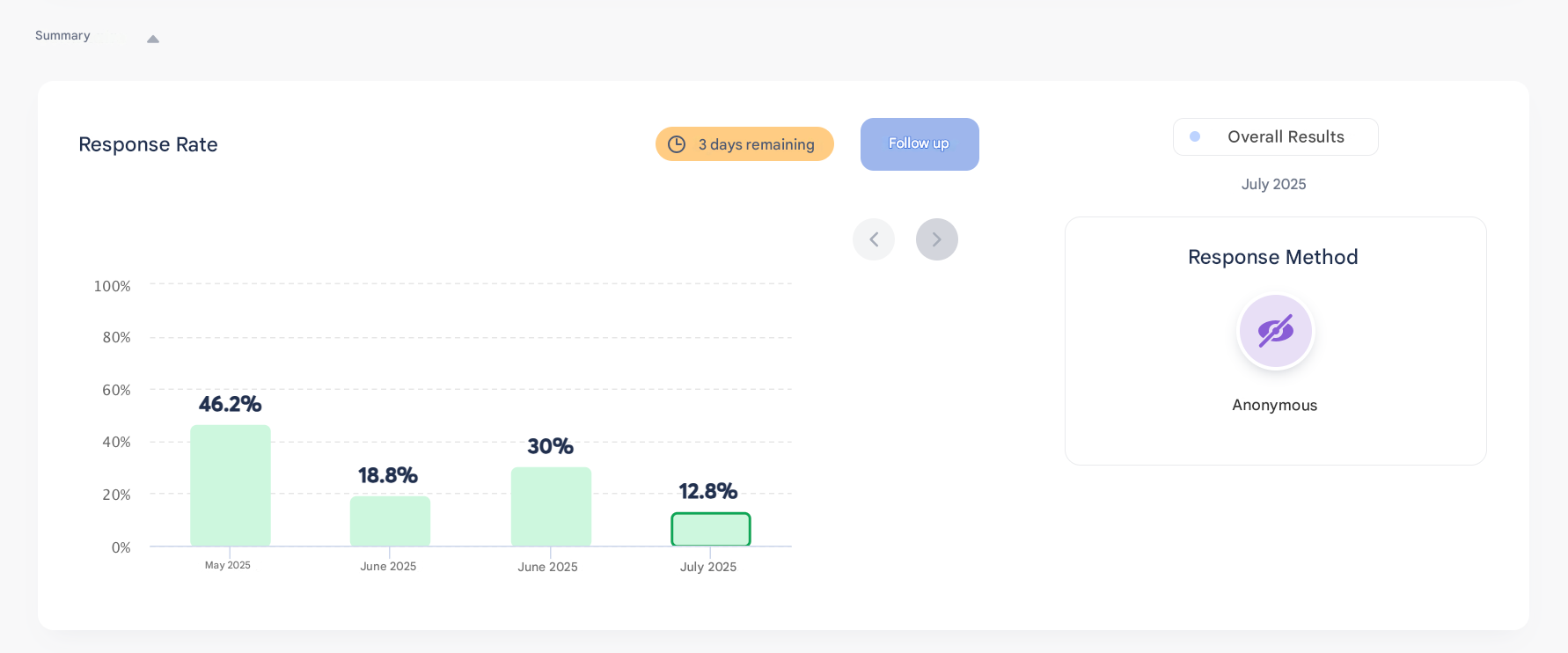
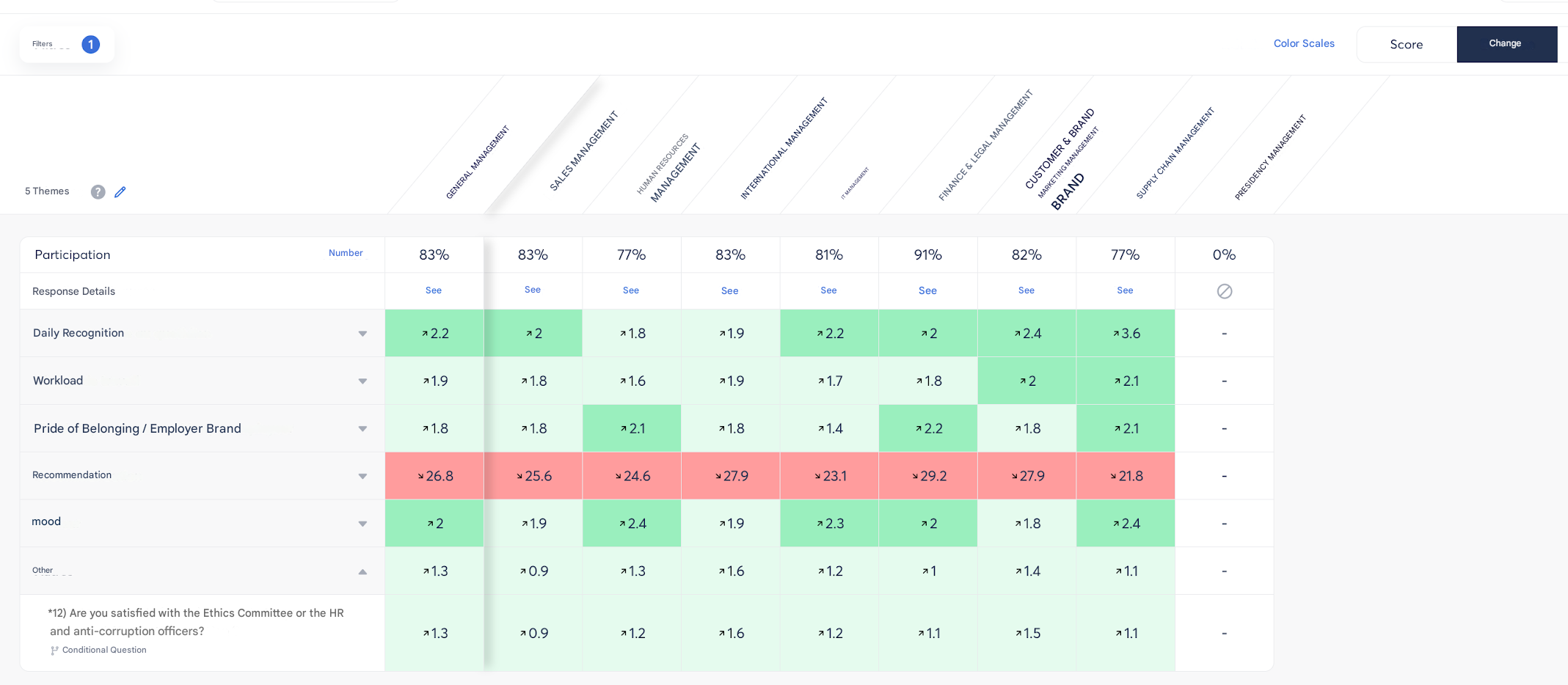
If you want to track the evolution of responses over time (e.g., for a recurring barometer), use adding a session.
➡️ Still via the three dots on the right of your survey
➡️ Click on “Add a session”
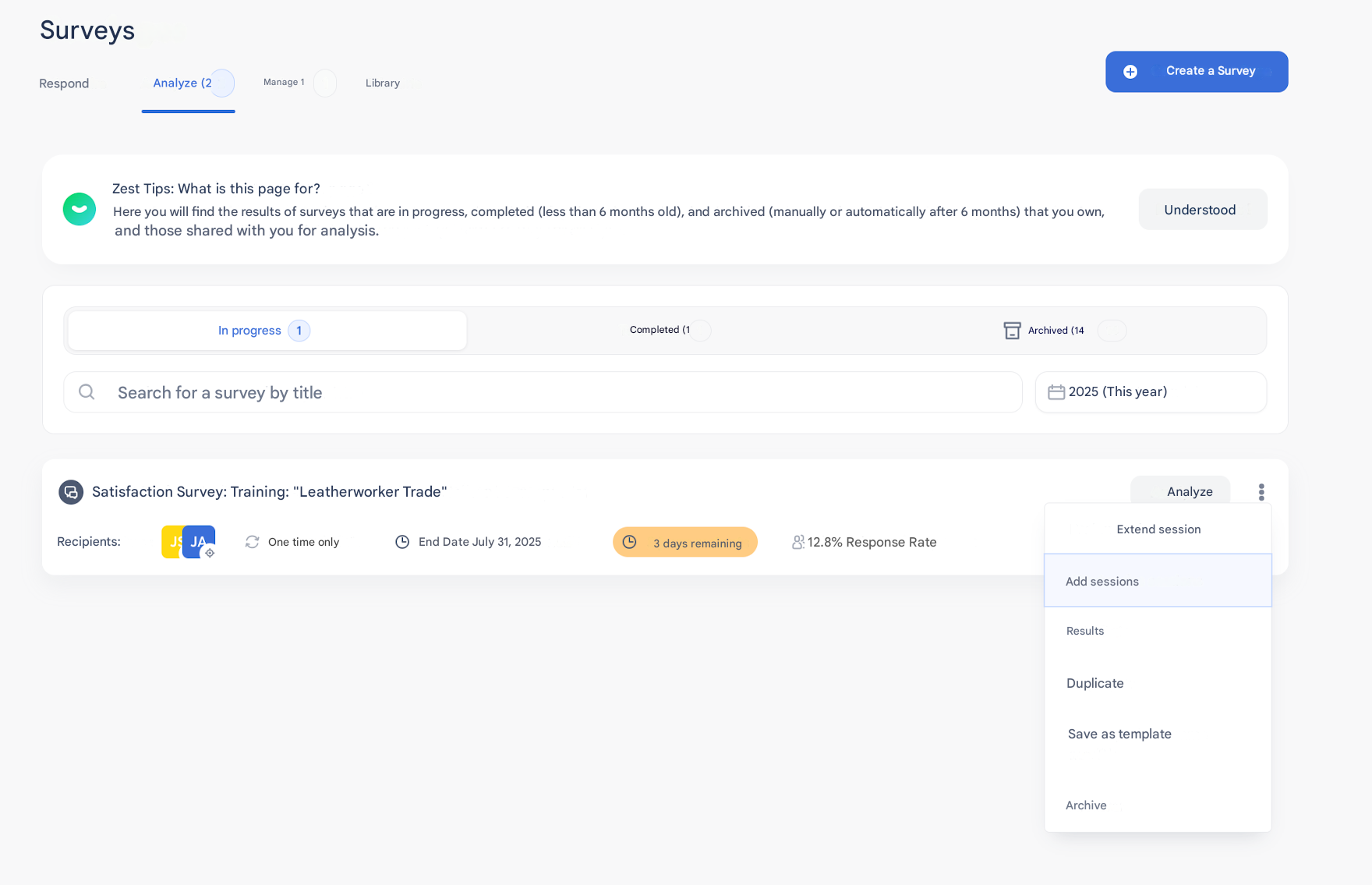
This option allows you to:
- Reuse exactly the same survey
- Compare results from one session to another
- Track trends over time 📈
✅ Ideal for an evolving view on the same topic:
engagement, well-being, managerial vision…
🧠 Summary
| Option | Objective | Result |
|---|---|---|
| Duplicate a survey | Start again from an existing template | New independent survey |
| Add a session | Track the evolution of the same survey | Linked sessions and comparable results |
🗨️ Need help choosing the right option or scheduling your next session?
Your CSM is here to help! 😉