❓ How to Launch a Review in Zest?
Reviews in Zest help structure and standardize your management practices (annual reviews, professional reviews, follow-ups, 360° feedback, etc.), while ensuring a smooth experience for both managers and employees.
🔑 Who Can Launch a Review?
- Super Admins and Admins
→ can create, configure, and launch reviews for the entire organization or targeted populations.
- Managers
→ can launch a review themselves within their visibility scope, if permissions have been defined by the administrator. For this, consult the permissions matrix using the article Configure permissions for a review
📝 Steps to Launch a Review
1️⃣ Access the Reviews Module
- From the left navigation panel, click “Reviews.”
- Then click “Create a review” or go to the “Library” tab to use a template already created by the Zest Lab.
2️⃣ Define the General Settings
Enter the main information:
- Review title
- Description (visible to participants)
- Specify whether a validation step is required for the review

- Define the language in which your review is created, as well as whether a translation is required (if applicable).
3️⃣ Select the Participants
- Define the target populations based on your Smart Org:
- departments,
- teams,
- locations,
- specific users.
⚠️ The quality of the Smart Org is essential to ensure that the right employees and managers are included.
4️⃣ Define Who Will Contribute to the Review
This step allows you to determine who will be able to participate in an employee’s review.
Contributors must complete the review during the contribution period and will therefore be required to set objectives and add comments to the employee’s evaluation.
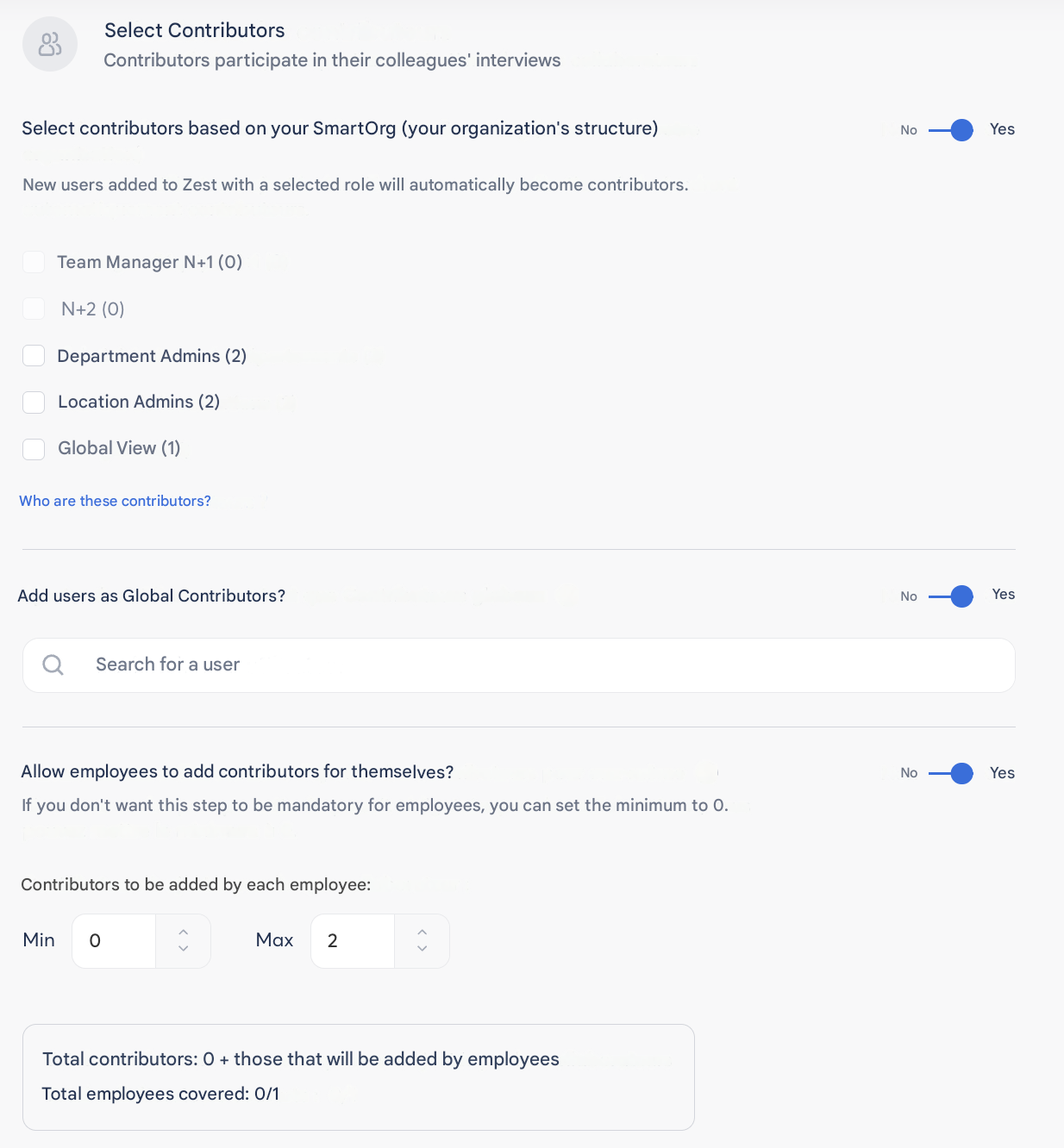
🔹 Contributors Based on the Smart Org
You can define contributors automatically based on your Smart Org structure.
Depending on your configuration, the following may be included:
- The employee’s direct manager (N+1)
- Second-level manager (N+2)
- Department administrators
- Location administrators
- Global visibility roles (e.g., central HR, executive team)
🔹 Global Contributors
You can also designate global contributors.
- These users will have access to all reviews within the selected scope during configuration, regardless of their original role in Zest.
This setting is particularly useful for:
- HR teams,
- People partners,
- or cross-functional roles involved in review campaigns.
🔹 Employee-Initiated Contribution
You can allow employees to add contributors themselves to their review (e.g., project sponsor, functional manager). These contributors provide additional insight for the review.
- If you do not want this step to be mandatory, make sure to set the minimum number of contributors to 0.
- Otherwise, the employee will be required to add at least one contributor to finalize their review.
5️⃣ Define the Review Template
The review template structures the discussion between the employee and the contributor(s).
It can be created from scratch or selected from the Zest template library, then customized according to your needs.
🧱 Structure the Template with Sections
To guide respondents, start by creating sections in your template:

- Name of the theme addressed (e.g., Review of the past year),
- Description to provide context for the section (e.g., Key projects carried out over the past year),
- Option to add an image if needed.
Sections make the review clearer and easier to follow.
❓ Add and Organize Questions
- Select the question type from the left panel,
- Drag and drop it into the template in the appropriate place.
👉 You can modify existing questions if you are using a template from the library.
📊 Scored Questions (KPIs)
Some questions allow you to track indicators during reviews.
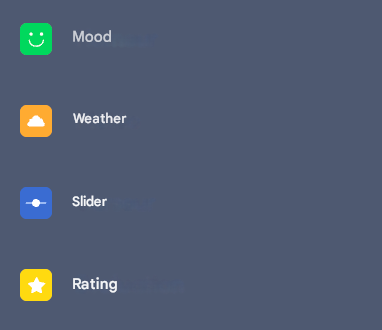
Scored questions include:
- Mood
- Weather
- Slider
- Rating
- NPS
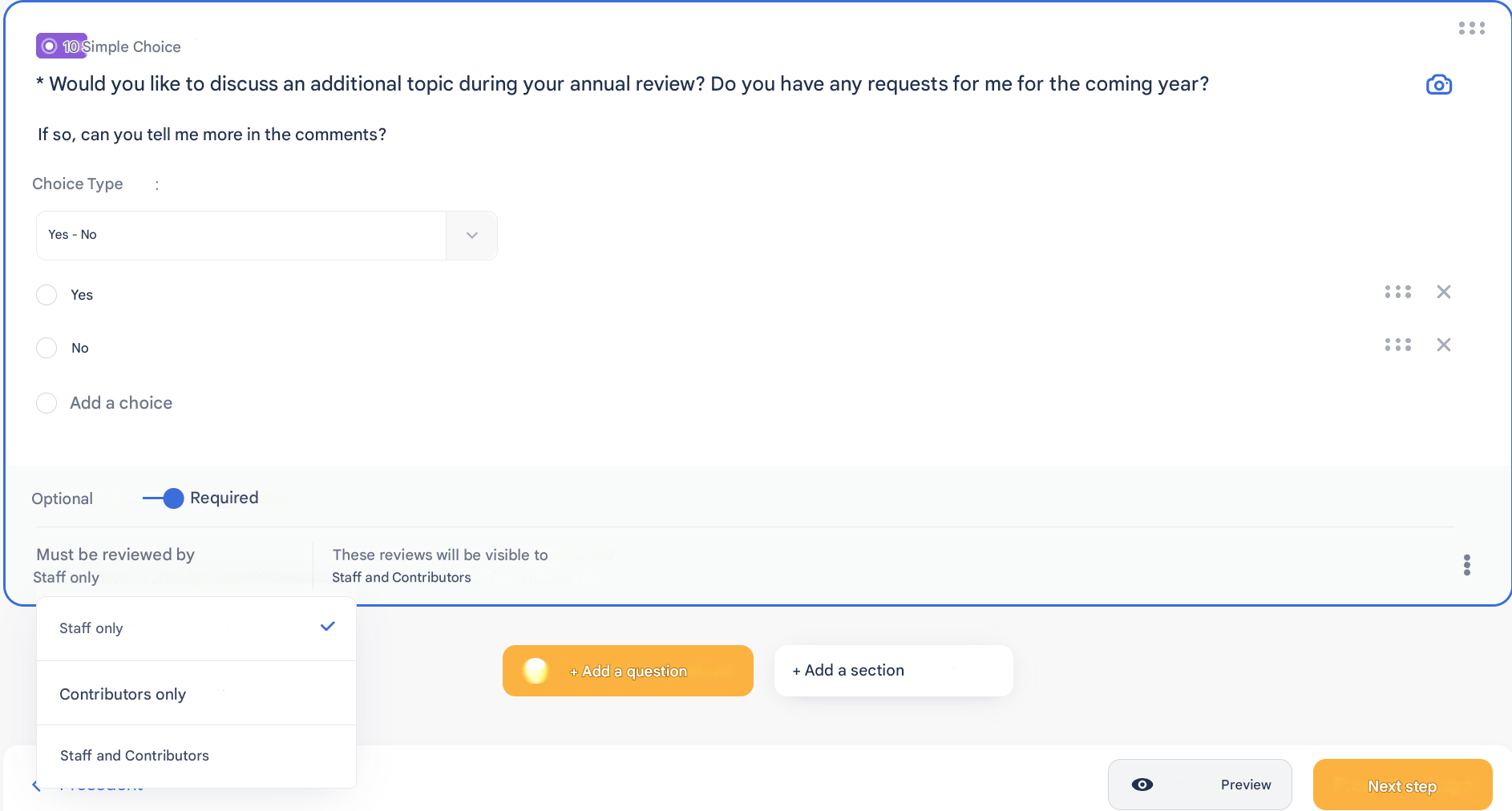
👤 Who Evaluates the Question?
For each question, specify exactly who can evaluate it (settings located at the bottom left of the question):
- only the employee,
- only the contributor,
- or both.
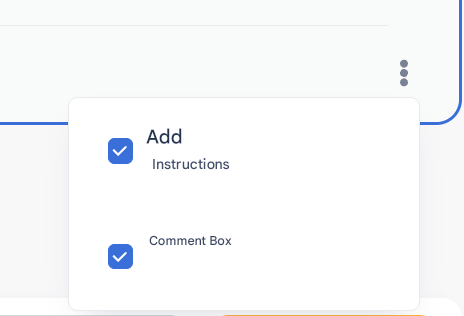
💬 Comments and Instructions
Via the three dots at the bottom right of each question, you can:
- add an instruction,
- enable an optional comment field.
Example:
For a mood question (“Overall, how do you feel in your work?”), the comment field allows the employee to explain their response and highlight strong or weak signals.
👉 Sensitive comments can be flagged in the tool and by email, depending on the permissions defined.
⭐ “Star” Questions (Key Questions)
You can mark a question as a star question (star icon).
This allows you to:
- track the associated KPI across the entire review campaign,
- obtain a company-wide overview, then break it down by population for analysis.
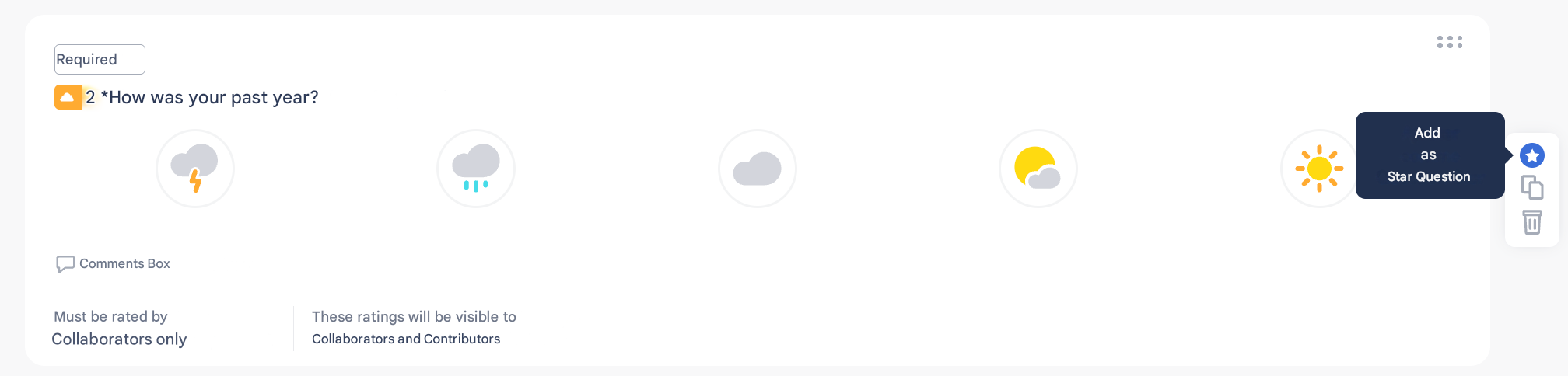
⚠️ The multiple-choice (list) question can only be evaluated by the employee.
🔎 Specific Questions Available in Templates (Objectives, Skills, Training)
In a review template, you can use specific questions to evaluate precise items, particularly objectives.
⚠️ It is important to clearly distinguish between standard objectives and performance objectives, as they function differently.
🎯 Standard Objectives
Standard objectives are used to structure the discussion and follow up on existing objectives, without a performance management logic.
They are available in three types of questions:
- Creation of standard objectives
→ objectives are created only by the employee.
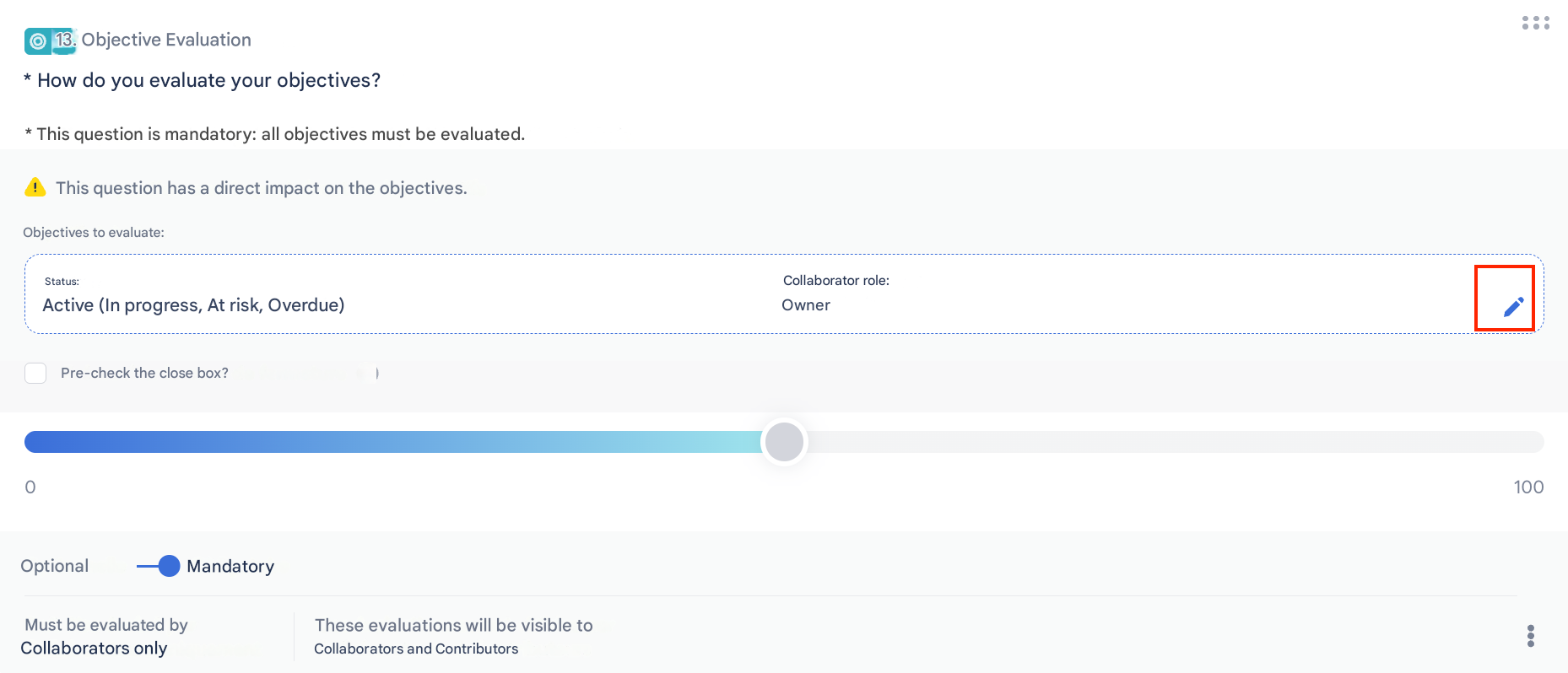
- Evaluation of standard objectives
→ the employee evaluates their own objectives, which they own.
→ via the settings pencil, you can define:
- evaluation statuses (in progress, at risk, delayed, completed),
- tags to evaluate only certain specific objectives.
- Feedback on standard objectives
→ allows employees and contributors to share an opinion or comment.
→ this question has no direct impact on existing objectives.
👉 Standard objectives are primarily intended to support managerial dialogue.
🏆 Performance Objectives
Performance objectives follow a more structured and action-oriented approach.
They are created as part of the review, by the contributor(s), for a defined period.
Simplified Two-Step Process:
1️⃣ Reminder for the Employee
- The employee is informed that their performance objectives will be created.
- They can share their perspective, expectations, or any useful information beforehand.
2️⃣ Creation by the Contributor(s)
- The contributor(s) create the employee’s performance objectives by specifying:
- a title,
- a description,
- a timeframe.
- Single contributor
→ the contributor must create at least one objective to validate their contribution.
- Multiple contributors
→ the first contributor can create as many objectives as desired (within the defined limit) or add a global comment.
→ when the last contributor intervenes:
- if no objective has been created, they must create at least one,
- if objectives already exist, they may add a global comment or skip the question.
👉 In cases with multiple contributors, it is recommended to use the option
“I am not able to respond” to avoid creating irrelevant objectives.
A justification comment will then be required.
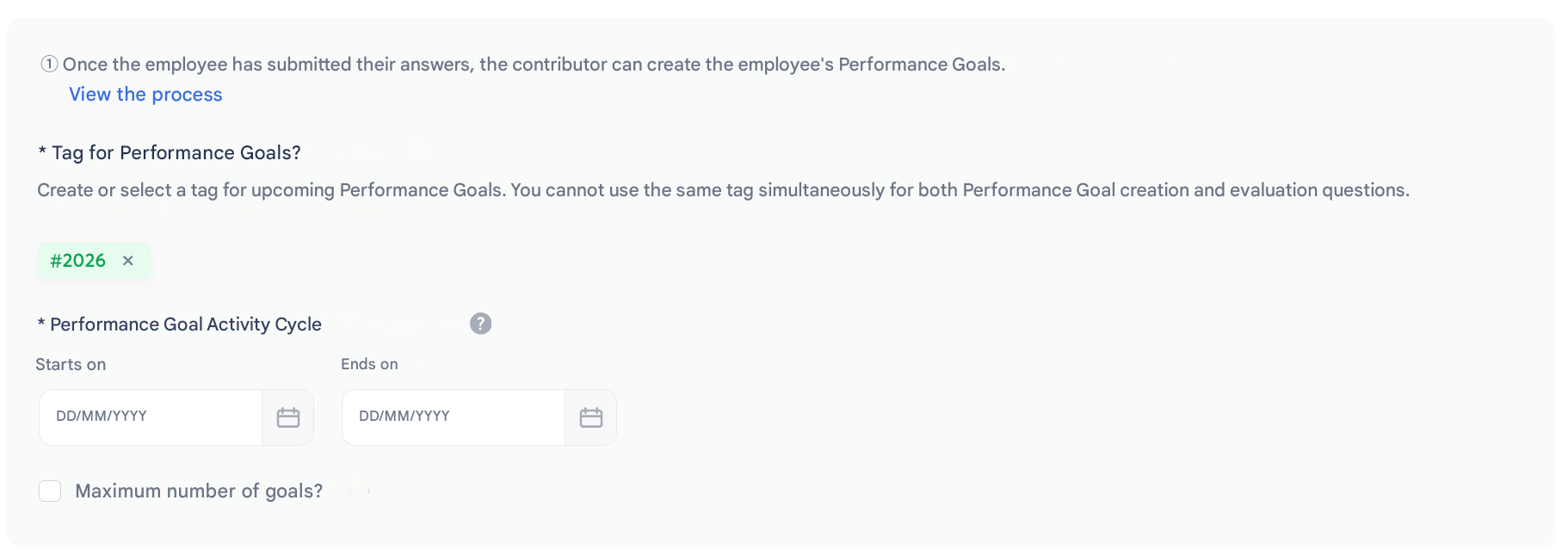
🔖 Performance Objectives Settings
For performance objectives, you can:
- create or select a tag dedicated to performance objectives,
- define an objective period,
- set a maximum number of objectives to avoid overloading the employee.
📘 Learn More
To better understand the difference between standard objectives and performance objectives, see the following article:
Summary Table: Standard Objectives vs Performance Objectives Comparison
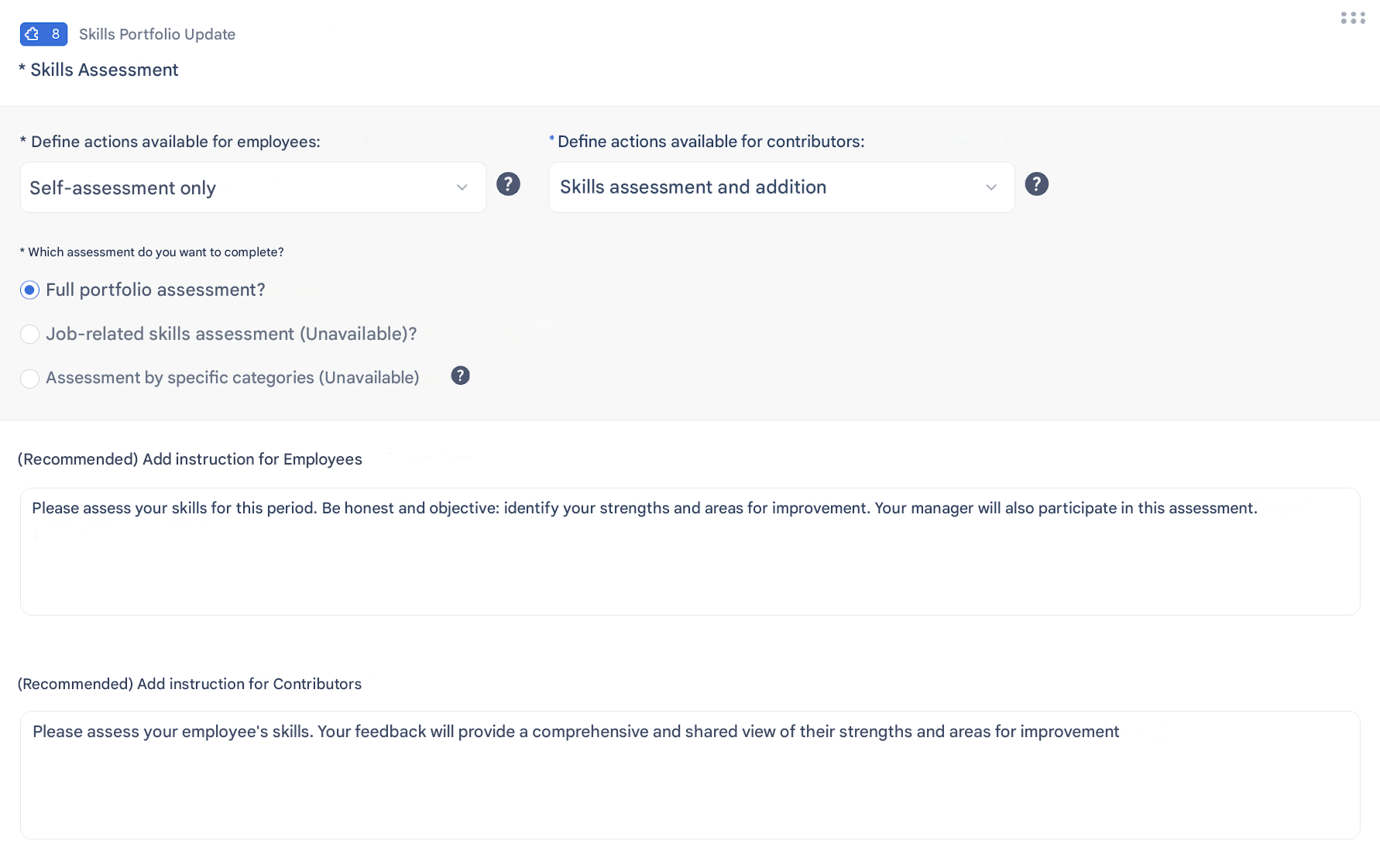
🧭 Updating the Skills Portfolio
This question allows you to evaluate a skills portfolio previously imported into Zest.
Possible settings:
- For the employee:
- self-assessment,
- view only.
- For the manager:
- evaluate,
- add,
- evaluate + add.
- Evaluation scope:
- full portfolio,
- job-related skills,
- specific categories.
You can customize a dedicated instruction for both the employee and the manager.
🎓 Training Requests
This question collects training needs:
- free-text entry by the employee,
- or selection from a list (multiple choice with possible limits).
Process:
- The employee submits their requests,
- Contributor(s) assign a priority (1 to 3) and a status,
- HR validates the requests.
👉 Requests can be viewed in Zest > Skills > Training and exported.
📘 Training Evaluation
This question displays training sessions that have been bulk imported into Zest.
It allows evaluation of completed training actions.
👉 To activate this feature, contact your CSM or support at [email protected]
🌍 Managing Review Translations
Once the review template is defined, you can access the Translations section (if the option is enabled).
- ✅ Green checkmark: translation validated by a Zest translator.
- 🟢 Green checkmark with a “G”: automatically generated translation.
- You can click on the text to:
- review it,
- edit it,
- then save your adjustments.
- You can click on the text to:
👉 By clicking “Next step,” you must then define the default language of the review.
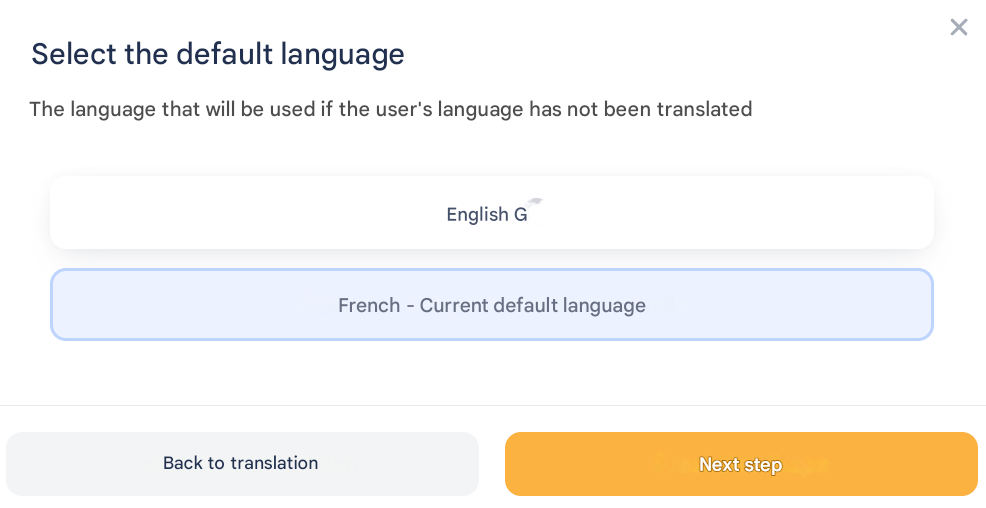
If an employee uses Zest in a language that has not been translated in your template, the review will automatically be displayed in the default language.
6️⃣ Final Configuration
✅ Once Launched
- The concerned employees and managers automatically receive a notification (email and/or app).
- The review is accessible directly from their Zest workspace.
- The response, contribution, and validation periods follow one another automatically according to the configured settings.
- Notifications and reminders target only those who have not yet completed their action.
- Contributions, validations, and final comments are recorded and can be viewed on the employee profile, depending on the permissions defined.