How do automatic reminders work?
Automatic reminders are follow-ups you schedule in advance, while you build your campaign. They go only to recipients who haven’t responded yet, on the days and at the times you chose. You don’t need to go back into the campaign to send them: they go out automatically.
🧱 Before you start
Which modules? Automatic reminders are available for all four campaign types: Survey, Engageometer, Review and 360° Feedback. The screen works the same way in all of them.
This article uses a Survey as its example, because a Survey has a single period. Reviews and 360° Feedbacks have several phases, and each phase has its own reminders.
👉 For those campaigns, also see: How do automatic reminders work for Reviews and 360° Feedbacks?
How many reminders? You can schedule up to 50 reminders per campaign (or per session for a recurring campaign). You can schedule one reminder per day at most, and only within the campaign period.
🔐 Prerequisites – Access rights
To set up automatic reminders, you must be the campaign creator or the owner of the survey or Engageometer.
🚀 Scheduling your reminders
Step 1 – Open the reminders screen
You can open the Automatic reminders screen in two ways:
- When you create the campaign or survey: the creation flow has four steps (Define › Build › Configure › Summary). The Automatic reminders section is in the Configure step.
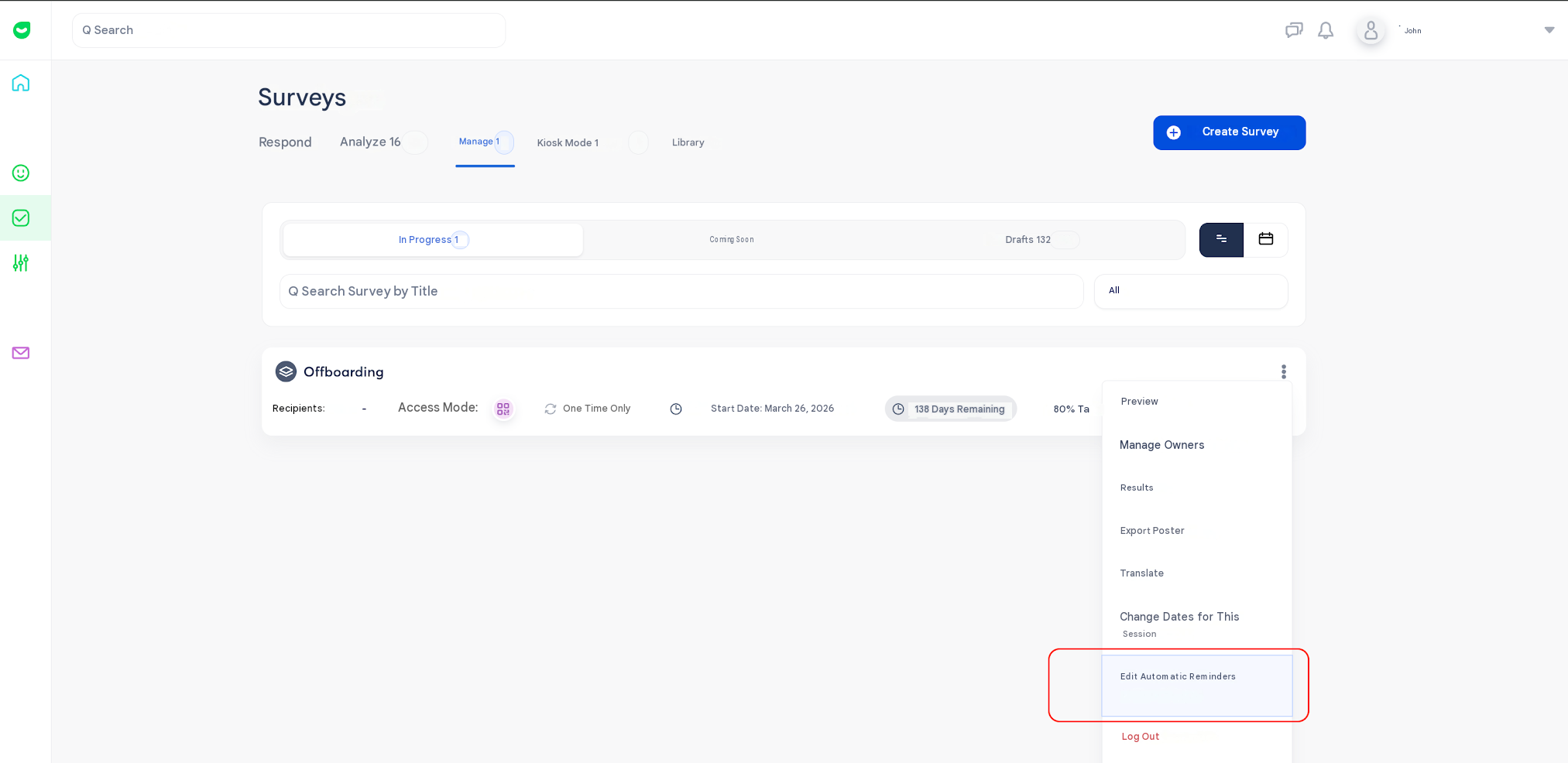
- On a campaign that has already launched: click Surveys > Manage, then Edit automatic reminders.
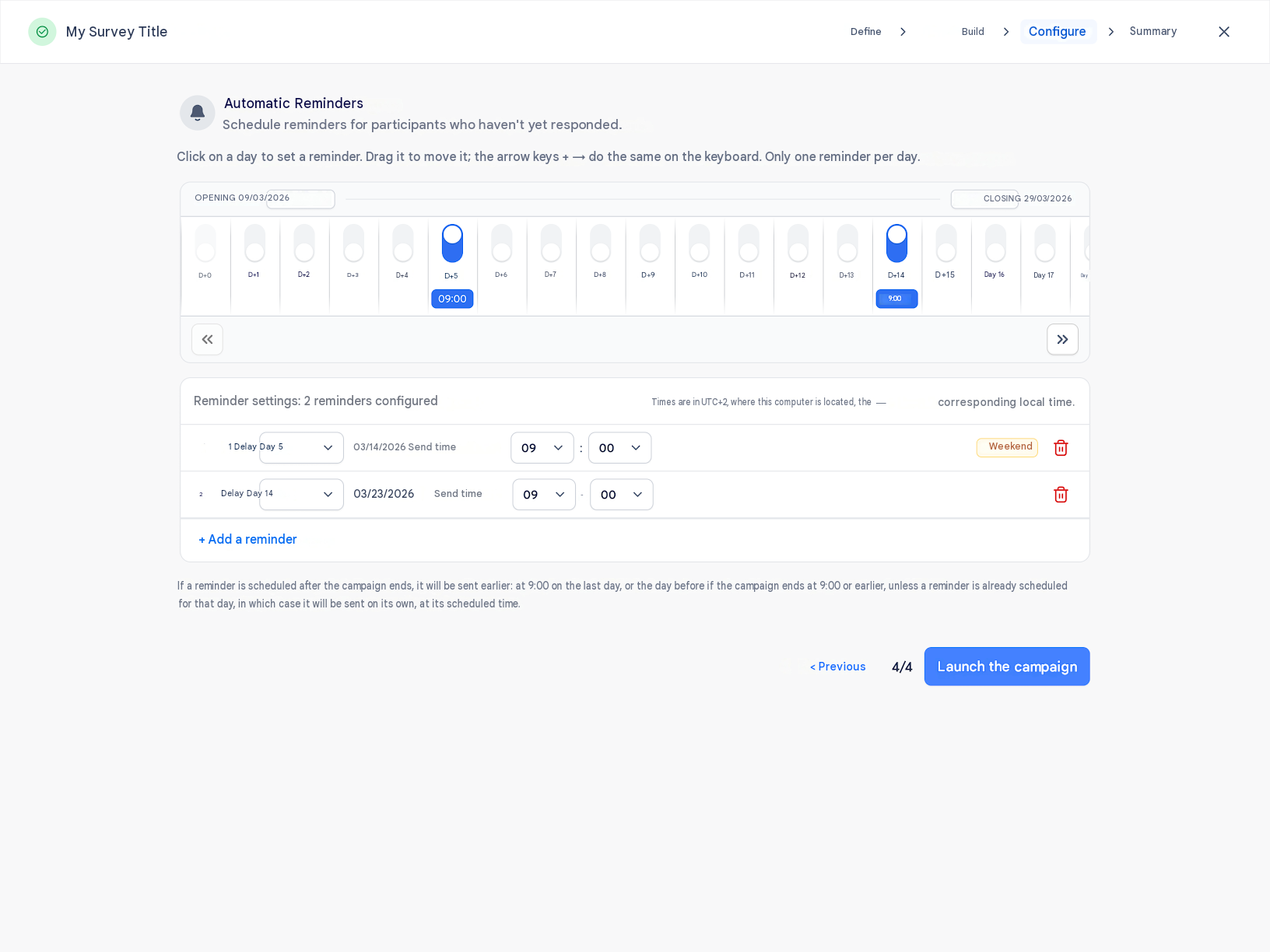
The screen has two areas, and both show the same reminders:
- The timeline, at the top: one column per day, from the campaign’s Opening to its Closing.
- The Reminder settings table, below it: one row per reminder, in chronological order.
Step 2 – Place your reminders on the timeline
- Click the day you want to send a reminder. The reminder appears on the timeline with its send time.
- To move a reminder, drag it to another day. You can also use the ← and → keys on your keyboard.
- To remove a reminder, click that day again.
- If your campaign is long, use the « and » buttons below the timeline to scroll through it.
Days are shown as D+X, the number of days after the period starts. You can’t select the opening day (D+0), so the earliest possible reminder is on D+1.
Step 3 – Set up each reminder in the table
Each reminder you place on the timeline also appears in the Reminder settings table. For each row, you can:
- Change the Delay (D+X) using the drop-down list. The matching date is calculated automatically and cannot be edited.
- Choose the Send time (hours and minutes).
- Delete the reminder by clicking the trash icon.
To add a reminder directly from the table, click + Add a reminder. A counter at the top of the table shows how many reminders are set up (e.g. “2 reminder(s) configured”).
Step 4 – Check the alerts
Zest flags some situations with orange badges in the table:
| Badge | When does it appear? |
|---|---|
| Weekend | The reminder is sent on a Saturday or Sunday. |
| Less than 48h apart | Two reminders are scheduled less than 48 hours apart. |
| Out of phase | A reminder falls outside the period because the campaign dates were changed. |
The Weekend and Less than 48h apart badges are for information only. They don’t stop you from saving or launching the campaign, so it’s up to you whether to move the reminder.
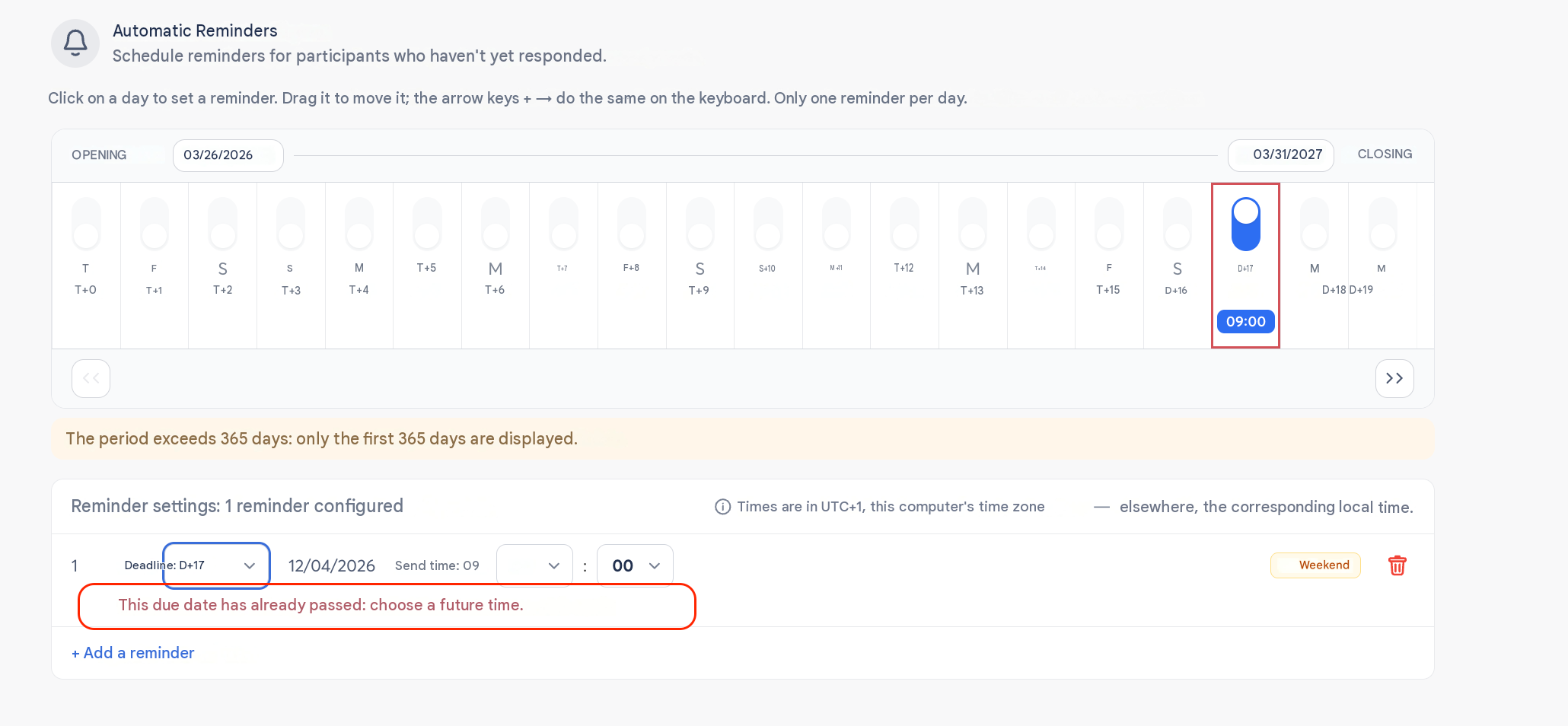
An Out of phase reminder must be fixed: it blocks the campaign launch until you move or delete it. Zest also flags reminders that fall on a public holiday.
Step 5 – Check the Summary and launch
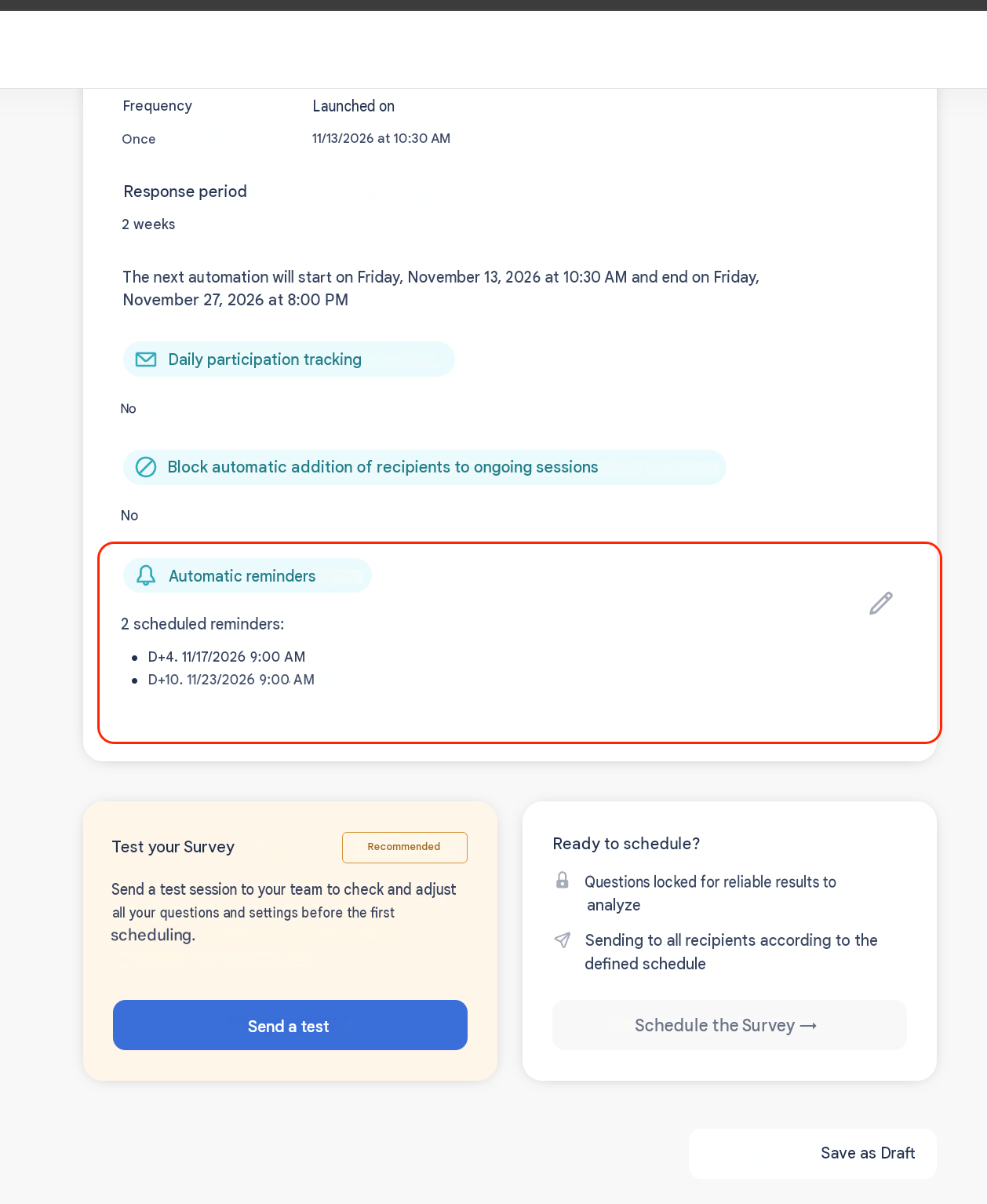
- Go to the Summary step. An Automatic reminders section lists your reminders in the format
D+X · DD/MM/YYYY · HH:MM.
- Click Launch campaign.
⚙️ Rules to know
The send time uses your computer’s time zone. You see and enter times in your computer’s time zone, and a note in the table header reminds you of it (e.g. “Times in UTC+2, this computer’s time zone”). Each reminder goes out at the same moment for all recipients.
For example, a reminder set for 09:00 from Paris goes out at 09:00 Paris time for everyone. A user logged in from Montreal will see it displayed as 03:00.
What the screen won’t let you do. You can’t place two reminders on the same day or place a reminder outside the period.
What blocks the launch. If a reminder becomes invalid later on (for example, because you shortened the period), you must fix it before launching the campaign. You can save a draft at any time, because this check only applies at launch.
Reminder scheduled after the campaign ends. If a reminder is scheduled after the campaign ends, it’s sent earlier instead: at 09:00 on the last day, or the day before if the campaign ends at or before 09:00. If another reminder is already scheduled for that day, only that one is sent, at its own time.
Reminder not sent for technical reasons. If a reminder couldn’t go out at the scheduled time, it’s sent as soon as possible on the same day. It’s never postponed to the next day, so no one receives a duplicate.
📊 Tracking your reminders
Once your Survey or Engageometer is live, your reminders appear in three places:
| Where? | What you see |
|---|---|
| Summary step | One row per reminder: D+X · DD/MM/YYYY · HH:MM. |
| Campaign information panel (results page) | An X/Y sent badge, the full list of reminders and an Edit link. |
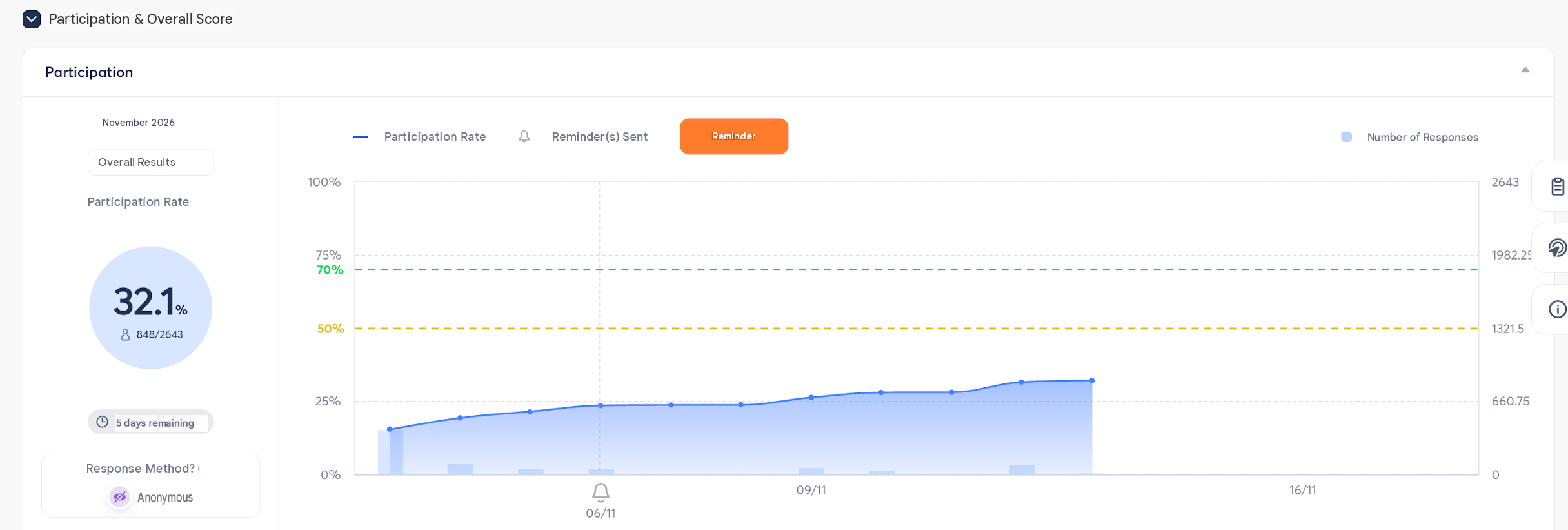
| Participation graph (results page) | A dotted vertical line for each past reminder. Hover over it to see how many responses came in after that reminder. |
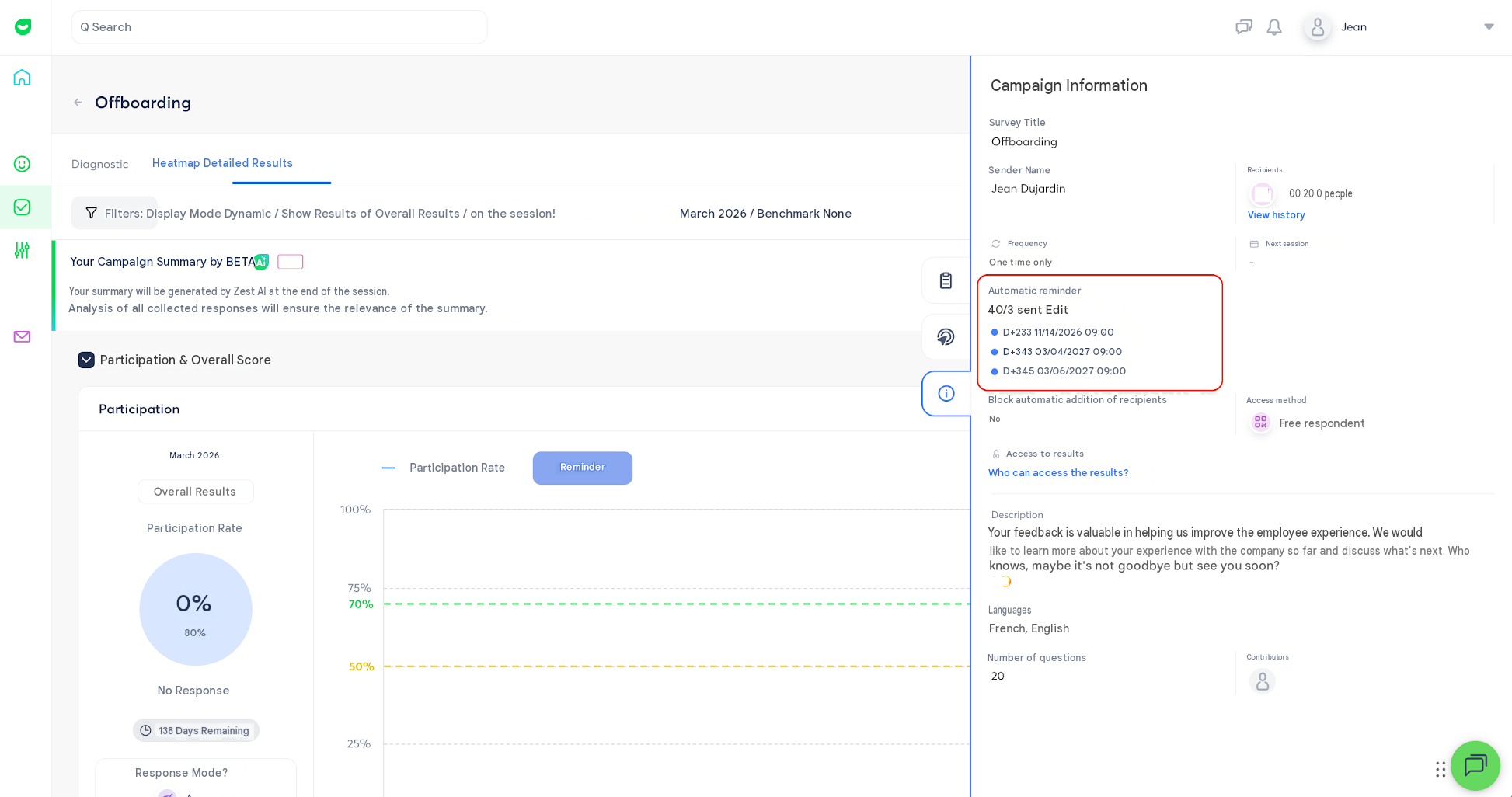
The participation graph shows how well each reminder worked, so you can adjust your approach from one campaign to the next.
✏️ Editing reminders after launch
You can edit your reminders at any time from the campaign or survey menu › Edit automatic reminders.
- Reminders that have already been sent become read-only and show a Sent badge.
- Upcoming reminders can still be edited or deleted, even if they go out in less than an hour.
- You can’t add a reminder on a past date or move one there. If you try, this message appears: “This date has already passed: choose an upcoming time.”
🔁 Recurring campaigns and Library templates
Recurring campaign. The reminders you set at creation apply automatically to every new session. If you edit them while the campaign is running, Zest gives you two options:
- This session: the change applies to the current session only.
- Future sessions: the change becomes the new default.
Library templates. When you save a campaign as a template, its reminders are kept: their number, their D+X delay and their send time. Dates aren’t saved. They’re recalculated for each new campaign created from the template, and you can still edit the pre-filled reminders.
📧 Automatic reminders and manual reminders
The Remind button is still available at all times. Both types of reminder go to the same recipients, with the same emails, through the same channels.
- One reminder per person per day. If an automatic reminder has already gone out that day, clicking Remind won’t send a second one.
- Upcoming automatic reminder. If an automatic reminder is scheduled within the next 48 hours, Zest warns you before sending. You can then click Cancel or Send anyway.
👉 To learn more, see: Managing reminders
📱 Who gets reminded, and through which channel?
Only people who haven’t responded yet receive a reminder. The following are never reminded automatically:
- suspended or deleted accounts;
- recipients who can’t be reached through any channel.
Reminder emails don’t change and use the same variables: {{prenom}}, {{lien}}, {{campagne}}, {{date_fin}}.
Reminders go out through the channels each module already uses:
| Module | Channels |
|---|---|
| Survey · Engageometer | Email, mobile app, in-app notification in Zest (bell), Slack and Teams if the integration is active |
| Review | Email, mobile app, in-app notification in Zest (bell), Slack and Teams if the integration is active |
| 360° Feedback | Email, mobile app, Slack (no in-app notification in Zest, no Teams) |
🔄 What changes for your existing reminders (Survey and Engageometer)
The “Remind N days before the end” setting is going away, but you won’t lose anything. Every survey that used it gets a reminder scheduled at the same time as before. You’ll find it on the new screen, where you can move, edit or delete it.
👉 For Reviews and 360° Feedbacks, see: How do automatic reminders work for Reviews and 360° Feedbacks?
🔗 Further reading
👉 See: How do automatic reminders work for Reviews and 360° Feedbacks?
👉 See: Managing reminders
👉 See: Setting up and launching a survey
👉 See: How do I create and launch an Engageometer?
👉 See: How do I use the survey library or duplicate an existing survey?