📊 Exporting Campaign Results
Zest offers several ways to export results, allowing you to analyze your campaign data or keep an individual copy of completed reviews.
📥 Exporting Consolidated Campaign Results
You can export a consolidated Excel file containing the results of an entire campaign from your Visibility Scope.
To do so:
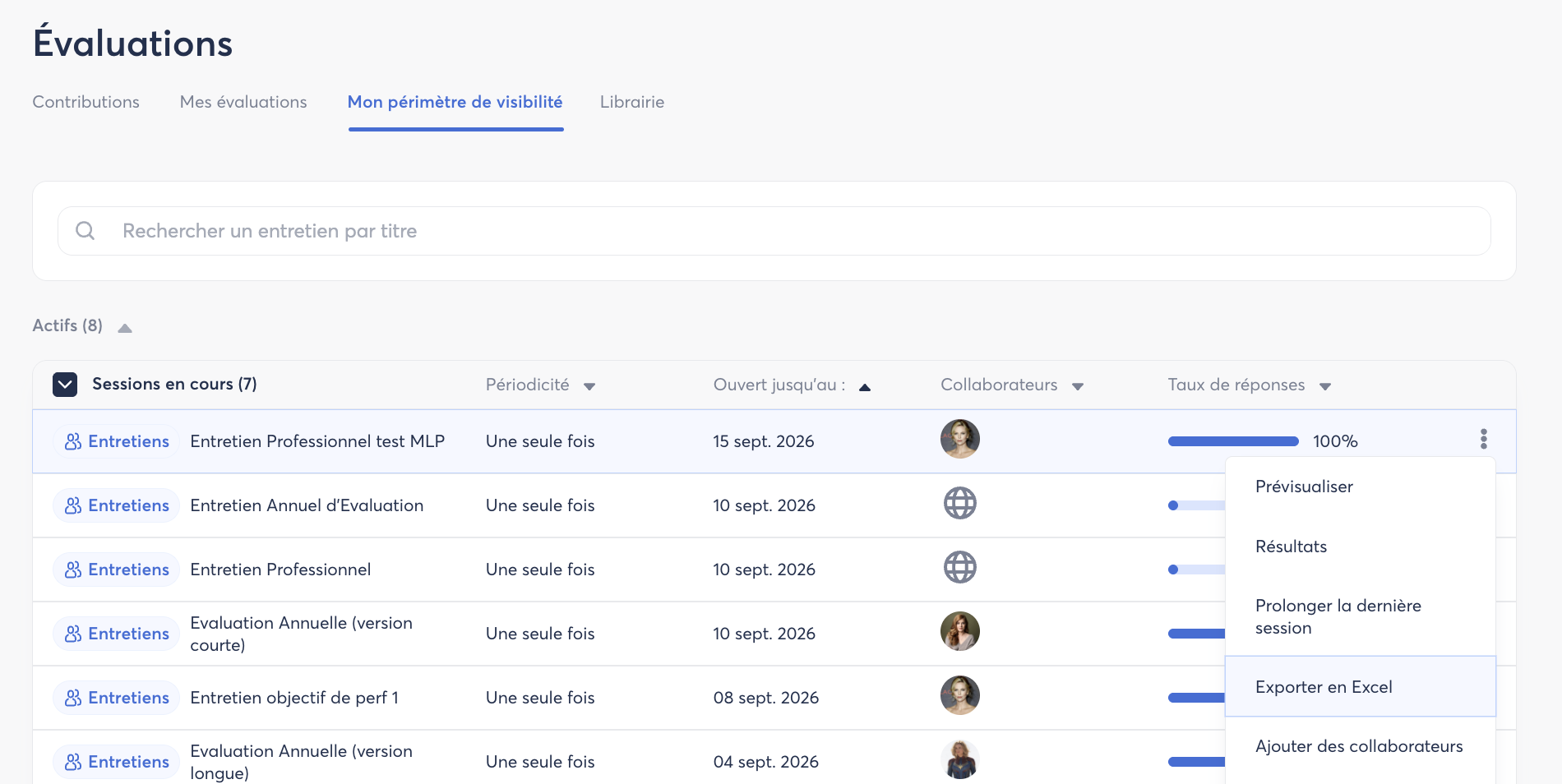
- Go to Evaluation > My Visibility Scope.
- Find the campaign you are interested in.
- Click the three dots ⋮ to the right of the campaign.
- Select “Export to Excel”.
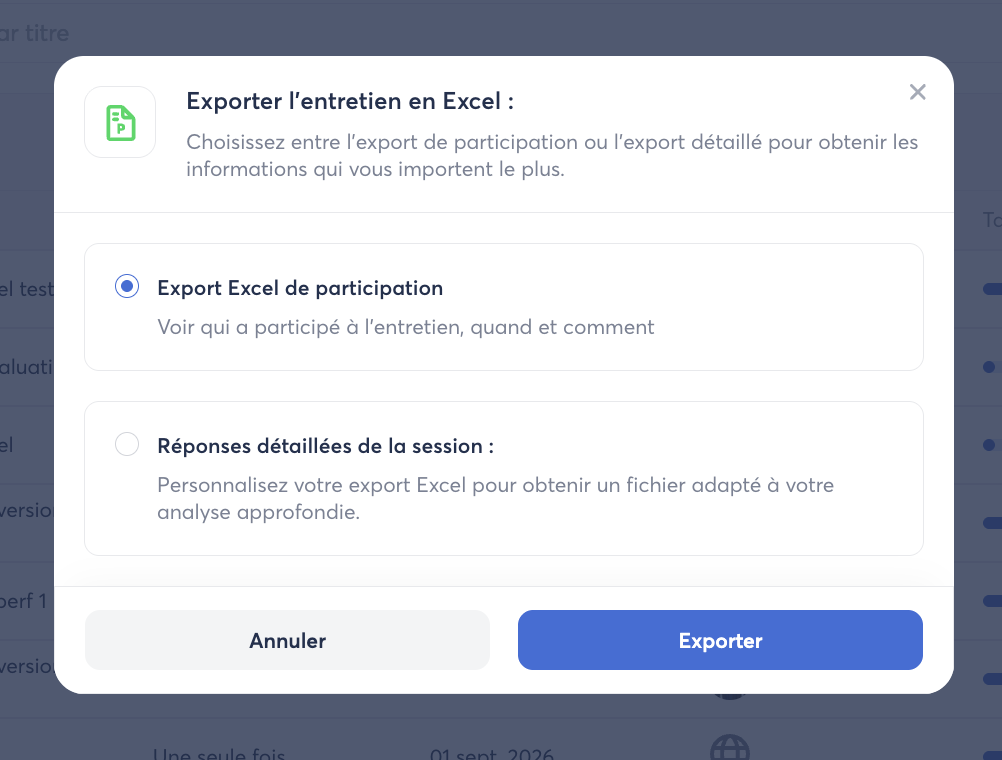
You will then have two export options:
- Participation rate: exports only data relating to participation in the campaign.
- Detailed results: exports the detailed results of the session.
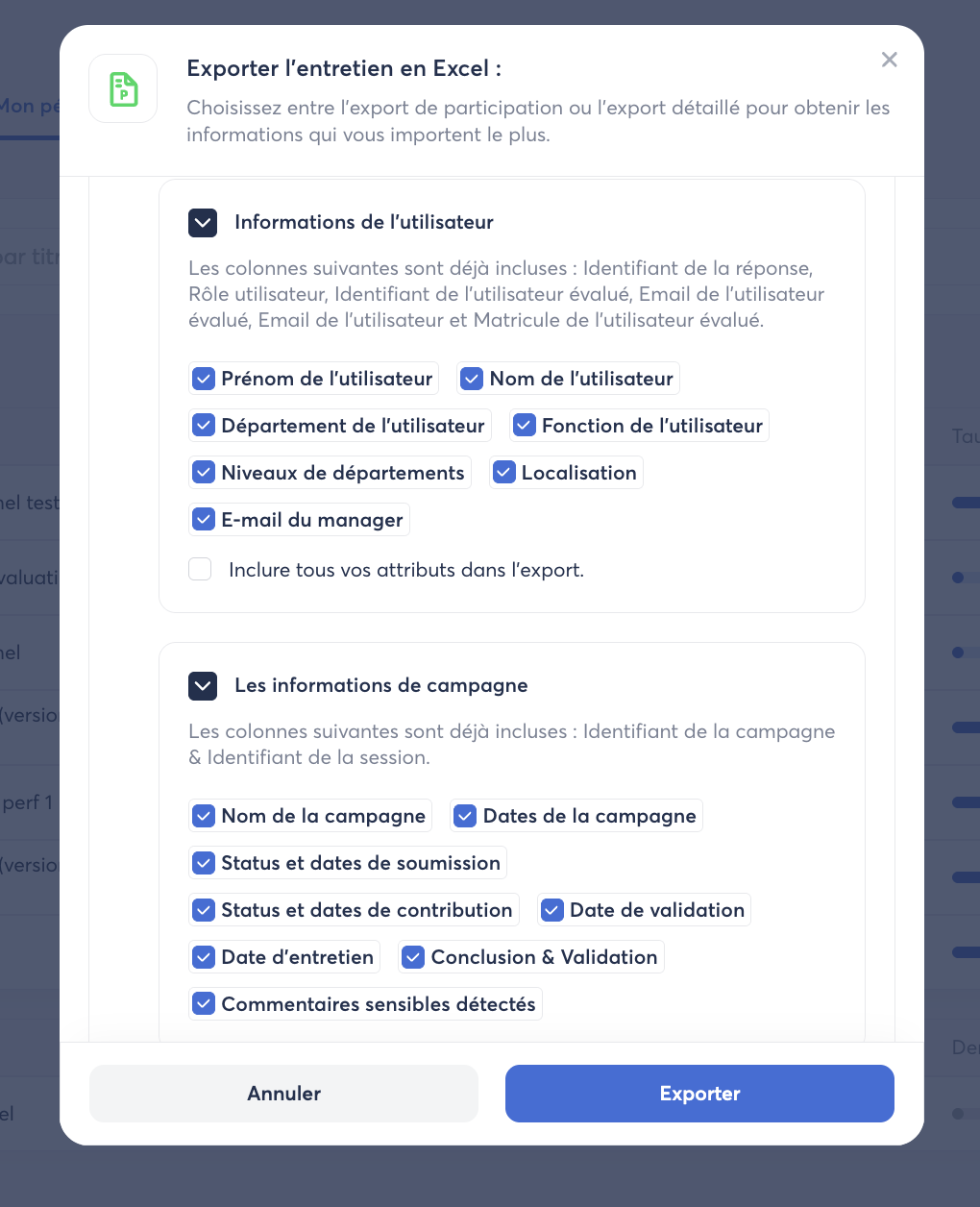
📊 Customizing the Detailed Export
When selecting the detailed export, you can customize the elements you want to include in your Excel file and select only the data that is relevant to you.
The Excel export is then organized into several tabs, allowing you to analyze the different elements of the campaign.
You will find, in particular:

- A Participation tab
- A tab containing the simple questions

Each category of data is accompanied by a “Notice” tab, which helps you understand the content of the export and reminds you how the different types of data work.
💡 Tip: The detailed export is particularly useful for carrying out additional analyses in Excel or keeping a complete overview of your campaign results.
📄 Exporting an Individual Review as a PDF
You can also export individual reviews in PDF format.
To do so:
- Go to the relevant campaign.
- Find the employee whose review you want to export.
- Click on the employee’s review.
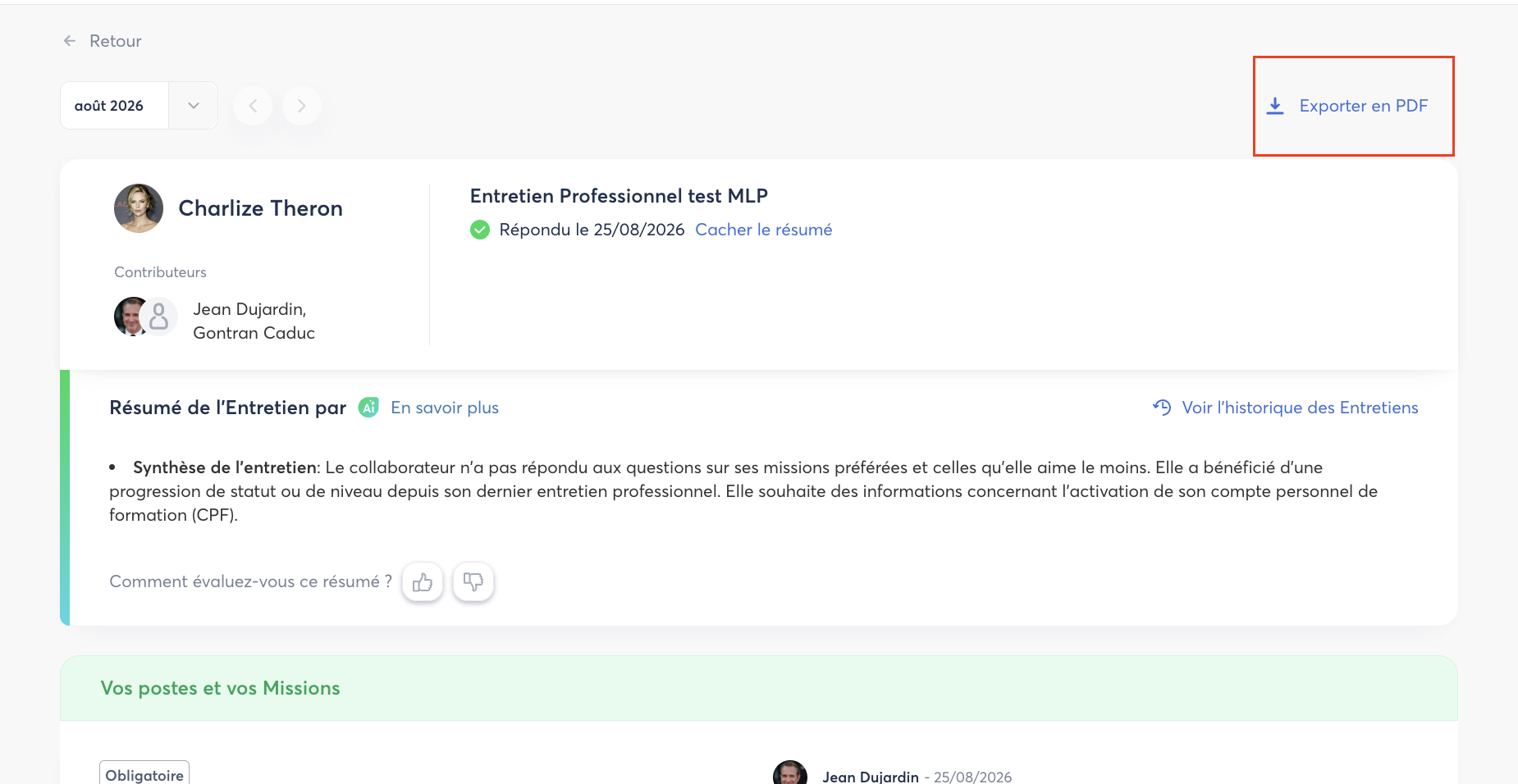
- From the review page, use the “Export to PDF” option.
This export allows you to keep or share a complete version of the individual review.