📊 Managing Your Campaigns from “My Visibility Scope”
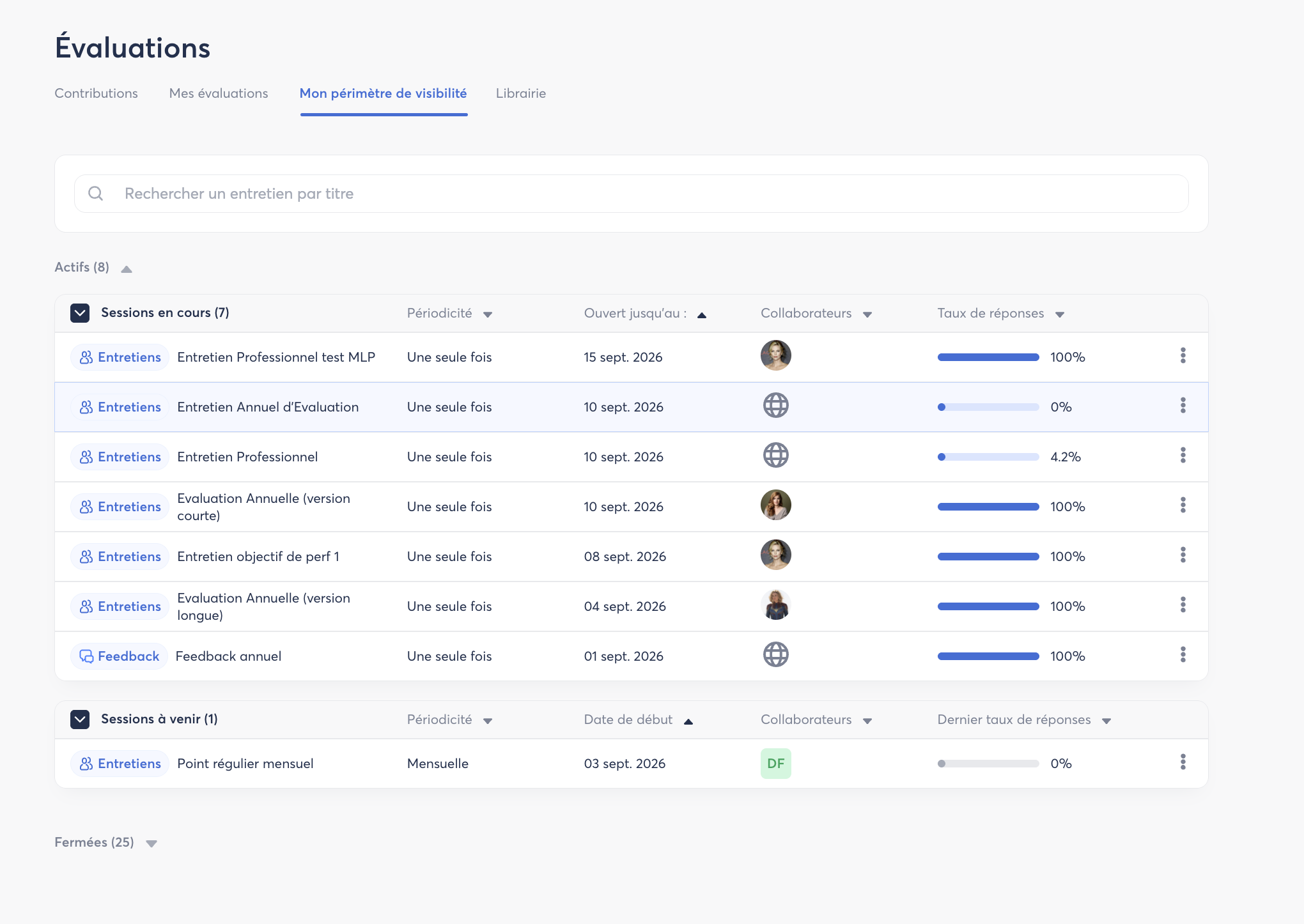
As a Zest administrator or campaign owner, you have access to a “My Visibility Scope” tab within the Evaluation module.
This section allows you to centralize the management and monitoring of the campaigns you have access to, whether they are ongoing, upcoming, or completed.
🔎 Viewing Campaign Information
In the “My Visibility Scope” table, you will find several pieces of information providing an overview of each campaign:
- Campaign Title
- Frequency
- Opening date
- Scope concerned
- Campaign Progress rate
This information allows you to quickly monitor the progress of your campaigns.
⚙️ Management Actions
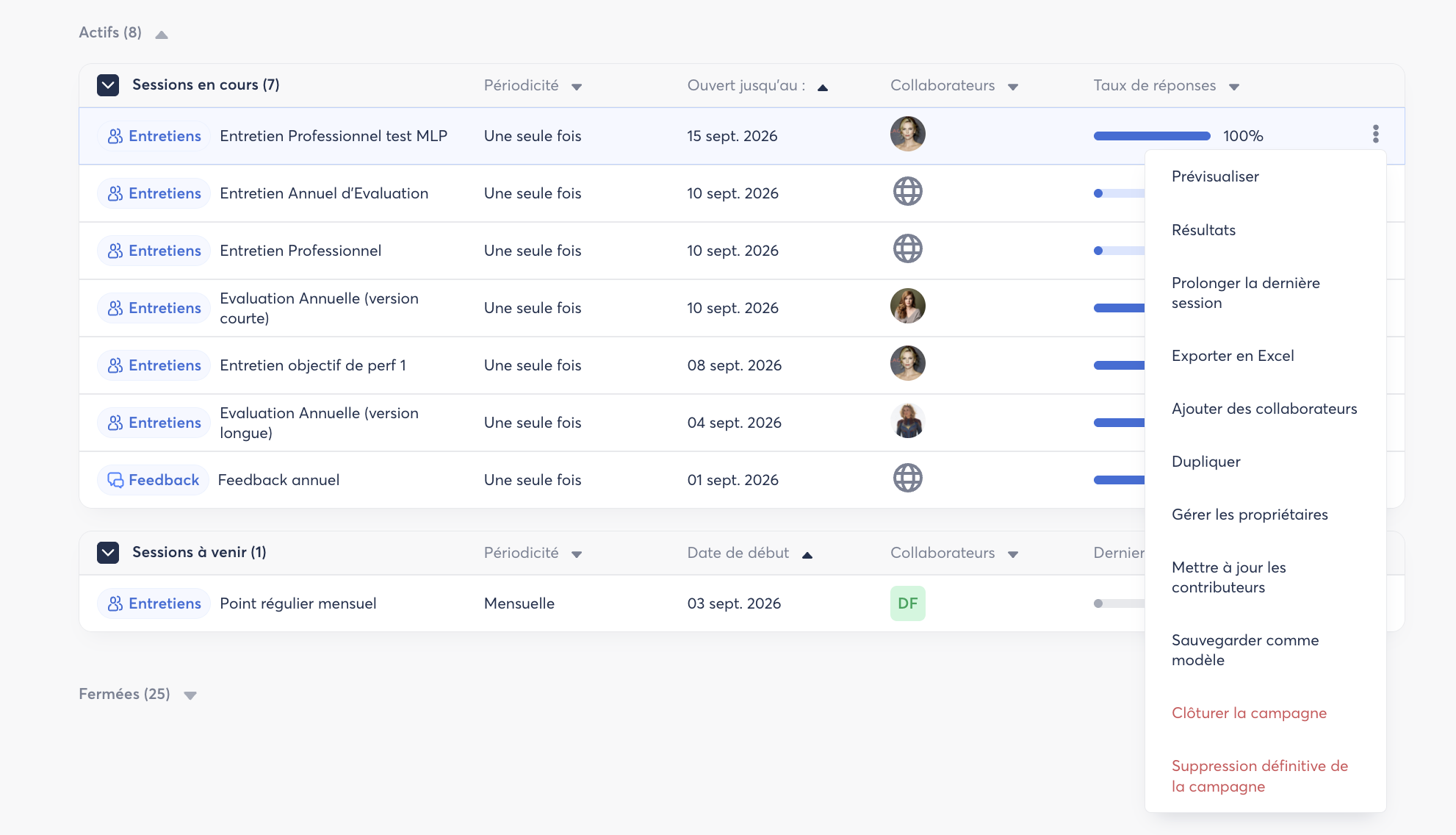
On the right-hand side of each campaign, click the three dots ⋮ to access the available management actions.
📅 Modifying Session Dates
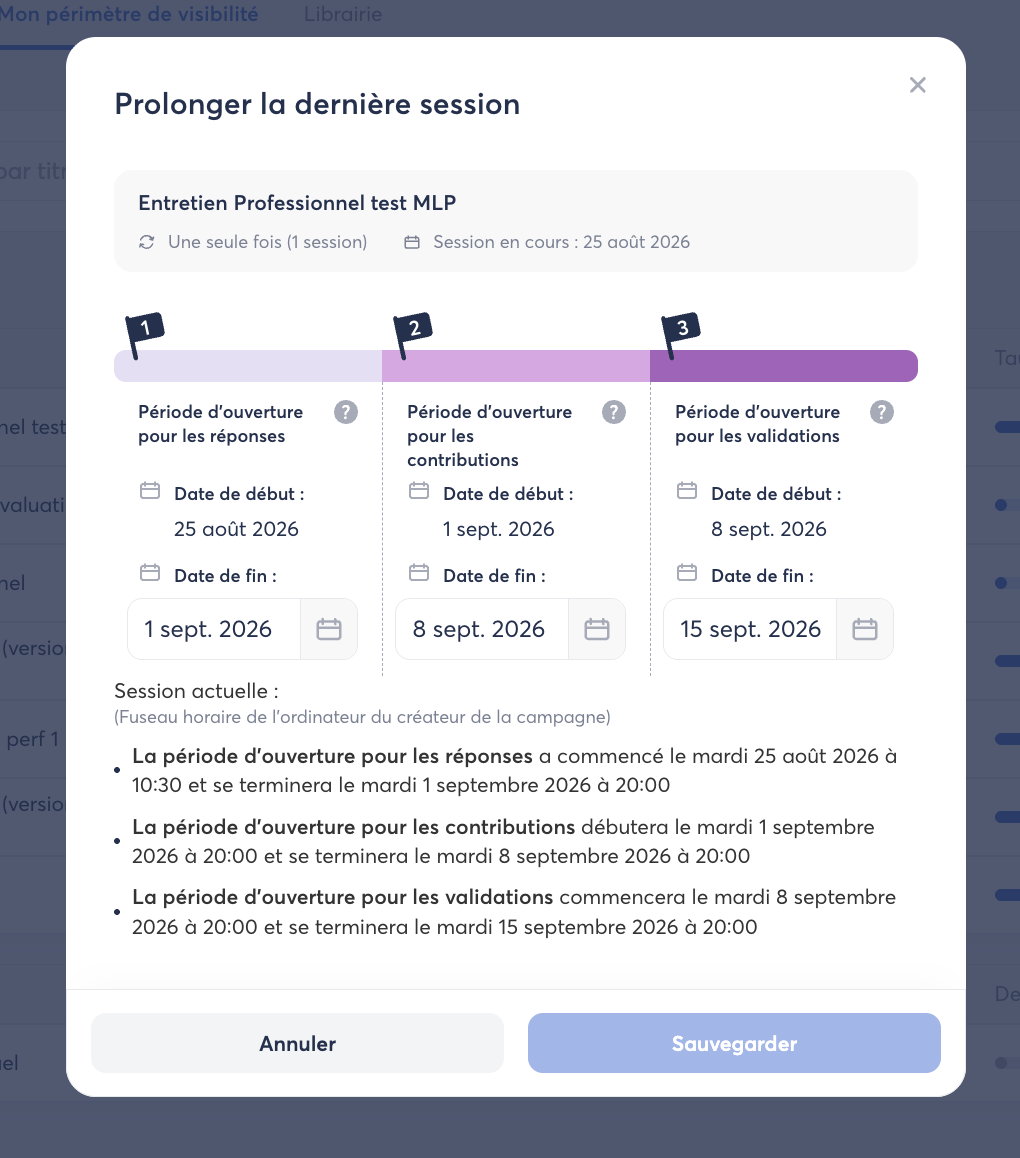
You can modify the dates of the different sessions of an ongoing campaign.
You can also reopen a previous period, if necessary, to allow employees or contributors to complete the required actions.
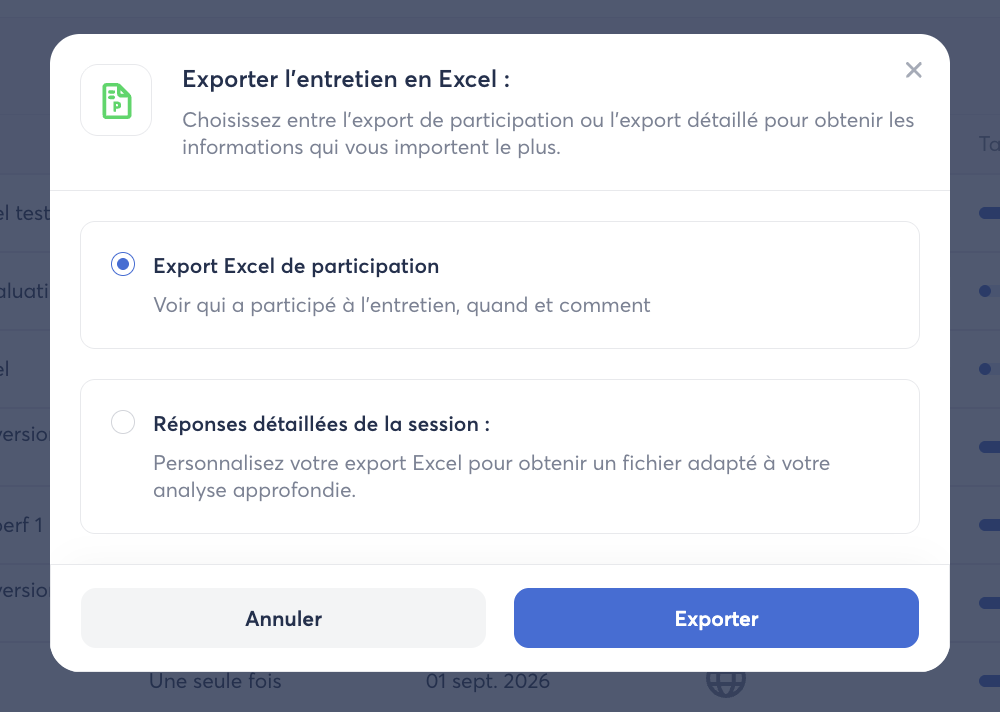
📥 Exporting Results
You can export campaign results in Excel format to analyze or use them outside of Zest.
👥 Adding Employees
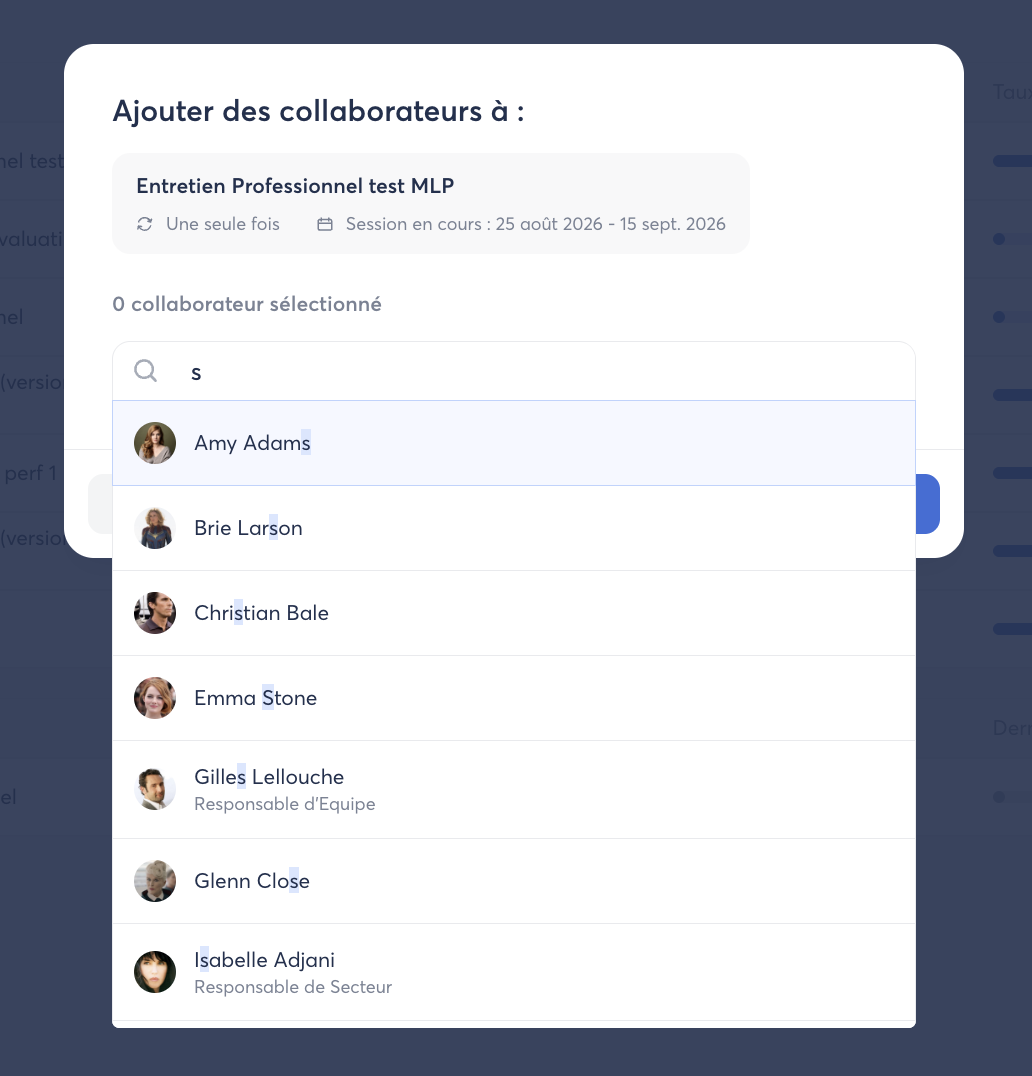
For sessions where this is still possible, you can add new employees to a campaign.
This feature allows you to include employees who were not part of the campaign’s initial scope.
👤 Managing Campaign Owners
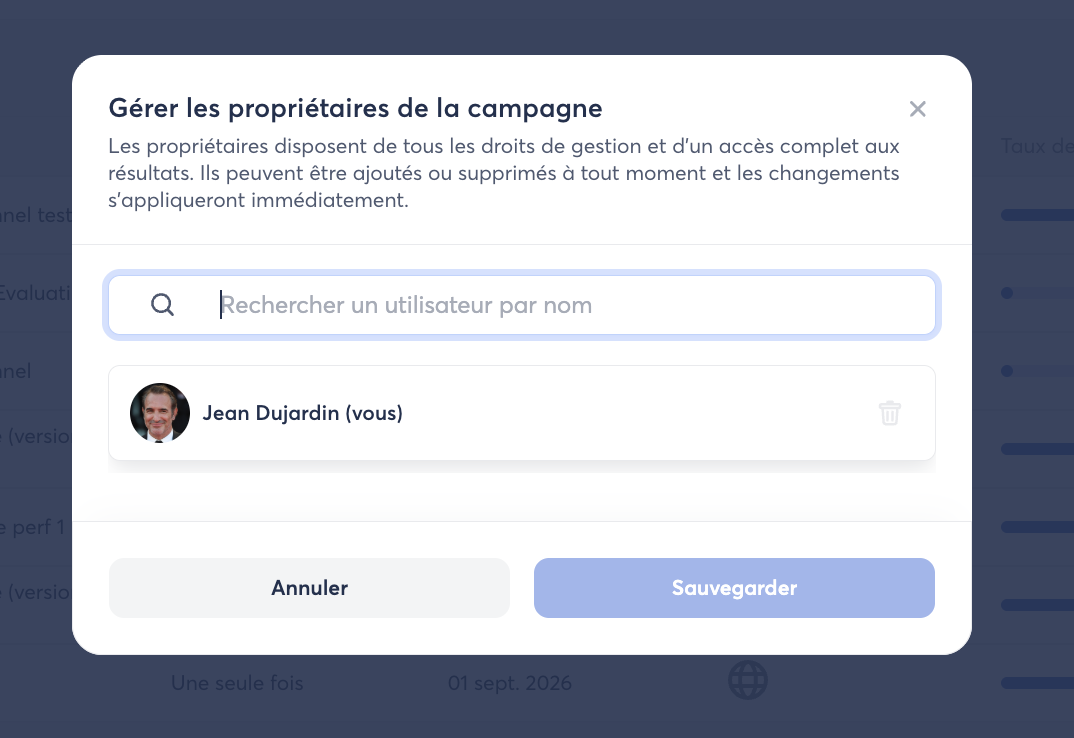
The “Manage owners” action allows you to add other employees as campaign owners.
New owners can then participate in the management of the campaign and access the information required to analyze it, depending on the permissions assigned to them.
🔄 Updating Contributors
If your SmartOrg changes after the campaign has been launched, particularly following a manager change, the contributors initially assigned to the reviews may not be automatically updated.
The “Update contributors” action allows you to force an update of the contributors so that the new reporting relationships defined in SmartOrg are taken into account.
💡 Good to know: This feature is particularly useful when a manager changes during an ongoing campaign and reviews need to be reassigned to the new manager.
🧭 A Centralized Space for Managing Your Campaigns
The “My Visibility Scope” tab provides a central space to monitor, manage, and analyze your review campaigns throughout their entire lifecycle.
It allows you to manage dates, participants, owners, and contributors, while providing a quick overview of the progress of each campaign.
📊 Analyzing a Campaign
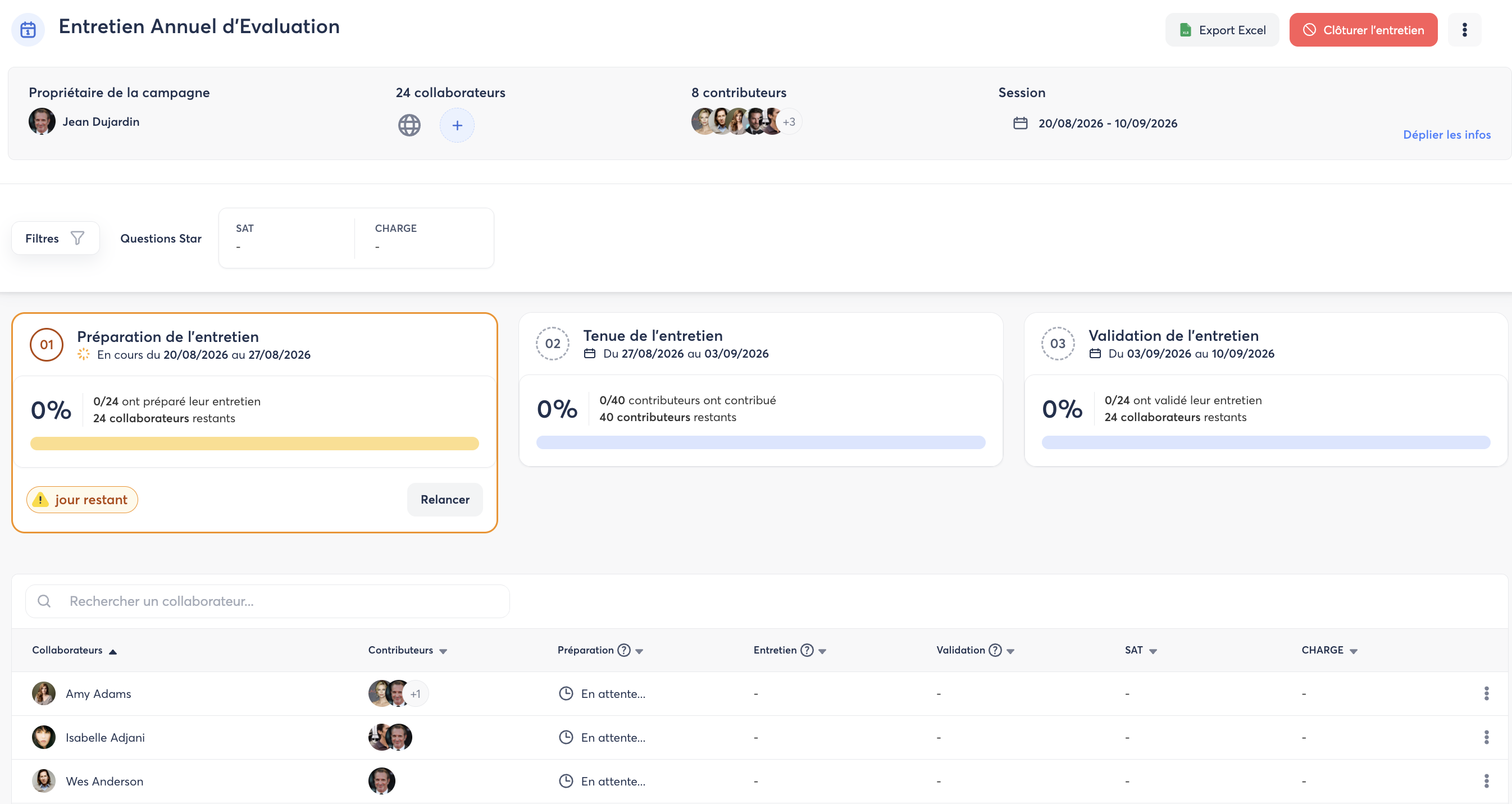
When you click on a campaign, you access a detailed analysis page that allows you to monitor its configuration, progress, and associated results.
🔎 General Campaign Information
In the first section, you will find a summary of the main information defined when configuring your campaign:
- Campaign owners
- Employees concerned
- Contributors
- General opening period
- Campaign description
- Operating mode: manual or automatic
- Frequency: annual, monthly, or one-time
- Number of questions
- Whether automatic employee addition is enabled
- Languages configured for the campaign
This first section allows you to quickly review the main settings of your campaign.

🎯 Filtering and Analyzing Results
Below this first section, you will find the various analysis filters, which allow you to cross-reference and refine results based on your organization.
You can analyze data by:
- Department
- Team
- Location
- And the various attributes available in your Zest environment.
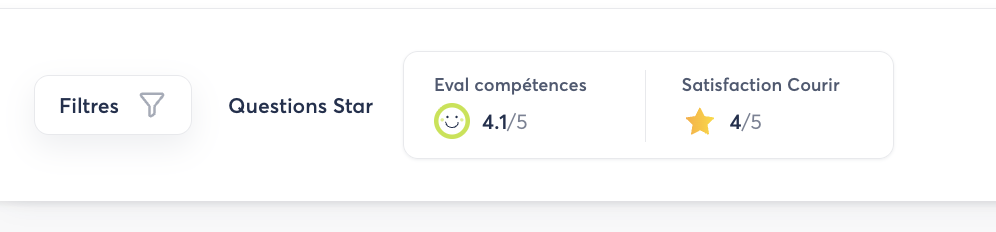
You will also find the Star Questions defined when designing the campaign. These allow you to highlight the key indicators you want to monitor more easily.
📈 Monitoring the Different Campaign Stages
The next section displays the different stages of your review, with the following information for each stage:
- Its opening period
- Its completion / progress rate
This allows you to quickly monitor the progress of the campaign and identify any stages that may require particular attention.

👤 Monitoring Individual Reviews
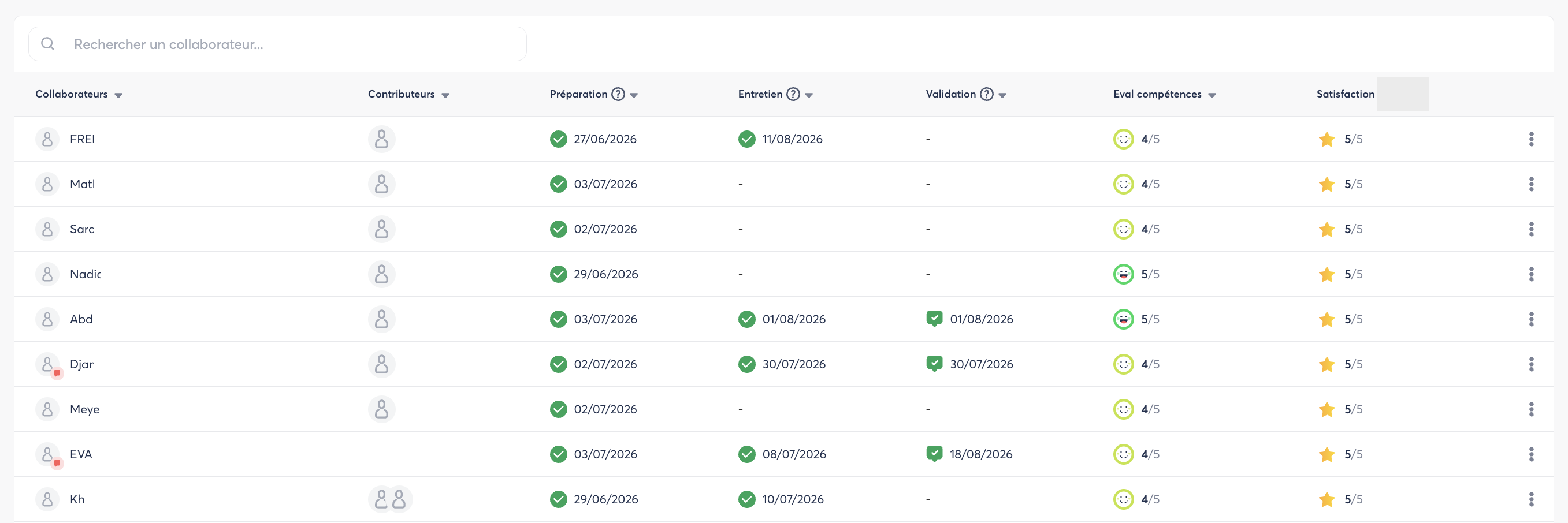
Finally, the last section displays the individual reviews for each employee included in the campaign scope.
For each employee, you can view information relating to the different stages of their review, including:
- The date the employee completed their preparation
- The date the manager submitted their contribution
- The date the employee validated their review
This view allows you to monitor the progress of each review in detail and easily identify employees or managers who still need to take action.