Reviews and 360° Feedbacks run in several phases, and each phase has its own period and audience. Automatic reminders work the same way: each phase has its own reminders, sent only to people who haven’t completed their action for that phase yet.
This article builds on How do I schedule automatic reminders for my campaigns?, which walks you through the setup screen step by step.
🧱 Who gets reminded, and in which phase?
Review (standard mode)
| Phase | Who gets reminded |
|---|---|
| Review preparation | Employee |
| Review meeting | Contributor(s) |
| Review sign-off | Employee |
360° Feedback
| Phase | Who gets reminded |
|---|---|
| Self-assessment | Feedback recipients |
| Feedback collection | Contributors |
In reminder emails, the access link automatically matches the phase and the recipient’s role.
⚙️ What’s different on screen
The Automatic reminders screen is the same as for a Survey, with three differences:
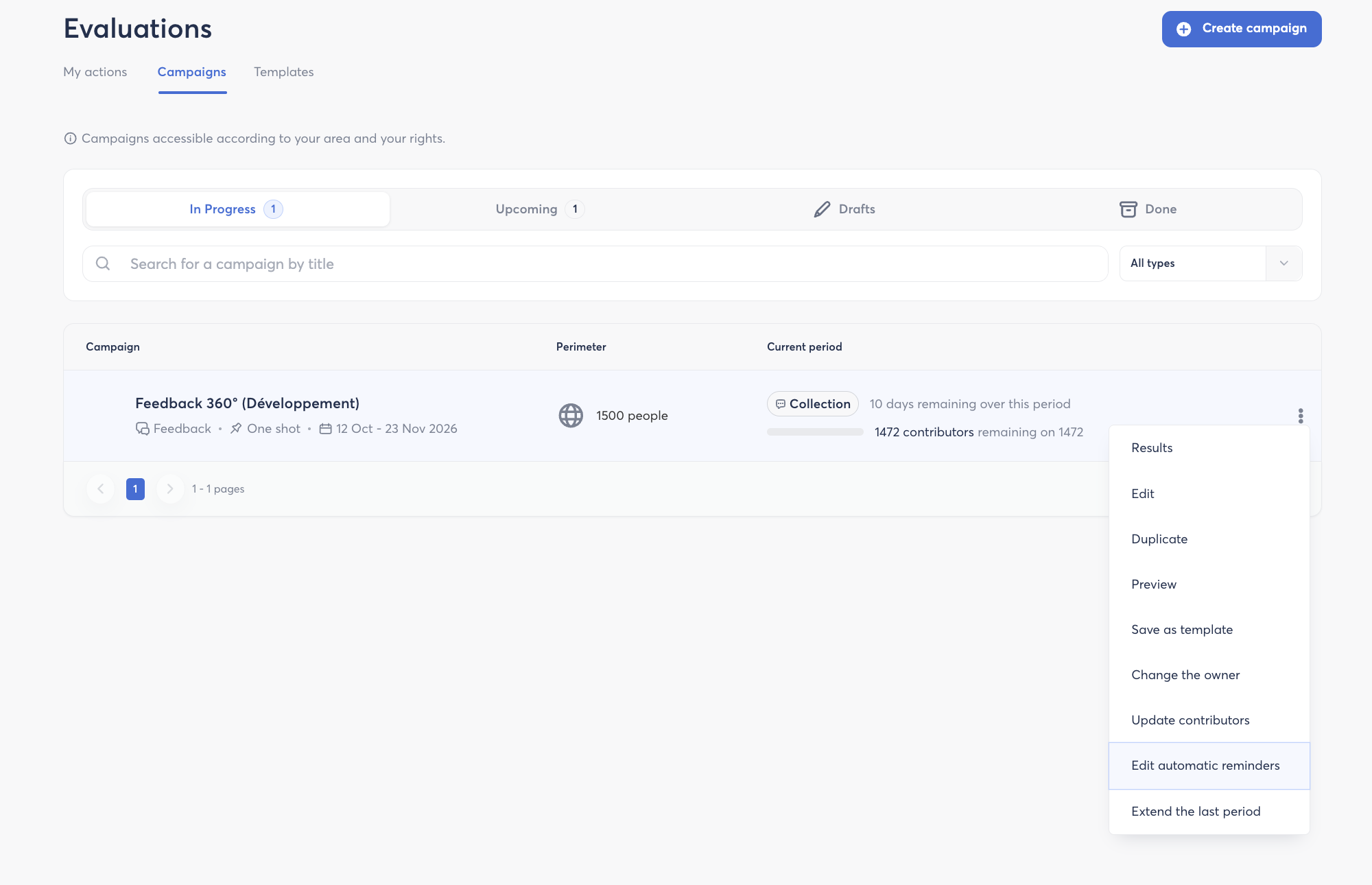
- The timeline shows a colored band for each phase, with its name and dates. Tabs at the bottom of the timeline let you switch from one phase to another.
- The Reminder settings table has a Step column. If you change a reminder’s step, it moves to the new phase and keeps its send time.
- One table holds all the reminders for every phase. You can edit them as soon as you create the campaign, without waiting for each phase to start. Reminders for an upcoming phase turn on automatically when that phase begins.
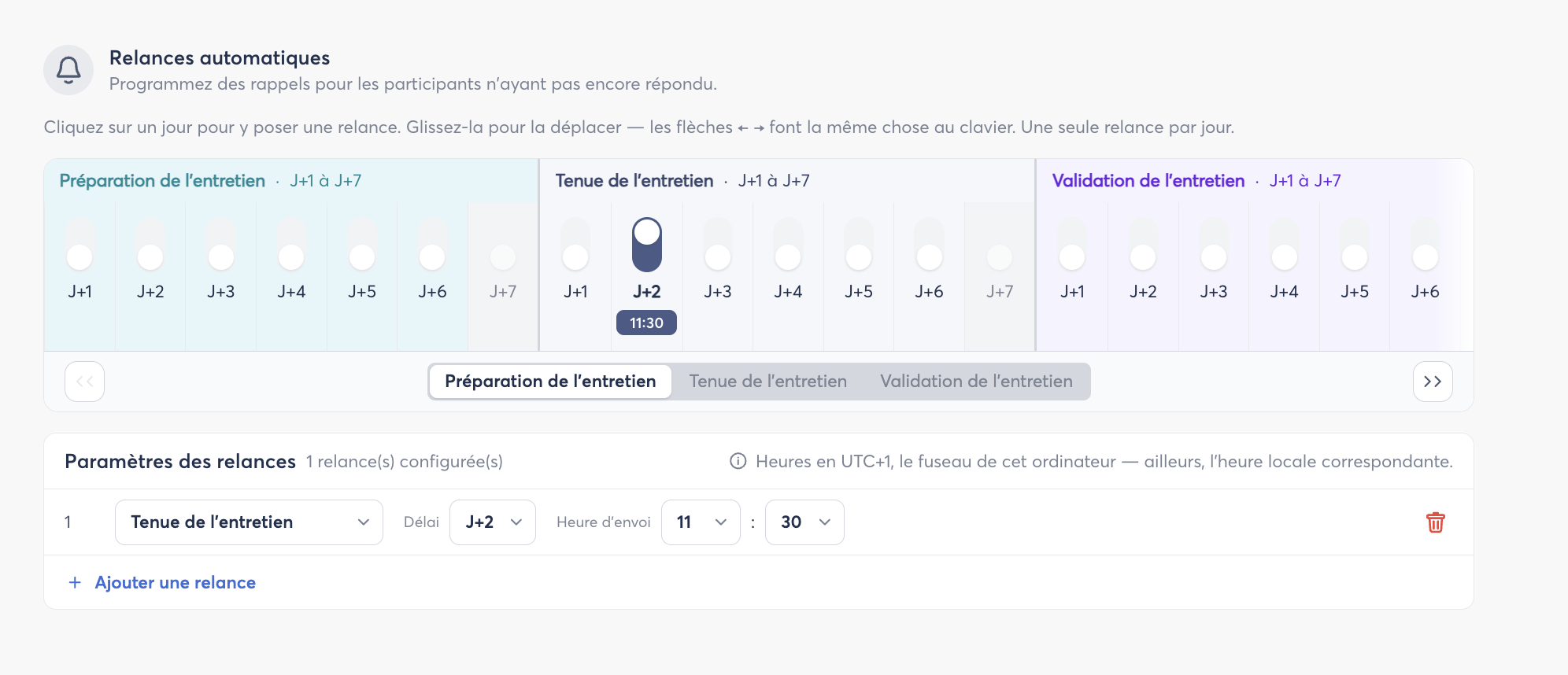
The Less than 48h apart badge only compares reminders within the same phase. Two reminders in different phases can be close together, because they go to different people.
📊 Tracking your reminders on the results page
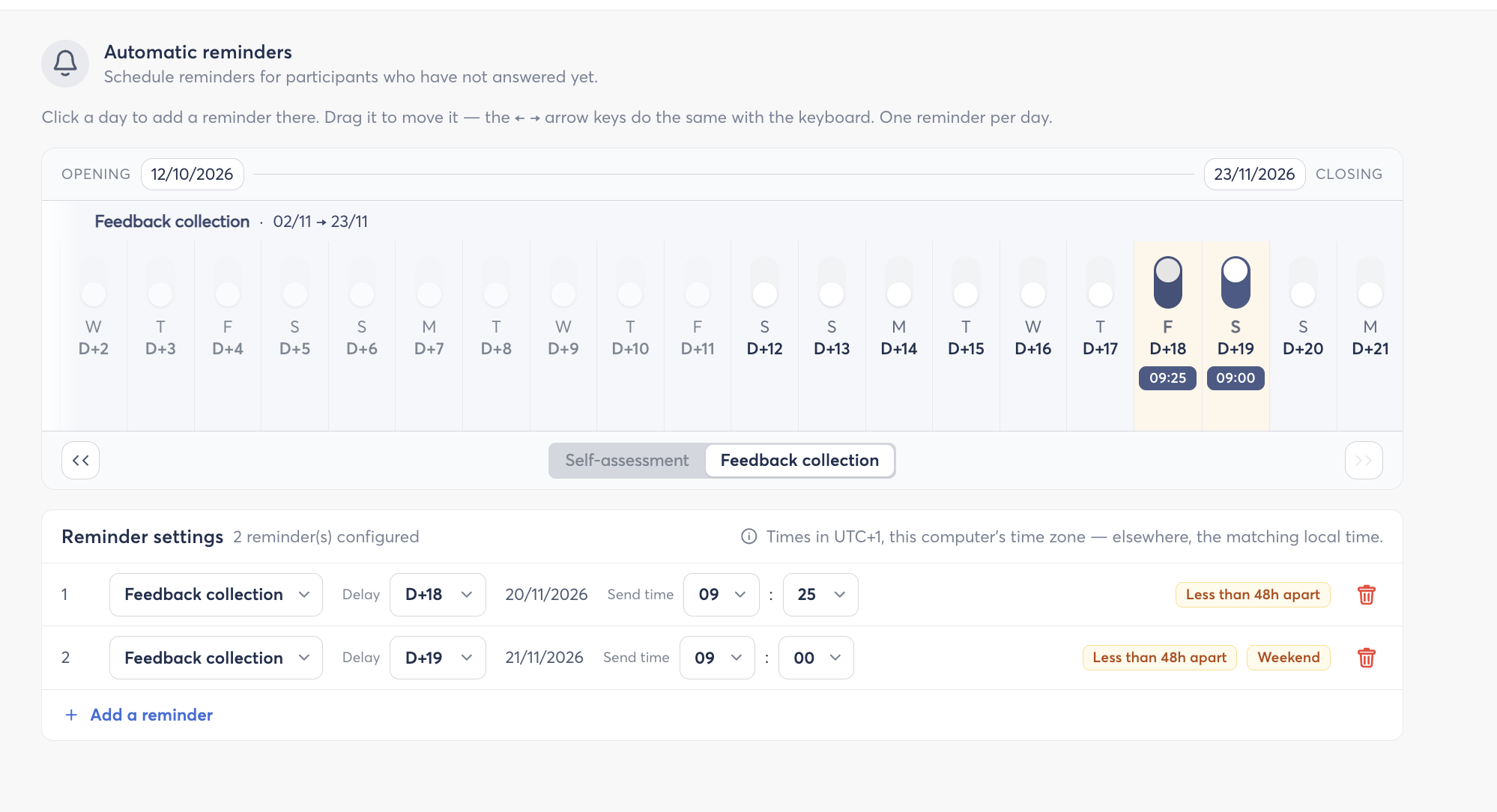
Each phase card shows the status of its reminders below the progress bar:
| Phase | What you see |
|---|---|
| Current phase | A blue X/Y reminders sent badge and the date of the next reminder (Next: DD/MM/YYYY at HH:MM). |
| Upcoming phase | A gray N reminder(s) scheduled badge. |
🔄 Reviews in automated mode
In an automated Review campaign, each employee joins the campaign on their own enrollment date, so there is no calendar shared by everyone. Reminders work relative to each employee’s start date:
- The timeline doesn’t show dates. It runs from D+1 to the length of the phase (e.g. D+1 to D+30).
- Each reminder goes out D+X days after the employee enters the phase.
- There’s no Weekend badge and no X/Y sent counter. Only the number of configured reminders is shown.
- Sent reminders don’t show a date, because each employee has their own dates.
- If an employee’s phase ends before a reminder is due, that reminder is sent to them at 09:00 on the last day of their phase.
⚠️ Watch out for durations set in months. Zest always counts the longest possible length (1 month = 31 days, 3 months = 92 days, 12 months = 366 days), so a D+30 reminder is available for everyone. For an employee who enrolls on February 1, though, the phase ends sooner, so their reminder will be sent on D+27 at 09:00. A note below the table explains this.
🔁 What changes for your existing reminders
Until now, Zest sent some reminders automatically, and you couldn’t see or edit them. They’ve now been replaced by equivalent default reminders, sent at the same points and the same times.
| Campaign | Old reminder | From now on |
|---|---|---|
| Review | Meeting D-5 | A default reminder in the Review meeting phase |
| 360° Feedback | Self-assessment D-3 | A default reminder in the Self-assessment phase |
| 360° Feedback | Collection D-3 | A default reminder in the Feedback collection phase |
These reminders appear on the Automatic reminders screen. You can move, edit or delete them like any other reminder.
Campaigns that were already running got their equivalent reminders automatically.
🔗 Further reading
👉 See: How do I schedule automatic reminders for my campaigns?
👉 See: How do I launch a review?
👉 See: How do I launch a 360° Feedback campaign?
👉 See: Setting up an automated career development review (2026 reform)
👉 See: Review notifications