🎯 Conditional questions by population or attribute
🧱 Setup
As a survey Owner, you can make a question conditional by targeting specific populations using cumulative and unlimited filters:
- Teams
- Departments
- Locations
- Roles (SA, Admins, Managers, Global view, Users)
- Attributes (boolean: selection from a list; non-boolean: dates, seniority, etc.)
✅ All users with survey creation permissions have access to these filters, regardless of their scope.
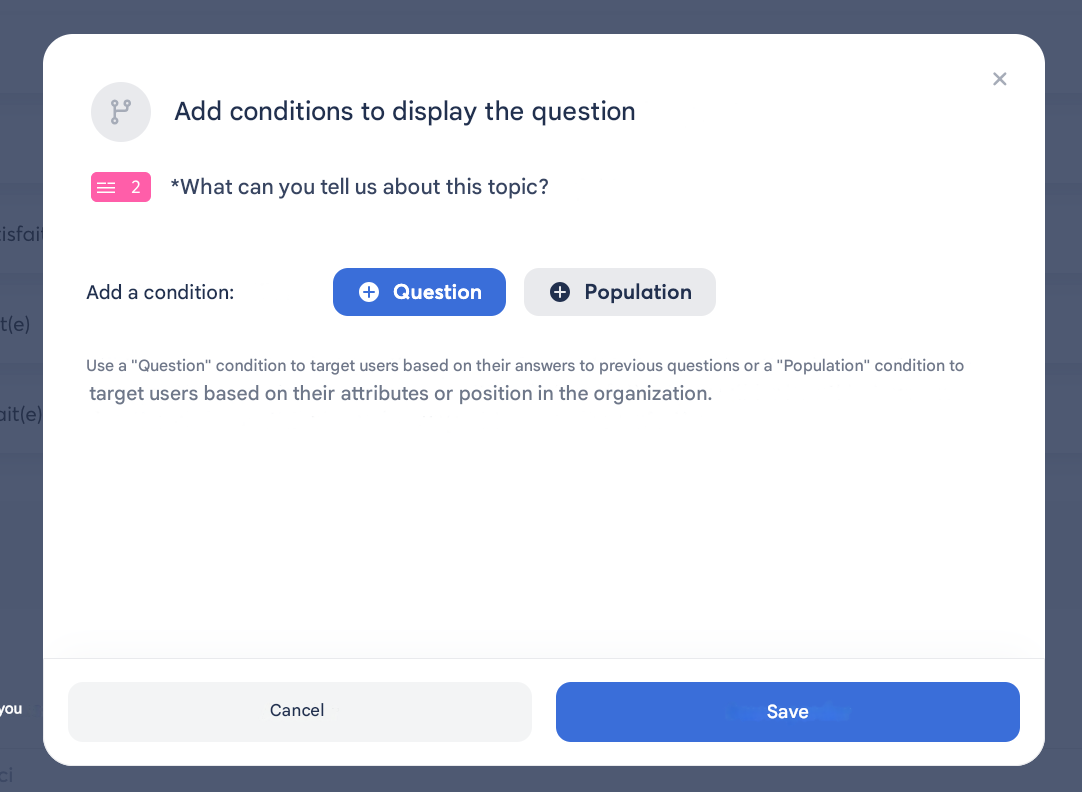
📥 Copy filters from a SmartGroup (SA only)
- You can import filters from an existing SmartGroup when creating the condition.
- The filters are copied, not linked to the SmartGroup:
→ Any modification to the SmartGroup does not affect your condition, and vice versa.
- The copied filters can then be freely edited.
💡 You can delete existing conditions and copy them again from a SmartGroup at any time to stay up to date.
➕ Combine conditions
You can combine multiple conditions to refine targeting:
- AND: the person must meet all conditions (e.g. Manager and based in Paris)
- OR: the person must meet at least one of the conditions
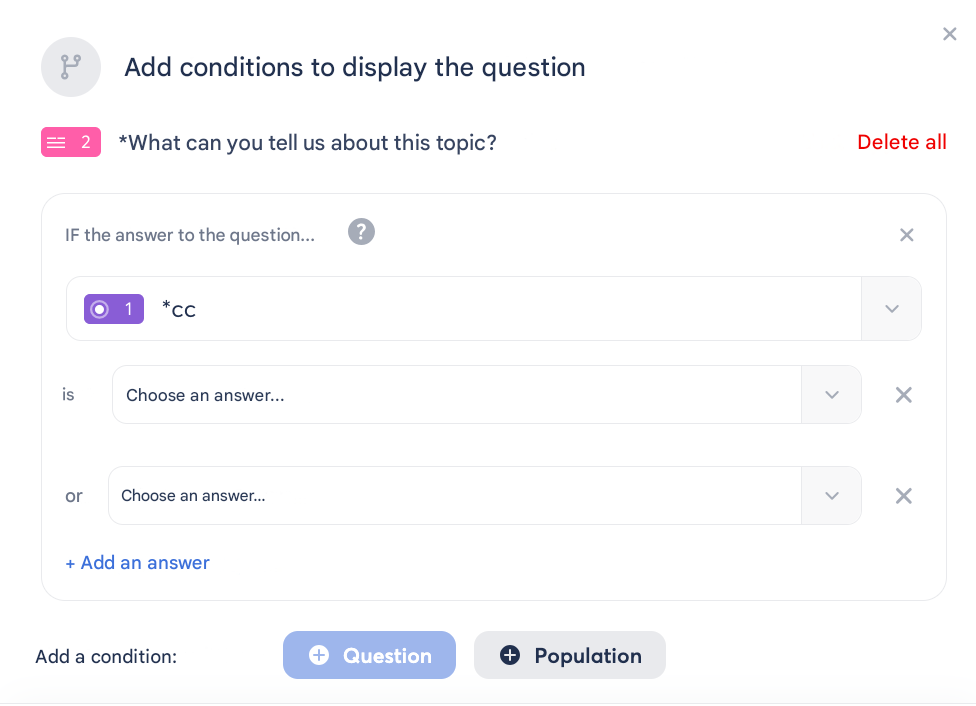
Examples:
- Q3 conditioned by Q1 (female Managers) AND Q2 (new Managers) → only newly appointed female Managers will see the question
- Q3 conditioned by Q1 OR Q2 → all people belonging to one or the other population will receive the question
👀 Identifying conditions
You can identify conditional questions:
- Via an icon in the question header

- Using the conditional question counter (top right)
⚠️ In the event of a mismatch between the condition and the targeted population, an error message will be displayed directly on the question card and in the counter.
🧪 Preview & testing
🚨 There is no exact preview that takes into account the answers to conditional questions, but:
- Visual indicators allow you to identify conditional questions
- The voting experience can be tested through a test Survey
➡️ To test population-based conditions, make sure to select test recipients who meet the targeted conditions.
✅ Checking matches (conditions / recipients)
At launch or during testing:
- A check is automatically performed to ensure that the recipients match the conditions.
- A warning message is displayed in the event of a partial or no match.
During the session:
- At each cron run (every 30 minutes), new users entering the conditioned groups are automatically taken into account.
- A user who joins a population during the session will receive the relevant questions.
- A user who changes population during the session keeps the questions already received.
💡 The check is performed when clicking on “Send survey” or “Send a test”
📊 Results
- The conditions applied to a question are visible below the title and the instructions in the results.
📄 Duplicates & templates
- When duplicating or saving as a template:
- The population conditions are retained.
- The recipients are not retained.
⚠️ When saving as a shared template:
- The template keeps sensitive conditions (e.g. HR managers) that may not be visible to all survey creators.
- A confirmation pop-up warns about this risk.