🎯 Objectives & Skills — Roles, Creation, Tracking, and Management
This article details the roles, notifications, creation steps, as well as the update and management features for Objectives and Skills in Zest.
👥 Roles and Users of the Objectives / Skills Feature
👤 The Owner
The owner is the person responsible for the objective or skill.
- This is the subject of the objective / skill that is created or assigned.
- Created from a Review (via the Reviews feature)
→ The owner is automatically and necessarily the employee.
- Created outside a Review (via Objectives or Skills):
- By default, the creator is pre-filled as the owner.
- It is possible to assign any employee as the owner.
- The assigned employee must accept or decline.
- In case of refusal, the objective or skill can be reassigned.
👉 As the owner, it is possible to:
- Edit the objective / skill information
- Update its progress
🤝 Contributors
Contributors help achieve the objective or acquire the skill, alongside the owner.
Examples:
- Team members (N-1) for a collective objective
How it works:
- Any employee can be assigned as a contributor
- Contributors can leave the objective / skill at any time
- They can:
- Create tasks
- Edit the tasks they are responsible for (editing, progress update)
⚠️ Important rule
A contributor can only edit the tasks they are responsible for, unless no responsibility has been defined.
🔔 Objectives / Skills Notifications
| When | Who | How |
|---|---|---|
| Assignment of an owner or task assignee | Owner / Assignee | Immediate email + app notification |
| Invitation of a contributor | Contributor | Immediate email + app notification |
| Removal of a contributor | Contributor | Immediate email + app notification |
| Acceptance / refusal of an assigned objective | Creator / Owner | Immediate email + app notification |
| Change of visibility | Contributors | Immediate email + app notification |
| Modification of a shared objective | Scope admins | Weekly summary email |
| New activity (excluding bulk import) | Owner | Summary email + app notification |
| Update of a parent objective | Owner | Immediate email + app notification |
| Start of an objective / skill | Owner & contributors | Immediate email + app notification |
| Objective at risk / overdue | Owner | Immediate email + app notification |
| Contributor departure | Owner & contributors | Immediate email + app notification |
| Closure / reopening / deletion | Contributors | Immediate email + app notification |
➕ Creating Objectives & Skills (1/4)
Creation is done via:
Menu → Succeed → OKRs or Skills
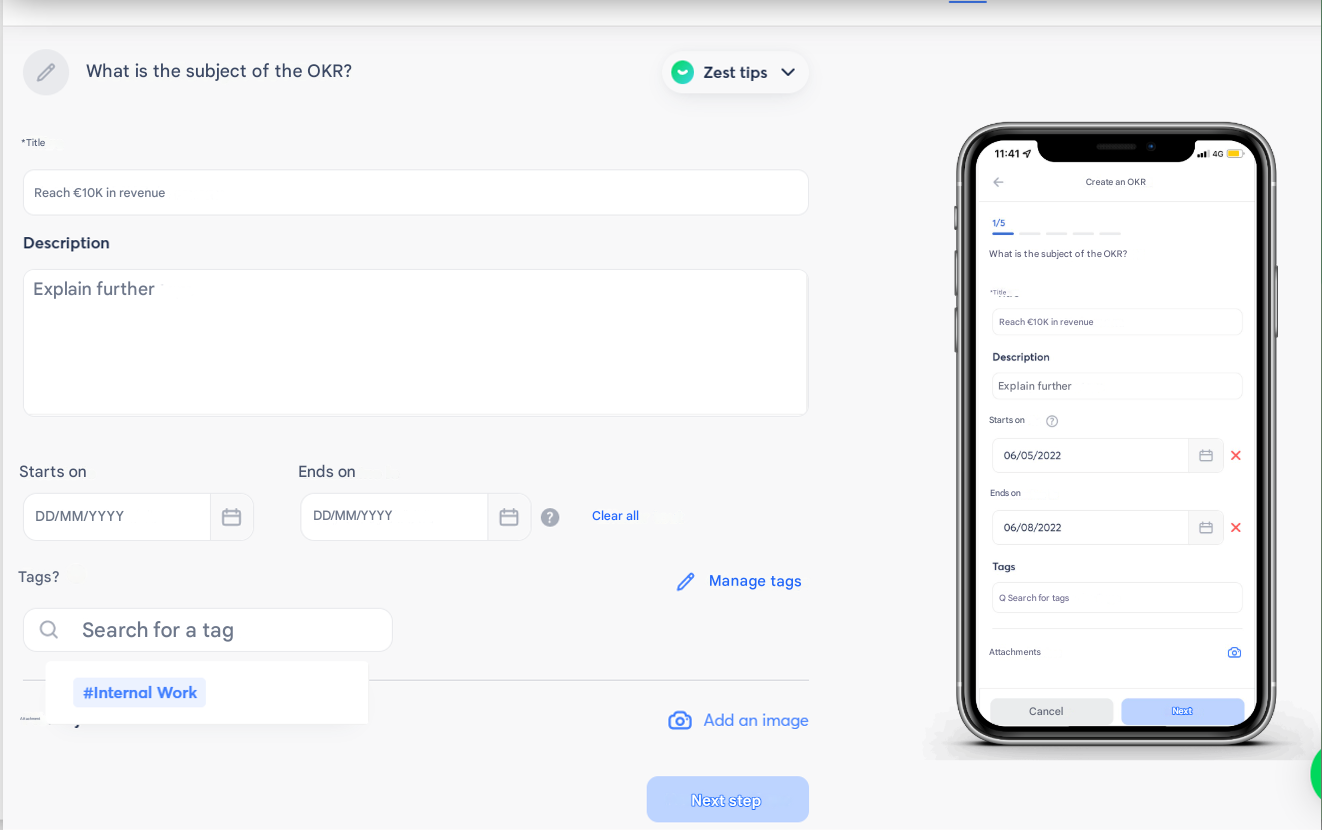
✏️ Step 1: Define the subject
Available fields:
- Title (required)
- Description
- Tags
- Start and end dates
- Attachments (e.g., image)
🏷️ Focus on Tags
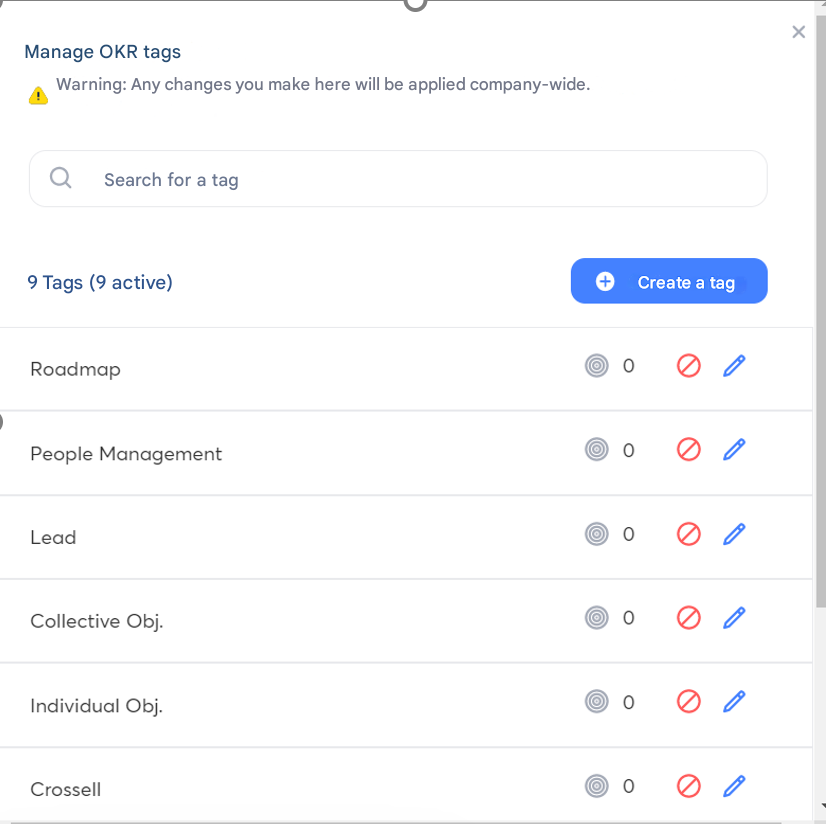
Creation & Management
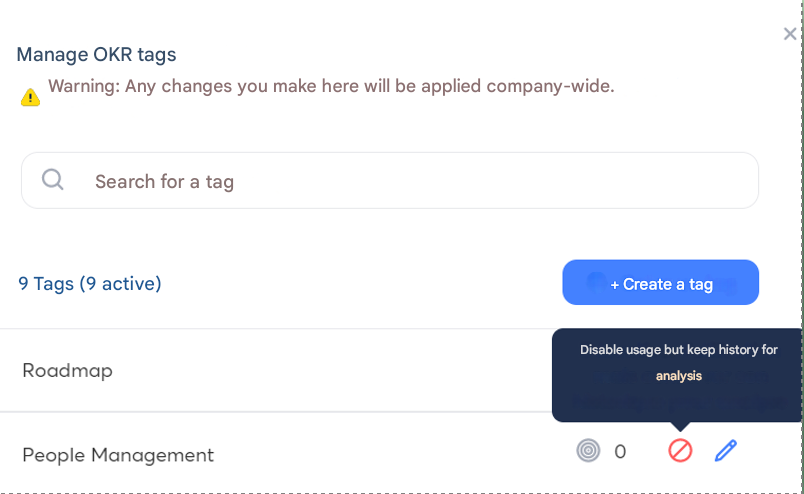
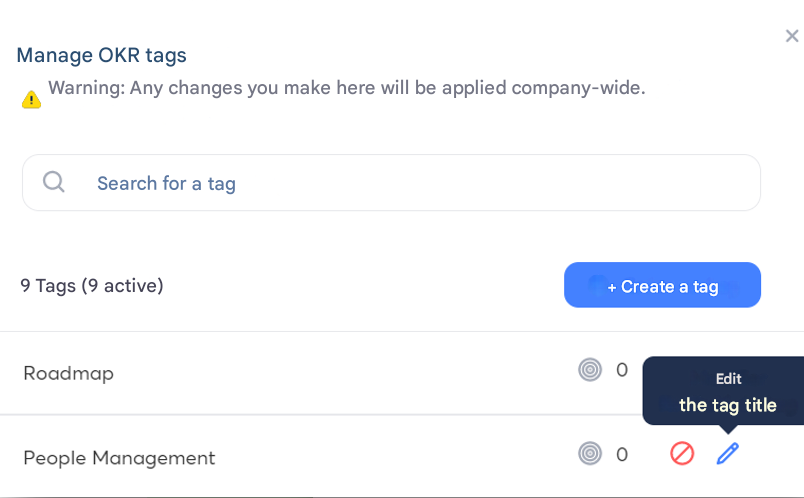
- Only Super Admins (SA) can create and manage tags
- A tag is available to all employees
- The tag library is accessible only during creation
- Available actions:
- Edit
- Deactivate
- Reactivate
Usage
- Employees can add one or more tags
- Tags can be removed at any time
- ⚠️ A deactivated tag can no longer be re-added once removed
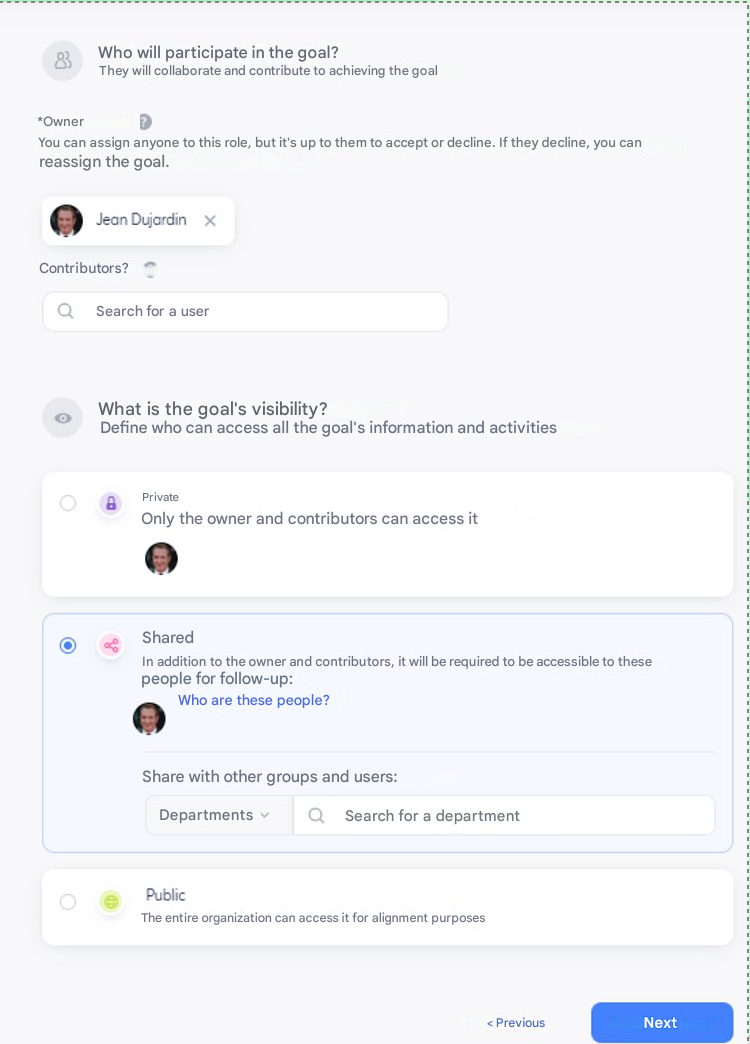
👥 Step 2: People Involved
Ownership (required)
- Assign to yourself or to an employee
- Acceptance or refusal required
Types:
- Individual: 1 owner
- Collective: 1 owner + 1 or more contributors
👁️ Visibility (required)
- Private
Access limited to the owner and contributors
- Shared
- manager, department admin, Global Viewer, SA
- Custom shared
- SmartOrg and/or specific users
- Public
Visible to the entire company
🔗 Step 3 (optional): Alignment
(Enabled by the SA via the Back Office)
Parent Objective / Skill
- Possibility to create an objective that others can align with
- Configurable during creation or editing
Child Alignment
- An objective can align with only one parent
- Only with an objective that is:
- Public
- Or one where I am a contributor
👉 Alignment can be modified or removed at any time.
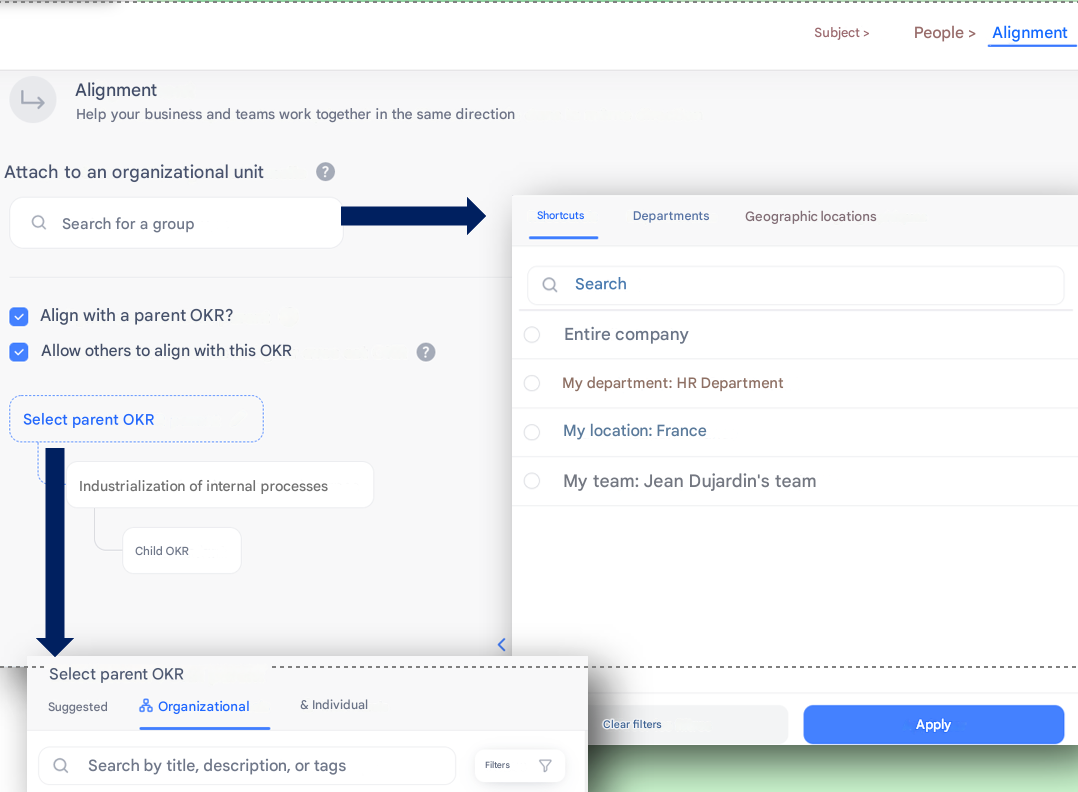
🏢 Link to an Organization
A department admin owner can link the objective to:
- Company
- Department
- Team
- Location
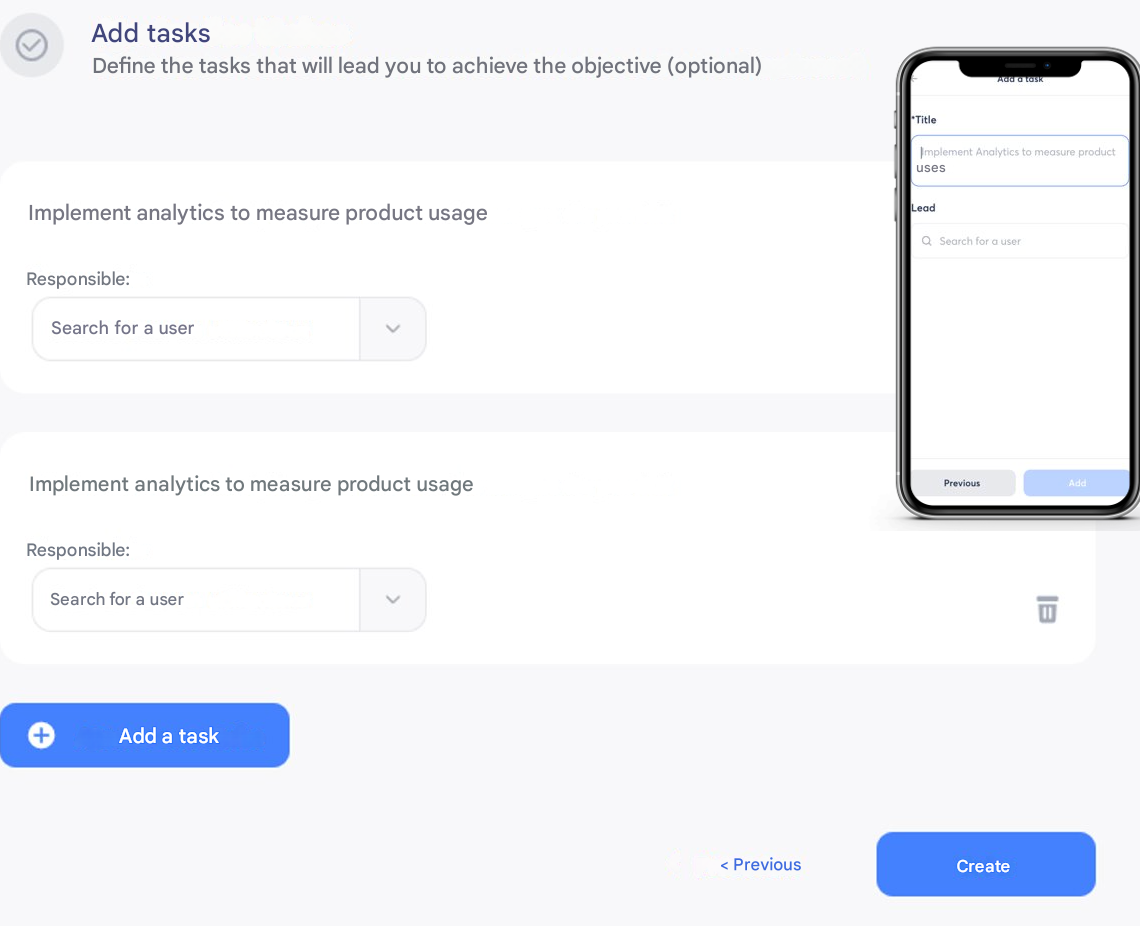
✅ Step 4 (optional): Tasks / Key Results
- Break down the objective or skill into activities
- Encourage collaboration
- 1 task = 1 assignee
- If OKR is enabled: tasks become Key Results
🔄 Update & Tracking
Edit Mode
- Modify all creation attributes

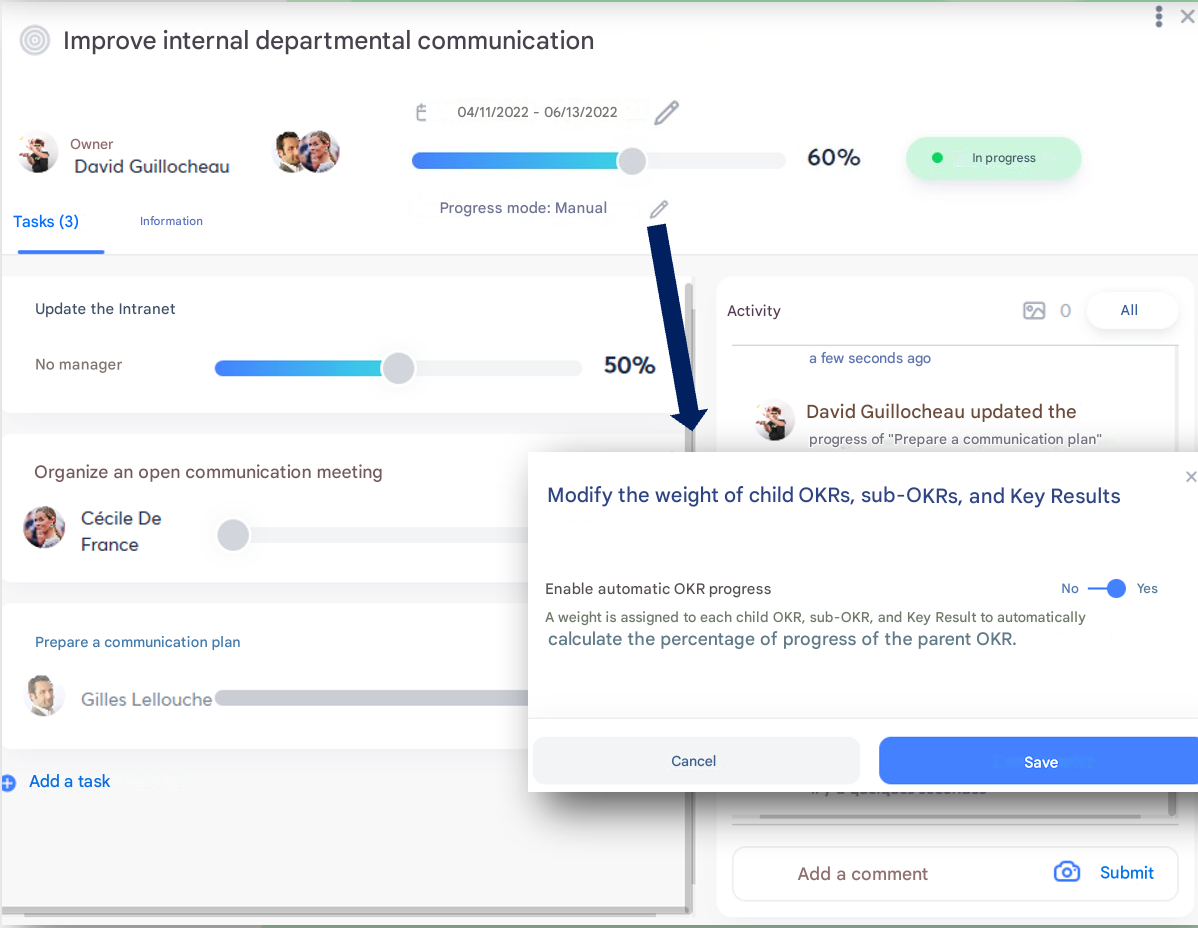
Progress Update
- Manual: objectives and tasks
- Automatic (Back Office option):
- Task weighting required
- Progress calculated automatically
Statuses
- On track
- At risk
- Overdue
Activity
- History of actions and comments
📊 Management — Dedicated Pages
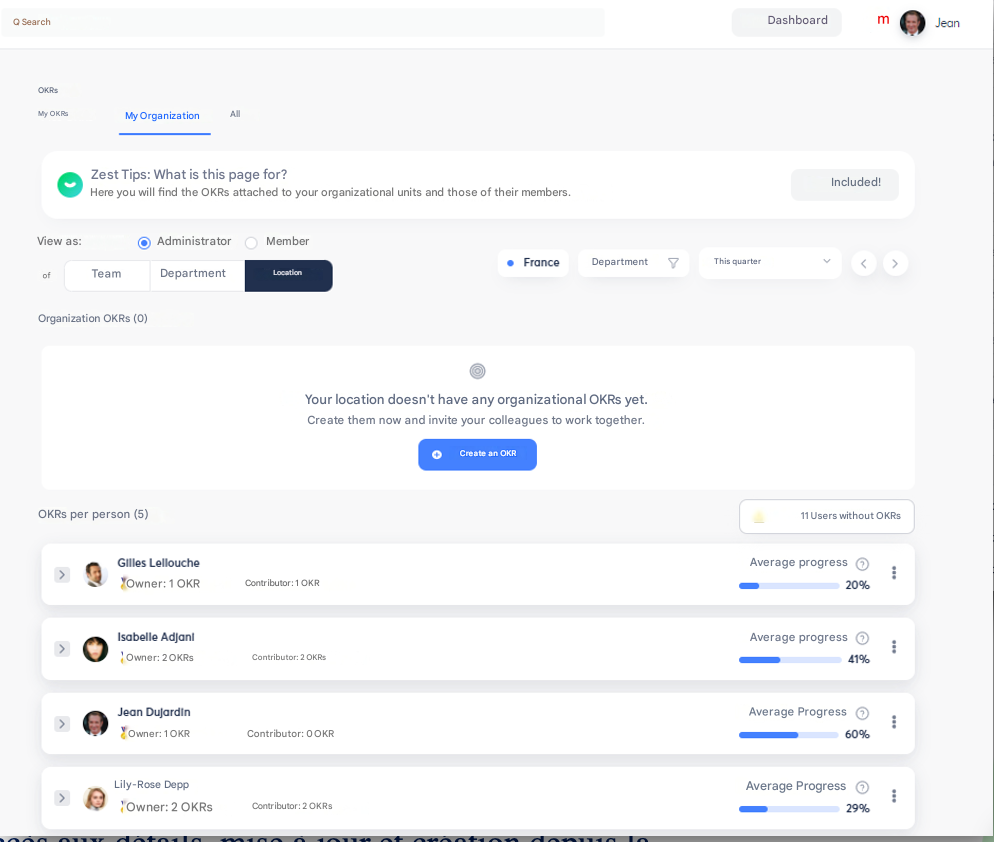
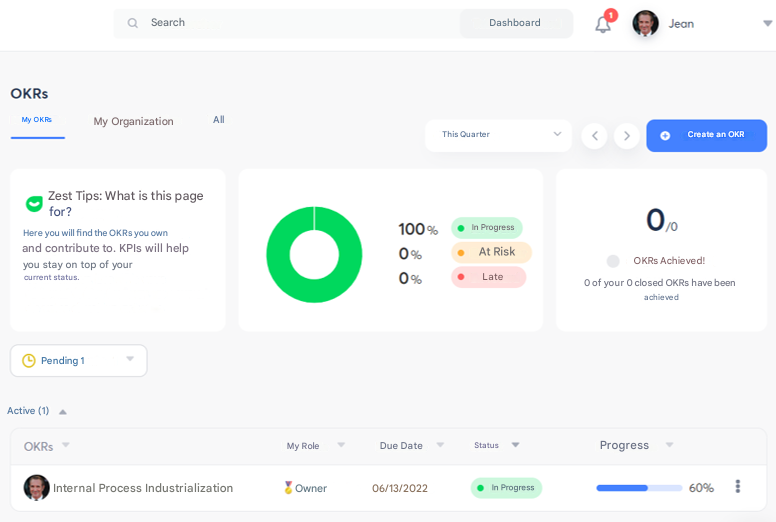
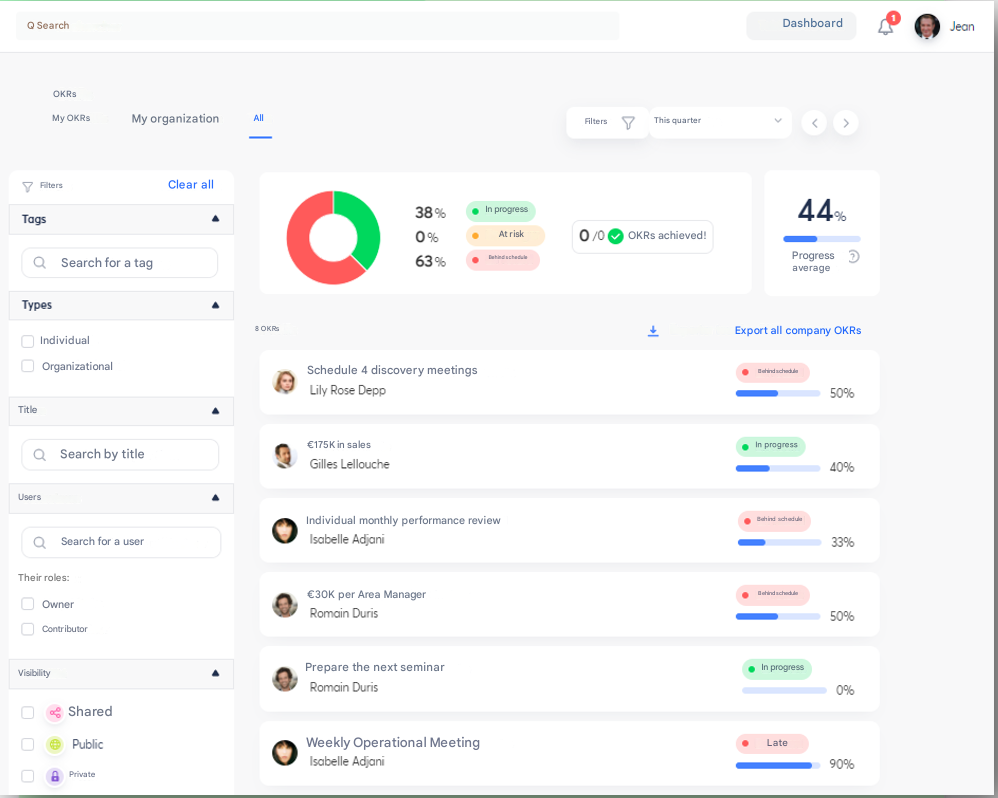
3 pages available:
- My Objectives / Skills
- My Organization
- All
Statuses
- Pending
- In progress
- Closed
👉 Creation, update, and consultation can be done directly from these pages.
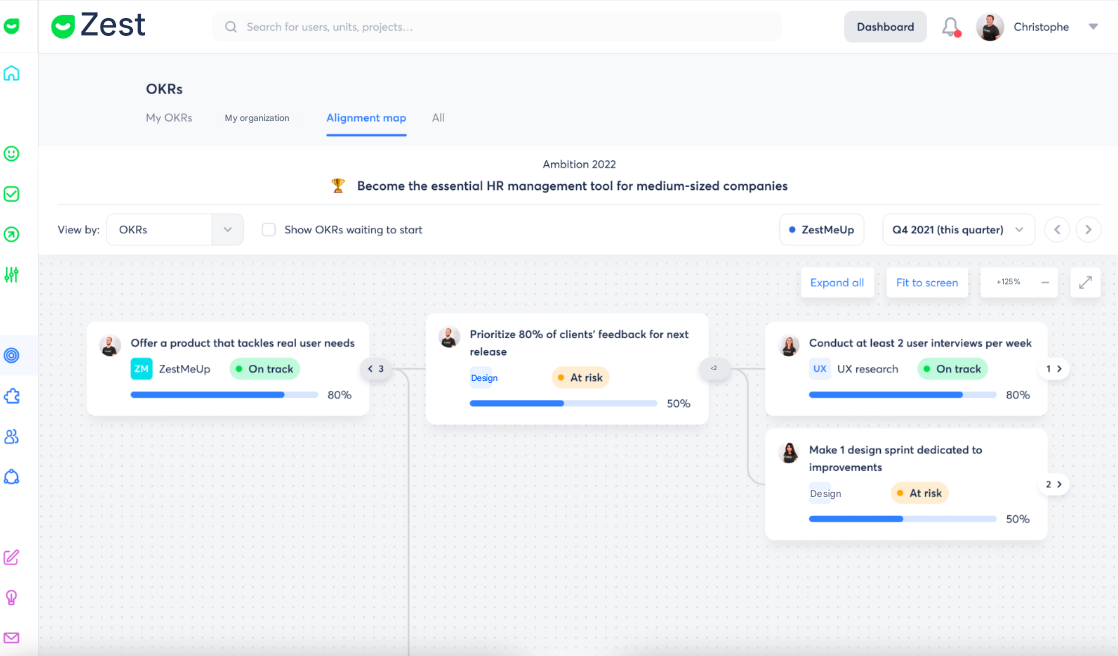
🗺️ Management — Alignment Map
Two views:
- OKRs View
- Organization View
Features:
- Visualization of parent / child links
- Direct creation and alignment from the map
- Filter for organizations without OKRs
⚠️ If alignment is not authorized → only the View details action is available.
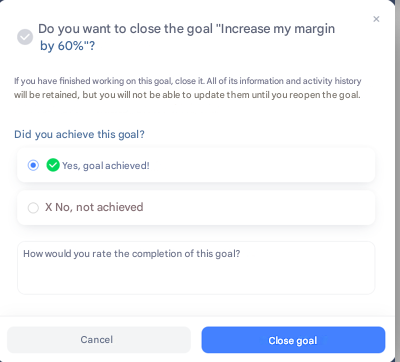
🔒 Closing Objectives and Skills
Two ways:
- Directly from the Objectives / Skills pages
- From a review check-in via an advanced question (objective progress)
🎯 Performance Objectives
Vision & Value Proposition
❓ What are Performance Objectives?
Performance Objectives are mainly used as part of annual reviews.
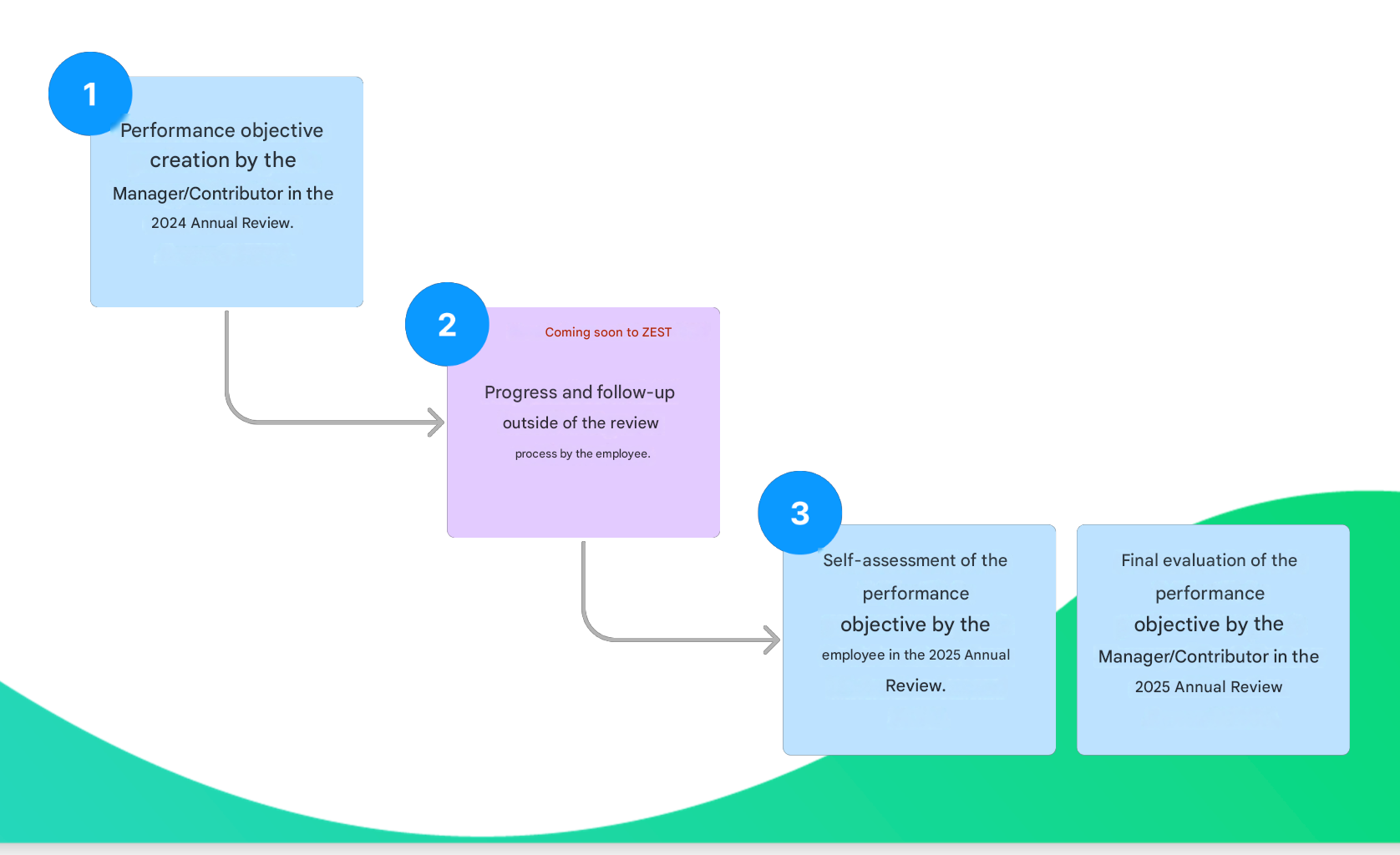
- They are created and managed by the Manager / Contributor, who defines the objectives for their employees.
- They serve as a support for the evaluation of both the employee and the Manager / Contributor.
- The final evaluation always remains the responsibility of the Manager / Contributor.
🎯 Why and for whom?
Performance Objectives were designed to:
- Put the Manager / Contributor at the heart of the solution, enabling them to effectively manage and support their team’s performance.
- Allow the calculation of performance-based variable compensation for employees.
- Encourage dialogue through an employee self-assessment, fostering constructive discussions with their Manager / Contributor.
Lifecycle of a Performance Objective:
📝 Review Creator Experience
Performance Objectives
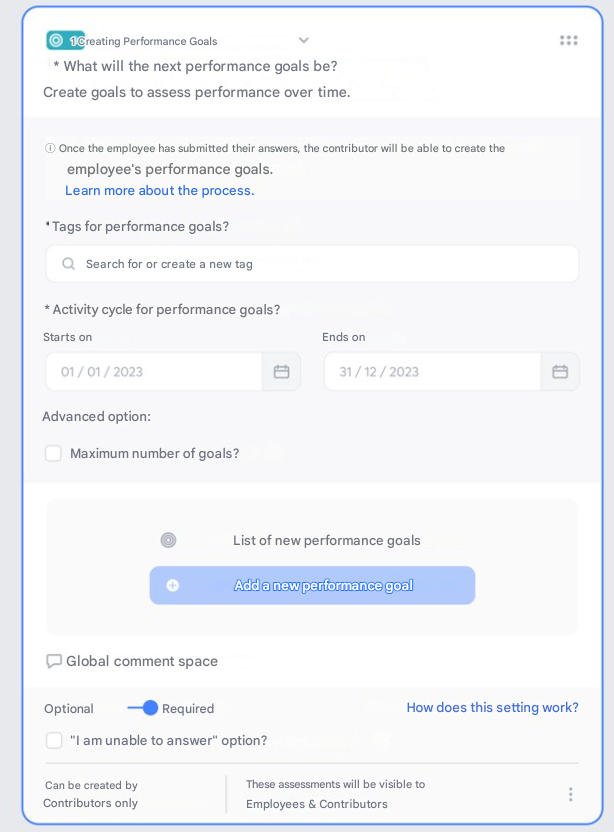
➕ “Create Performance Objectives” Question
When creating the 2024 Annual Review, the review creator has several options to frame the creation of Performance Objectives.
They can notably:
- Limit the number of objectives that managers will be able to create for their employees.
- Pre-select dates (start and end) that will automatically be applied to all Performance Objectives created through this question.
- Create or select a tag from existing ones, which will be assigned to all objectives created in this question.
⭐ Bonus
Unlike “standard” objectives, it is possible to create a new tag directly from this step.
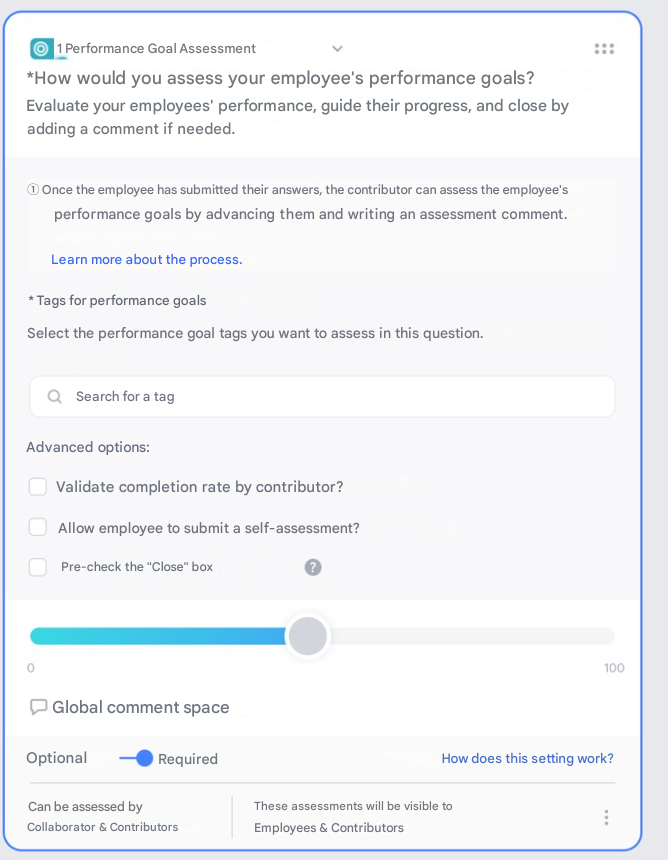
✅ “Performance Objectives Evaluation” Question
When creating the 2025 Annual Review, the review creator can configure in advance how Performance Objectives will be evaluated by pre-selecting the following options:
- Automatic closure of objectives
Objectives will be automatically closed once evaluated.
⚠️ However, the Manager / Contributor can disable this option if they wish to keep the objective open.
- Employee self-assessment
The employee will be able to complete a self-assessment during their response phase.
- Validation of the completion rate by the Manager / Contributor
The Manager / Contributor can enter a completion rate different from the one automatically calculated.
👉 This rate will override the automatic calculation shown in the table.
ℹ️ Please note
There is no dedicated “Feedback” question for Performance Objectives.
🎯 Performance Objectives
Tags, Import / Export & User Experiences
🏷️ Review Creator Experience
Focus on Tags — Part 1
❓ What are tags used for?
Tags play a central role in managing Performance Objectives:
- They allow you to categorize objectives as soon as they are created
- They ensure that the right objectives are included in the evaluation during the review
🎨 There are two types of tags:
- Blue tags: used for “standard” objectives already existing in Zest
- Green tags: dedicated to Performance Objectives
👉 Each tag corresponds to:
- one type of objective
- one specific question in a review
⚠️ Important rule
A blue tag (standard objective) cannot be used in a “Performance Objectives” question.
🏷️ Focus on Tags — Part 2
Rules for Use in Reviews
When creating a review:
- A “Performance Objectives Evaluation” question can include multiple performance objective tags
- However, it is not possible to use the same tag in several evaluation questions within the same template
❓ Why?
To avoid evaluation conflicts.
📌 Example:
If an objective is evaluated at 40% in one question, then at 60% in another, Zest cannot determine which evaluation should take priority.
🚫 Another Key Rule
It is not possible to use the same tag:
- in a “Create Performance Objective” question
- and in a “Evaluate Performance Objective” question
within the same template.
❓ Why?
An objective must first be created, then worked on over time, before being evaluated. Therefore, it does not make sense to create and evaluate it simultaneously.
📥 Import / Export of Performance Objectives
Import
Import is used when Performance Objectives have not been created through a campaign or review.
How it works:
- Import via an Excel file
- The
typecolumn must contain the valueperf_goal
- A performance tag must be entered in the
perfTagcolumn
- This same tag must be used in the “Performance Objectives Evaluation” question of the review
⚠️ Points to watch:
- Tags are automatically created during import
- Any spelling difference will create a new separate tag
- Alignment and organizational linking features are not available for imported performance objectives
Export
- Performed in the same file as the standard objectives export
- The
typecolumn is used to differentiate:- standard objectives
- performance objectives
👤 Employee Experience
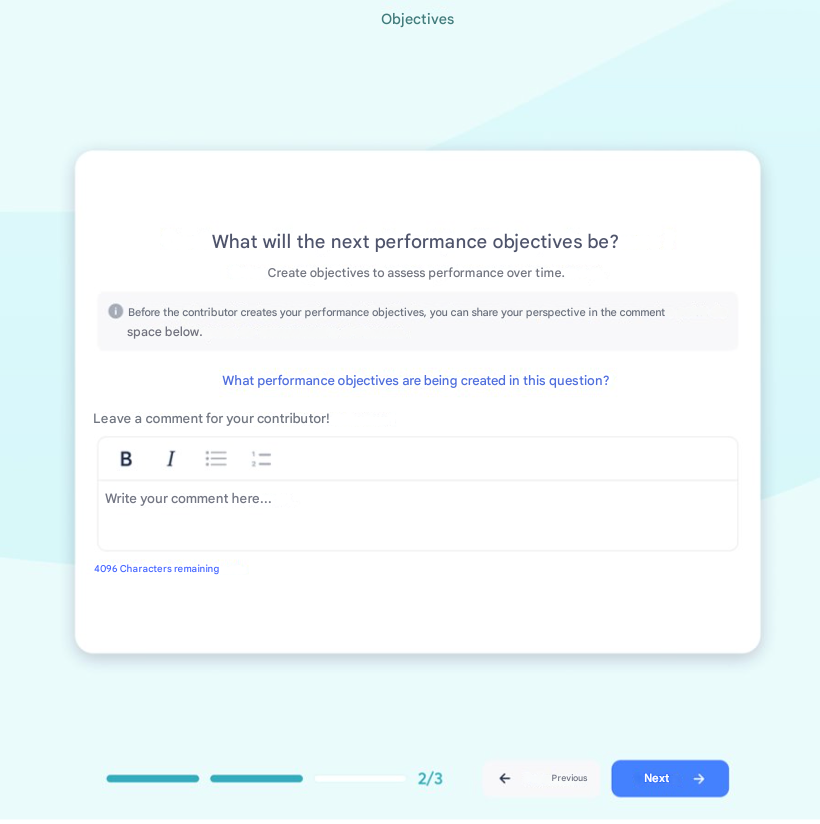
Creating Performance Objectives via “Review”
👉 During the 2024 Annual Review:
- The employee can suggest an objective in a comment
- The Manager / Contributor can then create the objective based on this suggestion
🚫 Outside the review:
- Creation is not possible
- ✔️ Evaluation is possible via the Objectives module
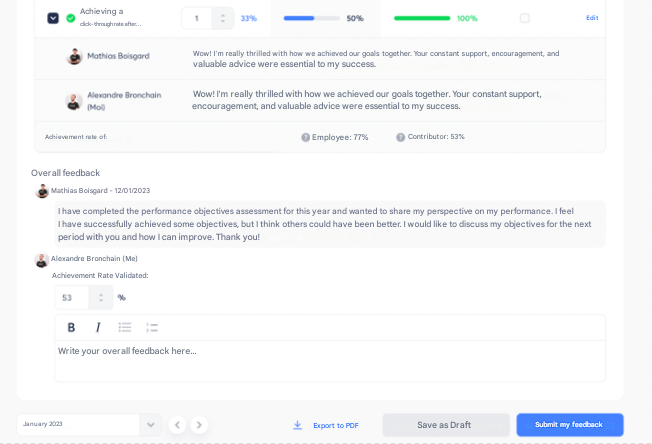
Evaluation via “Review”
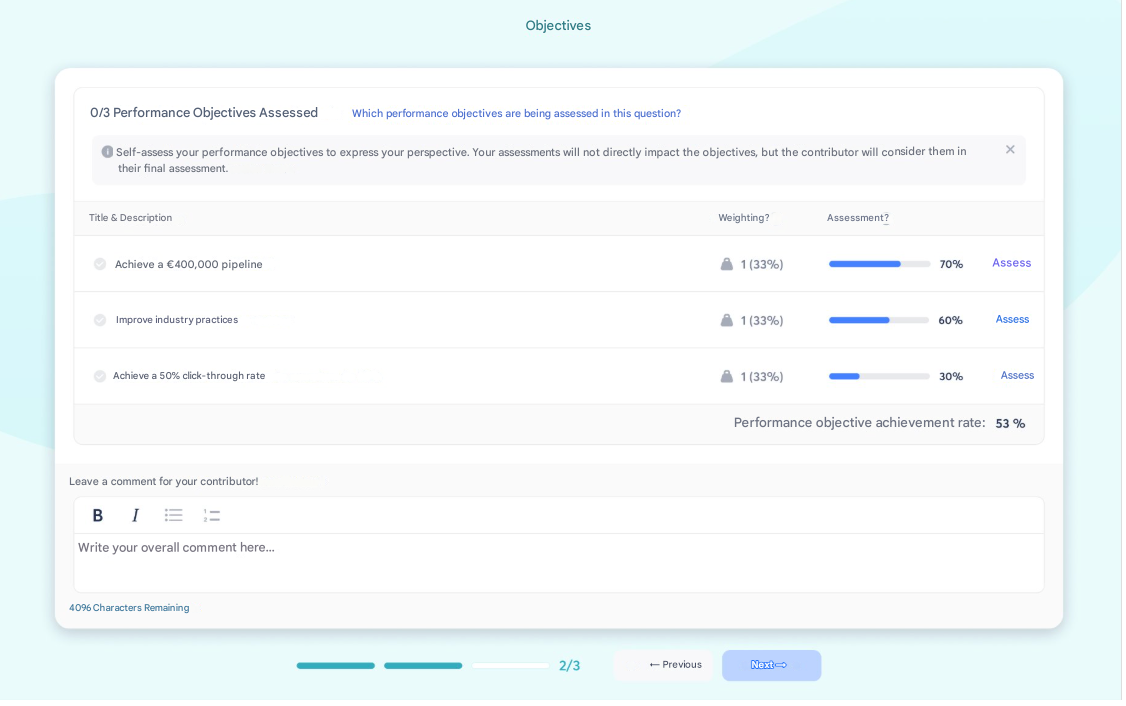
👉 During the 2025 Annual Review:
- The employee can complete a self-assessment
- This self-assessment serves as the basis for the Manager / Contributor to:
- evaluate the objectives
- validate the performance variable
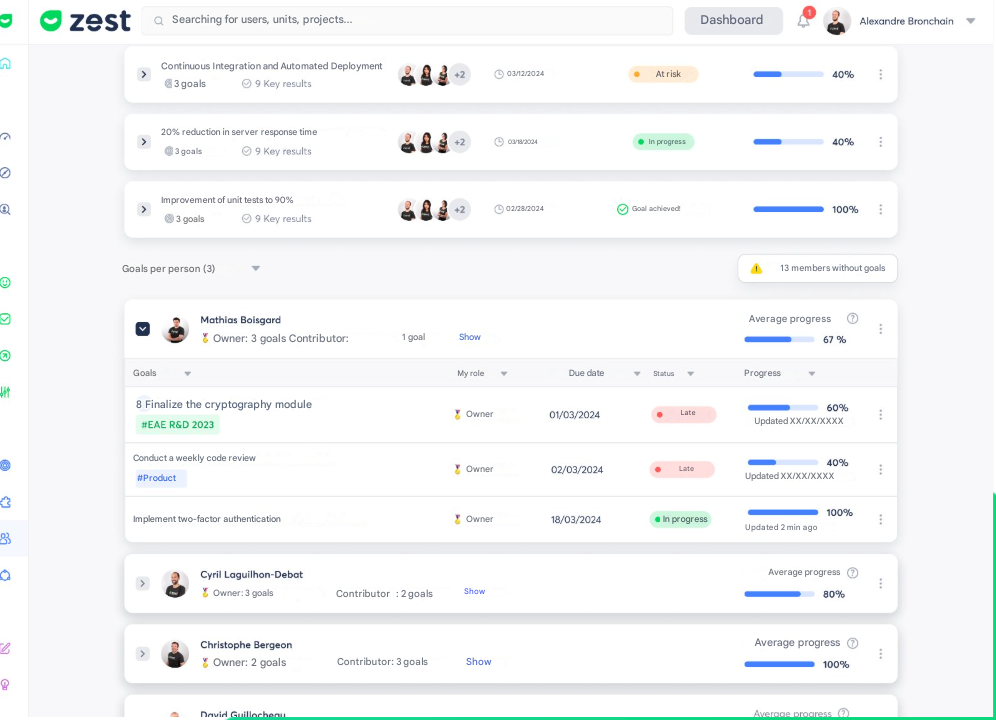
Tracking via “Objectives” (outside the review)
Outside of reviews:
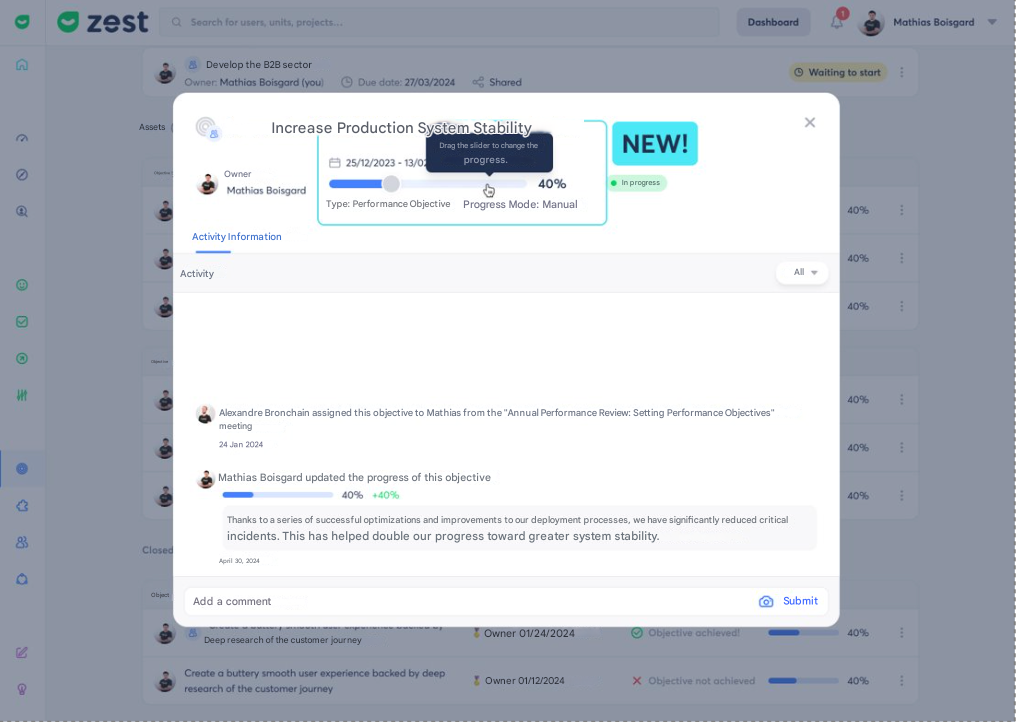
- The employee can update the progress of their Performance Objectives
- From their objectives portfolio
- Without going through a review
⚠️ The final evaluation is still carried out by the manager within a review.
👥 Manager / Contributor Experience
Creating Performance Objectives via “Review”
👉 During the 2024 / 2025 Annual Review:
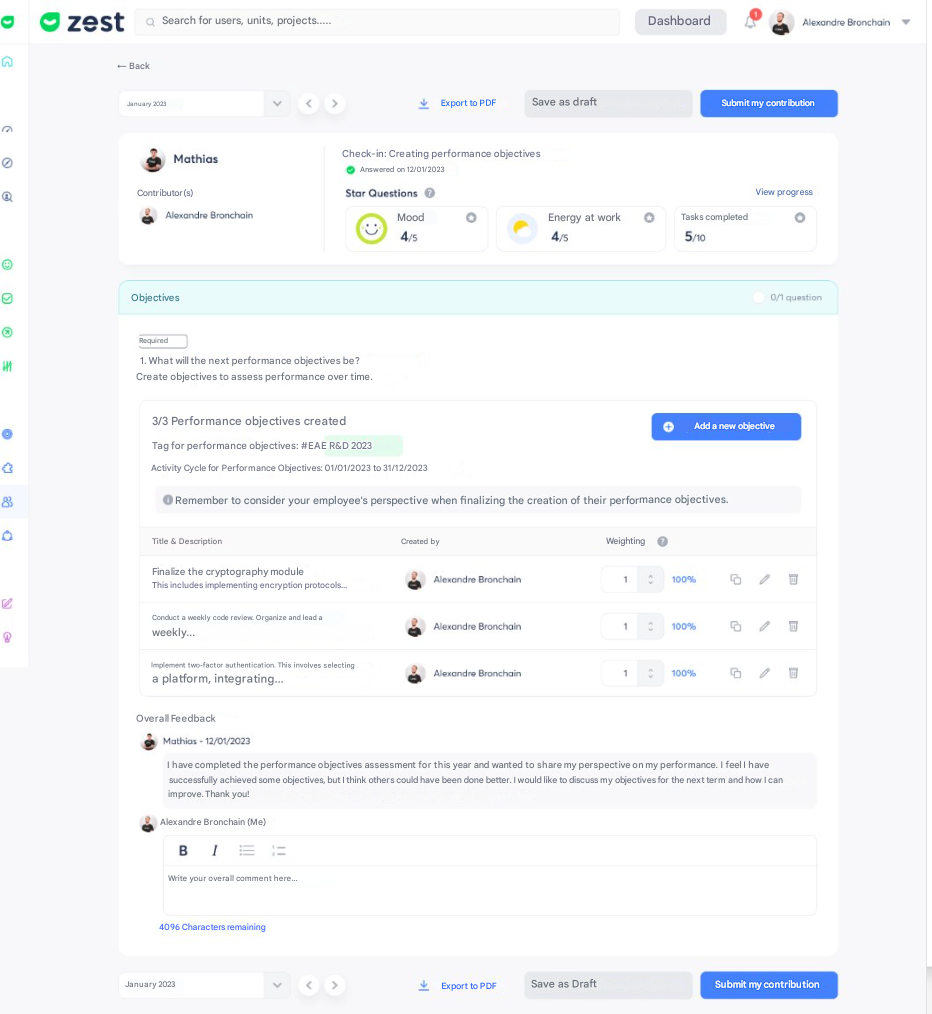
The Manager / Contributor gains more autonomy and performance management control:
- Creation of Performance Objectives
- Weighting of objectives against each other
- Calculation of the performance variable as a percentage (and not in euros)
Creation via “Objectives” (outside the review)
👉 Outside of reviews:
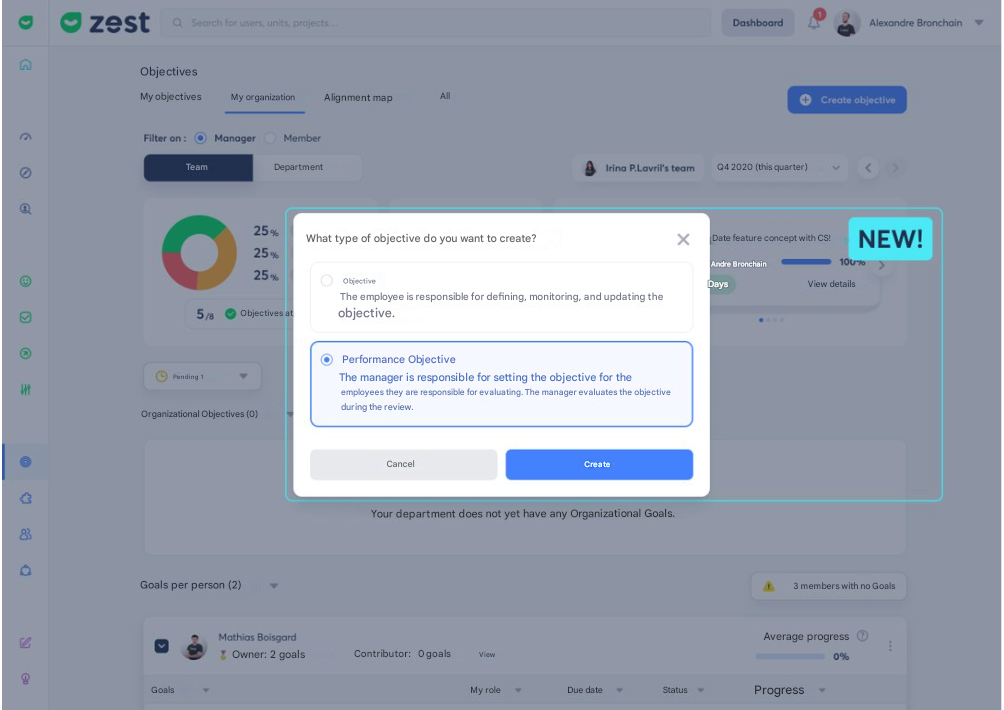
- Creation and editing are possible from the Objectives module
- Especially useful for:
- employees joining during the year
✏️ Editing Performance Objectives — 3 possible cases
1️⃣ Objective created outside a review
→ Full editing possible:
title, description, tag, dates, deletion
2️⃣ Objective created from a review
→ Limited edits only:
title and description only
(tag and dates are locked)
3️⃣ Objective bulk imported by Zest
→ No modification possible
(for HR security reasons)
📊 Evaluation & variable calculation
The Manager / Contributor can:
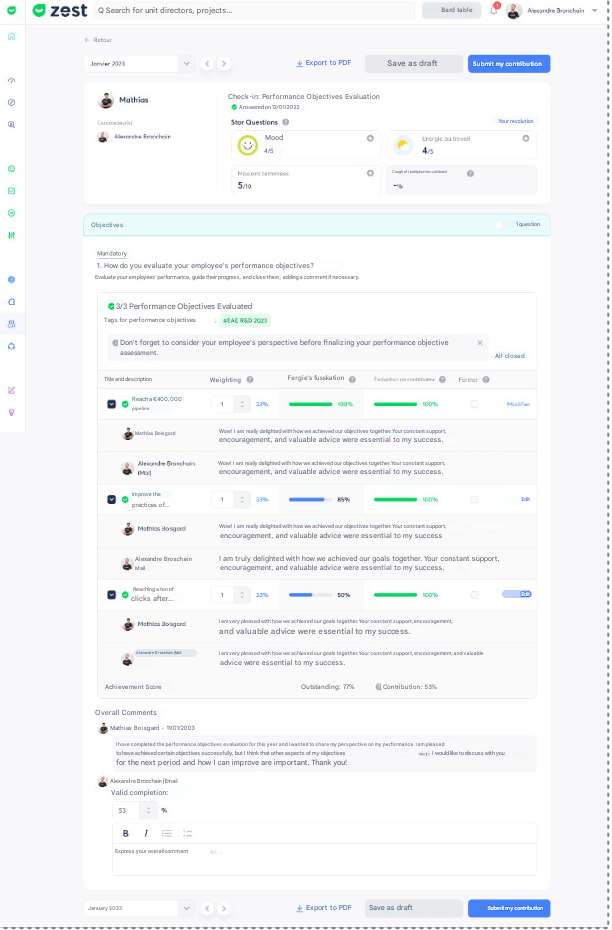
- Evaluate objectives during the 2025 Annual Review
- Automatically calculate the achieved variable
- Modify the weighting during the evaluation if needed
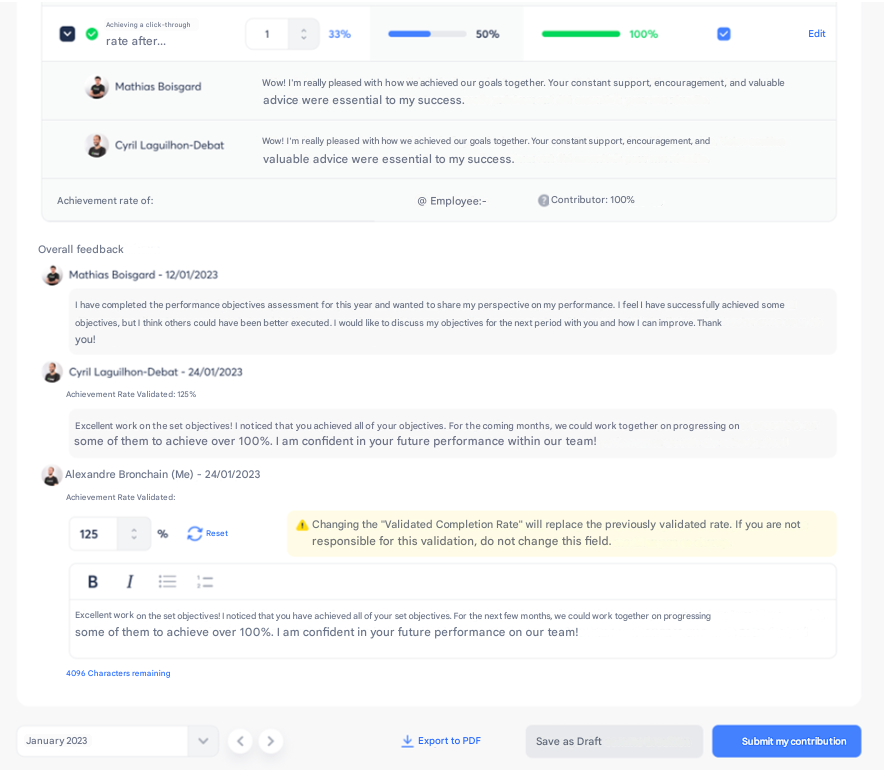
🔄 Completion Rate Update — Focus
Activation conditions
- The review creator must have checked
“Validate the completion rate by the contributor”
- All objectives must be evaluated
How it works
- Any change to the rate:
- overrides the previous rate, even if it was entered by another contributor
- The “Reset” button allows you to return to the automatically calculated rate
📭 Special Case: Employee Absent
If the employee is absent:
- The Manager / Contributor can still evaluate the objectives
- Provided that the “Employee Response” period has ended
Before the end of this period:
- The Manager / Contributor can only prepare the review
(same behavior as standard objectives)
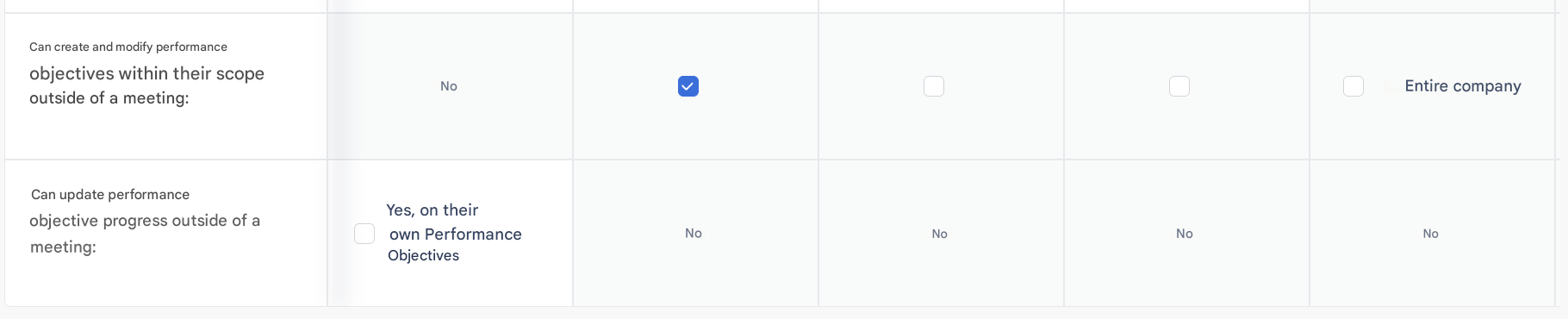
Super Admin Experience: New Permissions in the Back Office
🧩 Super Admin / Review Creator Experience
A New Template Available in the Zest Library
🚀 A Ready-to-Use Template for Your Annual Reviews
A new Annual Performance Review template is now available in the Zest Library.
This template has been designed to support Super Admins and Review Creators in setting up structured, effective, and performance-oriented reviews.
🎯 What are the benefits?
This new template provides:
- ✅ A ready-to-use setup for Performance Objectives, without complex configuration
- 🎓 A structured and efficient way to collect training needs expressed during annual reviews
👤 Who is it for?
- Super Admins
- Review Creators
- Anyone responsible for configuring annual reviews in Zest
“Objectives” vs “Performance Objectives”
| Feature | Action - Description | Owner | Objectives | Performance Objectives |
|---|---|---|---|---|
| REVIEW | CREATION - Limit the number of performance objectives to create | Creator | ❌ | ✅ |
| REVIEW | CREATION – Create a tag from a Review | Creator | ❌ | ✅ |
| REVIEW | CREATION - Weight objectives to calculate a % of variable achievement | Contributor | ❌ | ✅ |
| OBJECTIVES | CREATION – Create an objective from the “Objectives” list + customize the measurement scale | Employee | ✅ | ✅ |
| OBJECTIVES | CREATION – Create a Performance Objective from the “Objectives” list | Contributor | ❌ | ✅ |
| REVIEW | EVALUATION - Include objectives in the evaluation via: status, role | Creator | ✅ | ❌ |
| REVIEW | EVALUATION - Include objectives in the evaluation via: tag | Creator | ✅ | ✅ |
| REVIEW / OBJECTIVES | EVALUATION – Control the final evaluation: progress at 100% and closure at 100% | Employee | ✅ | ❌ |
| REVIEW | EVALUATION – Control the final evaluation: progress and closure | Contributor | ❌ | ✅ |
| REVIEW | EVALUATION - Allow employee self-assessment before the manager’s final evaluation | Creator | ❌ | ✅ |
| OBJECTIVES | EVALUATION - Allow progress updates (non-final) from the list, outside Reviews | Employee | ✅ | ✅ |
| OBJECTIVES | EDITING - Edit title / description / dates between creation and evaluation | Contributor | ❌ | ✅ |
| OBJECTIVES | UPDATE - Update progress and tracking of the objective from the list | Employee | ✅ | ✅ |
| REVIEW | CLOSURE - Enable automatic closure during evaluation by the Contributor (pre-checked box) | Creator | ❌ | ✅ |
| OBJECTIVES | CLOSURE: only via a Review and only by the Contributor | Contributor | ❌ | ✅ |
🧠 Skills – Discover the New V2 Version
The new Skills version (V2) is now available in Zest.
This major upgrade simplifies talent management and allows you to better track, assess, and develop your teams’ skills.
🚀 Why a new Skills version?
Skills V2 has been completely redesigned to provide an experience that is:
- more seamless
- more intuitive
- better aligned with HR needs
It notably allows you to:
- 🧩 Easily create your skills framework
and automatically assign it to your employees based on their roles and responsibilities.
- 🗣️ Assess skills directly during reviews,
for agile follow-up strengthened by a feedback-driven culture.
- 📊 Visualize employee progress through an interactive radar chart,
highlighting their strengths and areas for improvement.
⚙️ How to activate V2?
Before activation, we strongly recommend that you save your current framework (V1).
Steps to follow:
- From the home page, go to the Skills module, then to the “All” tab.
- Export your skills to keep a full backup of your current framework (V1).
- Then go to the Back Office, and:
- Go to Global Settings > Succeed
- In the table, enable “Skills”
👉 This action will automatically disable Skills V1.
- Further down the page, a section “Import your skills catalog” will appear:
- Click the link to download the new import file
- This file also contains a detailed guide explaining how to complete it correctly.
🎥 Useful resources
👉 An explanatory video is also available to guide you step by step through the activation and framework import.
💬 Need help?
If you are ready to move to the new Skills version (V2),
📩 contact our support team at: [email protected]
They will support you at every step to ensure a smooth and secure transition, especially for:
- your professional reviews
- the implementation of new “Skills” rituals