Add Questions and Sections to a Review

📝 What is a section?
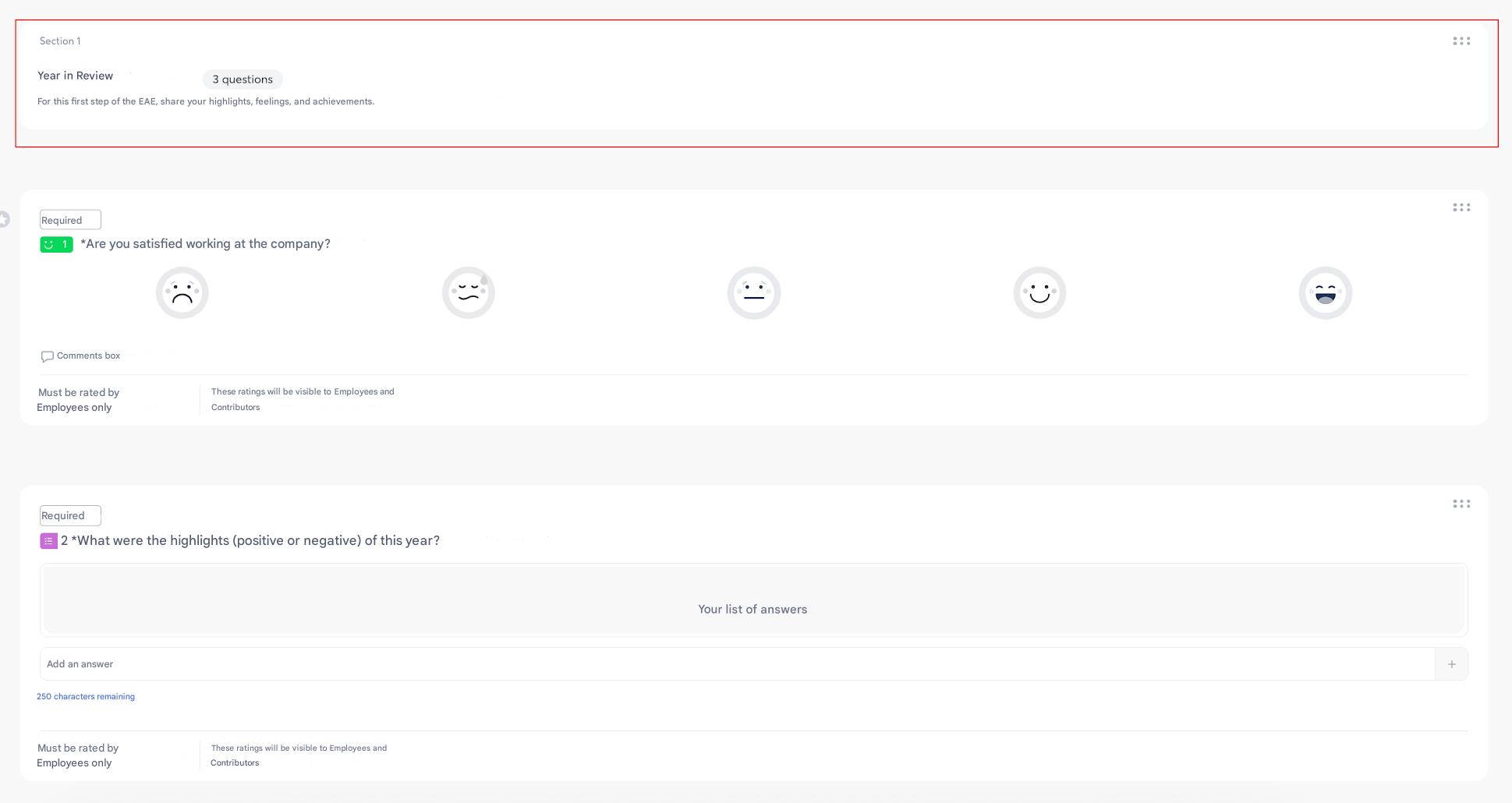
A section allows you to structure a review into chapters (e.g., Objectives, Skills, Feedback).
It helps organize questions to make the review clearer and easier to complete.
➕ How to add a section?
- In the review editor, click “Add a section.”
- Give it a title and optionally add instructions or an image.
- Then add questions within this section.
🔎 What is a question?
A question is the element to be completed by the employee or the contributor.
There are several types of questions:
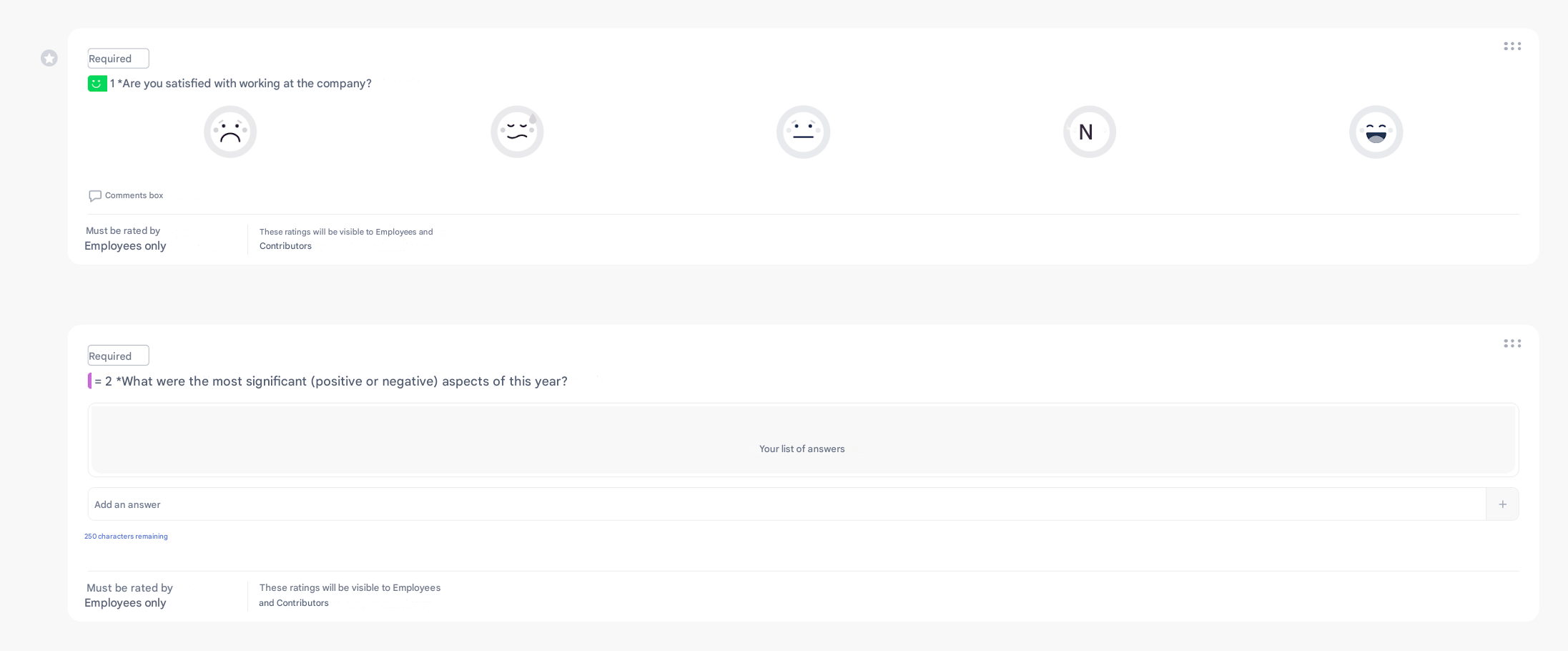
- Simple: free comment, scale (stars, slider, weather, mood…), single/multiple choice.
- Advanced: Objectives, Skills, Training requests, etc.
- Star Questions: highlighted questions for tracking purposes.
- Contributor only: visible and completed only by managers/contributors.
- Conditional: can appear only depending on a response or an attribute.
➕ How to add a question?
- Within a section, click “Add a question” or directly select the desired question from the left sidebar.
- Choose the question type (simple, advanced, star, contributor only).
- Configure the options (mandatory or not, with/without comment, visibility, etc.).
- Save: the question will appear in the review template.
💡 Tip
- Feel free to use multiple sections to make the review easier to read.
- Alternate simple and advanced questions to balance reflection (comments) and measurement (scales, objectives, skills).