🔐 Configuring Access Rights for Reviews
Access rights allow you to define precisely what different roles can do in the Evaluation module, particularly when managing review campaigns.
These rights give greater autonomy to Managers, Department Admins, and Location Admins, while limiting their access to their designated visibility scope.
⚙️ Accessing the rights configuration
To configure rights related to reviews:
- Go to the Back Office.
- Open the “Rights” tab.
- Select the “Succeed” tab.
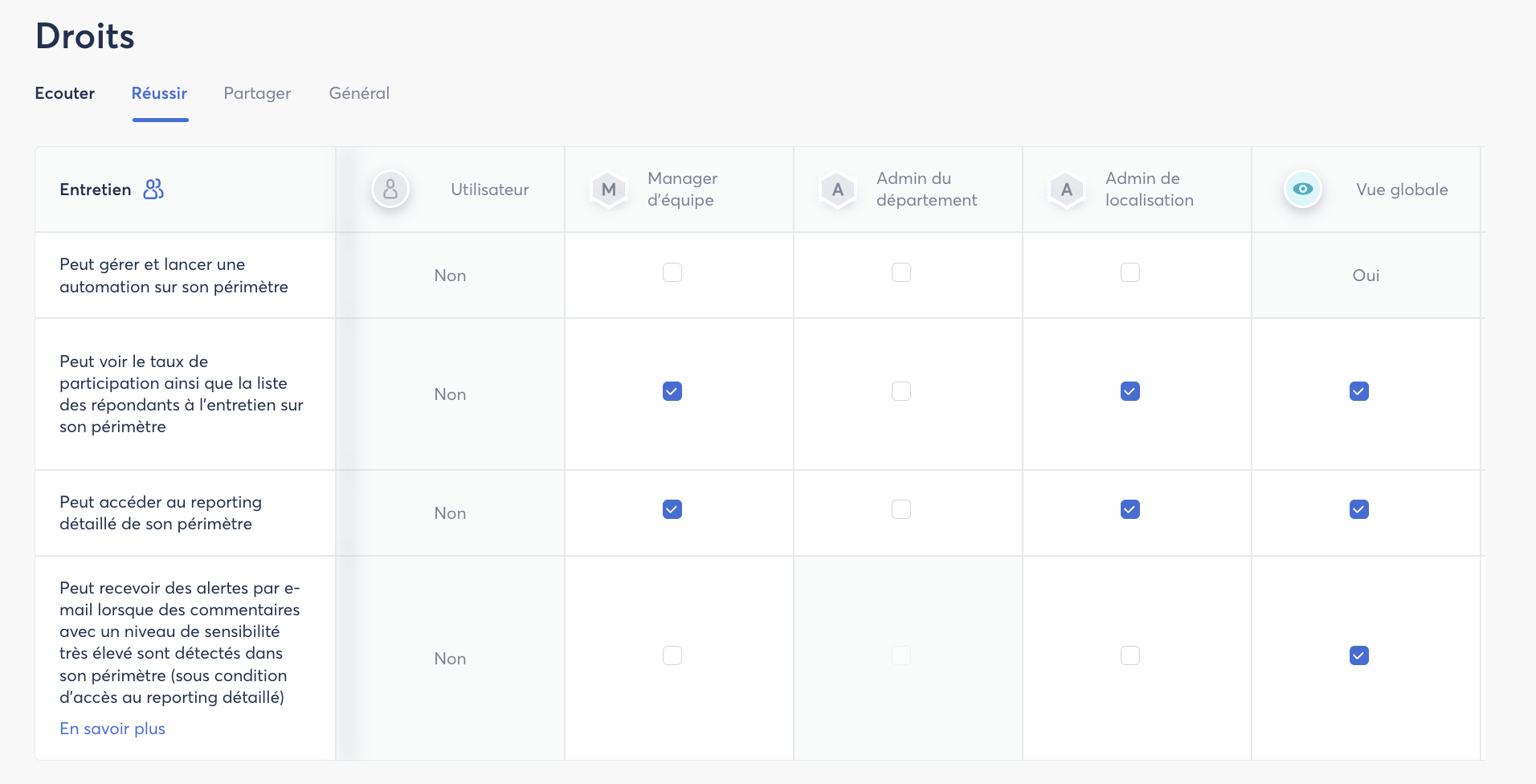
Here, you will find all the rights that can be assigned to the different roles in your Zest environment.
🏢 Rights based on the SmartOrg
Review management also depends on the configuration of your SmartOrg, particularly the hierarchical and managerial relationships defined within your organization.
The roles created in Zest, such as:
- Manager
- Department Admin
- Location Admin
can therefore be granted specific rights within their respective scope.
💡 Good to know: rights assigned to a role do not necessarily provide access to the entire organization. Access also depends on the visibility scope defined in the SmartOrg.
🎯 Main available rights
Depending on the rights granted to them, Managers and Administrators can, for example:
🚀 Create and launch reviews
Allow a role to create and launch review campaigns within their own scope.
This permission makes it possible to delegate part of the campaign management to the relevant managers or administrators.
📊 View participation rates
Allow a role to view the participation rate and the list of respondents for reviews within their scope.
This makes it easier to monitor campaign progress without requiring intervention from a SuperAdmin or the HR team.
📈 Access detailed reporting
Provide access to detailed review reporting within the relevant scope.
The role can then monitor and analyze the results corresponding to their visibility scope.
🚨 Receive alerts about sensitive comments
It is also possible to allow certain roles to receive email alerts when a comment with a very high sensitivity level is detected within their scope.
This helps identify and monitor situations that may require particular attention.
🧩 Giving teams autonomy while controlling access
Configuring access rights makes it possible to strike the right balance between team autonomy and access control.
Depending on their role and the scope defined in the SmartOrg, Managers and Administrators can have the rights they need to manage their campaigns, monitor progress, and view results, without necessarily having access to data for the entire organization.
💡 Best practice: Before assigning a right, always check the visibility scope associated with the role to make sure users will only have access to the data corresponding to their responsibilities.