Employees can share their mood in Zest in two ways:
- spontaneously, at any time,
- in response to a mood request sent by the company (email, notification, etc.).
🟢 Sharing Your Mood Spontaneously
From the Zest Website or Mobile App
- Log in to Zest (web or mobile app).
- Go to the Mood module from the left-side menu.
- Select and indicate your current mood.
- Choose the sharing mode:
- Anonymous
- Non-anonymous
🔐 Anonymous or Non-Anonymous: What’s the Difference?
- Non-anonymous: authorized viewers will see your name, surname, and photo.
- Anonymous: your identity is not visible.
👉 You can see exactly who can view your mood by clicking the (i) — “Who can see my mood?” button, depending on permissions set by Zest administrators.
🎥 An explanatory video is available: web version
- mobile version
🔔 Sharing Your Mood After Receiving a Request
If your administrators or managers have set up a mood request, you may receive a prompt via email or through the application.
📧 Receiving the Email
- You receive a personal email with a unique link.
If an employee does not receive the email, ask them to contact their HR team or Zest Support.
How to Respond from the Email
👉 You do not need to log in to respond via email.
- Click in the email to indicate your mood.
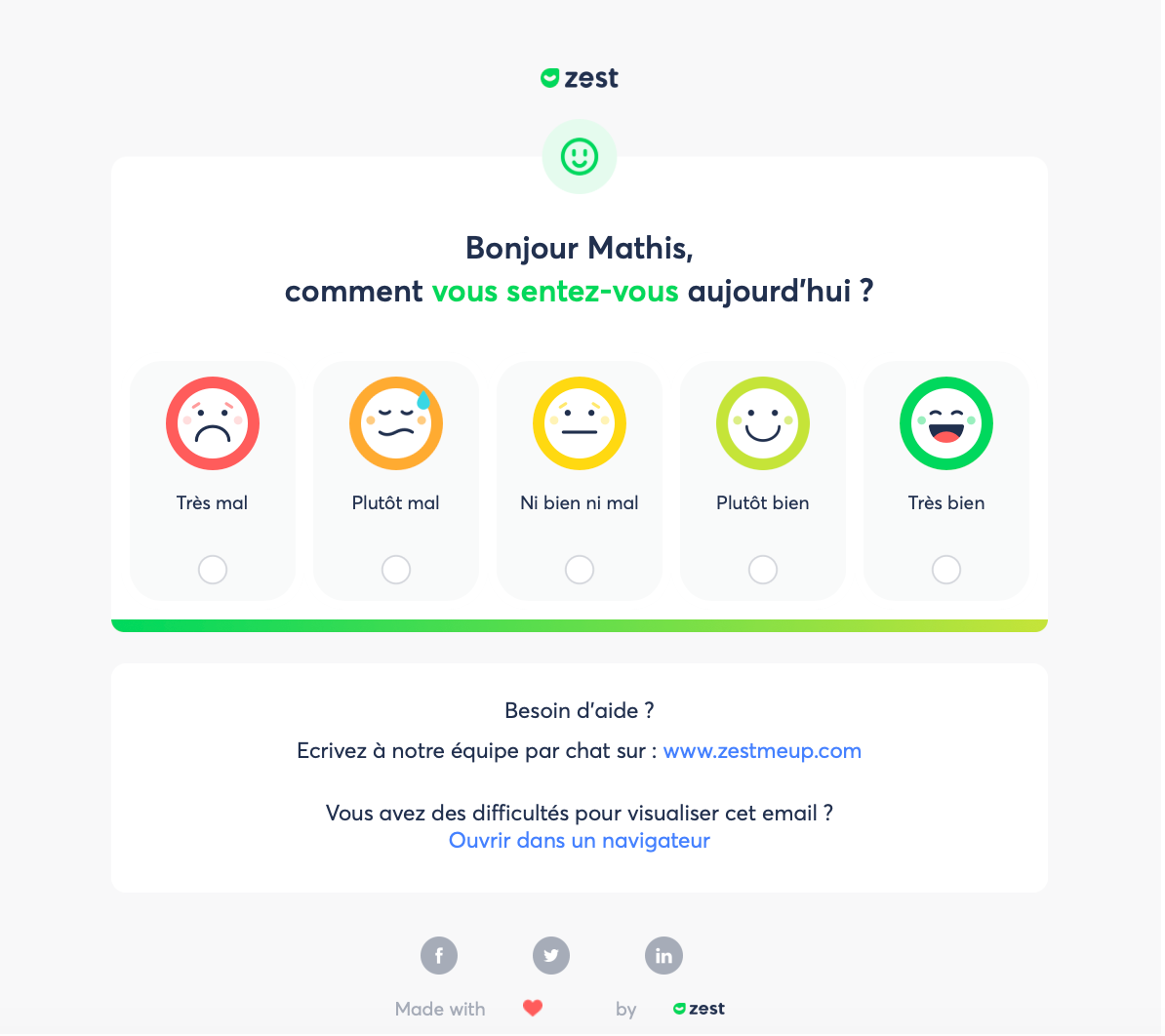
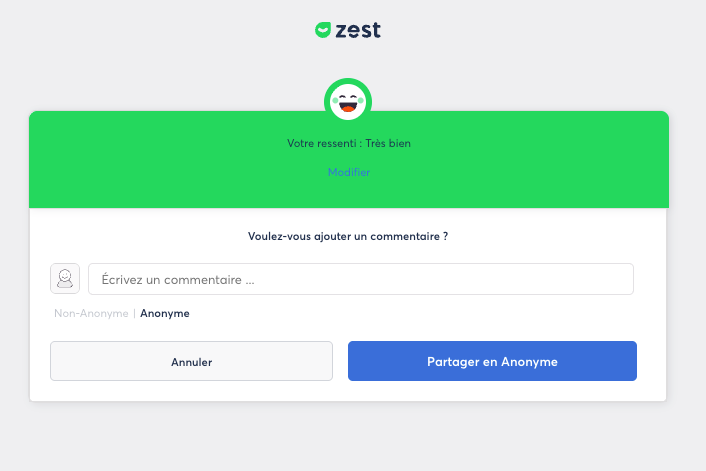
- A new page opens:
- you can choose to share your mood anonymously or non-anonymously,
- add a comment (if allowed),
- then confirm by clicking “Share”.
⚠️ Note:
If Zest administrators have disabled anonymous comments, the comment field will disappear when you select anonymous mode.
📱 Sharing Your Mood on Mobile
To respond from the mobile app:
- You must be logged into the Zest app.
- Tap the notification received or the link from the email.
- You will be redirected to the app.
- Indicate your mood.
- Choose:
- anonymous, or
- non-anonymous.
👉 Here too, the (i) button lets you see who can view your mood, according to the defined permissions.
🤝 Reacting to Your Colleagues’ Moods
If you have the appropriate visibility rights, you can:
- react to your colleagues’ moods,
- leave a like,
- add a comment to:
- congratulate,
- encourage,
- or offer support.
These interactions help strengthen team cohesion and day-to-day communication.