Web Browser Version, Whitelisting and Email:
Browser compatibility
The ZestMeUp web application is accessible on Google Chrome, Mozilla Firefox, Microsoft Edge, and Internet Explorer. For a smooth and optimal experience, we nevertheless recommend using Google Chrome or Mozilla Firefox.
Whitelisting
To ensure the deliverability of our emails (information, application updates, event invitations, notifications, etc.), please add ZestMeUp as an approved sender for your organization.
📄 More information below 👇
GDPR Compliance at Zest
The Zest tool is GDPR-compliant “by design.”
📄 You will find more information on this topic below 👇
Updating Your User Database
Once you have completed your initial user upload into Zest, you will need to update this user database — whether to modify your SmartOrg or to add/remove employees.
To do so, several options are available:
1. Via the Back Office (manually)
→ For small, occasional changes (adding a new employee, modifying an employee’s role, temporarily suspending an employee, etc.)
Go to the page below for more information 👇
2. Via the Excel file in the self-service import
→ For “bulk” changes
Go to the page below for more information 👇
2a — Upload Your Users into Zest
2 — Create and Bulk Upload Your Users into Zest
3. Via the SFTP protocol
→ For more or less regular bulk updates, the SFTP protocol allows you to autonomously deposit your Excel file on a server that will automatically import the file into Zest.
If you wish to set up the SFTP protocol for your organization, please contact your dedicated CSM.
📄 More information about the SFTP protocol below 👇
4. Via SCIM
→ For regular bulk updates, SCIM allows Zest to connect to your employee management system so that all updates made in your system are automatically synchronized with Zest.
If you wish to set up SCIM for your organization, you must first verify that your employee management system supports this protocol, then contact your dedicated CSM for guidance.
5. Via the Personio integration
SSO Setup:
SSO (Single Sign-On) is a single authentication method that allows your employees to log in to the Zest application using existing credentials, for example via their Microsoft 365 or Google account.
If you wish to set up SSO for your organization, please contact your dedicated CSM.
To get started, you will need the following Zest information:
- Metadata URL: https://zestmeup.com/api2/saml2/metadata.xml
- Assertion URL: https://zestmeup.com/api2/saml2/assert
- Metadata URL: https://preprod.zestmeup.com/api2/saml2/metadata.xml
- Assertion URL: https://preprod.zestmeup.com/api2/saml2/assert
Once this configuration is completed, you will be able to export your identity provider metadata and share it with us, along with the user mapping file. You may send any information you wish in the assertion’s entityID. To link this information with the users imported into Zest, you will also need to add an “sso_login” field in the SFTP import files; this value must match the “entityID” sent by the SSO.
Integration with Teams
If you use Microsoft Teams in your organization, an integration with Zest is now available. This will help boost employee adoption, increase participation, and therefore accelerate your ROI.
Discover why, what, and how to integrate with Teams:
Here is how the integration works:
Slack Integration
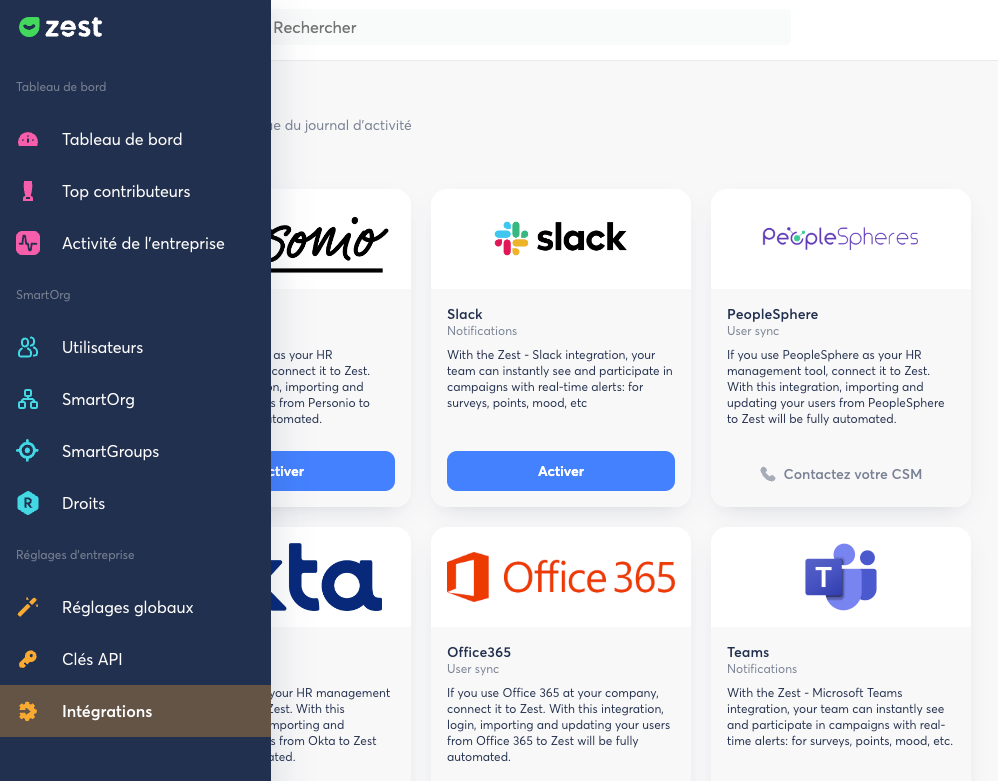
First of all, make sure you have the Super Admin role in Zest. This will allow you to access the Back Office and the “Integrations” > Slack section:
Click the “Validate” button for the Slack integration.
Follow the steps: confirm that you want the integration and choose a public channel
(this is required by Slack for any external tool). We recommend selecting “random.”
Don’t worry — we will not use it!
Enjoy using Zest on Slack!