The Skills V2 module in Zest allows you to structure, assign, assess, and track your employees’ skills in a clear and personalized way.
This guide walks you step by step, from preparing your import file to creating the skills portfolios that will be evaluated during reviews.
Explanatory Video
🎥 Discover how the Skills V2 module works in full
👉
🧭 1. Skills Migration and Preparation
👉 This step only applies to organizations that have previously used Skills V1.
If this is your case:
- Retrieve your existing skills,
- Copy them into the new Skills V2 file,
- Reassign them by job role, Smart Group, or globally, depending on their use,
- And remove duplicates before import.
💡 If you are starting fresh with the Skills module, you can directly create your V2 file without migrating old data.
📂 Download the Skills V2 Template File
The blank import template is available directly from your Zest environment:
Back Office → Global Settings → Succeed → then at the bottom right of the page: 📥 Fichier_Import_Vide_Competence.xlsx
This file contains the base structure to complete before sending it to support ([email protected]) for import.
⚙️ 2. Structure of the Skills V2 File
Each row in the file corresponds to one unique skill.
| Field | Description | Example |
|---|---|---|
| Title (required) | Name of the skill | Project Management, Managerial Leadership, Data Analysis |
| Description (optional) | Explanation of the skill | “Ability to effectively lead a cross-functional project” |
| Category (optional) | Type of skill | Soft skills / Functional skills / Technical |
| Manager (optional) | Targeting managers or non-managers | |
| Attributes (optional) | Target population | Smart Group, job role, managers, etc. |
🧩 3. Skill Assignment Options
You can define who each skill automatically applies to.
🔹 A. By Smart Group
Assign a skill to a group of employees defined by specific criteria (contract type, tenure, location, etc.).
Example:
Smart Group: “Permanent Contract — Less than 6 months”
Filters used:
- Contract type = Permanent
- Start date ≤ 6 months
💡 Ideal for onboarding skills, initial training, or site-specific skills.
🔹 B. By Job Role
Assign skills based on the job role specified in your user database.
“Customer Advisory” assigned only to employees whose job role = “Sales Advisor.”
💡 For this to work, your user database must include a “job role” attribute (see next section).
🔹 C. By Managerial Role
- Managers only → manager = true
- Non-managers only → manager = false
- “Conducting annual reviews” → Managers only
- “Internal communication” → All employees
🔹 D. For All Employees
If a skill should apply to everyone (e.g., Teamwork, Company values),
➡️ leave all assignment columns empty.
Zest will automatically apply this skill to all active employees.
🧑💻 4. Create Your Smart Groups and Attributes in Zest
🧠 Create a Smart Group
Back Office → Smart Group → Create a Smart Group
- Click “Create a Smart Group”
- Define your criteria (job role, tenure, contract type, department, etc.)
- Give it a clear name (e.g., “Permanent — Less than 6 months”)
- Copy this name into your Skills V2 file, in the corresponding assignment column
🏷️ Add a “Job Role” Attribute
Back Office → Attributes → Create an attribute → Type: Text
- Go to Back Office → Users → Export database
- Add a Job Role column
- Enter the job role for each employee
- Re-import the updated database
Your skills can then be assigned automatically based on job role.
🚀 5. Import and Activation in Zest
Once your file is ready:
- Send it to [email protected] for import by the technical team
- The team activates the Skills V2 version in your workspace
- You can then create a review including the question:
“🧭 Skills Portfolio Update”
⚠️ This question can be added only once per review template.
⚙️ 6. Skills Evaluation Configuration
In your review template — whether created from scratch (via the “Create a review” button) or selected from the Zest template library — you can customize the “🧭 Skills Portfolio Update” question using several parameters:
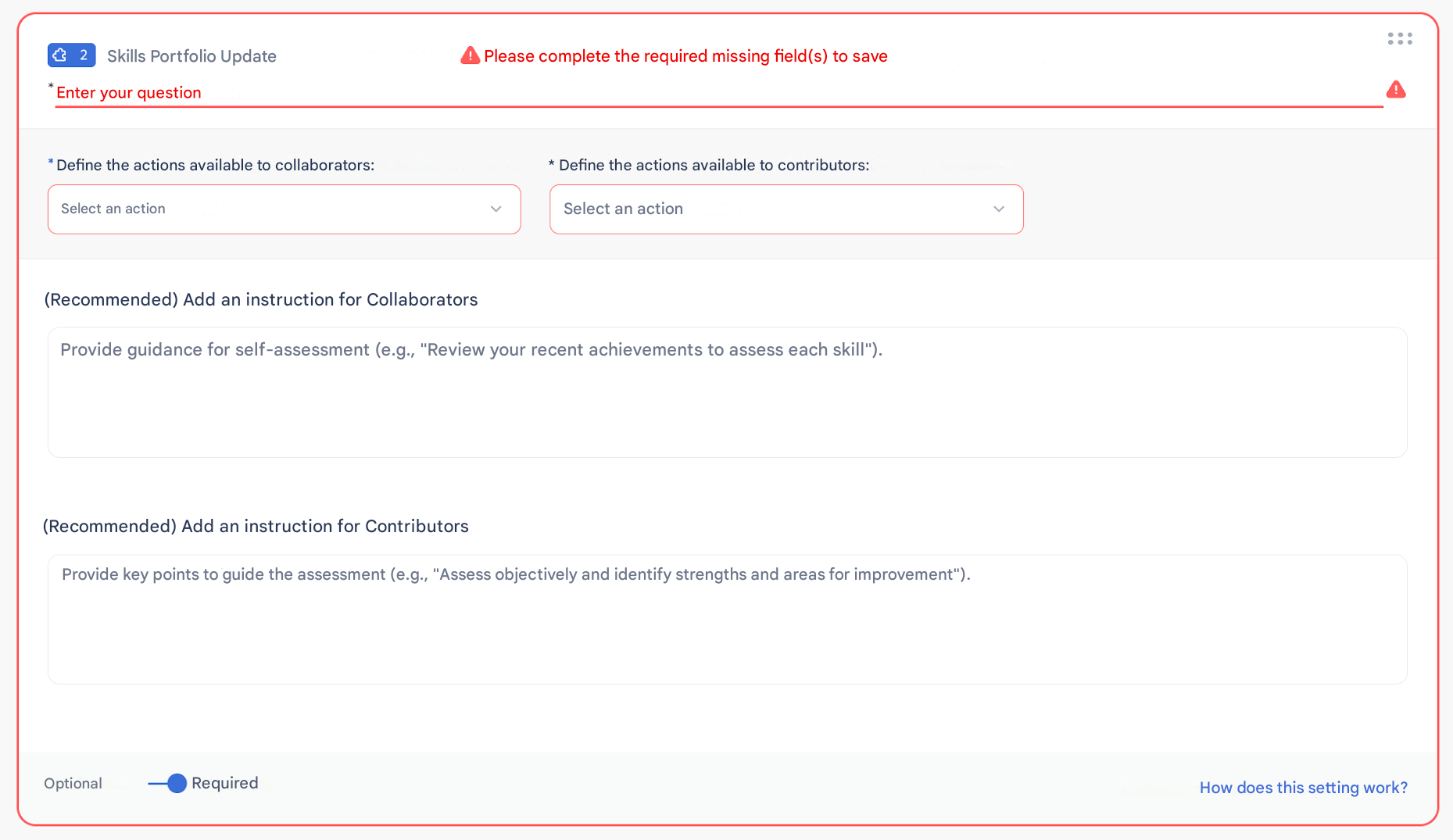
👤 For Employees:
- Self-assessment → the employee evaluates themselves
- View only → they can view their portfolio without modifying it
👥 For Managers:
- Evaluate only
- Add only
- Evaluate + add
📊 Evaluation Scope:
- Employee’s full portfolio
- Job-related skills only
- Specific categories (e.g., Communication, Technical, Management)
💬 You can customize an instruction sentence for:
- the employee,
- and for the manager.
📈 7. Default Evaluation Scale
Skills are assessed on a fixed scale of 5 levels + N/A:
| Level | Label | Description |
|---|---|---|
| N/A | Not applicable / Not observed | Skill not evaluated |
| 1 | Far below expectations | Insufficient level |
| 2 | Below expectations | Improvement needed |
| 3 | Meets expectations | Expected level |
| 4 | Exceeds expectations | Above standard |
| 5 | Expert level | Exemplary / Reference |
⚙️ It is not yet possible to modify the number of levels, but you can adjust the wording upon request at: 📩 [email protected]
👉 We therefore recommend adding a “Language” attribute to your user database, then creating a “Job + Language” Smart Group to assign the appropriate language version of skills to each population.
💡 Example:
- Smart Group: “Sales Advisor — FR” → skills in French
- Smart Group: “Sales Advisor — EN” → skills in English
💡 Best Practices
✅ Name your skills clearly and avoid duplicates
✅ Structure your categories before import
✅ Create precise Smart Groups for better readability
✅ Have your file validated by your CSM before final import
🤝 Need Help?
Our team is available to support you with the creation, configuration, or import of your skills.
📩 [email protected] or contact your Customer Success Manager