🔐 Reset your password on Zest
There are two ways to reset your password, depending on whether the Employee has an email address associated with their Zest account.
✅ 1. The Employee has an email address
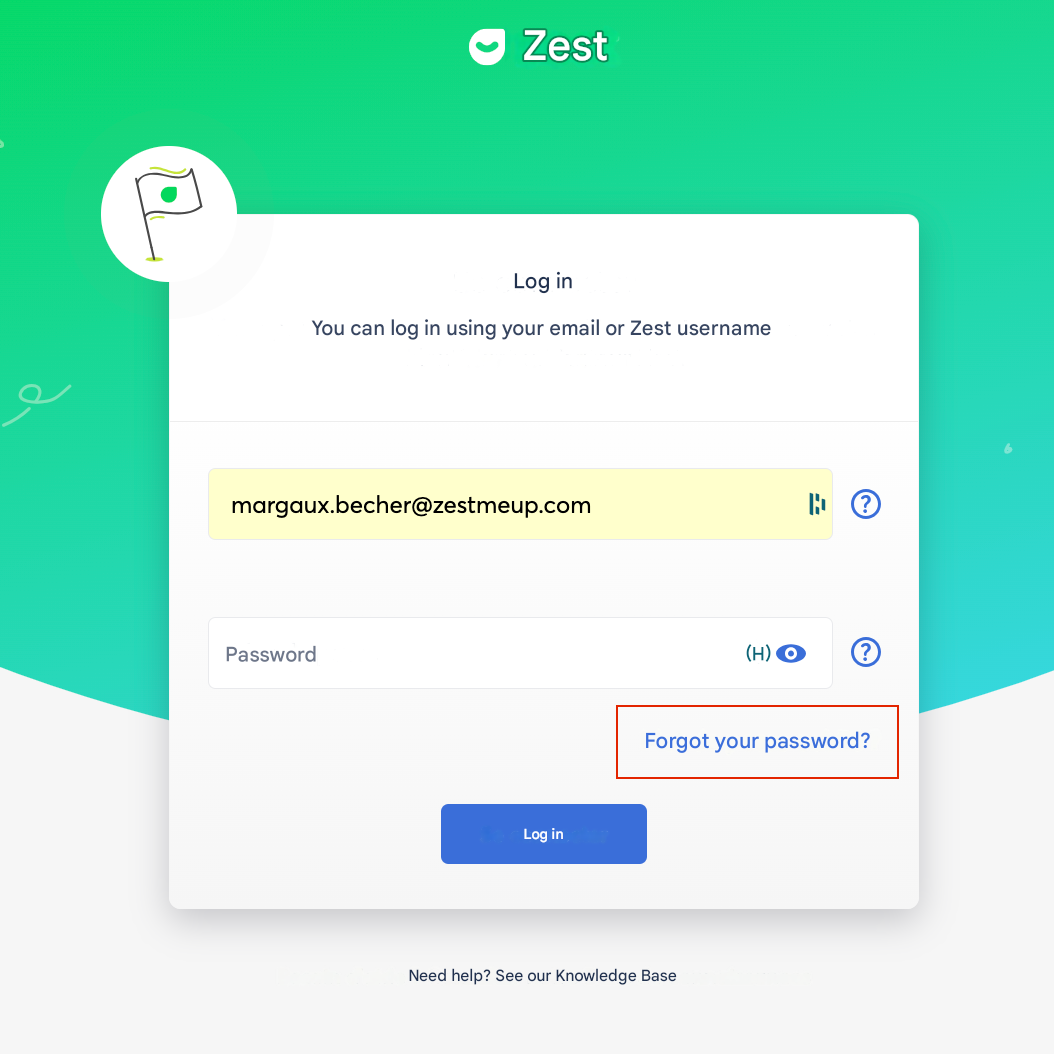
When the Employee has an email address, they can reset their password independently, directly from the Zest login page.
🔐 Reset procedure
- Go to the Zest login page.
- Enter your professional email address (or personal email if this is configured as your Zest login by your company).
- Click “Forgot password”.
- Confirm the entered email address, then click “Reset my password”.
- An automatic email is sent containing a secure link allowing you to create a new personalized password.
⚠️ Important point – SSO login enabled
If SSO login (Single Sign-On via a company application) is enabled for your organization:
- ❌ No reset email will be sent by Zest.
- 🔐 Authentication is then entirely managed by your identity provider (Microsoft, Google, etc.).
- 👉 The Employee must follow the reset procedure specific to your SSO (company account password).
Enregistrement de l’écran 2026-01-14 à 18.59.39.mov
⚠️ 2. The Employee does not have an email address
🔐 Password reset process (without email)
When an Employee does not have an email address, the password reset is carried out through a secure process, based on security questions and requiring the intervention of a Zest Administrator.
🅐 Step A — Employee actions
- The Employee enters their employee ID on the login screen.
- They click Validate, then Forgot password.
- A first security question is asked:
- ✅ Correct answer → the Employee can define a new password.
- ❌ Incorrect answer → a second security question is asked.
- In case of a double failure on the security questions:
- A reset request is automatically sent to a Zest Administrator (according to configured permissions).
- A message informs the Employee that their request has been successfully submitted.
👉 At this stage, the Employee can no longer act alone and must wait for the Administrator’s validation.
🅑 Step B — Administrator actions
- The relevant Administrator (Super Admin, Admin, or Manager depending on the permissions defined in the Back Office) receives a validation email.
- They click on the link contained in the email.
- A Zest page opens in their browser:
- They must be logged in (or log in) to their Administrator account.
- Once the request is validated:
- The Administrator provides the Employee with the workspace generic password (provided during onboarding).
- The Employee can then log back in to Zest and define a new personal password.
🅒 Step C — Special case: lost generic password
If the workspace generic password is lost:
- The CSM or Zest support can define a new one, upon request.
- For security reasons:
- No password is accessible or recoverable from the database.
- Zest does not keep any visibility over passwords.
🔁 In this case, the process must restart from Step A:
- The Employee must again:
- enter their employee ID,
- click Forgot password,
- answer the security questions incorrectly twice.
- A new reset request is then sent.
- The Administrator will need to revalidate the request, so that the reset applies with the new generic password.
📌 Important points to remember
- Each reset request is processed individually.
- It is not possible to reuse a temporary password that has already been used.
- Administrator intervention is mandatory in case of double failure on the security questions.
- This process guarantees a high level of security, even without an email address.