Browser compatibility
The ZestMeUp web application is accessible via Google Chrome, Mozilla Firefox, Microsoft Edge and Internet Explorer.
For a smooth and optimal user experience, we nevertheless recommend using Google Chrome or Mozilla Firefox.
Whitelisting
To ensure proper email deliverability (information emails, application updates, event invitations, notifications, etc.), please add ZestMeUp as an approved sender for your organization.
📄 More information below – download the document here
Email formatting
Please ensure that individual mailbox settings allow proper display of invitation emails (image and logo download enabled, correct HTML rendering, etc.).
GDPR compliance at Zest
Zest places essential importance on the protection of personal data and provides each client with a comprehensive GDPR framework, validated by an expert legal counsel.
This framework is customizable, allowing it to adapt to your organization, your country, and your internal data management policies.
Zest is GDPR-compliant by design.
📄 You can find more information on this topic in the following article : 🔒 Customize the GDPR notice in Zest
Updating your user database
Once you have completed your initial user upload in Zest, you will need to keep this user database up to date, whether to apply changes to your Smart Org or to add/remove employees.
To do so, please refer to the following article : https://help.zestmeup.com/fr/articles/1753555993-importer-des-collaborateurs-en-masse
SSO setup
SSO (Single Sign-On) is a unified authentication method that allows your employees to access the Zest application using their existing credentials, such as their Microsoft 365 or Google account.
If you would like to set up SSO for your organization, you can refer to the following article: https://help.zestmeup.com/fr/articles/1765410058-configurer-le-sso
Microsoft Teams integration
If your company uses Microsoft Teams, an integration with Zest is now available.
This integration helps boost employee adoption, increase participation, and therefore accelerate your ROI.
Discover why, what, and how to set up the Microsoft Teams integration with Zest:
How do you do: Connexion avec Teams
Slack integration
First, make sure you have the Super Admin role in Zest. This will allow you to access the Back Office and the “Integrations” > Slack section
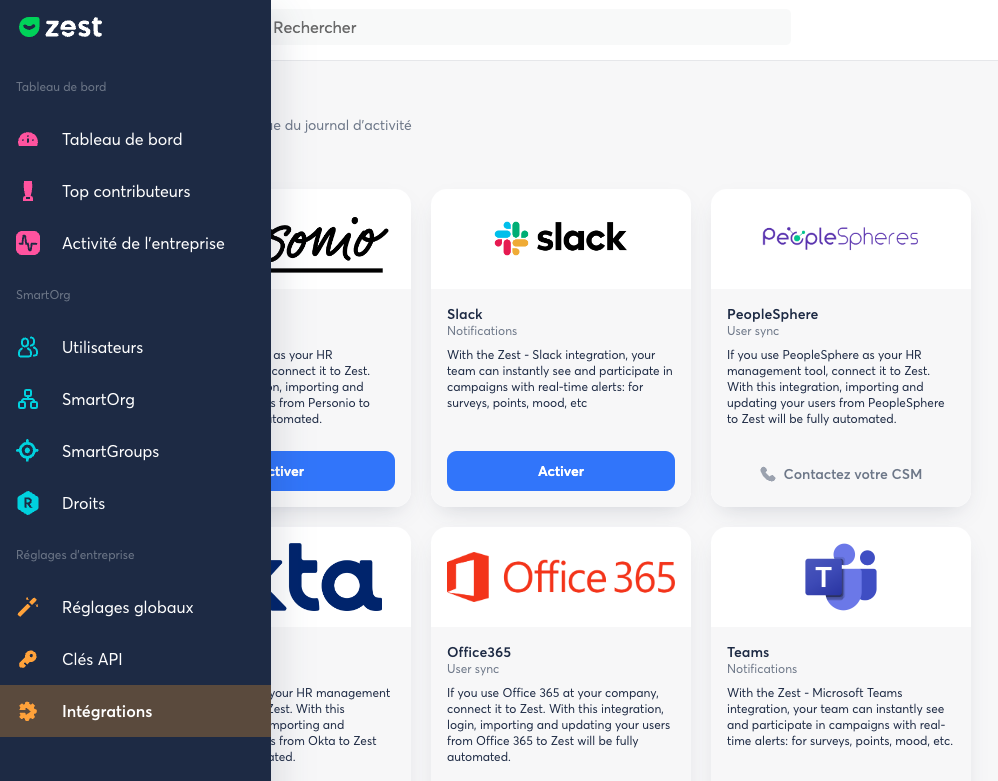
Click on the “Validate” button for the Slack integration.
Follow the steps:
- confirm that you want to enable the integration,
- choose a public channel (this is required by Slack for any external tool).
We recommend selecting #random. Don’t worry — it will not be used by Zest.
Enjoy using Zest directly in Slack!