Once your survey is launched, you can:
🔁 Extend the current session
👥 Add Employees at any time
🕓 Extend a session
Would you like to give your Employees more time to respond to the survey?
Here are the steps to follow:
- Go to the Survey tab, then to Manage or Analyze
- Locate the relevant survey
- Click on the three dots on the right of the survey
📌 An option appears: “Extend session”
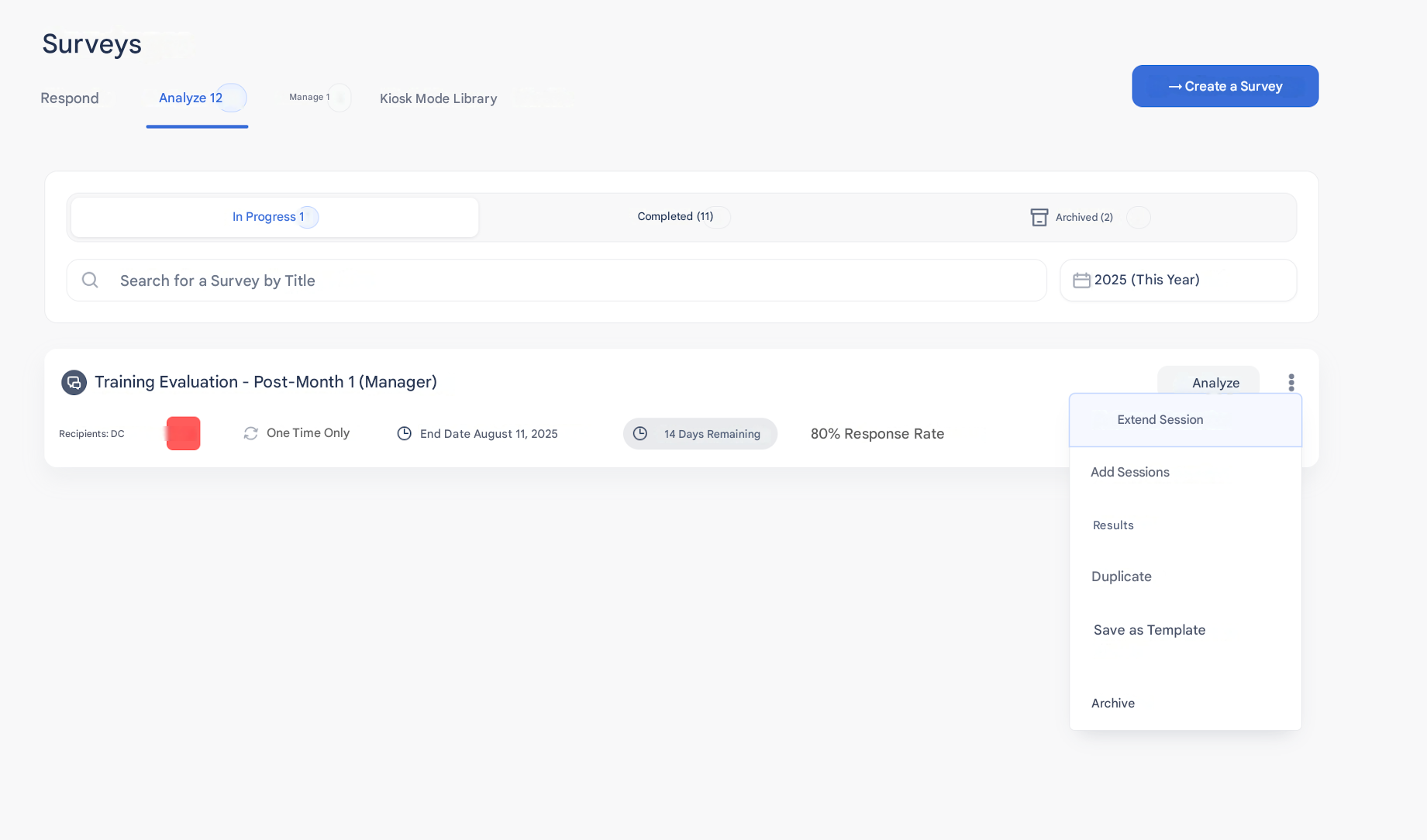
- Select the new end date
- Click on “Save”
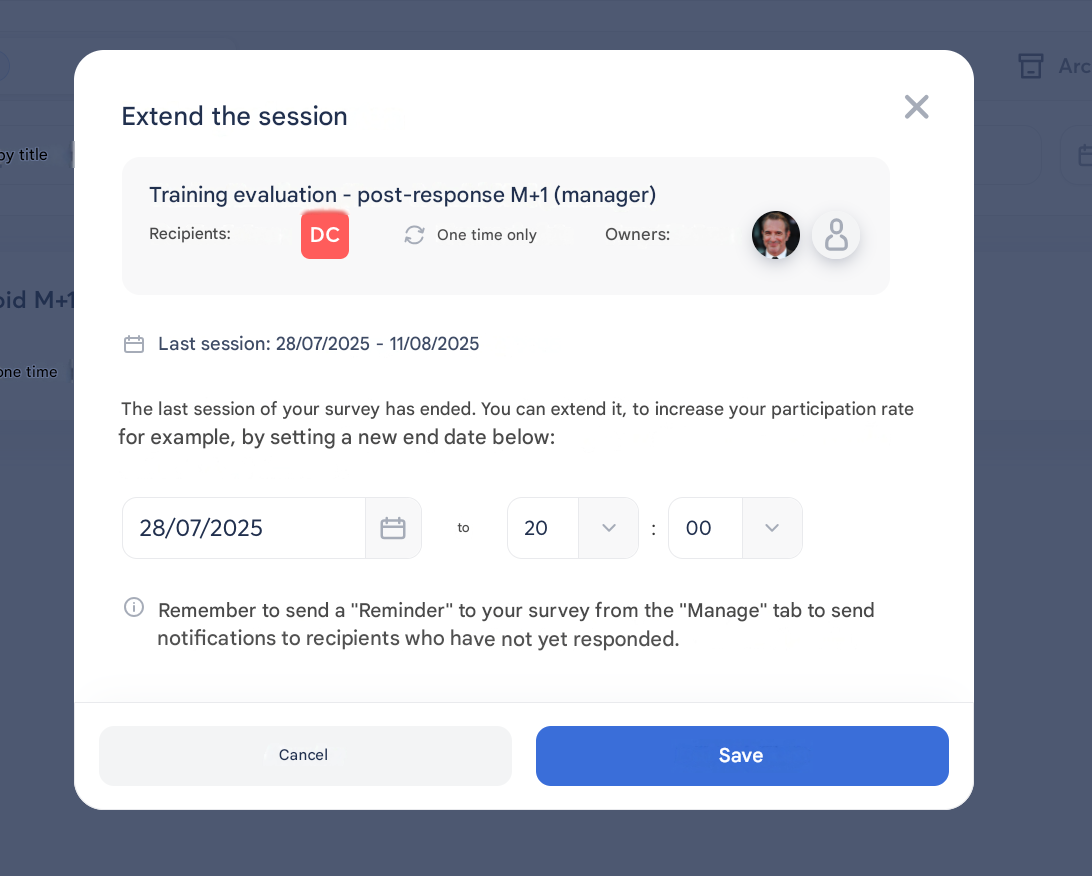
👉 The updated date will be displayed directly in the survey details.
Useful to boost participation or adapt to internal constraints!

👥 Add Employees to a session
Even after launching a survey, you can add Employees so they can participate.
Steps to follow:
- Go to the Survey tab, then click on Manage
- Identify the relevant survey
- Click on the three dots on the right of the survey
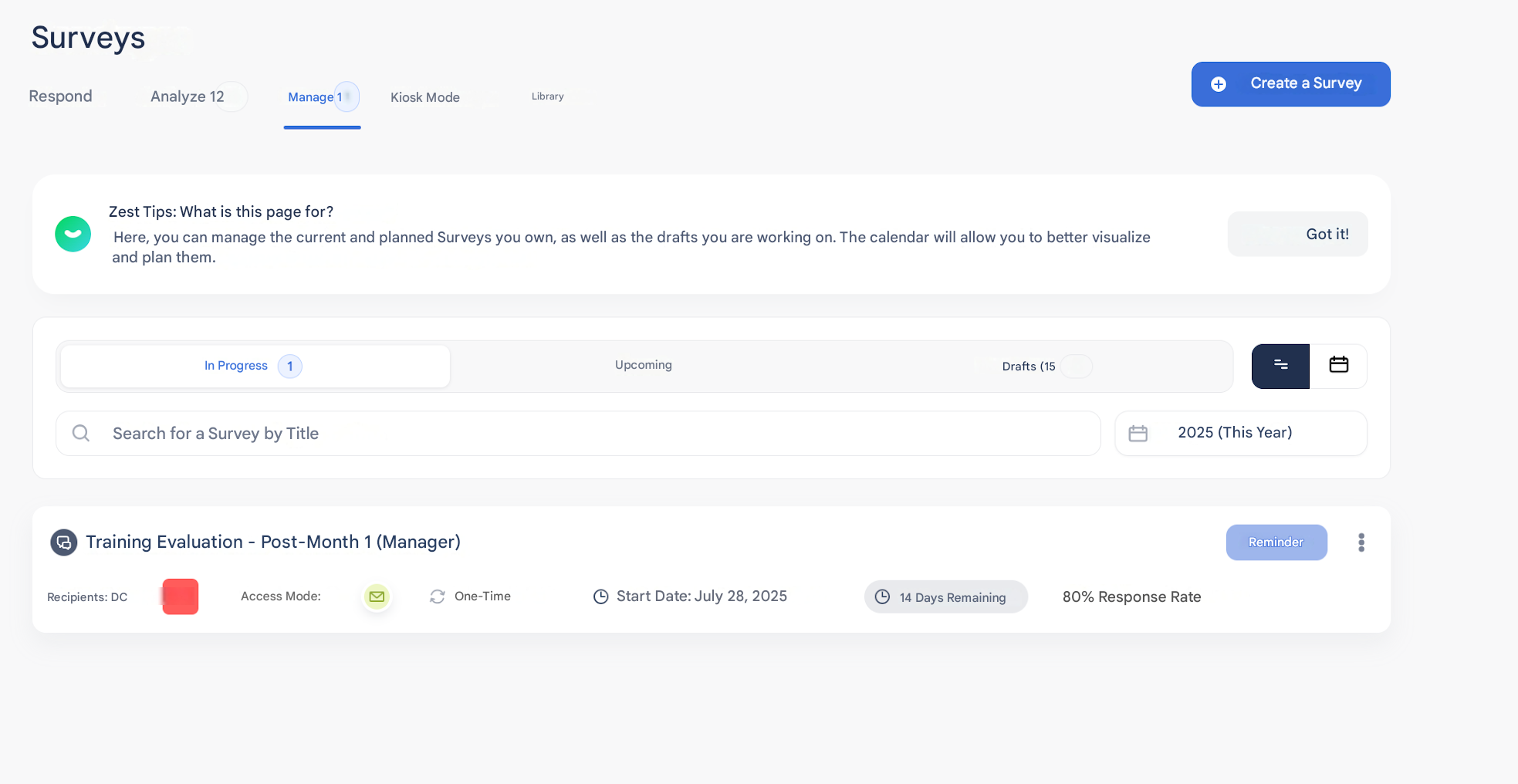
- Select “Add Employees”
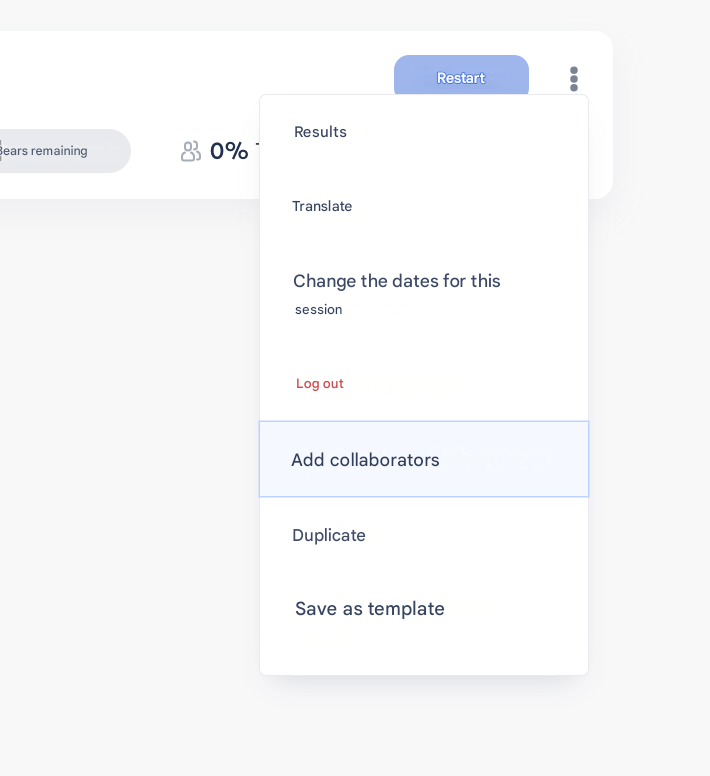
- Enter the name(s) of the Employee(s) to add
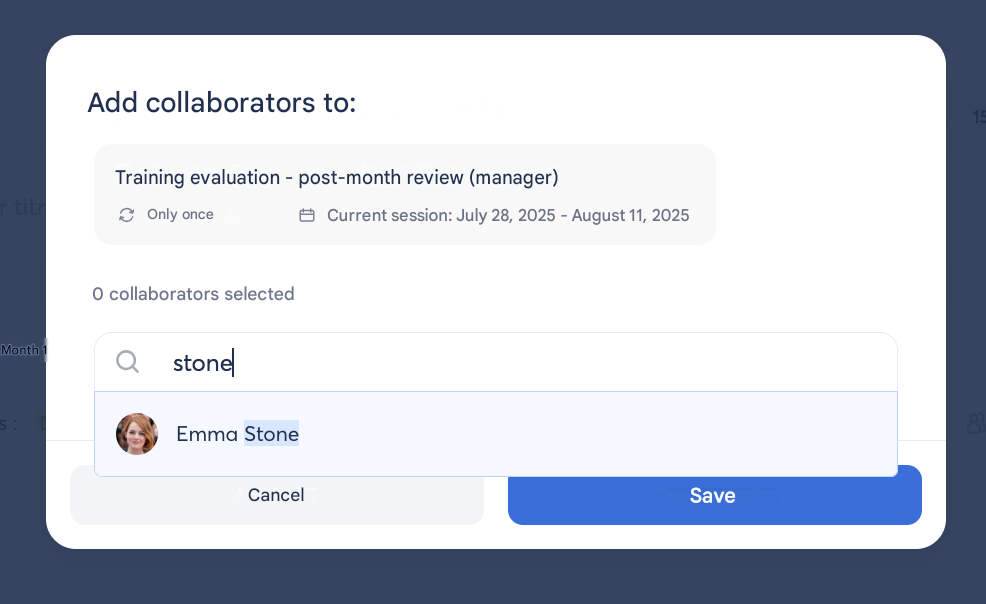
- Click on Save
📬 What happens next:
Each added Employee will immediately receive an email invitation to participate in the survey.
➡️ No need to wait for a manual reminder!
💡 Tip: This feature is ideal to ensure key participants are not missed, or in case of an oversight during the initial targeting.