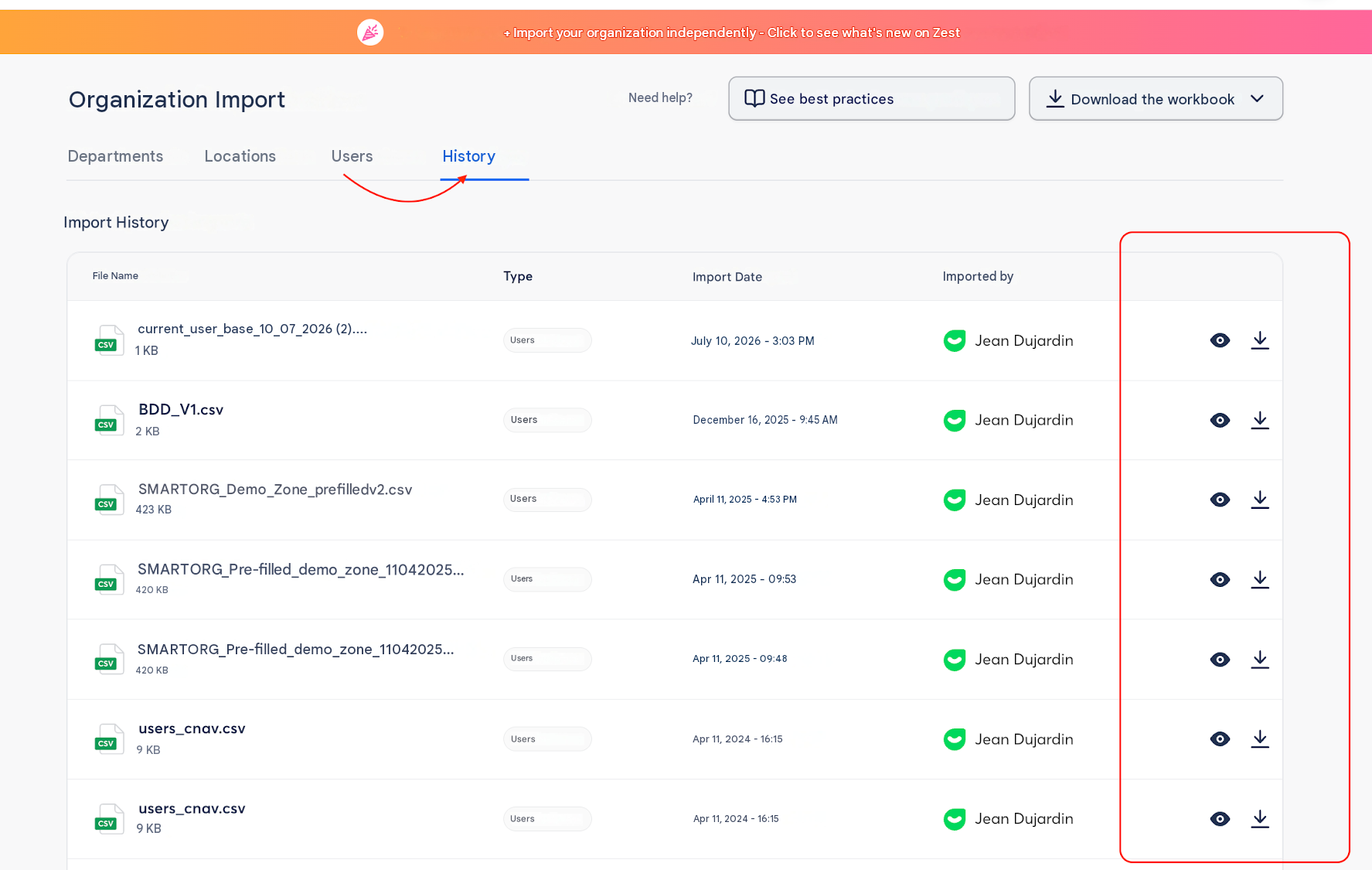
The preview shows you exactly what an import will create, modify and delete before you confirm it. The history keeps a record of every successful import. Together, they let you check your imports on your own.
The preview is available for all three imports on the Organization import page: departments, locations and users.
🧱 When does the preview appear?
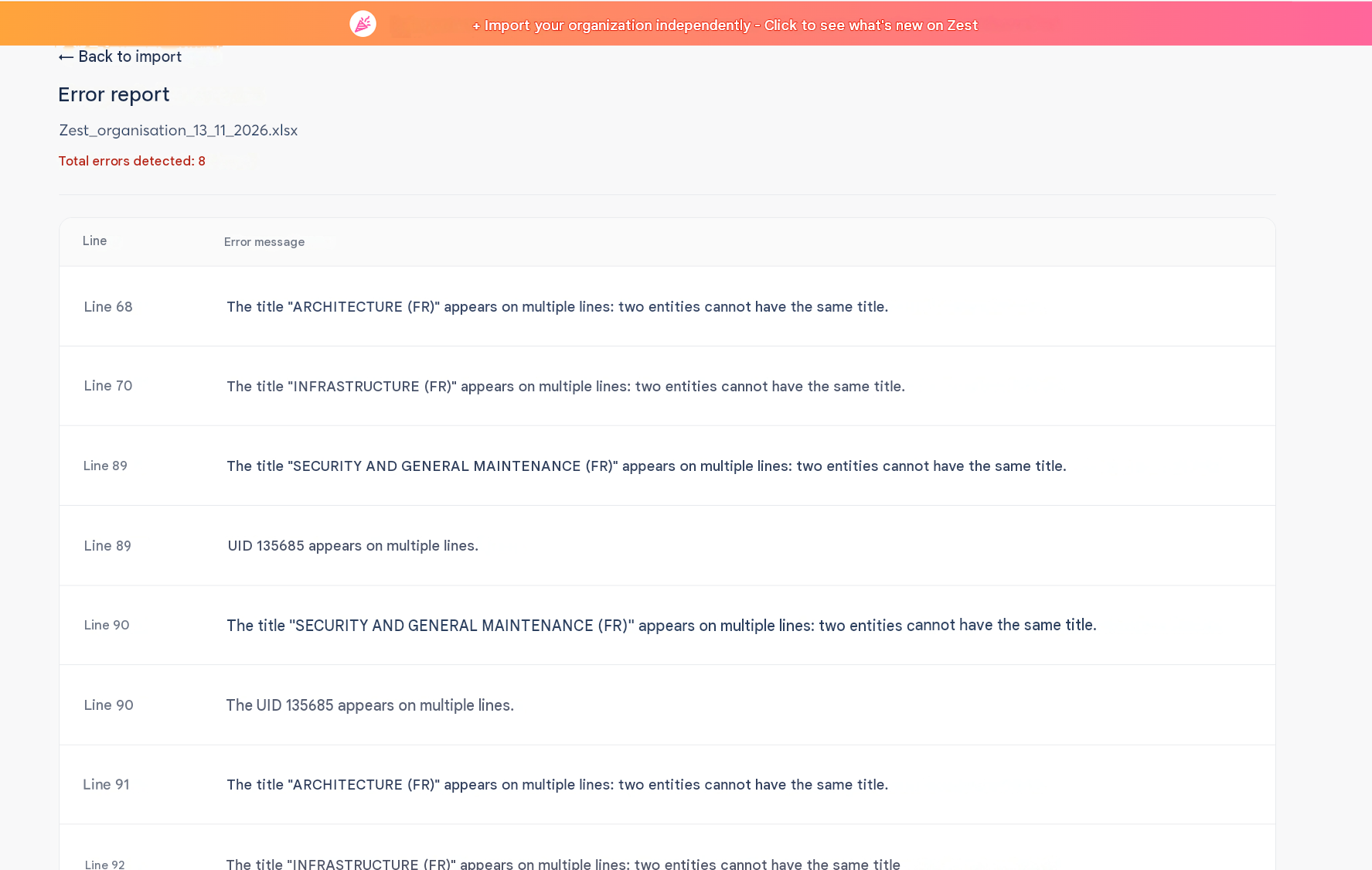
The preview appears once your file passes the check (the Check file button). If your file contains errors, you won’t get a preview. An error report appears instead.
Nothing changes in Zest while you’re in the preview. To go back to the upload screen, click Back to import.
🔢 The four counters
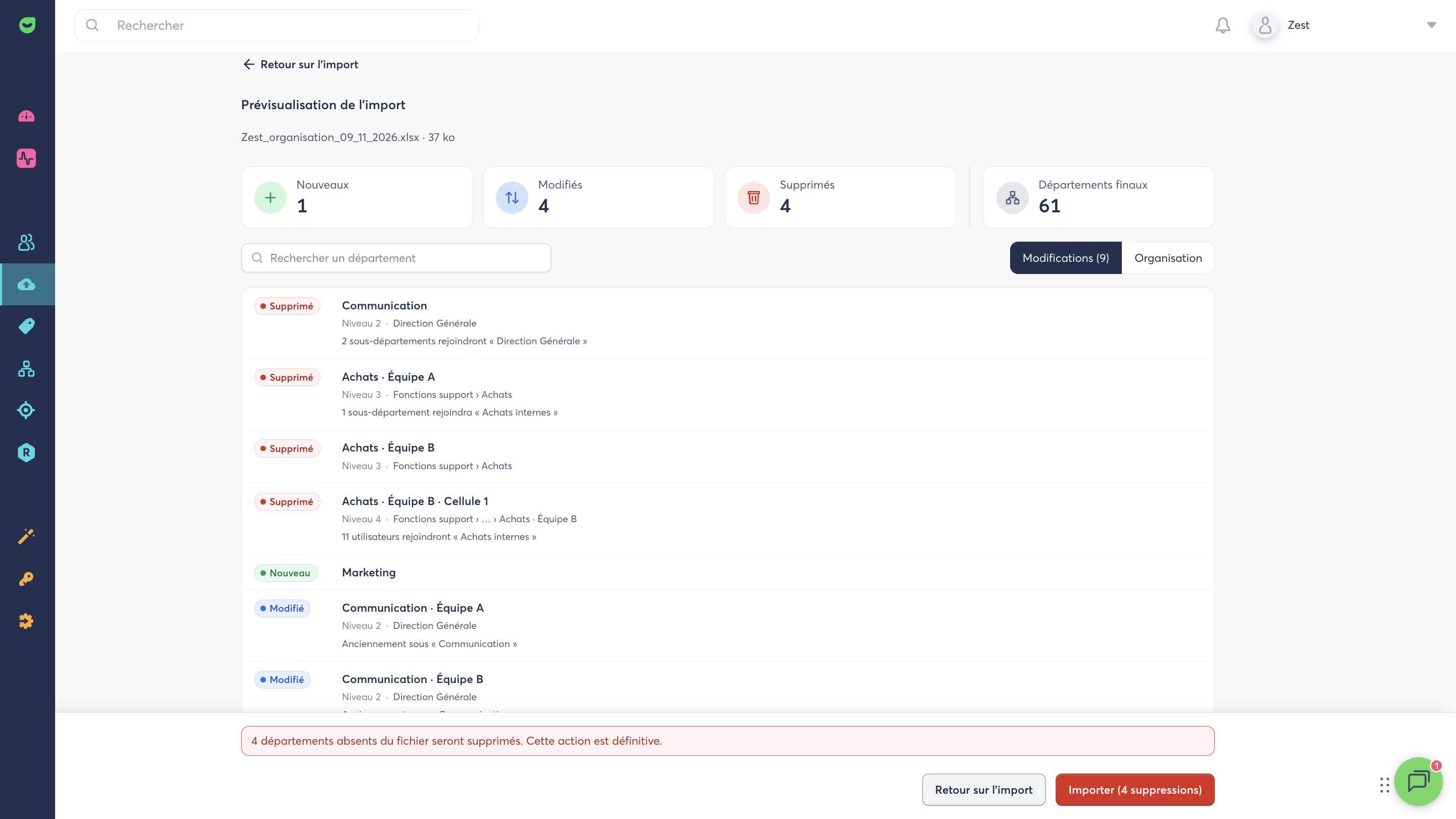
At the top of the screen, four counters summarize what the import will do:
| Counter | What it shows |
|---|---|
| New | Entities in the file that have no UID. They will be created. |
| Modified | Existing entities whose name, parent, or both will change. A move counts as a modification. |
| Deleted | Existing entities missing from the file. They will be deleted. |
| Final departments | Total number of entities after the import. |
Each entity is counted only once. Unchanged entities are neither counted nor listed.
📋 The Changes view
The Changes view lists the entities affected by the import. The number in brackets is how many rows it contains, for example Changes (9).
Rows are sorted by importance:
- Deleted first
- New next
- Modified last
Each row shows the entity’s name, its level in the tree (for example Level 2), its path, and extra information depending on the case:
| Note | Meaning |
|---|---|
| “11 users will join ‘Internal Purchasing’” | On a Deleted row: how many users are affected and where they will be reassigned. |
| “2 sub-departments will join ‘General Management’” | On a Deleted row: how many sub-departments are affected and their new parent. |
| “Formerly ‘SECTEUR TARIF’” | On a Modified row: the entity has been renamed. |
| “Formerly under ‘Communication’” | On a Modified row: the entity has a new parent. |
When an entity is moved, its sub-departments move with it, so they are not listed separately.
To find an entity, use the search bar at the top of the page (for example Search for a department) or filter by type of change.
🌳 The Organization view
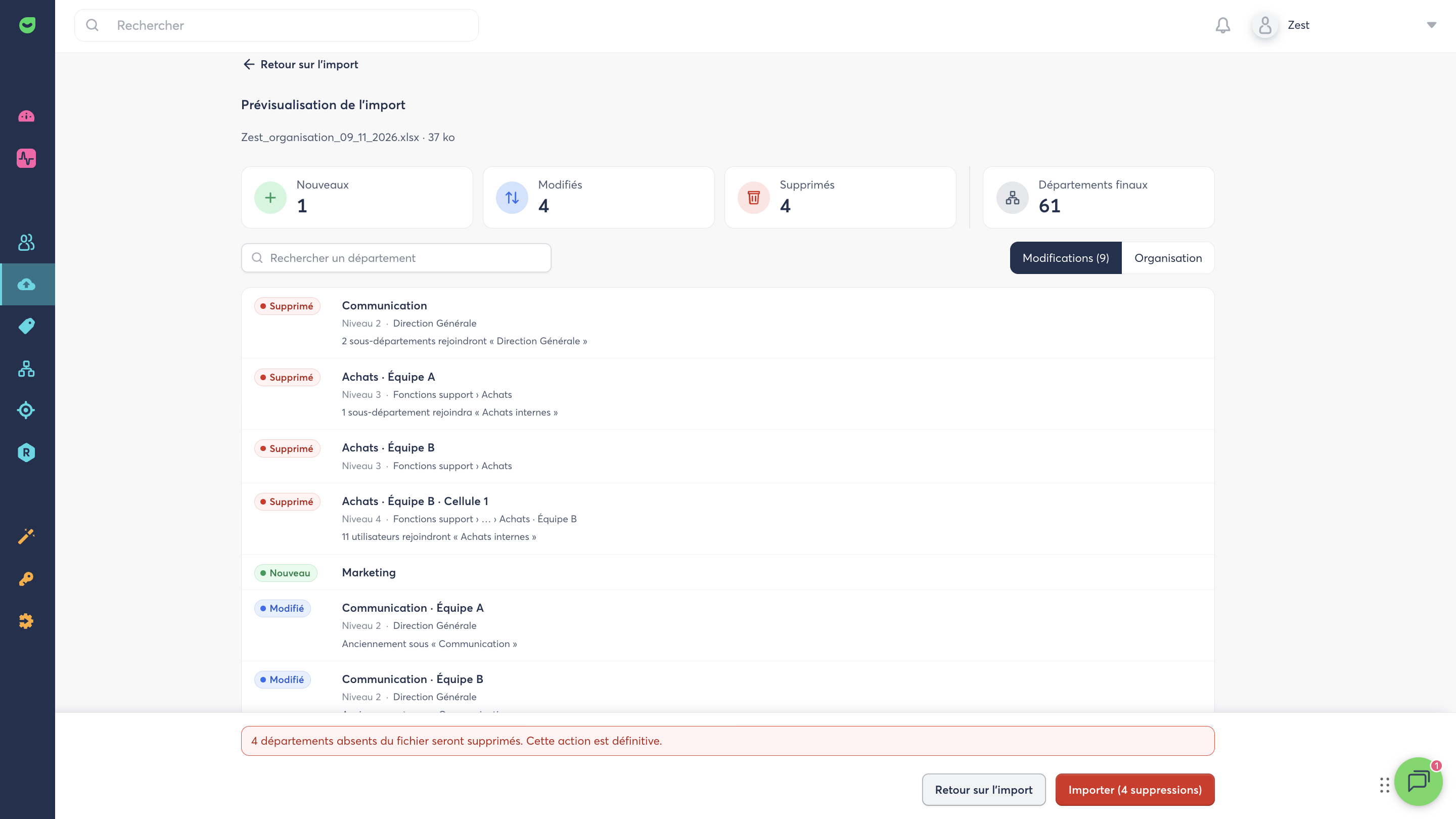
The Organization view shows your tree as it will look after the import. Each branch shows how many new, modified and deleted entities it contains.
This view is especially useful for a first import, because you can see the tree your file is about to create.
🟥 Deletion alerts
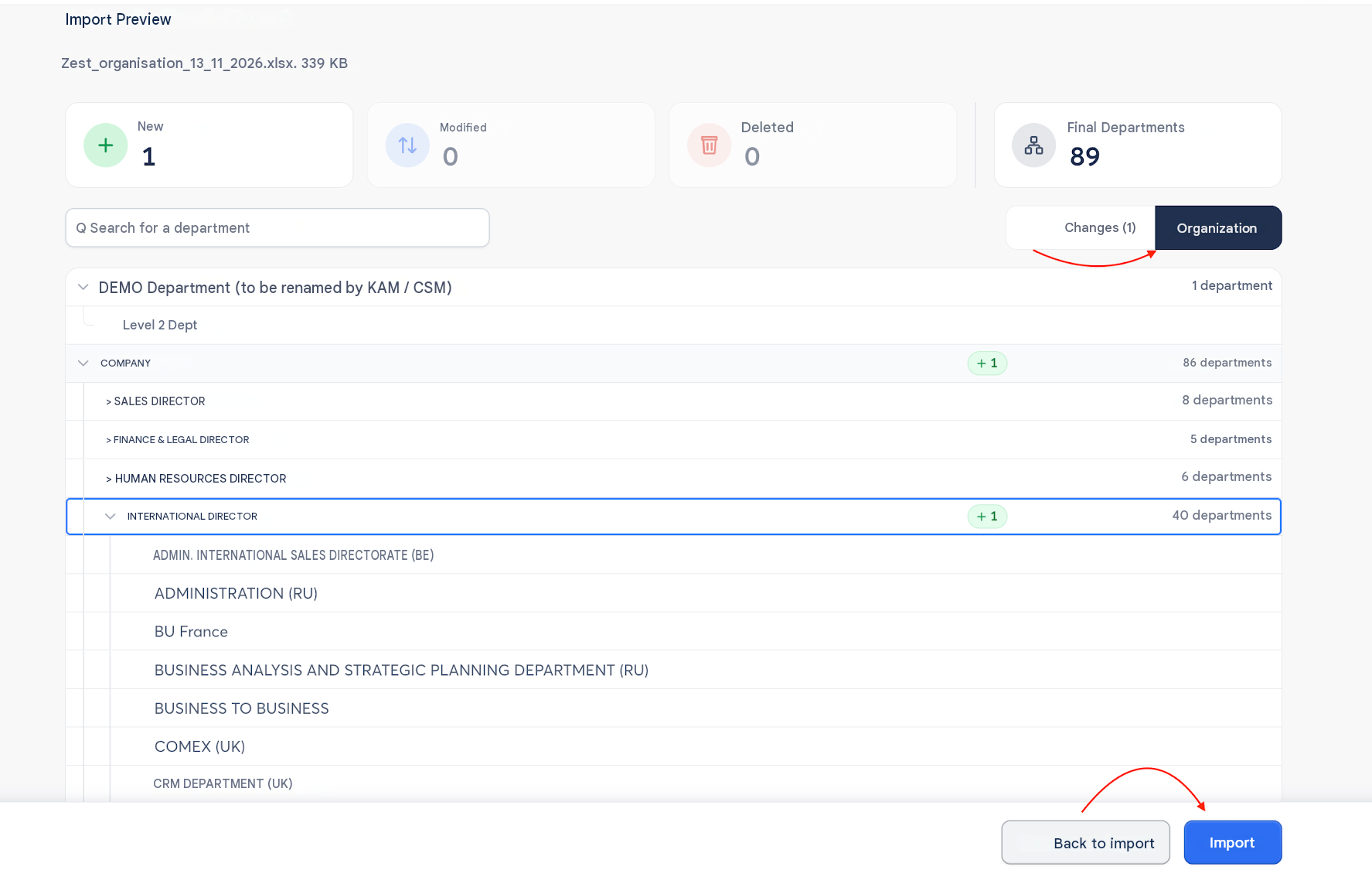
Deletions are permanent, so the number of deletions is shown in three places before you import:
- An orange warning above the upload area, as soon as the file has been checked.
- A red banner at the bottom of the preview that stays visible, for example “4 departments missing from the file will be deleted. This action is permanent.”
- The button label, for example Import (4 deletions).
You won’t be asked to confirm again, however many deletions there are. The preview is your last checkpoint.
⚠️ Warning: an import cannot be undone. If the number of deletions surprises you, don’t confirm. Click Back to import and check your file.
✅ Spotting a problem file
Before you click Import, compare the numbers with the changes you actually made to the file.
| What you see | Likely cause | What to do |
|---|---|---|
| As many Deleted as there are entities in your organization, and the same number of New | The UID column was emptied, or the file was rebuilt from an HRIS export or an old spreadsheet. | Start again from the Current organization file downloaded from the page. |
| An unusually low total after import | The file is incomplete: an Excel filter is on, only part of the data was copied, or the export only covers part of the organization. | Remove the filters and check that every row is there. |
| Unexpected Modified rows where names have been swapped | The UIDs have shifted by one row (partial sort or misaligned copy-paste). | Start again from the Current organization file and redo your changes. |
🕓 The History tab
The History tab lists successful imports of all three types, newest first. For each import, you can see:
- the file name
- the import type (departments, locations or users)
- the date
- the author
A finished import appears at the top of the list as soon as it completes. The SuperAdmin sees imports by all users. A department or location Admin sees only their own imports.
To view an import report, click the eye icon on its row. The report shows the preview as it was at the time of the import, frozen, with the same counters, views and filters.
Failed imports don’t appear in the history. Their errors can be viewed during the import process, as long as the file is still uploaded.
You can download the imported file again from the History tab.