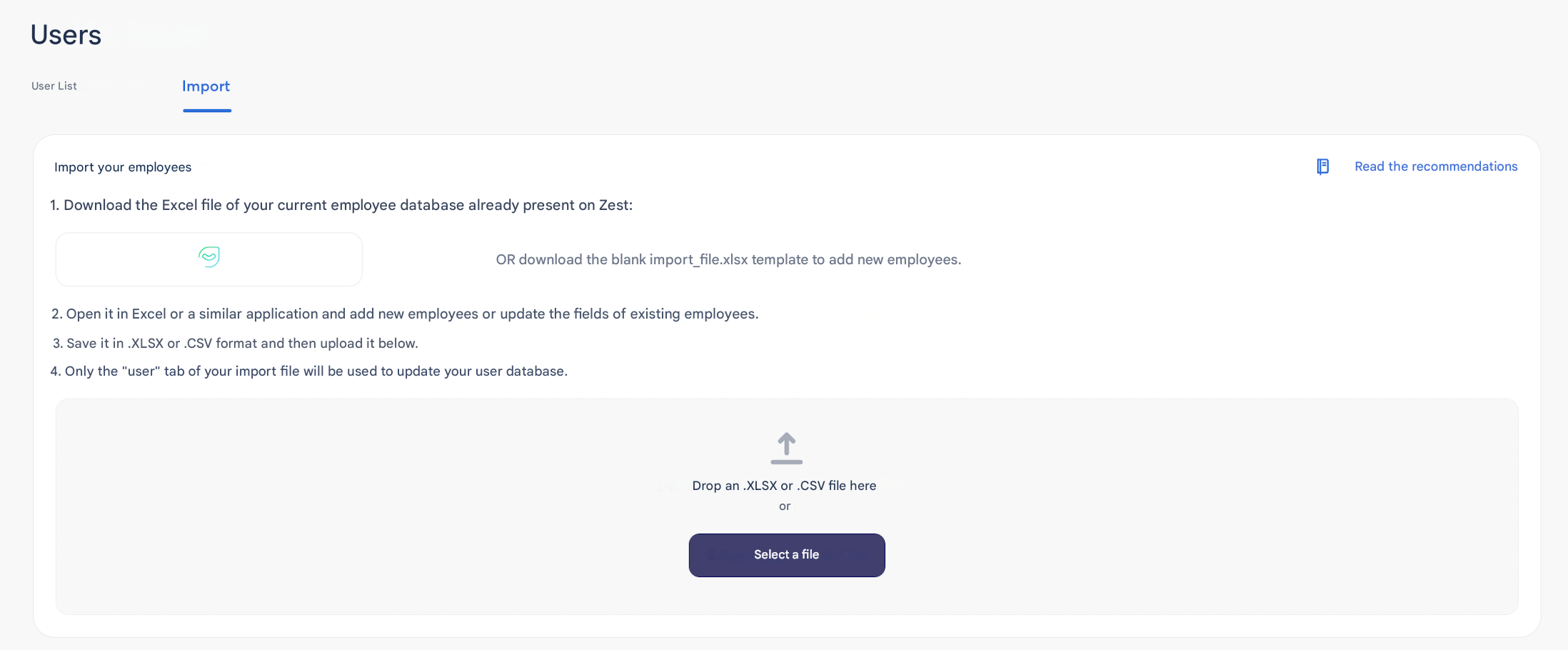
Populate and update manually
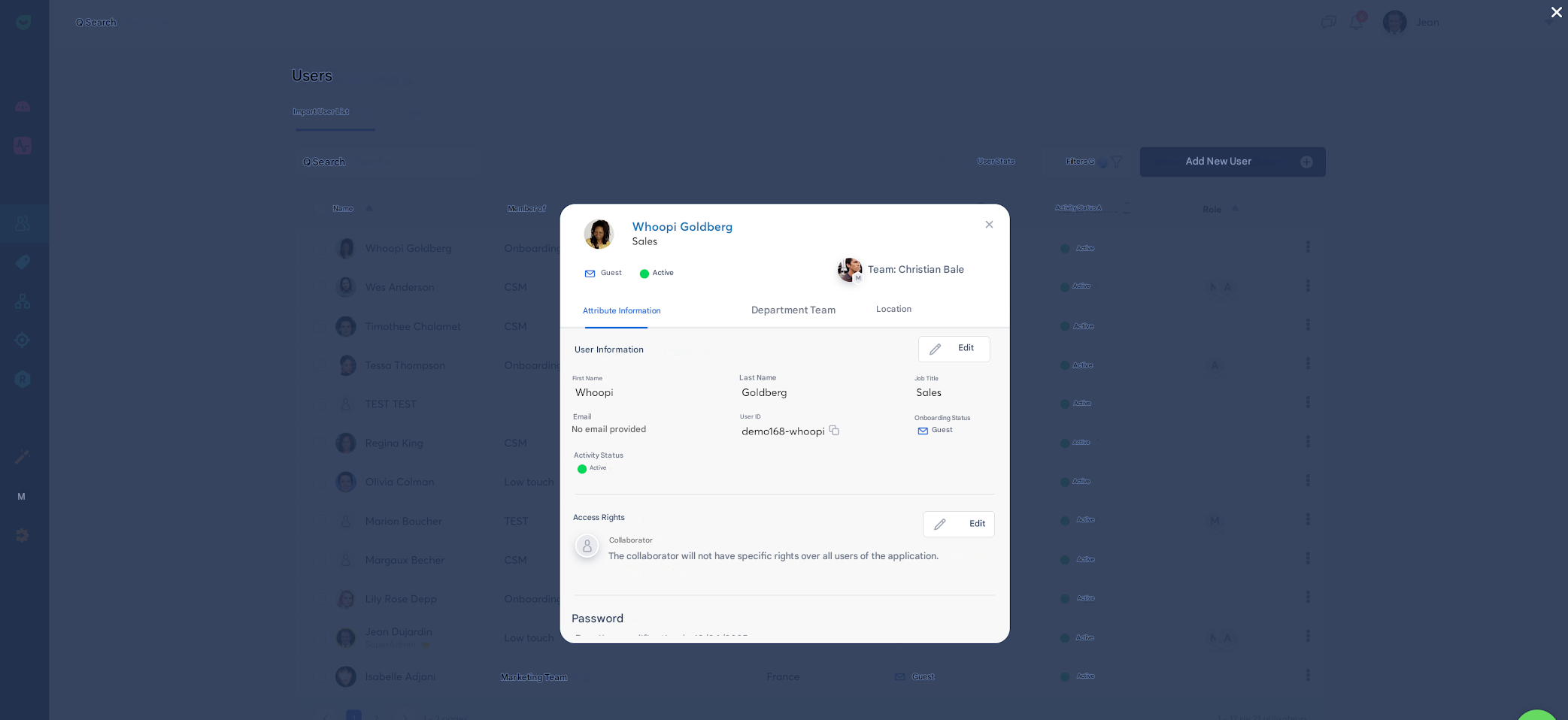
In the Back Office, User list, click on an Employee’s name. Click the Edit button in each tab to modify the visible content.
Populate and update in bulk (via Excel file)
When you add new attributes, simply export your database to get a ready-to-use file that includes the new Attributes columns (the column title takes the name of the attribute).
⚠️ Only the departments and locations tabs should be sent back to your dedicated CSM, who will take care of importing it into the platform if needed
Once your file is ready, go to Users > Import > Select a file and import