How to Use Action Plans in Listen?
Description: A complete guide for managers and HR teams to turn Survey or Engageometer results into concrete actions using the Action Plans feature.
✨ How to Use Action Plans in Listen?
The Action Plans feature lets you move directly from analysis to action: Zest AI identifies priority themes, generates tailored action suggestions based on your context, and gives you a space to manage them over time.
🔐 Prerequisites – Access Rights
Access to Action Plans depends on your role in Zest:
| Role | What you can do |
|---|---|
| Manager | View suggestions, manage "My Actions", export your personal list |
| HR / People team | View suggestions, manage your actions, export actions across your entire scope |
| SuperAdmin | Full access based on configured scope |
👉 If you don't see the Action Plans feature, reach out to your HR team or a Zest SuperAdmin.
🧱 How Does the Feature Work?
Action Plans is built around three complementary modules:
| Module | Purpose | For whom |
|---|---|---|
| Action Suggestions | AI detects priority themes and generates suggestions tailored to your team | Managers, HR |
| My Actions | Personal dashboard to manage and track your selected actions | Managers, HR |
| Export | Download actions as an Excel file for tracking outside of Zest | Managers (personal list), HR (full scope) |
🤖 How Does the AI Generate Suggestions?
Zest AI analyses your results in several passes:
- It identifies low scores.
- It flags negative trends over time.
- It analyses comments with negative sentiment.
It then groups the detected issues into priority themes (1 to 3 maximum), ranked by order of urgency:
- 🔴 Priority 1 — most urgent
- 🟡 Priority 2
- ⚪ Priority 3
For each theme, it generates action suggestions contextualised to your operational reality, taking into account team size, roles represented, seniority, locations, and work setup (hybrid, remote, on-site).
🚀 Using Action Plans Step by Step
Step 1 – Access Action Plans
- Log in to Zest.
- From the Listen module, open the results of a closed Survey or Engageometer.
- Go to the Diagnostic, Heatmap, or Detailed Results page.
- Click the Take Action button (access card at the top of the page or a dedicated tab depending on the view).
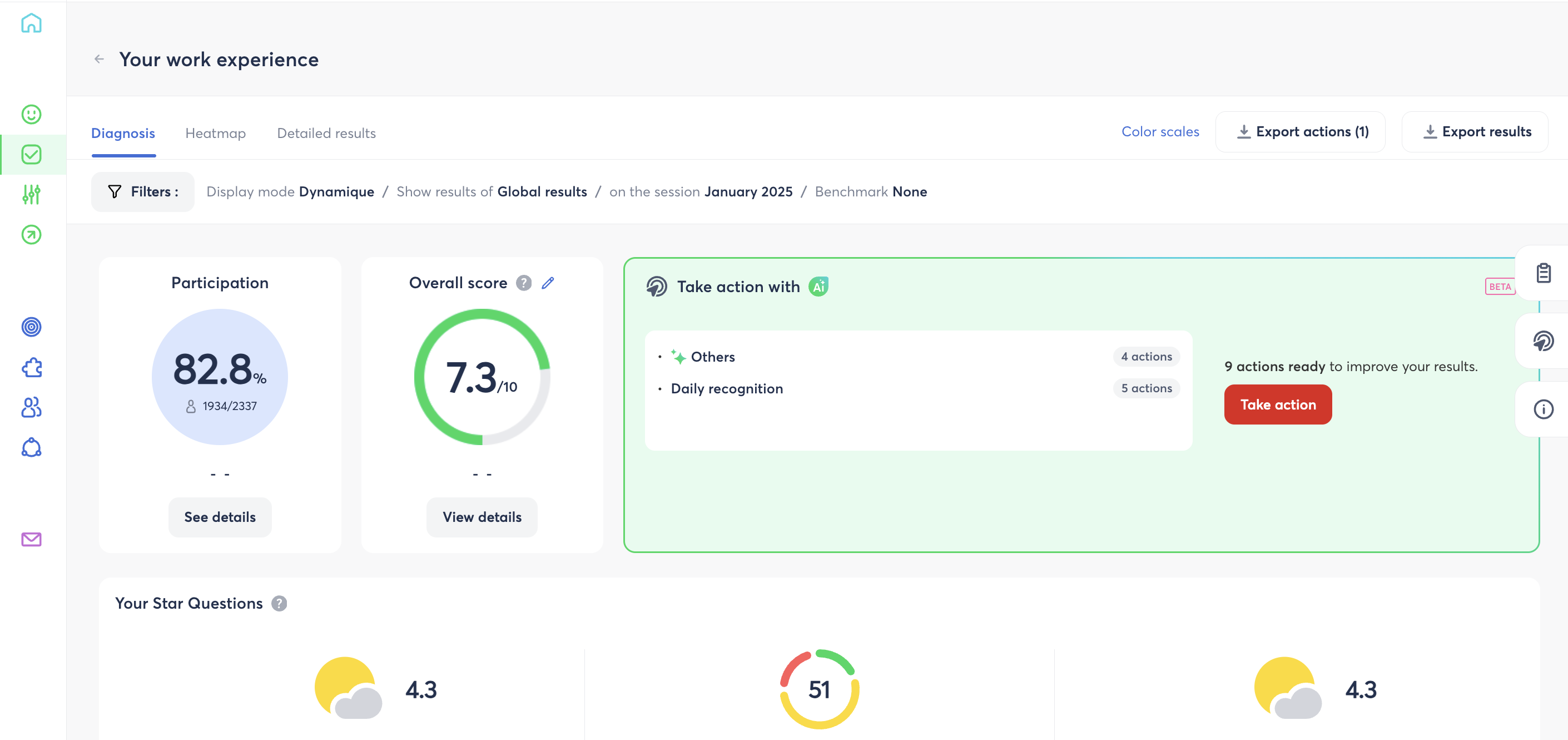
Step 2 – Review the Suggestions Generated by Zest AI
- In the Action Plans panel, select the Suggestions by Zest AI tab (selected by default).
- Browse the list of priority themes identified by the AI.
- Click on a theme to display its associated action suggestions.
- Expand a suggestion to see its full content: title, estimated duration, description, and concrete implementation examples.
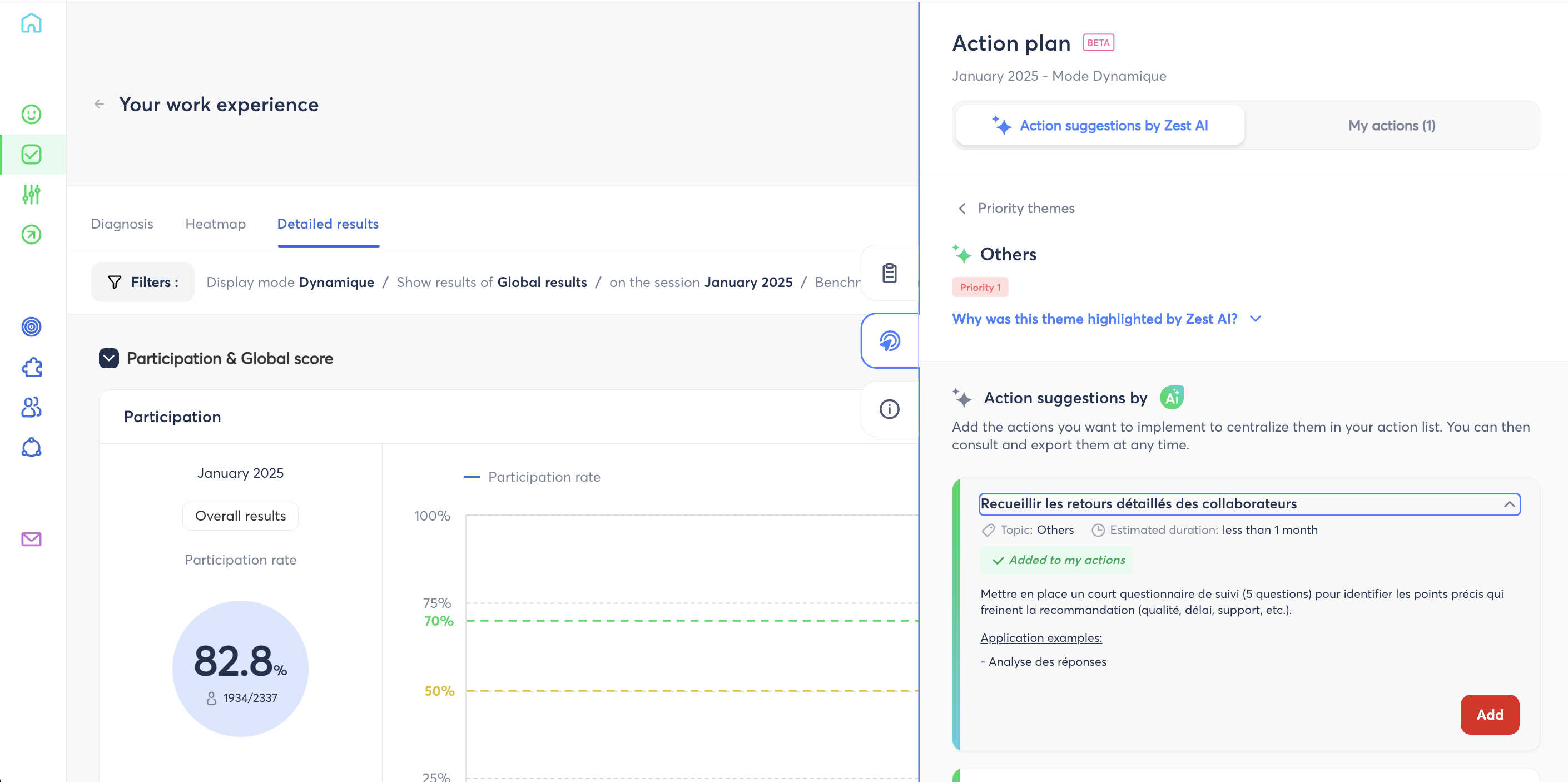
Step 3 – Add a Suggestion to "My Actions"
- On the suggestion you want to act on, click Add to My Actions.
- If needed, edit the title, description, or deadline in the editing form.
- Confirm the addition.
The action will now appear in the My Actions tab.
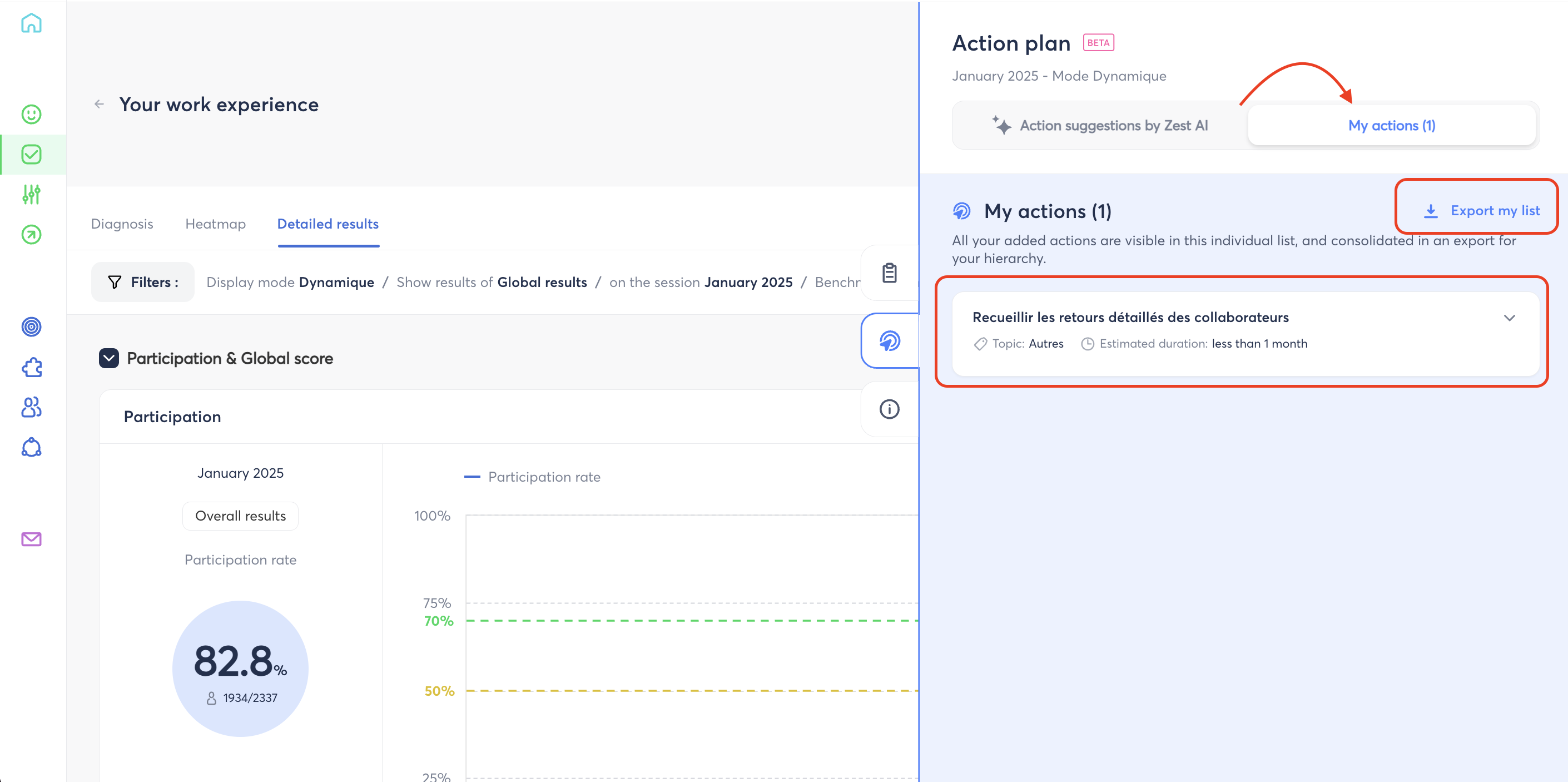
Step 4 – Manage Your Actions in "My Actions"
- Click the My Actions tab.
- Find all the actions you have added or created.
- For each action, you can:
- Edit the title, description, estimated duration, or associated theme
- Update the progress status
- Delete the action if it is no longer relevant
- To create an action without starting from an AI suggestion, click Create a New Action and fill in:
Title(80 characters maximum)
Description(500 characters maximum)
Theme(from the Survey or Engageometer themes)
Estimated duration
Step 5 – Export Your Actions
As a manager:
- In the My Actions tab, click Export My List (link in the top right corner, visible when you have at least one action).
- An Excel file containing your actions is automatically downloaded.
As HR / N+2:
- From the Diagnostic, Heatmap, or Detailed Results page, click Export Actions.
- An Excel file containing all actions within your filtered scope is downloaded.
⚙️ Best Practices for Maximum Impact
- Be selective, not exhaustive Prioritise 2 to 3 high-impact actions rather than a long list that's hard to follow through on.
- Clarify ownership Each action should have a named owner and a realistic deadline.
- Update regularly A weekly or monthly check-in is enough to maintain clear visibility on progress.
- Share your chosen actions with your teams Communicating what is being done builds trust in the listening process.