Kiosk Mode
🎯 Purpose of Kiosk Mode
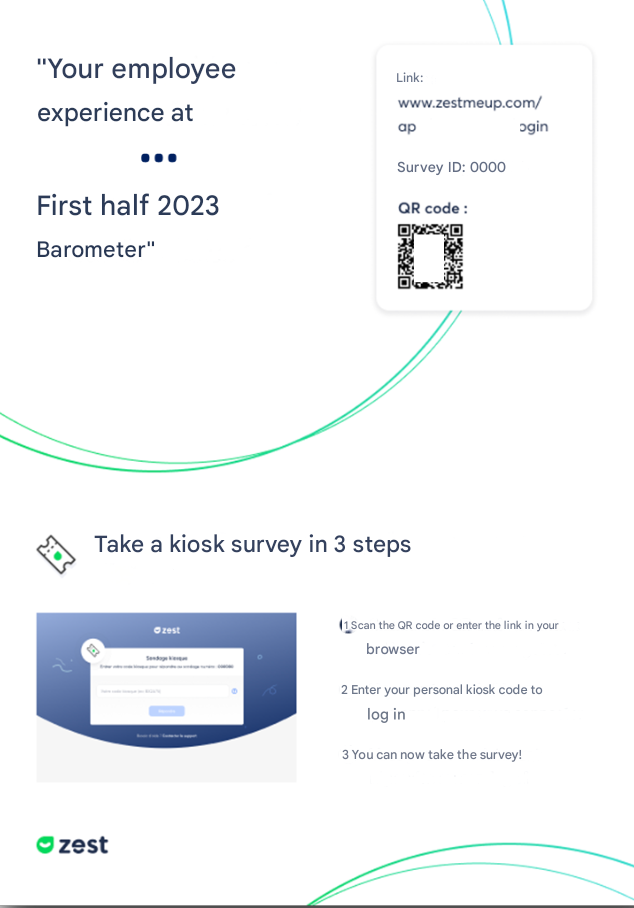
Facilitate the experience for frontline “non-connected” populations, allowing them to respond without an email address, password, or employee ID, using a unique and personal code.
🛠️ How Kiosk Mode works
1 link + 1 personal code per Employee
- Each recipient receives a 6-character code (3 letters + 3 numbers)
- This code is unique and personal
- It provides direct access to the survey, with no account setup required
💡 The code remains valid for the entire duration of the campaign
🌐 Accessing the campaign
Employees can access the survey via:
- A QR Code (displayed on printed material)
- A URL link (to be entered in a browser)
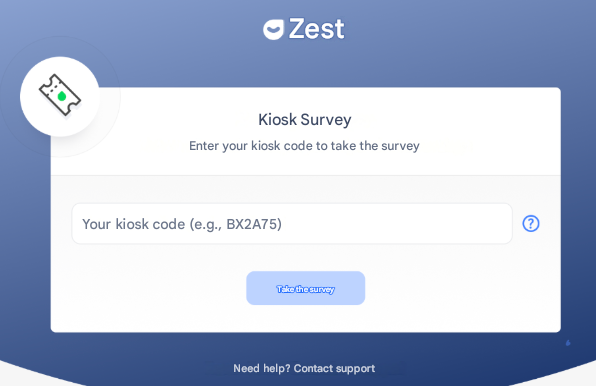
⚠️ The access link for Kiosk Mode redirects to a blue login page, different from the usual green one, which is used for logins with email or employee ID.
📝 Responding to the survey in Kiosk Mode
✅ First response on Zest:
- The Employee enters their Kiosk code
- They do not need to create an account
- They validate the GDPR notices
- They access the survey directly
✅ Following responses:
- They enter their Kiosk code
- They access the survey directly
💾 At any time, the Employee can click “Save and exit”:
→ Their responses are saved as a draft
→ They are redirected to the login page
✅ End of survey:
- Once the responses are submitted, a “Thank you for responding” page is displayed
- A 10-second timer automatically logs them out
- A “Log out now” button is also available
📩 Responding from an automatic email (standard mode)
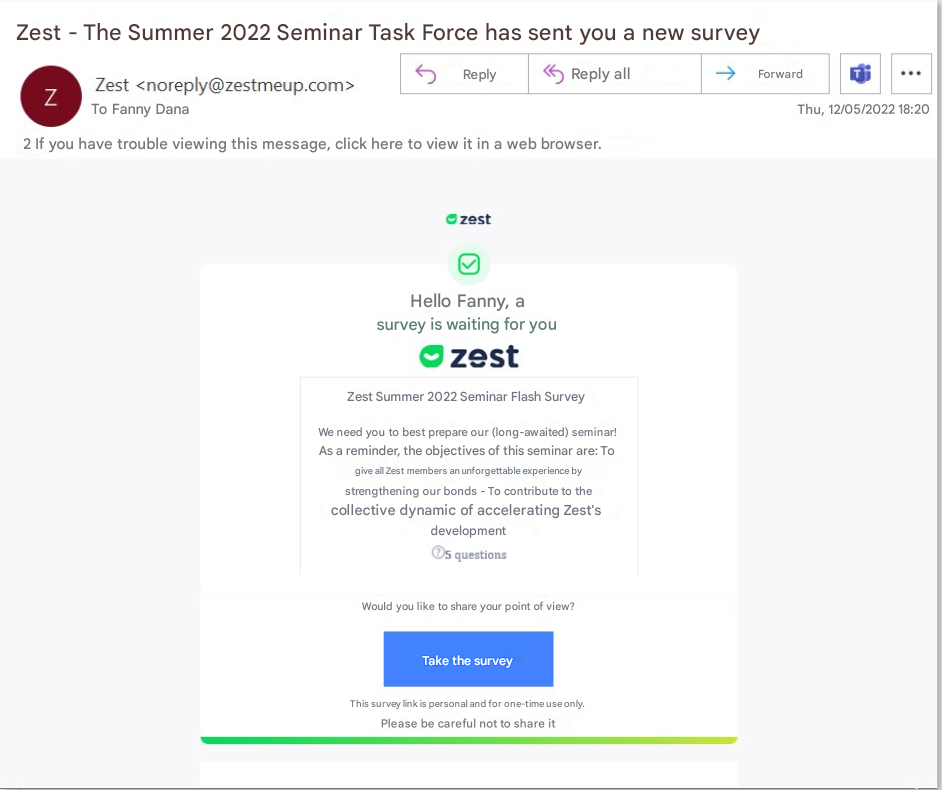
- The Employee receives an email with a unique link
- They click it, validate the GDPR notices
- They access the survey
💾 They can save their responses as a draft, exit, then return via the same link to complete them.
⚠️ The link is personal and non-transferable. Each Employee must use their own link, otherwise the results may be distorted.
📱 Responding from the Zest app
Two options:
🔔 From the home page (My actions tab)
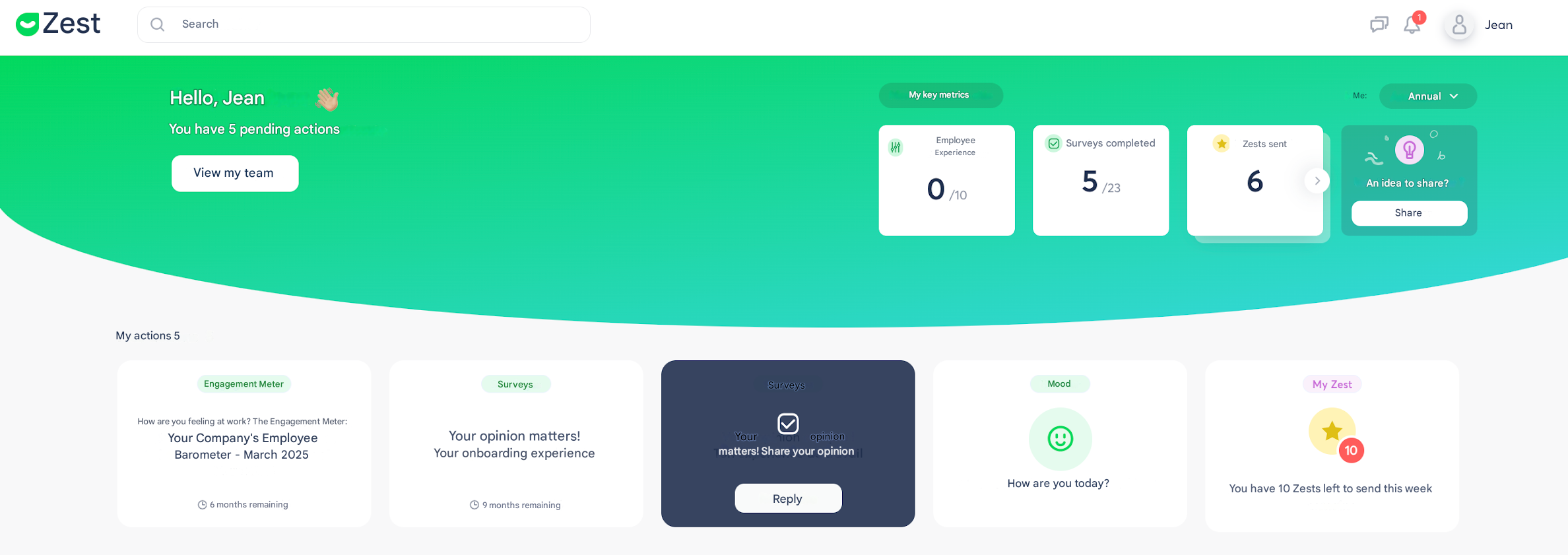
- Surveys awaiting a response are immediately visible
🧭 From the Survey tab > Respond
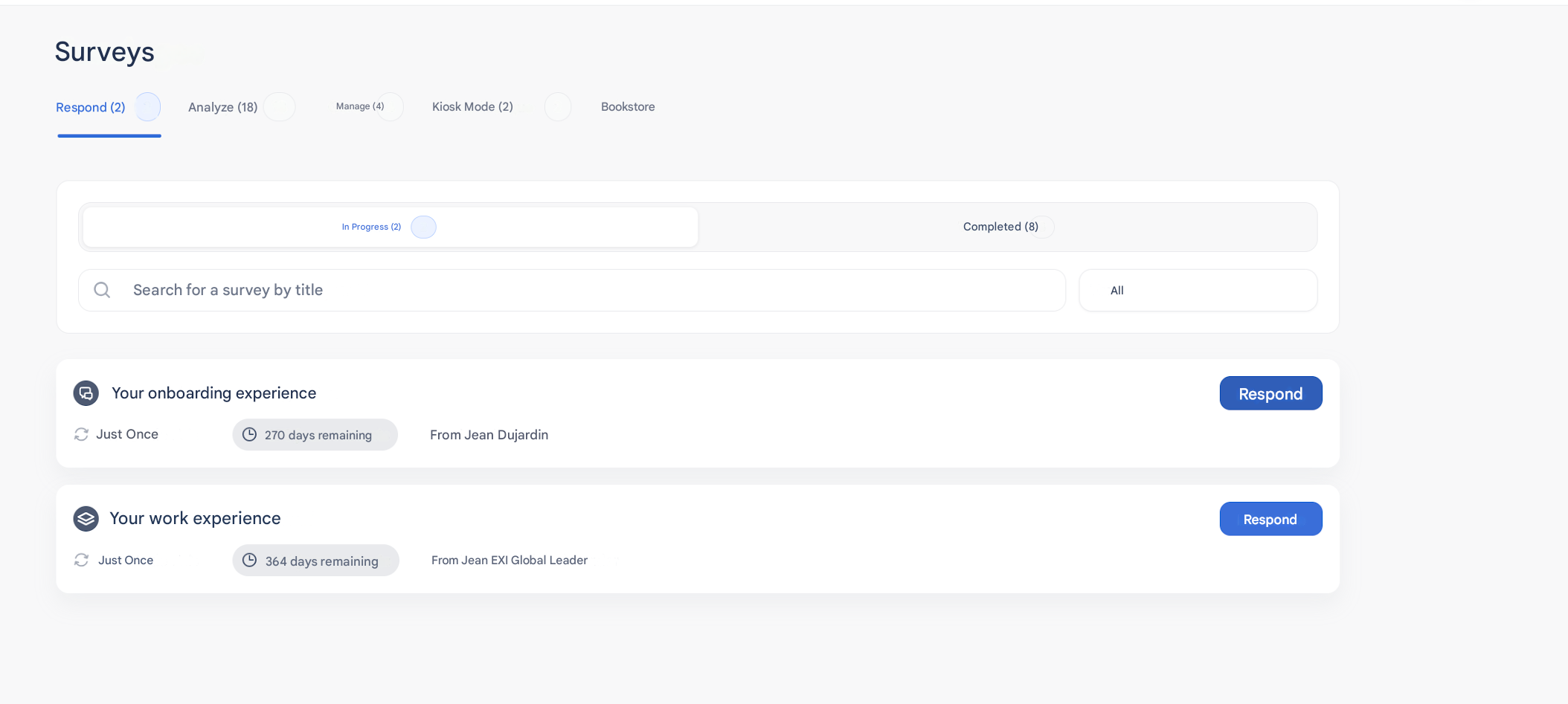
- Complete list of accessible surveys