💬 Start and Manage a Conversation in Zest
💬 Why Use the Conversations Feature?
The Conversations feature allows managers and HR to communicate directly with an employee following a comment left in a Survey or an Engagement Survey, whether the response was Public or Anonymous (if enabled in the Back Office).
It is a key tool to clarify a point, respond quickly to feedback, or explore a sensitive topic in more depth.
🚀 Start a Conversation from a Comment
- Access the results of a survey or an engagement survey.
- Locate the comment you want to respond to.
- Click the 💬 message bubble icon.
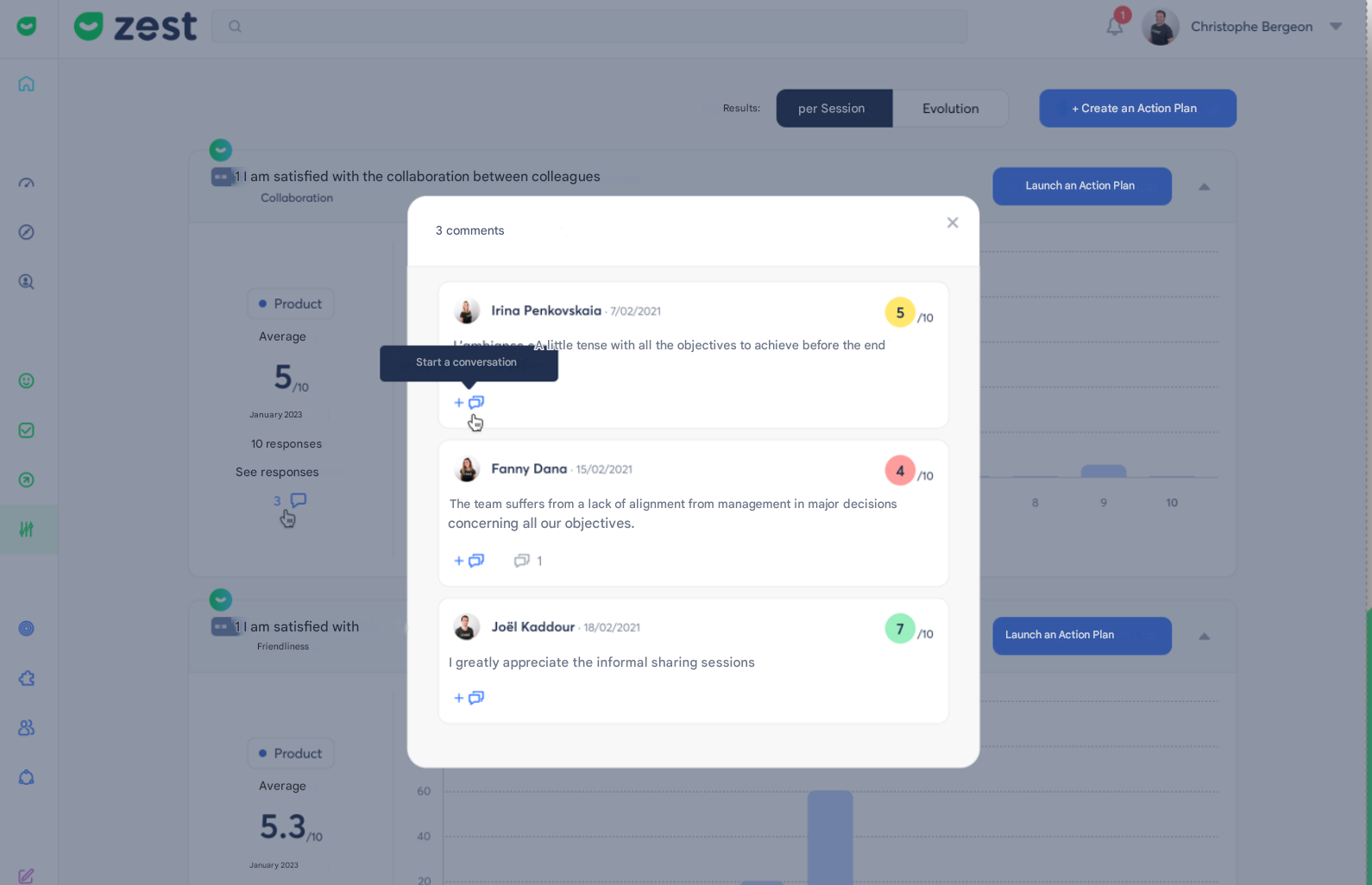
- A conversation pop-up opens with:
- The campaign information (title, session, tool type).
- The employee’s response and comment (and their name if they answered publicly).
- Guidelines and recommendations to preserve anonymity.
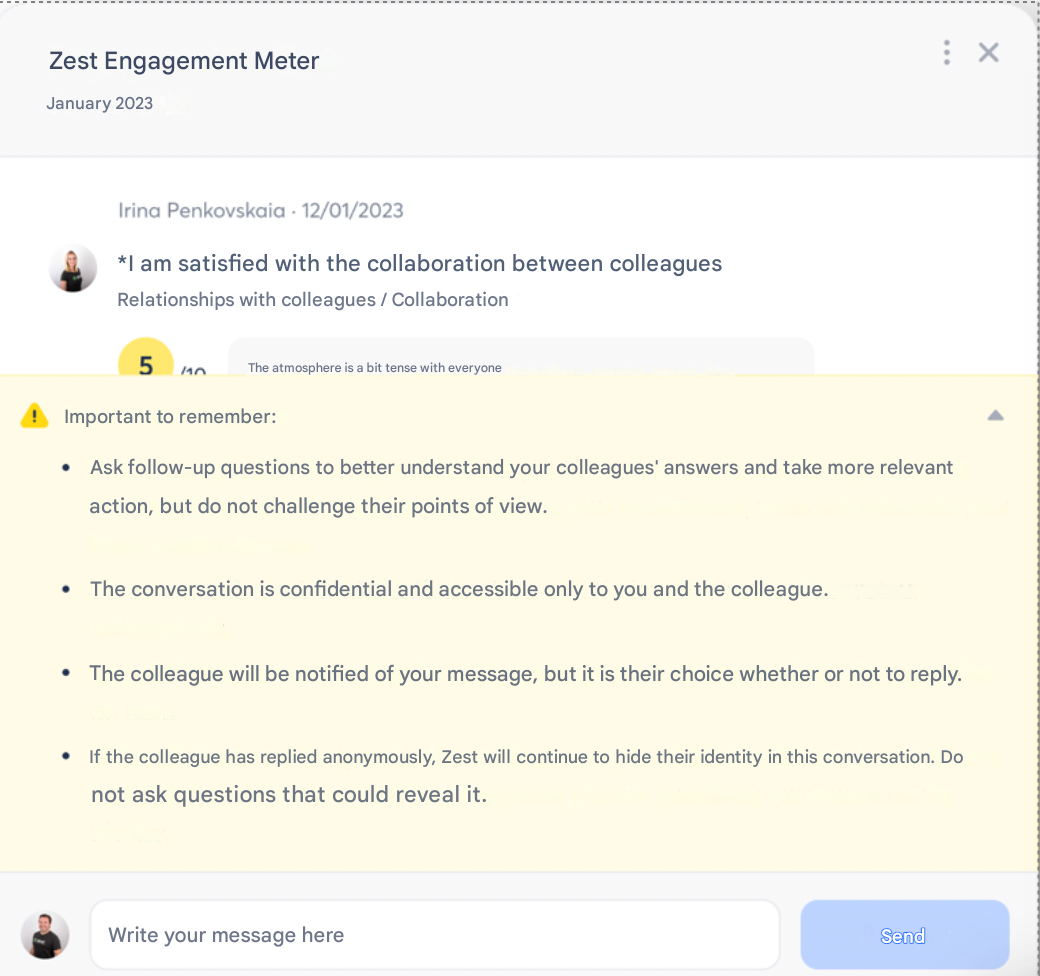
- Write and send** your message.
- You always communicate using your identity (name + avatar), never anonymously.
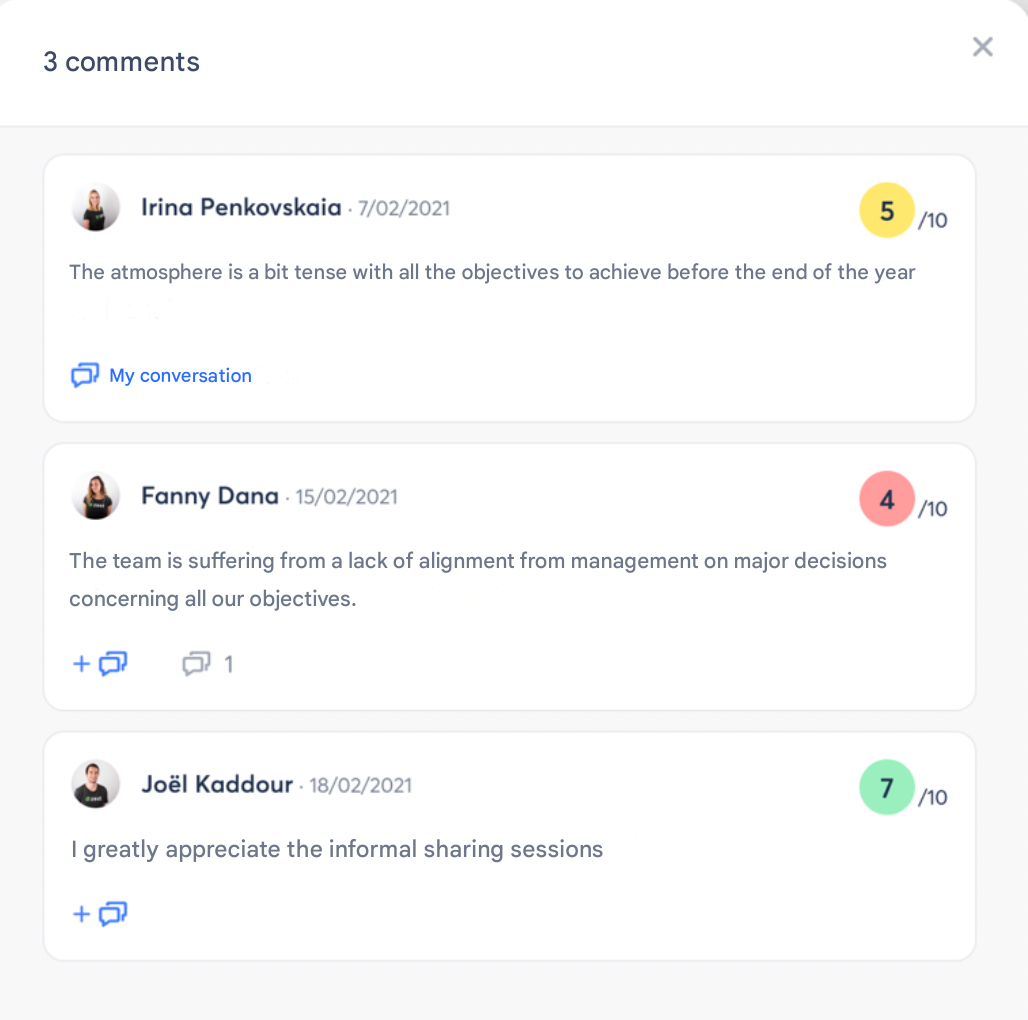
- Close the pop-up using the ❌ to return to the comments.
- The 💬 button is replaced by a “My conversation” link for quick access to the exchange.
📩 Employee Side: Responding to a Conversation
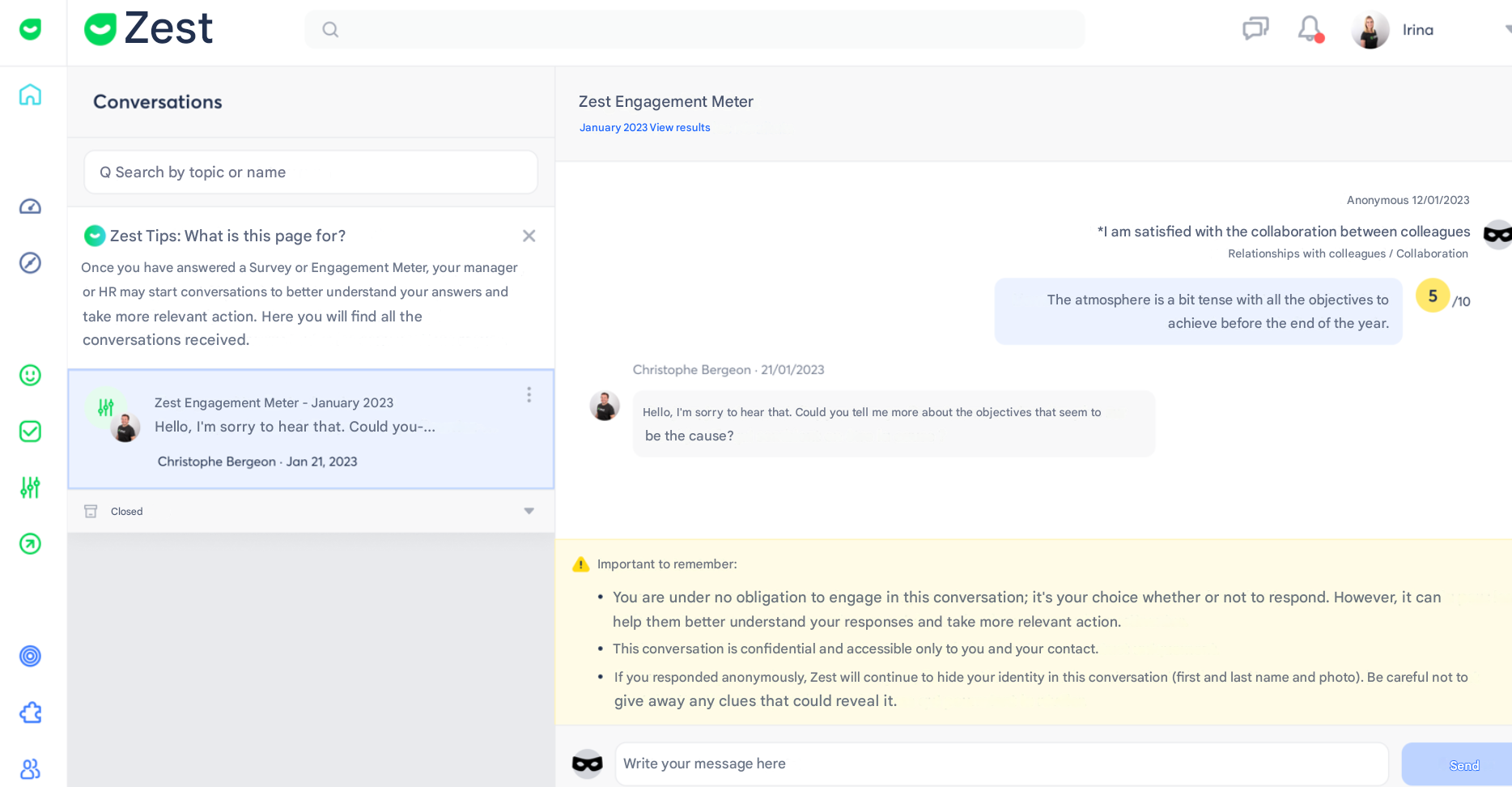
- The employee receives an email notification with a “View message” button.
- By clicking it, they are taken directly to the conversation in Zest.
- They can see:
- The campaign information.
- Their response and comment.
- Your messages.
- The confidentiality rules.
- There is no obligation to respond.
- The display mode (Public or Anonymous) remains the same as the one chosen in the survey.
📂 Manage Your Conversations
📌 Quick Access
- A new 💬 icon appears in the Zest header (next to the 🔔 bell).
- A red badge indicates new messages.
Roles and Tabs
- Regular employee: “Received” tab only.
- Manager / Super Admin: “Sent” and “Received” tabs.
Conversation View
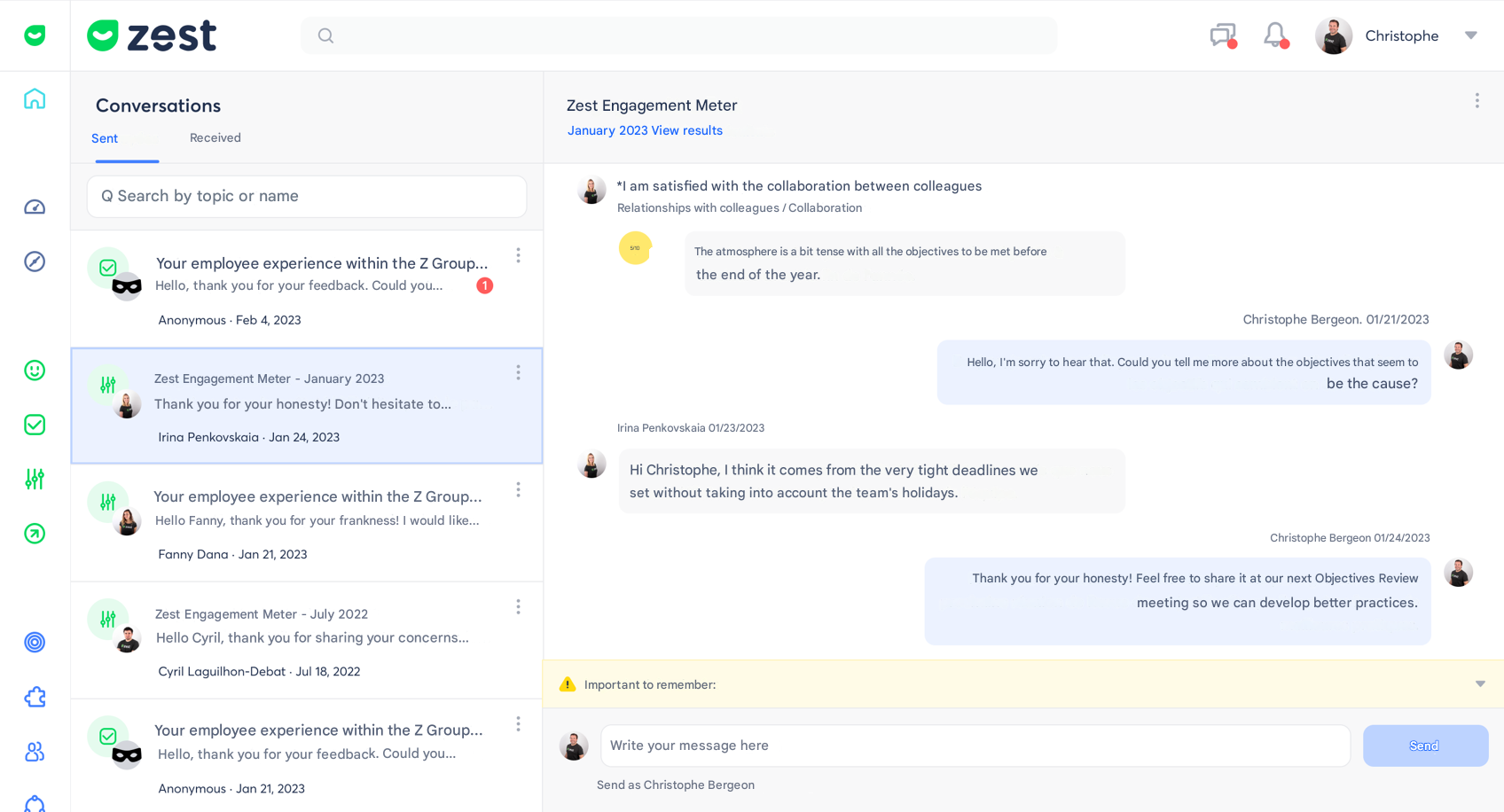
In the left column:
- Tabs and search bar.
- List of conversations with preview and date.
- Closed section (if at least one conversation).
- “...” menu to Close a conversation.
🚨 Detection of Sensitive Comments
Objective
- Quickly identify feedback that requires immediate action.
- Instantly alert managers/HR.
- Initiate a conversation to better understand the situation.
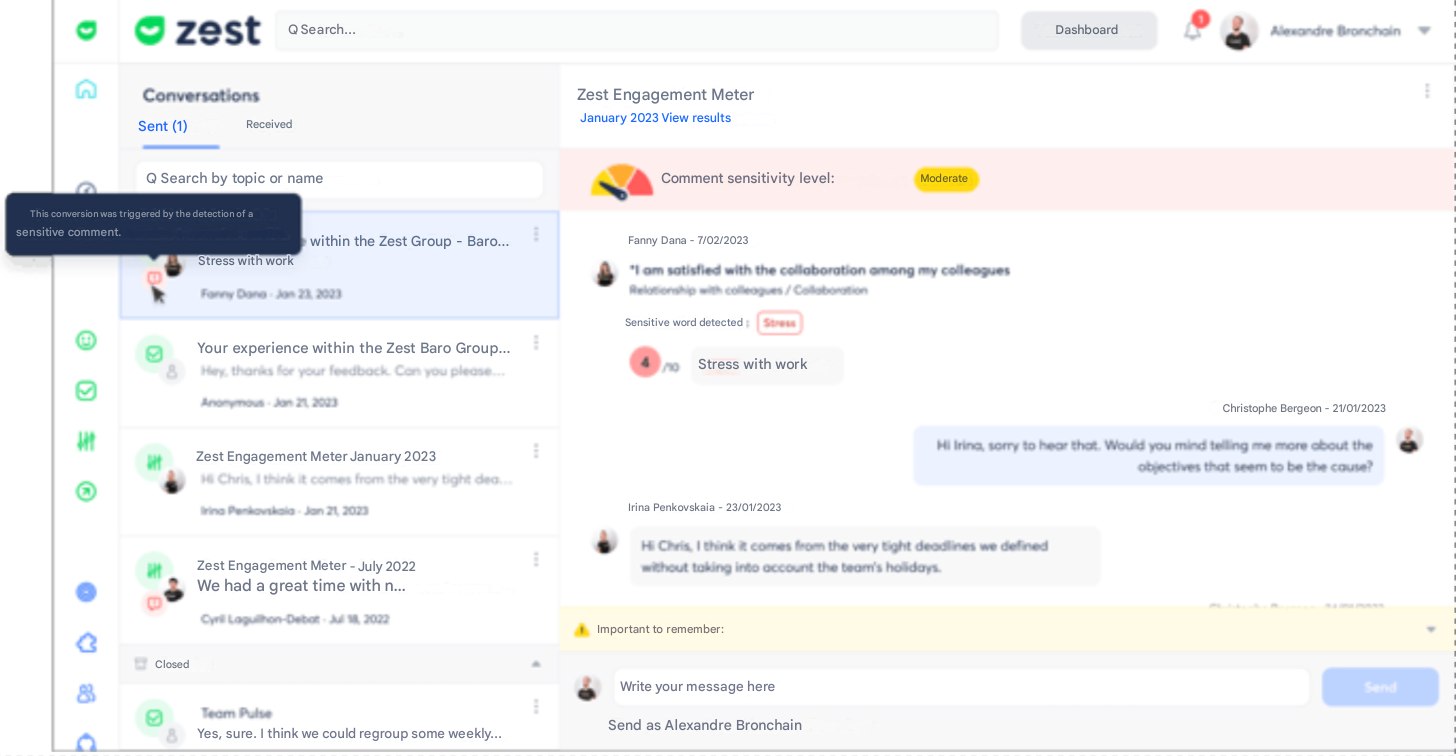
How does it work?
- Automatic detection system based on a multilingual library of sensitive keywords.
- 3 sensitivity levels: moderate, high, very high.
- Real-time alert email sent for the very high level.
💡 Examples of detected words:
harassment, stress, humiliation, suicide, exhausted, toxic…