💬Launch and manage a conversation in Zest
💬 Why use the Conversations feature?
The Conversations feature allows managers and HR to interact directly with an Employee following a comment left in a Survey or an Engageometer, whether they answered in Public or Anonymous mode (if enabled in the Back Office).
It is a key tool to clarify a point, react quickly to feedback, or explore a sensitive topic further.
🚀 Launch a conversation from a comment
- Access the results of a survey or an Engageometer.
- Identify the comment you want to respond to.
- Click on the 💬 message bubble icon.
- A conversation pop-up opens with:
- Campaign information (title, session, tool type)
- The Employee’s response and comment (and their name if they answered in public)
- Guidelines and tips to preserve anonymity
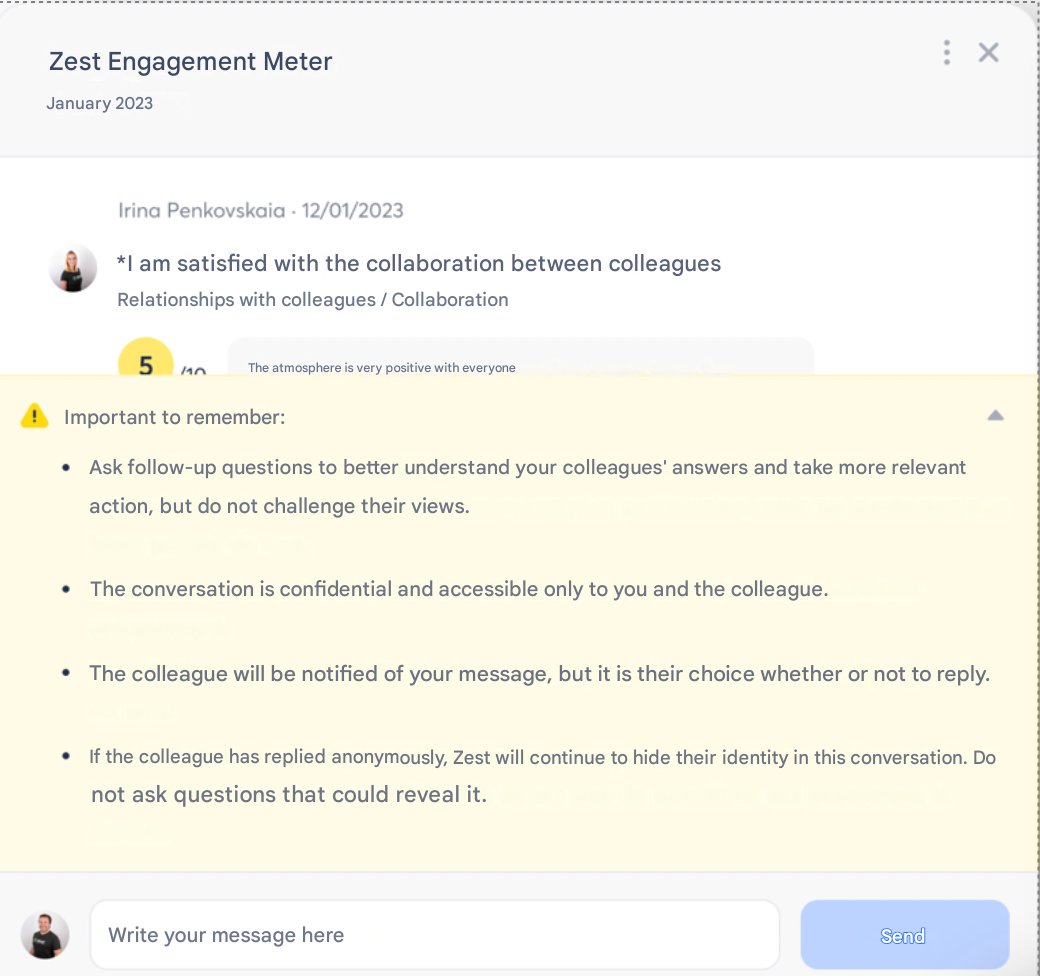
- Write and send your message.
- You always communicate under your identity (name + avatar), never anonymously.
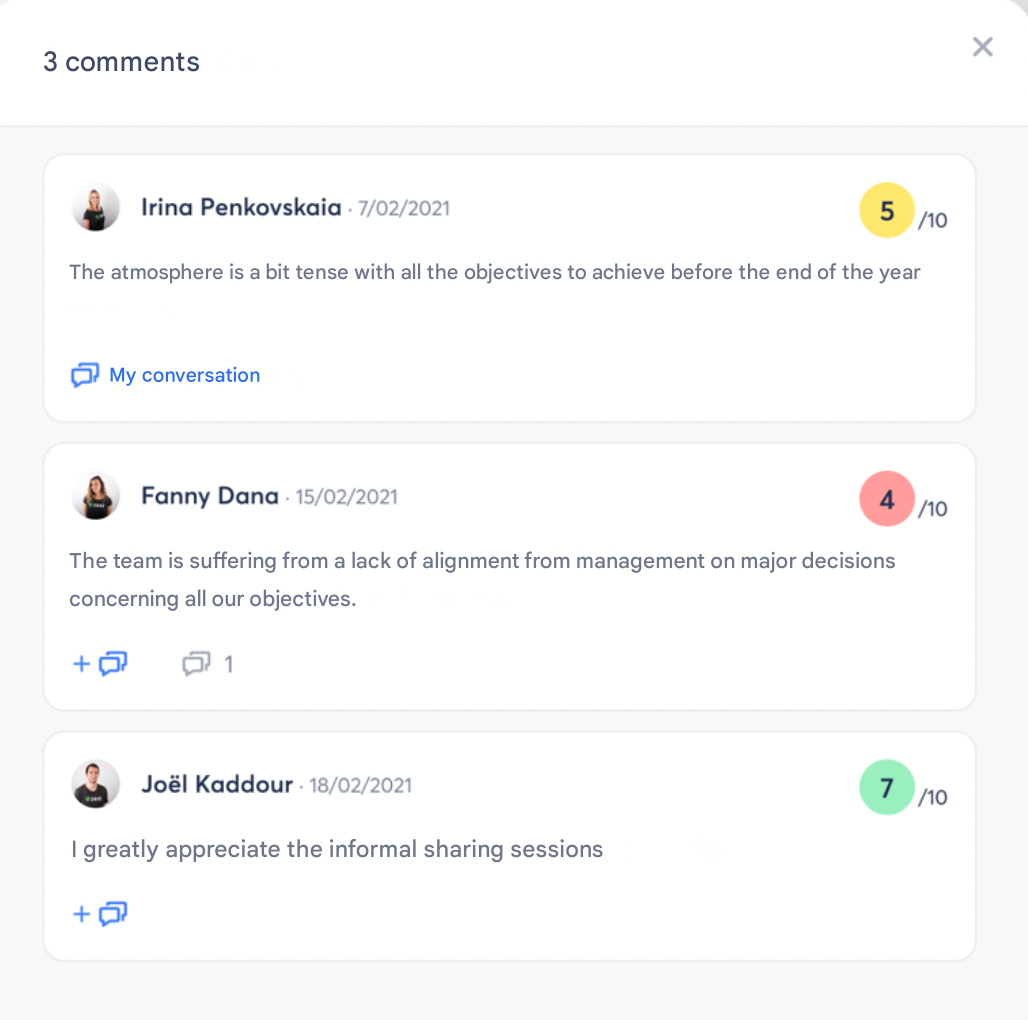
- Close the pop-up using ❌ to return to the comments.
- The 💬 button is replaced by a "My conversation" link for quick access to the exchange.
📩 Employee side: replying to a conversation
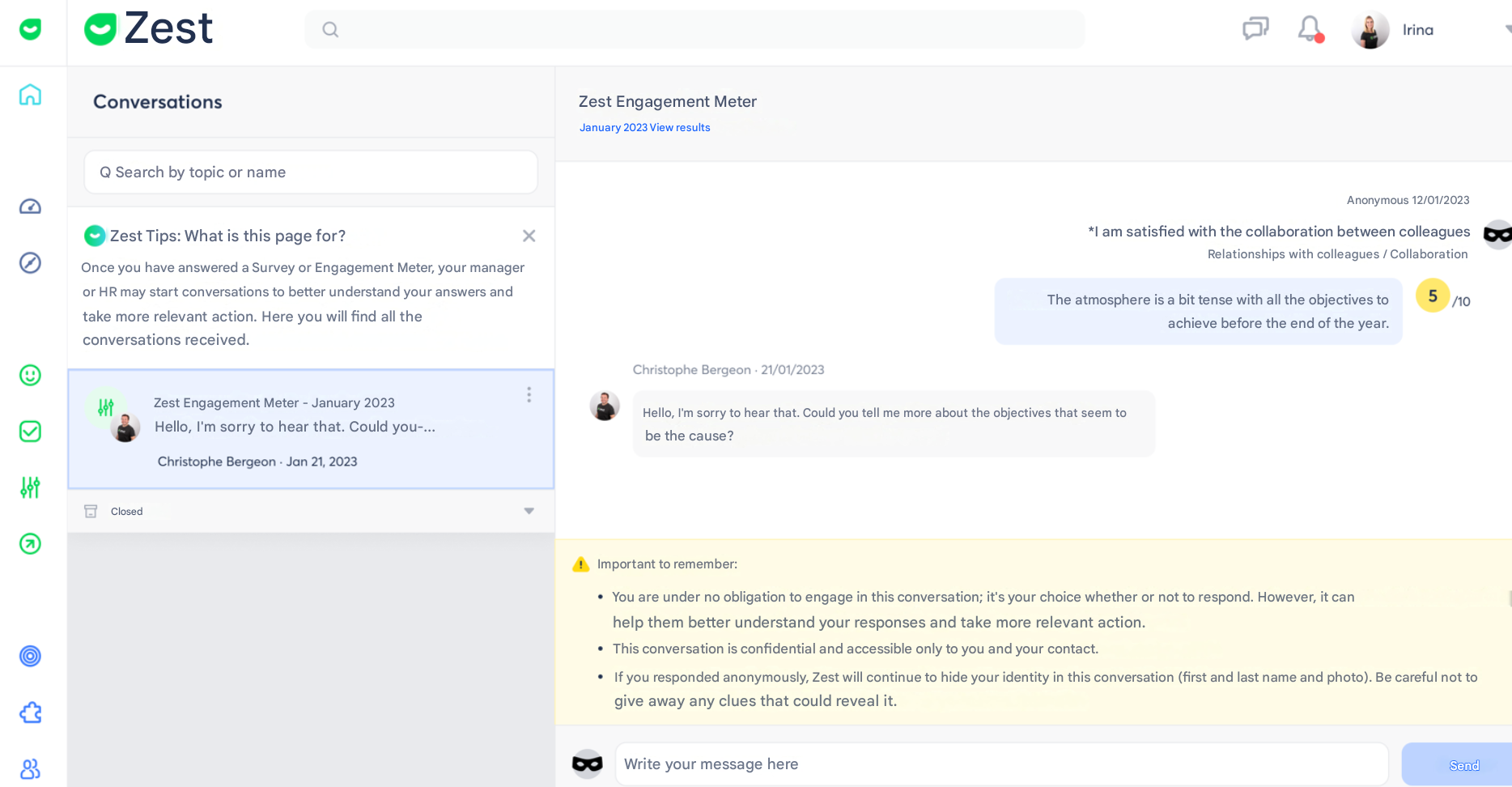
- The Employee receives a notification email with a “View message” button.
- By clicking it, they are redirected directly to the conversation in Zest.
- They can view:
- Campaign information
- Their response and comment
- Your messages
- Confidentiality guidelines
- No obligation to reply.
- The display mode (Public or Anonymous) remains the same as selected in the survey.
📂 Manage your conversations
📌 Quick access
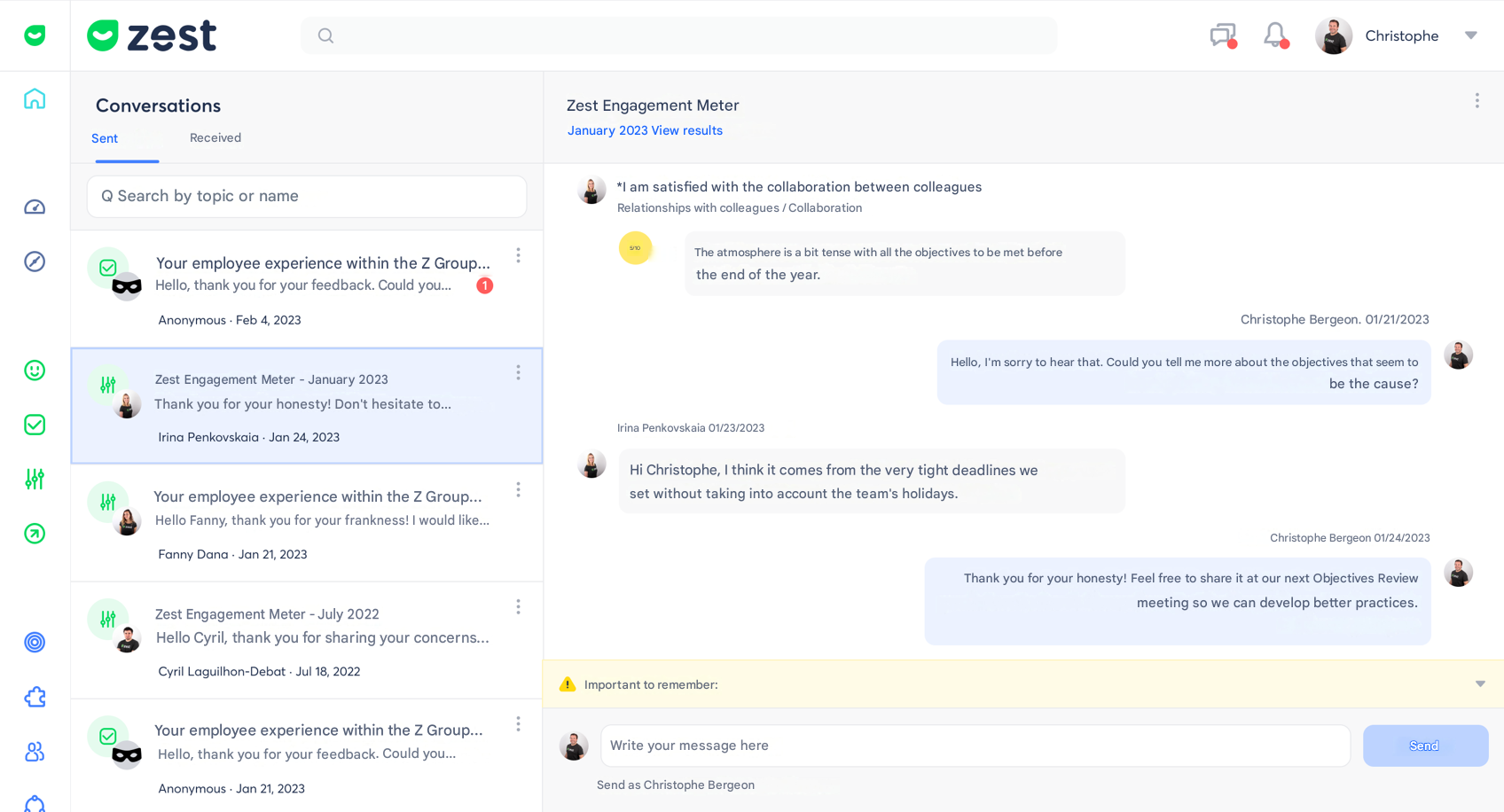
- A new 💬 icon appears in the Zest header (next to the 🔔 bell).
- A red badge indicates new messages.
Roles and tabs
- Employee: “Received” tab only
- Manager / Super Admin: “Sent” and “Received” tabs
Conversation view
In the left column:
- Tabs and search bar
- List of conversations with preview and date
- Closed section (if at least one conversation exists)
- “...” menu to Close a conversation
🚨 Sensitive comment detection
Objective
- Quickly identify feedback requiring immediate action
- Instantly alert managers/HR
- Initiate a conversation to understand the situation
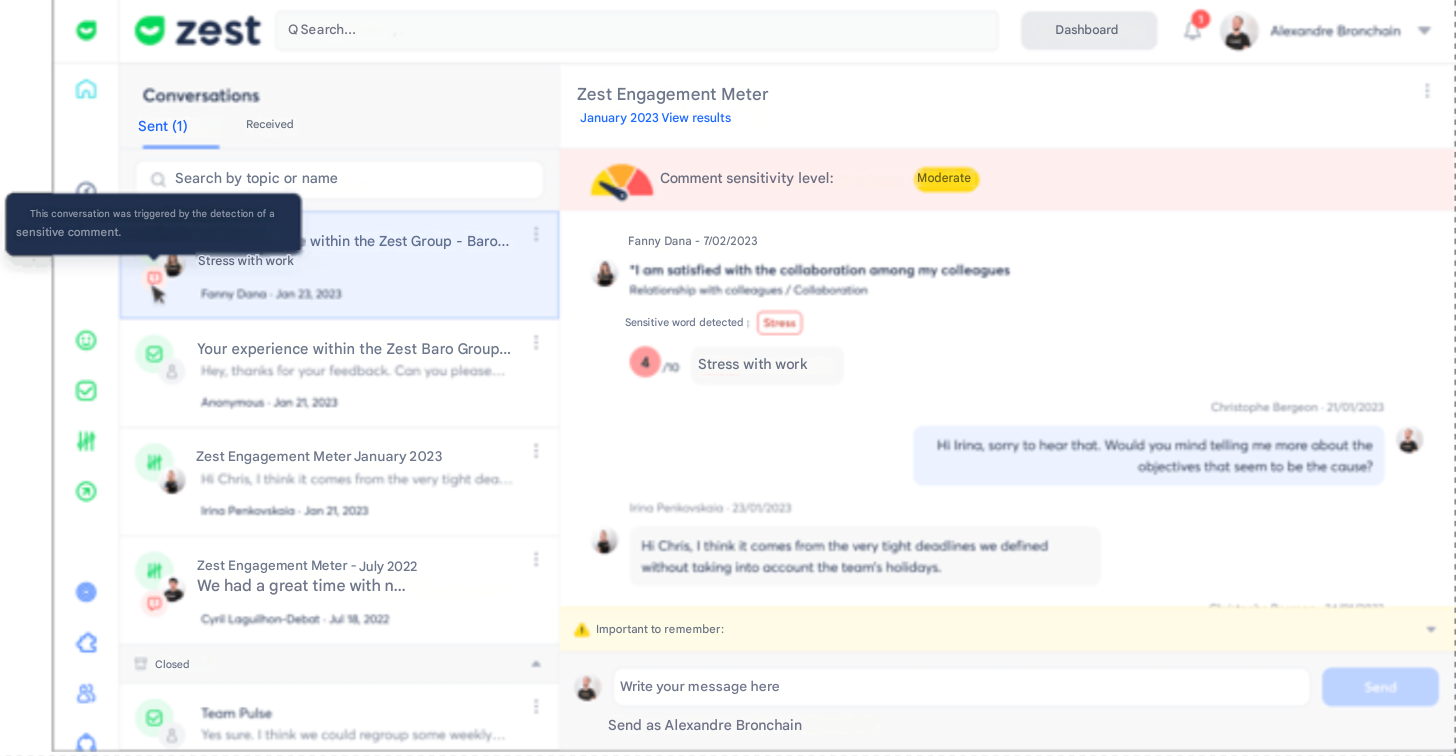
How does it work?
- Automatic detection system based on a multilingual library of sensitive words
- 3 sensitivity levels: moderate, high, very high
- Real-time alert email sent for the very high level
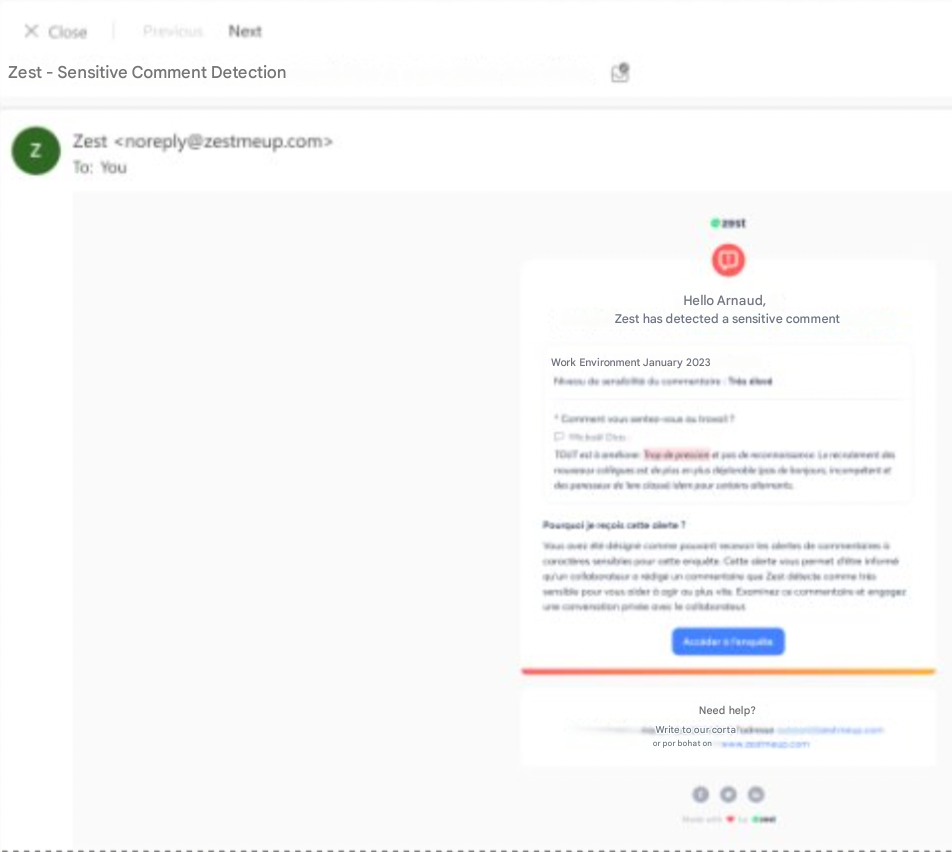
💡 Examples of detected words:
harassment, stress, humiliation, suicide, exhausted, toxic…
🌍 Automatic translation of comments
To make analysis easier:
- Comments are translated into your account language
- An indicator shows which comments are translated
- You can hide translations to view the original version
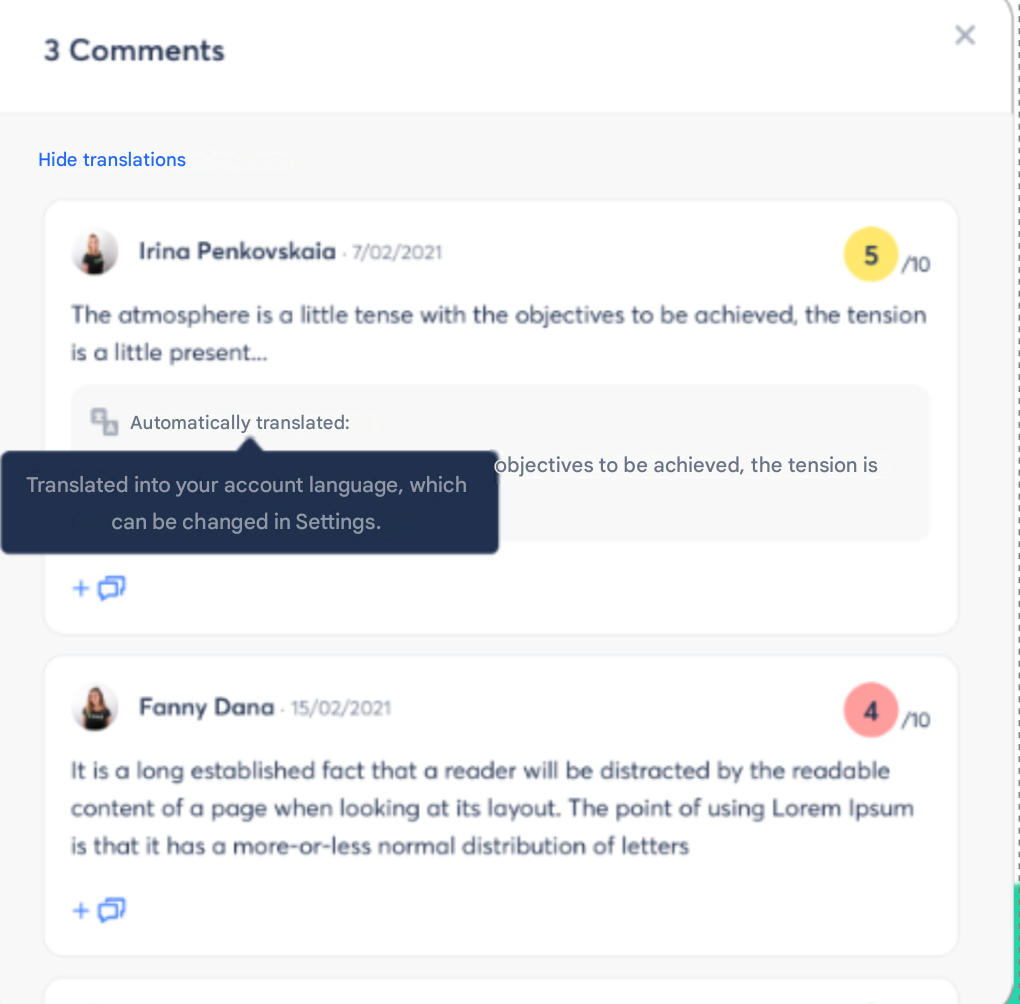
- Translations are also included in Excel exports

✅ Best practices
- Use Conversations to explore a point further, not to debate publicly
- React quickly to sensitive comments
- Always respect the anonymity mode chosen by the Employee
- Review your messages to ensure a kind and constructive tone