Listing Entretien
✨ Find and prioritise your campaigns at a glance
What exactly is it, and what's the goal? 🤔 Your evaluation campaign list has been completely redesigned. It's now organised into four tabs — Ongoing, Upcoming, Drafts, Completed — each sorted by what matters most for it: under "Ongoing", the campaign whose period closes soonest comes first. The goal: know where to start without opening a single campaign, and see at a glance where each one stands — the current step, the time left, and who still needs to act.
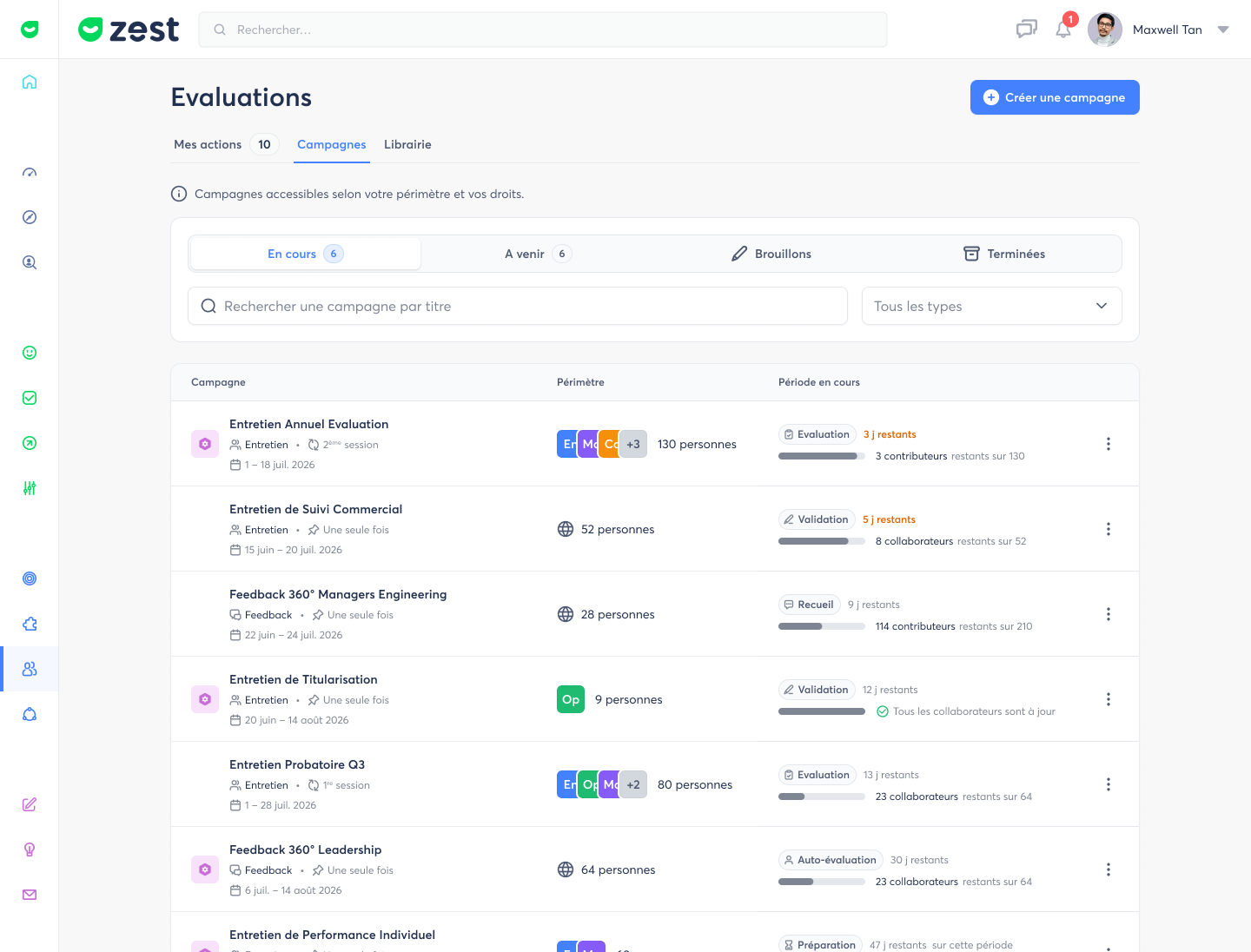
How does it work? 🧐 From the Evaluations page, the Campaigns tab shows your interview and 360° feedback campaigns, based on your scope and permissions. Each row carries its type, frequency, dates and scope; the central column shows the current step, the days left in the period (in orange when 5 or fewer remain) and who still needs to act. Automatic interview campaigns appear at the top and show their coverage instead, since each employee enters on their own date. For completed campaigns, a single figure answers the only question that matters: how many interviews actually took place. Search by title, filter by type or period, then open a row to access its results.
Heatmap des campagnes d’entretiens
✨ Analyze your interview campaigns at a glance with the Heatmap
What exactly is it, and what's the goal? 🤔 Until now, reading an interview campaign meant opening it one employee at a time. The Heatmap turns your campaign into a colour grid: your template's questions as rows, your teams (or your employees) as columns. The goal: see within seconds where things are slipping, where they're going well, and the gap between what the employee says and what their contributors say — without opening a single interview.
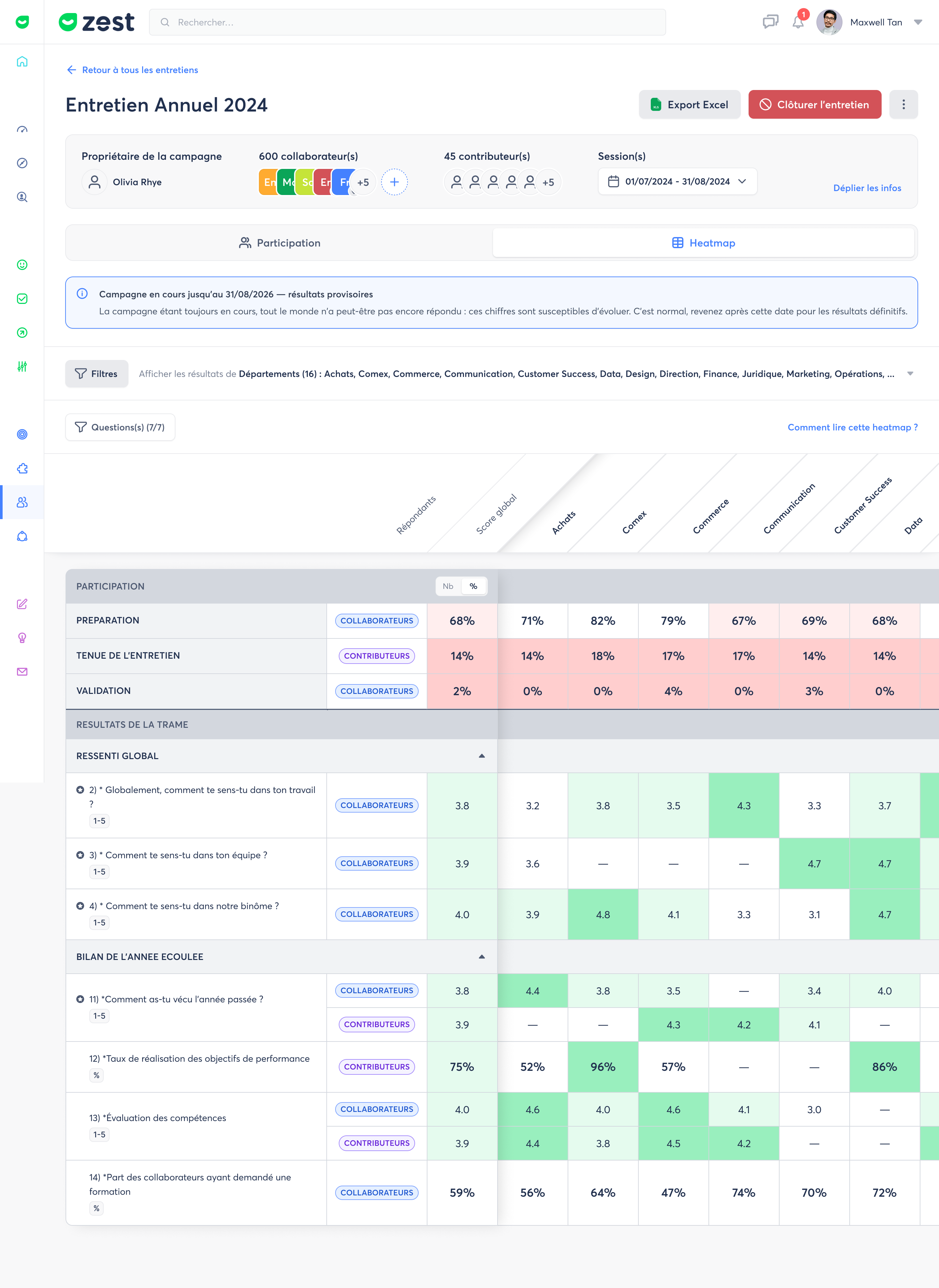
How does it work? 🧐 Inside your interview campaign, a new Heatmap tab sits next to Participation. The grid fills in progressively, following the campaign phases (Preparation, Interview, Validation), with a banner reminding you when results are still provisional. Filter on the populations and questions you care about, and to find out who to focus on, keep just one population: the columns then become your employees, each one positioned against their team average and the campaign average. You can also export the heatmap to Excel, exactly as you filtered it.
Respondents with an opening message
✨ Welcome your respondents with an opening message
What exactly is it, and what's the goal? 🤔 You can now display a welcome message when your interview and 360° feedback campaigns open. Until now, only the campaign description could provide context — and it was visible to the beneficiary alone, never to their contributors. The goal: reassure everyone about anonymity, share a specific instruction or remind them of a best practice, without having to repurpose a section of your form.
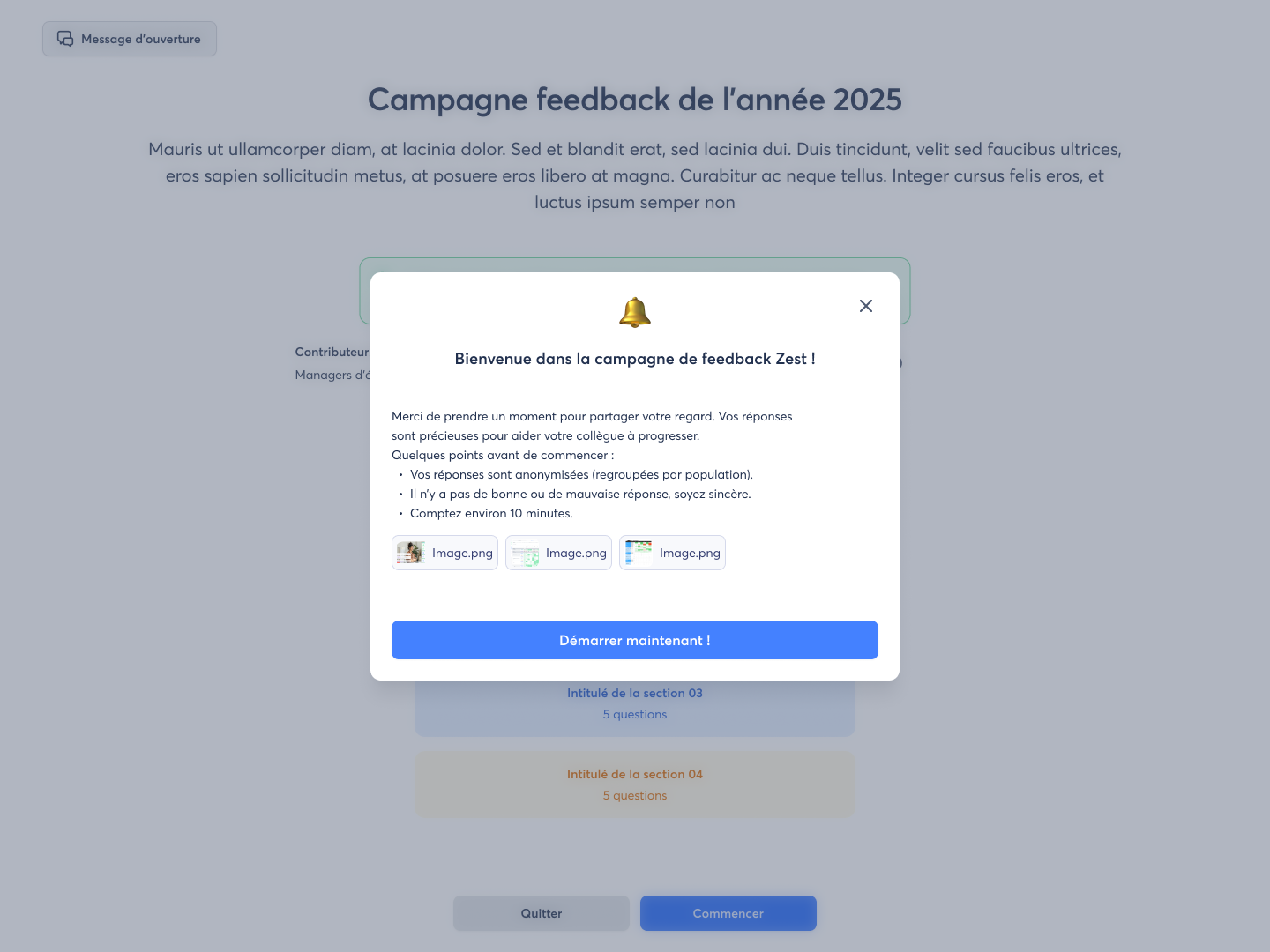
How does it work? 🧐 When creating the campaign, in the last step of "Define", turn on the opening message and write it: an emoji, a title, formatted content (bold, lists, links), as many images as you need, and your own label for the closing button. You then choose who sees it — the beneficiary, the contributors, or both. The message appears as a modal at the start of the experience and stays available at any time through the "Welcome message" button in the header. A contributor reviewing several colleagues can also choose not to see it again each time.