360 Feedback allows you to collect structured feedback from multiple people within an employee’s professional network. This article guides you step by step through creating and launching your first 360 Feedback campaign in Zest.
🔐 Prerequisites — Access Rights
To create and launch a 360 Feedback campaign, you must have either the SuperAdmin or HR Admin role in your Zest workspace.
The 360 Feedback module must also be enabled as an add-on in your workspace. If you do not see this feature in your interface, please contact your Zest representative.
👉 If you cannot see this option, refer to the following article: How do I configure feature access rights?
🚀 Create and Configure Your 360 Feedback Campaign
Step 1 — Access the 360 Feedback Module
- Log in to your Zest workspace.
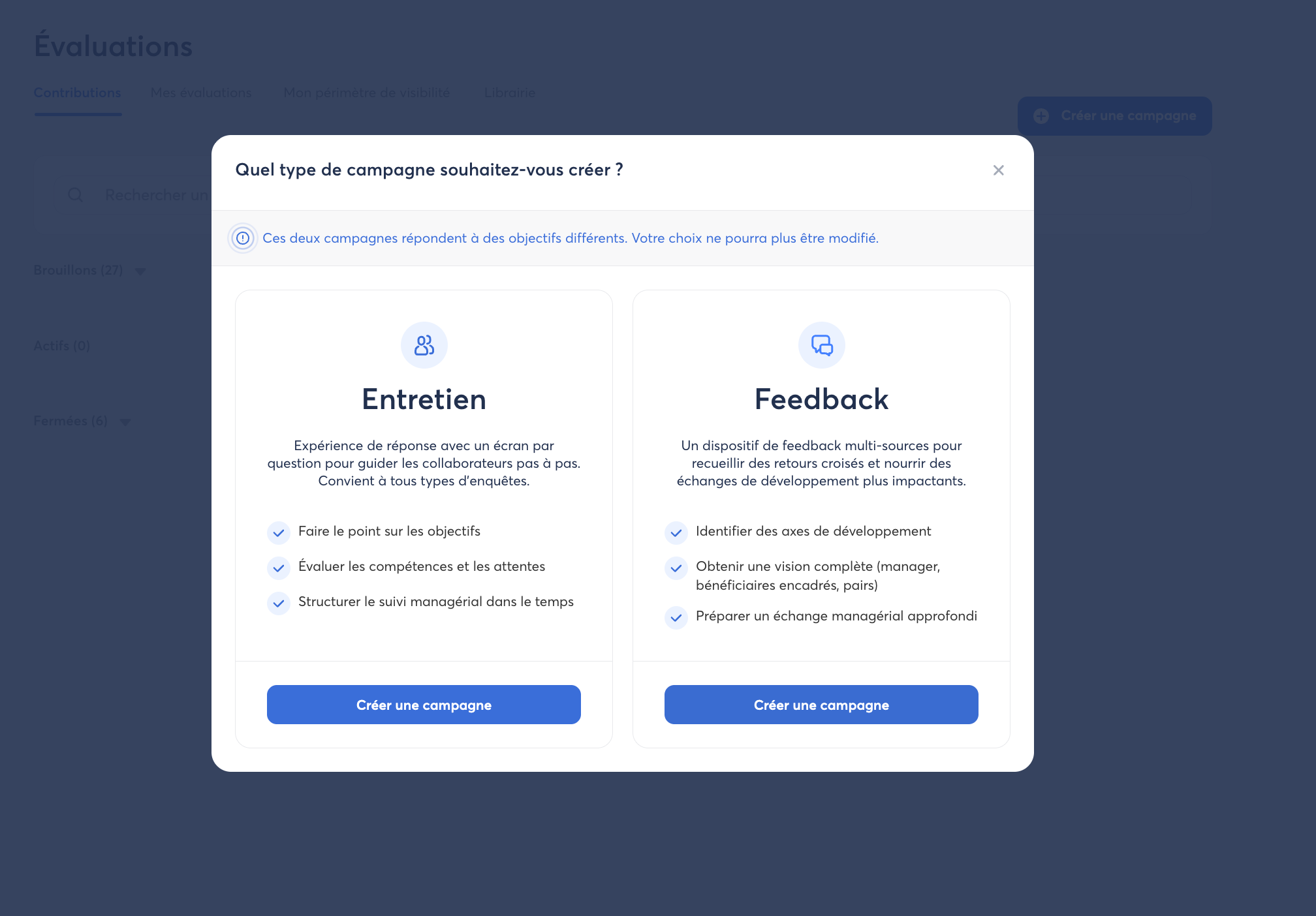
- From the left-hand navigation menu, open the Evaluation pillar.
- Click Create Campaign.
Step 2 — Define the Campaign Settings
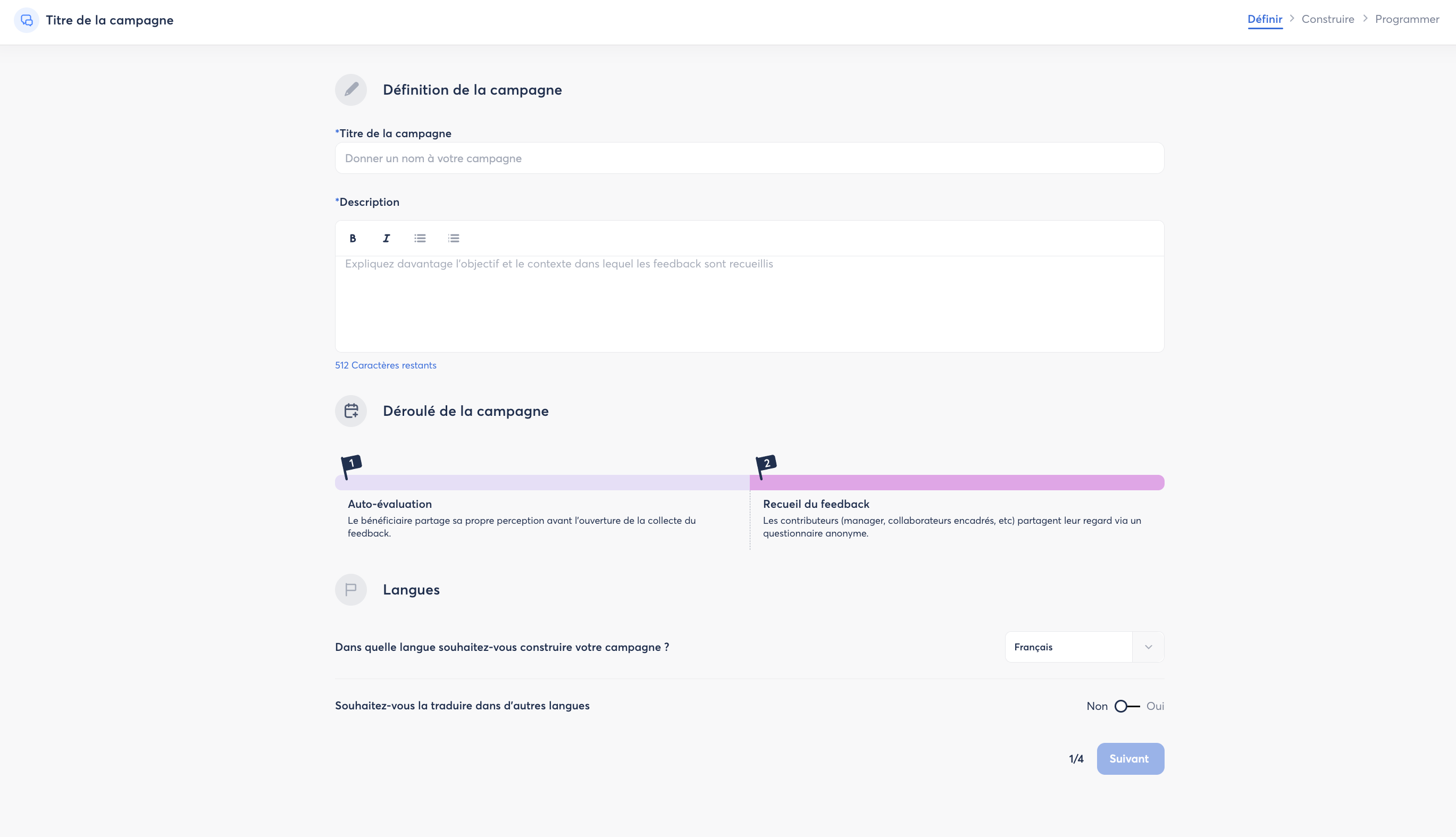
- Enter the campaign name (for example:
360 Feedback – Managers Q3 2026).
- Enter the campaign description.
⚠️ Important: Once the campaign has been launched, the anonymity setting cannot be changed. Make sure you have selected the appropriate option before launching the campaign.
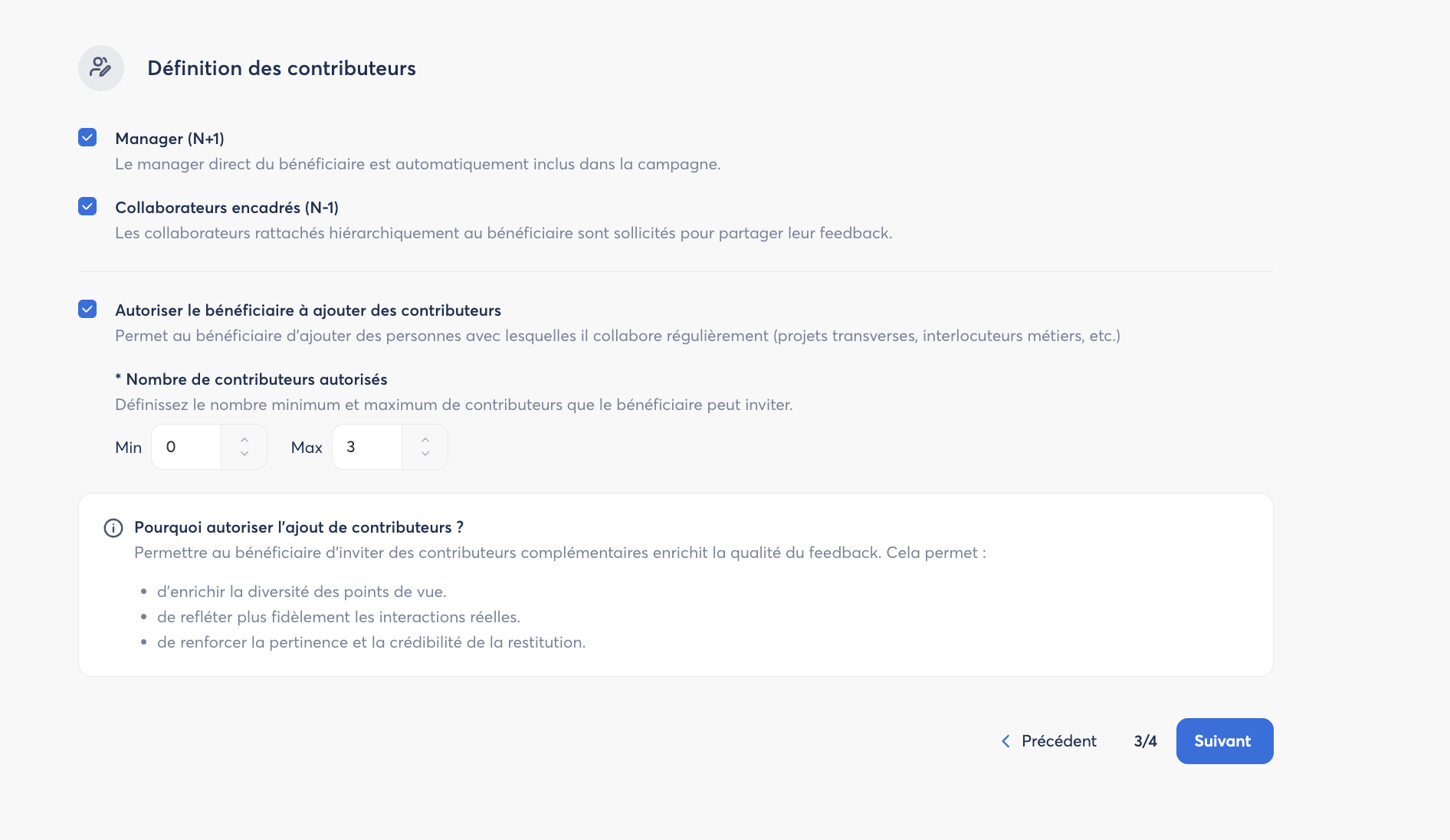
Select the Employees to Be Evaluated
- Click Add Employees.
- Then define the contributors for the campaign.
💡 Tip: If you are launching the campaign for a large group, use SmartGroups to quickly select your target population.
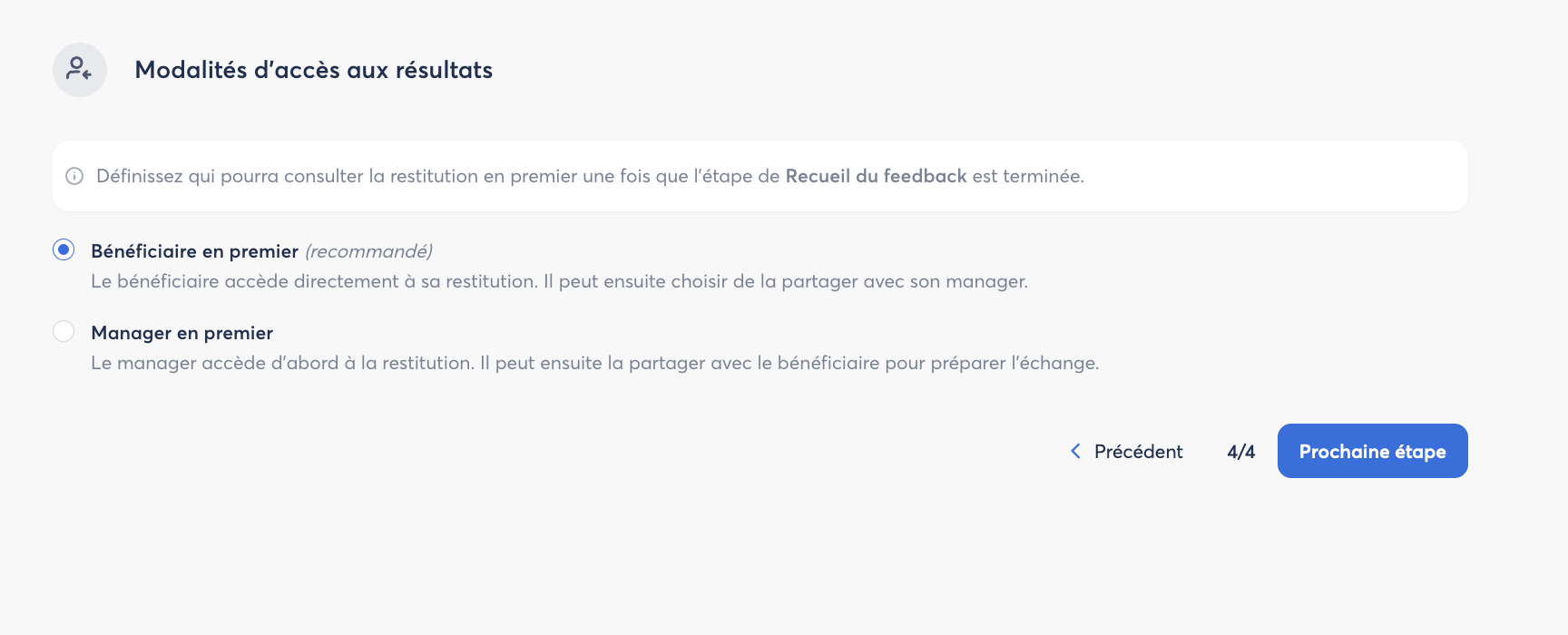
Finalize the Access Settings
Choose who will be able to view the feedback report first once the feedback collection phase has been completed.
Step 3 — Configure the Questionnaire
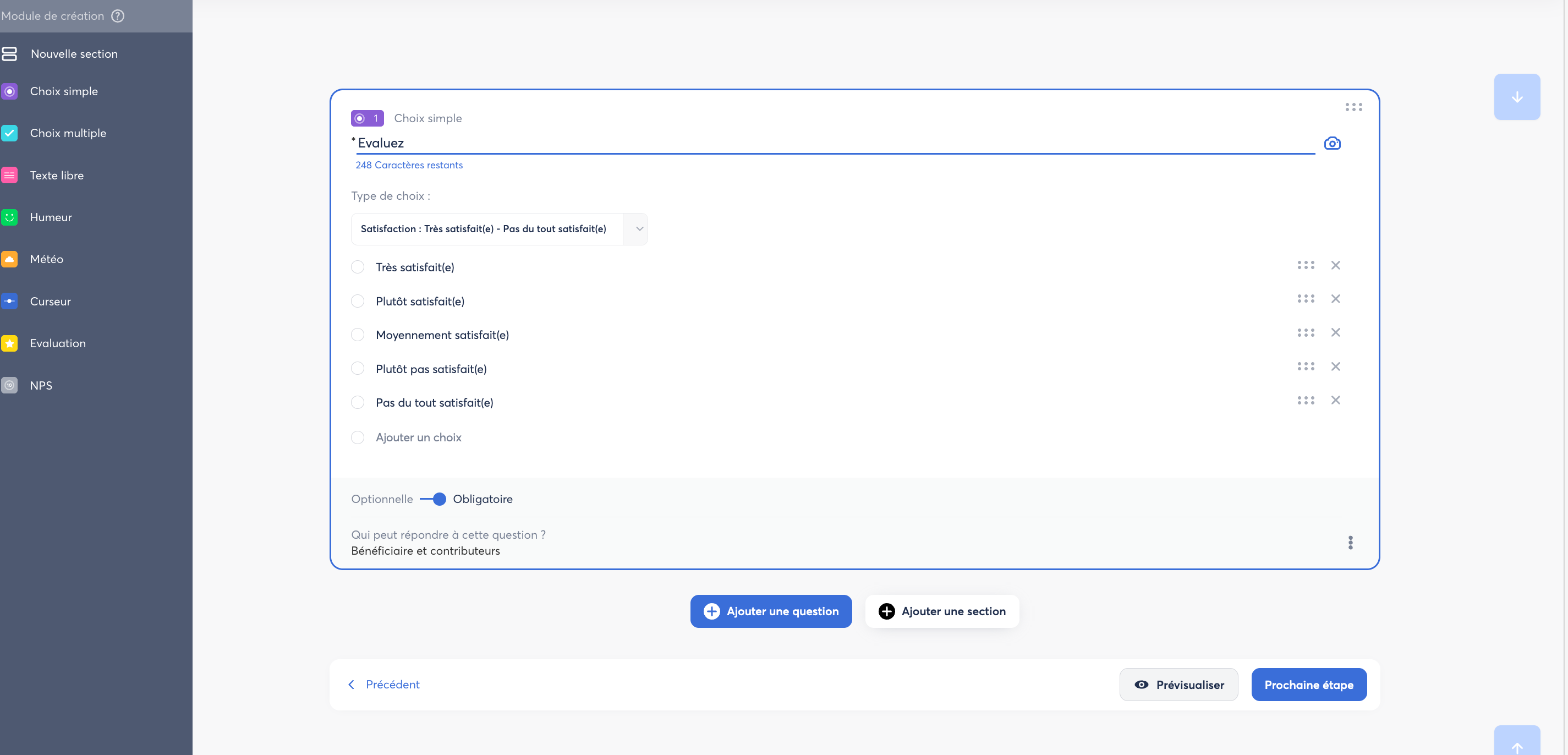
- Build your questionnaire by adding your questions.
- Review the order of the questions and adjust it if necessary.
- Click Preview to review your campaign before launching it.
Step 4 — Schedule Your Campaign
Define the campaign frequency, start date, and the duration of each phase.
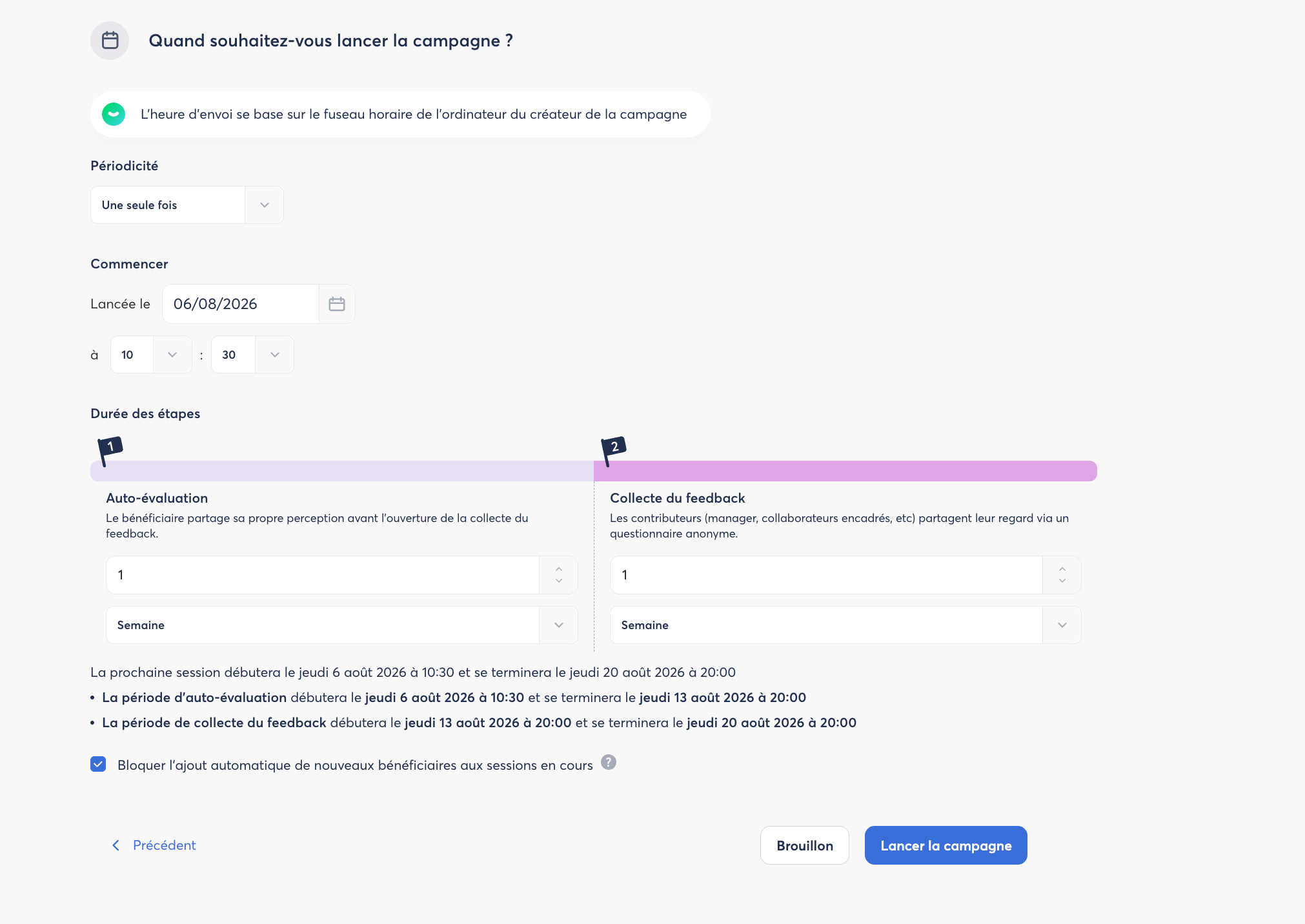
Finally, save your campaign as a draft or launch it.
Once the campaign is launched, invitations are automatically sent to respondents by email.
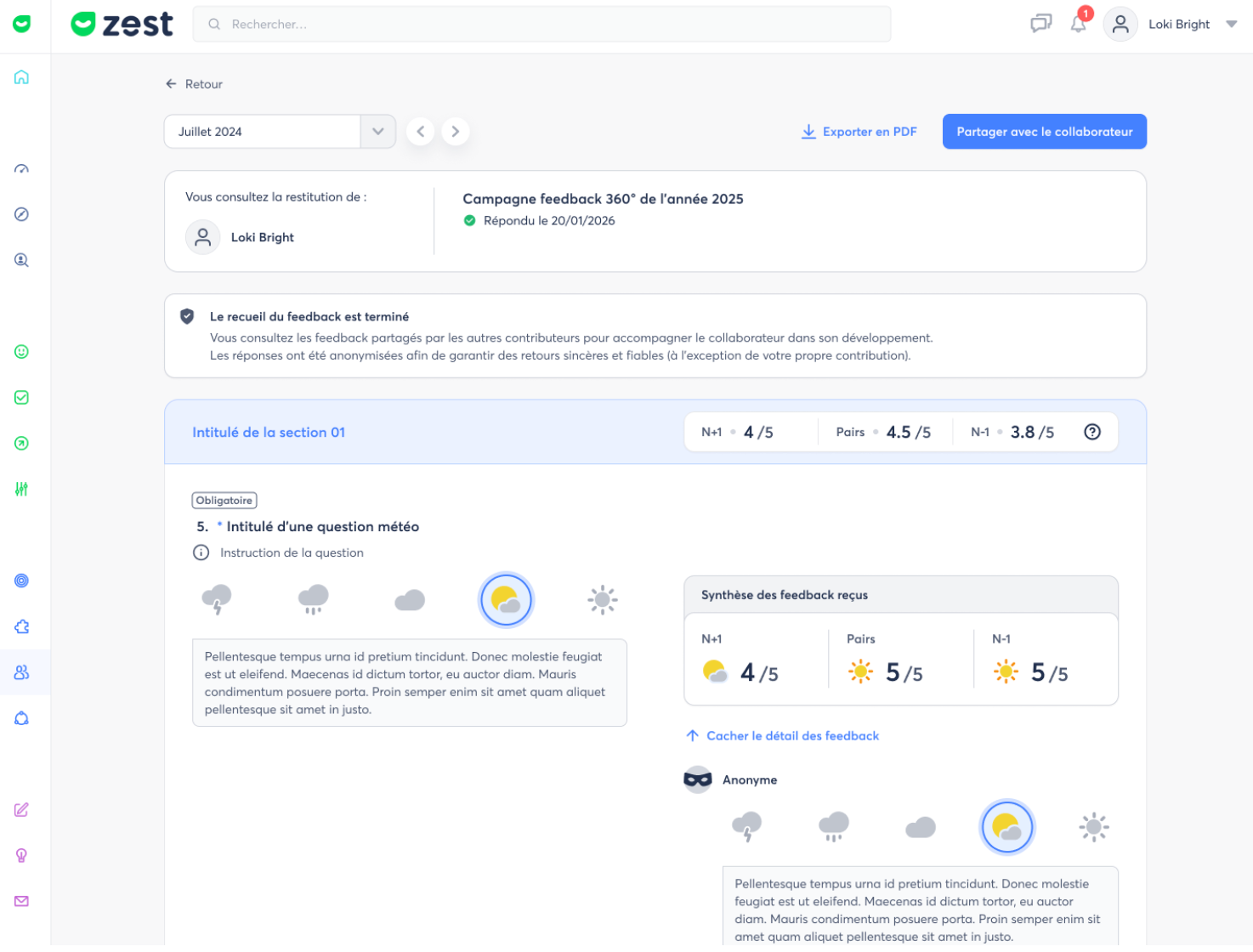
📊 View the Results
Once the feedback collection period has ended, you can view your campaign results.
- Go back to the 360 Feedback module.
- Select the relevant campaign.
- View the feedback summary for each employee.
ℹ️ Note: The summary displays aggregated feedback from all respondents. When anonymous mode is enabled, individual responses cannot be identified.