📌 Creating and Importing Objectives and Skills in Zest
Objectives and skills in Zest are created using Excel files, which are then imported by our technical teams.
Once the import is completed, all your data will be available directly in your Zest workspace.
👉 This article explains how to create and properly fill in these Excel files.
🎯 Objectives & Performance Objectives
📥 Receiving the Excel file
Your CSM will send you the dedicated Excel file used to create objectives.
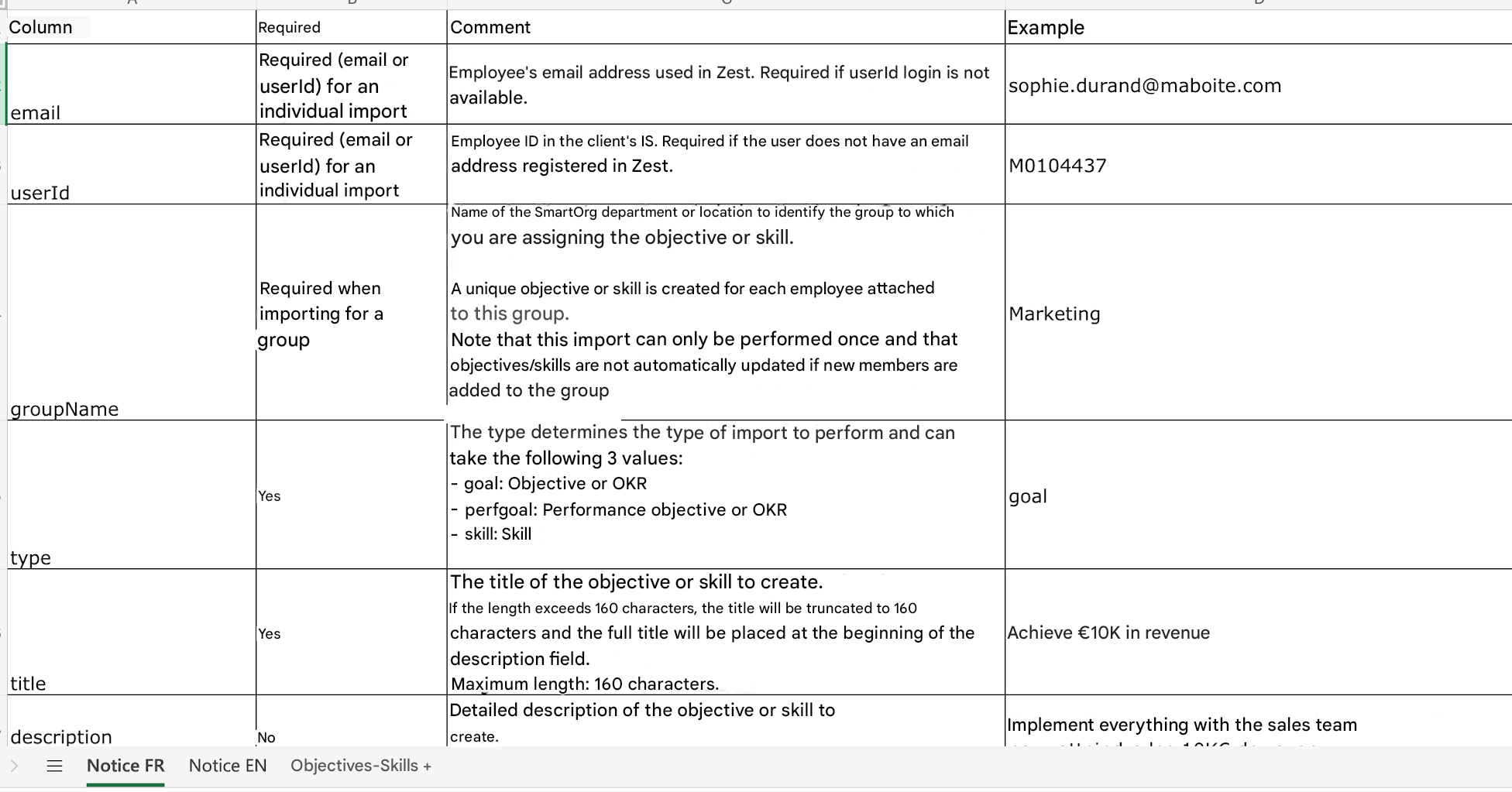
This file contains 3 tabs:
- The first 2 tabs are instruction sheets:
- They explain how to fill in the file
- They describe what each column corresponds to
⚠️ Important
This file allows you to create objectives only.
Skills currently have a separate import file.
🧱 Objectives File Structure
The file contains several columns used to structure your objectives.
Objectives can be assigned:
- To an individual: using their email or userID
- To a group: using a department or a location
🏷️ Objective Types
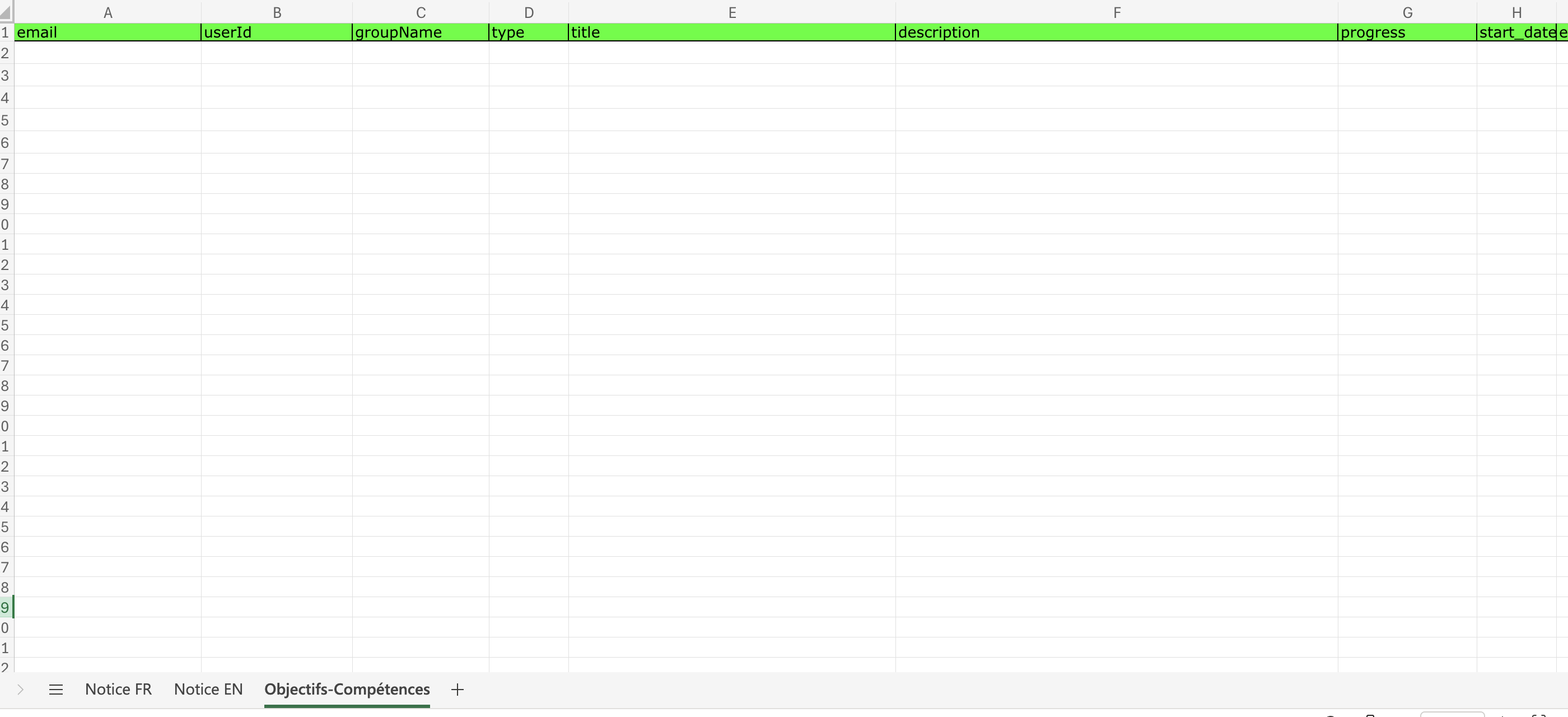
In the type column, you must specify the type of objective to create:
goal→ Standard objective
perfgoal→ Performance objective
Then fill in:
- The objective title
- Its description
- The start date
- The end date
🔗 For standard objectives, you can also:
- Add tasks
- Define parent and child objectives to create alignment links
🧠 Skills — New Version (V2)
Since the end of 2025, Zest has introduced a new version of Skills (V2), fully redesigned to provide a more:
- Seamless
- Intuitive
- HR-oriented experience
The goal is to:
- Easily create your skills framework and automatically associate it with your employees based on their roles and responsibilities.
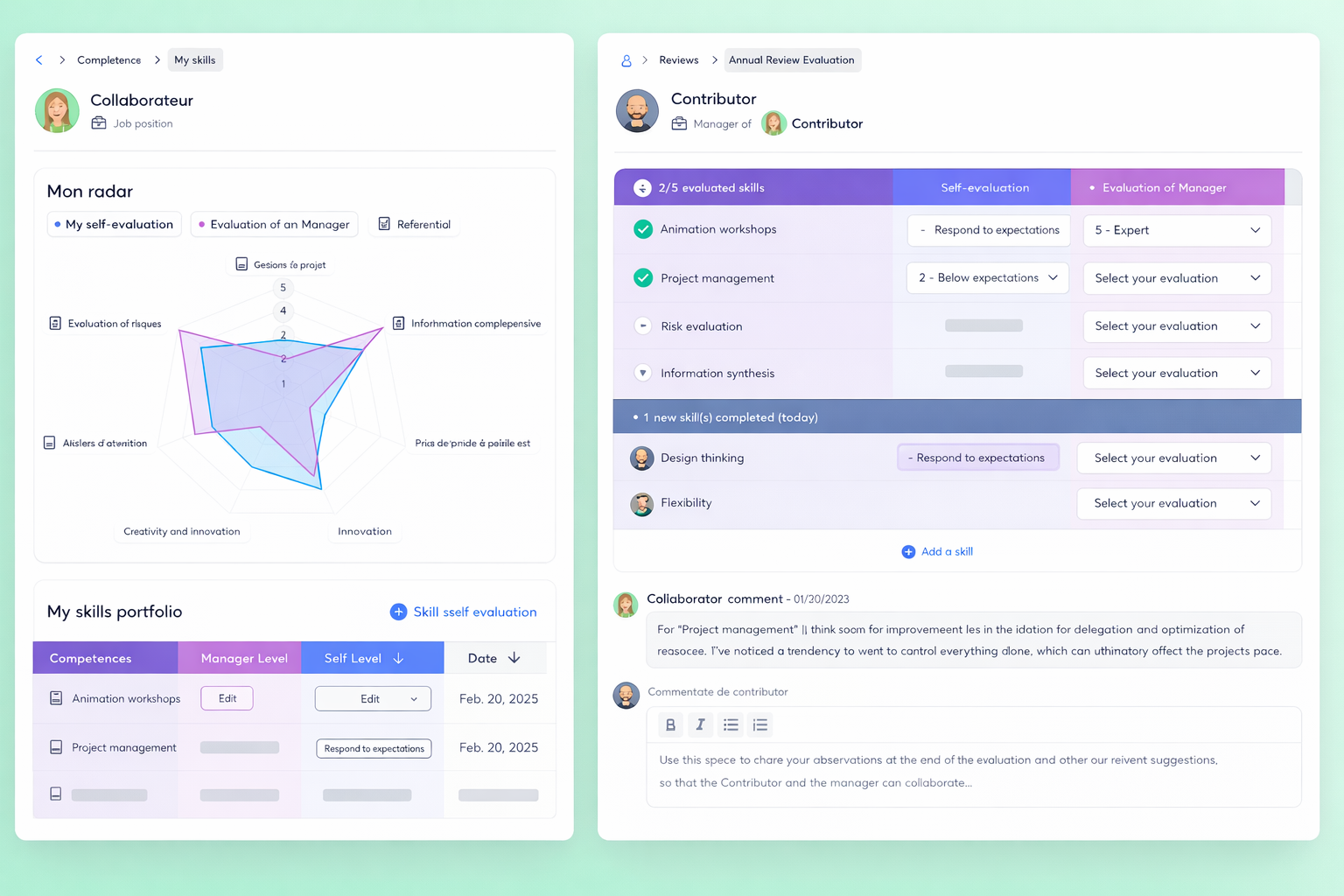
- Assess skills live during interviews, enabling agile tracking reinforced by a strong feedback culture.
Visualize employee development through an interactive radar, highlighting strengths and areas for improvement.
How to activate version V2 ⚙️
Before activating the new version, we strongly recommend backing up your current skills framework.
Follow these steps:
- From the homepage, go to the Skills module, then open the “All” tab.
- Export your skills: this allows you to keep a full copy of your current framework (V1).
- Then go to the Back Office, and:
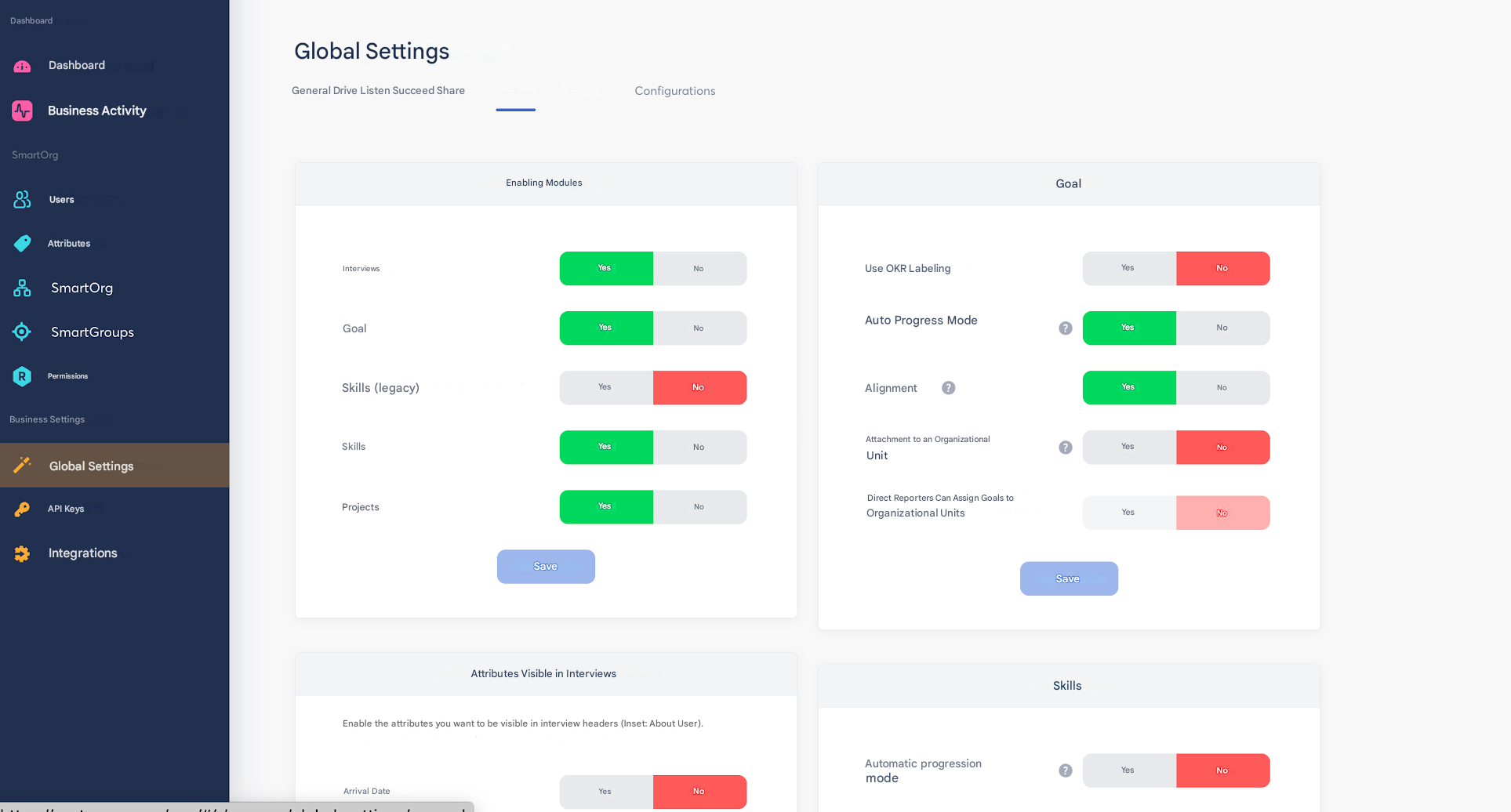
- Navigate to Global settings > Succeed,
- In the table, enable “Skills”: this action will automatically disable Skills V1.
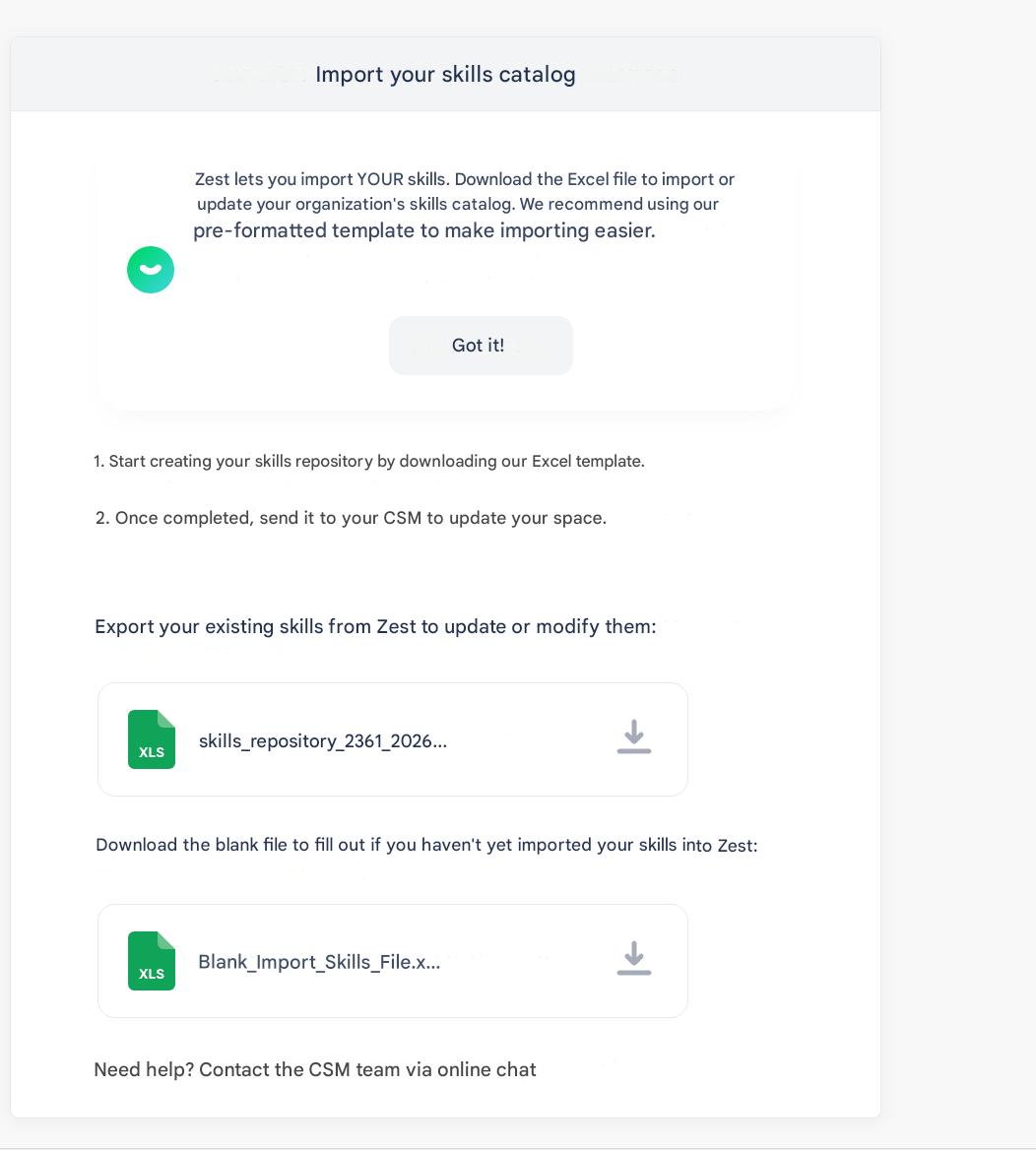
- Further down the page, you will see a section titled “Import your skills catalog”.
- Click the hyperlink to download the new import file.
- This file also includes detailed instructions explaining how to fill it in.
📝 Filling in the Skills Excel File
📄 File structure
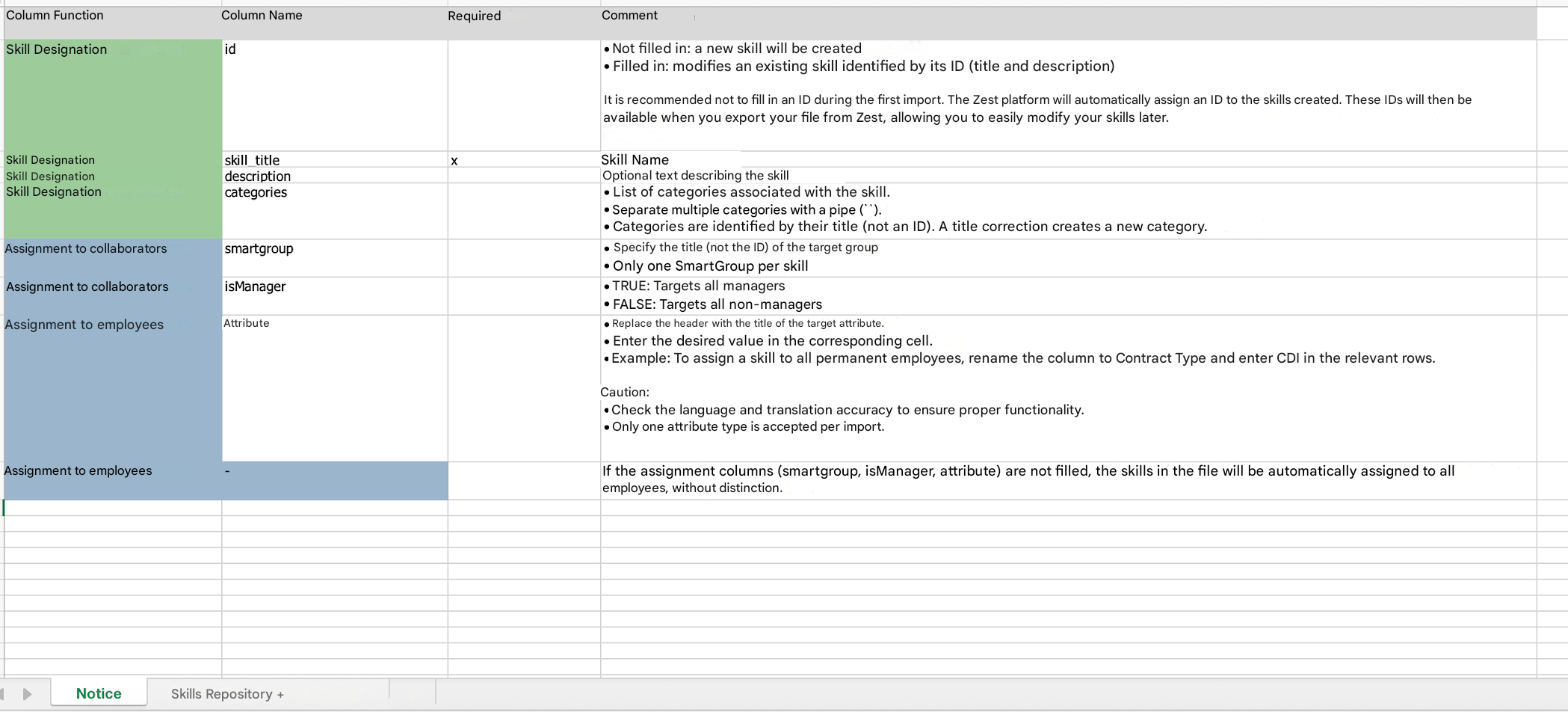
The file contains two main tabs:
- The first tab is an instruction sheet:
- It helps you understand each column
- It details the rules for filling in the file
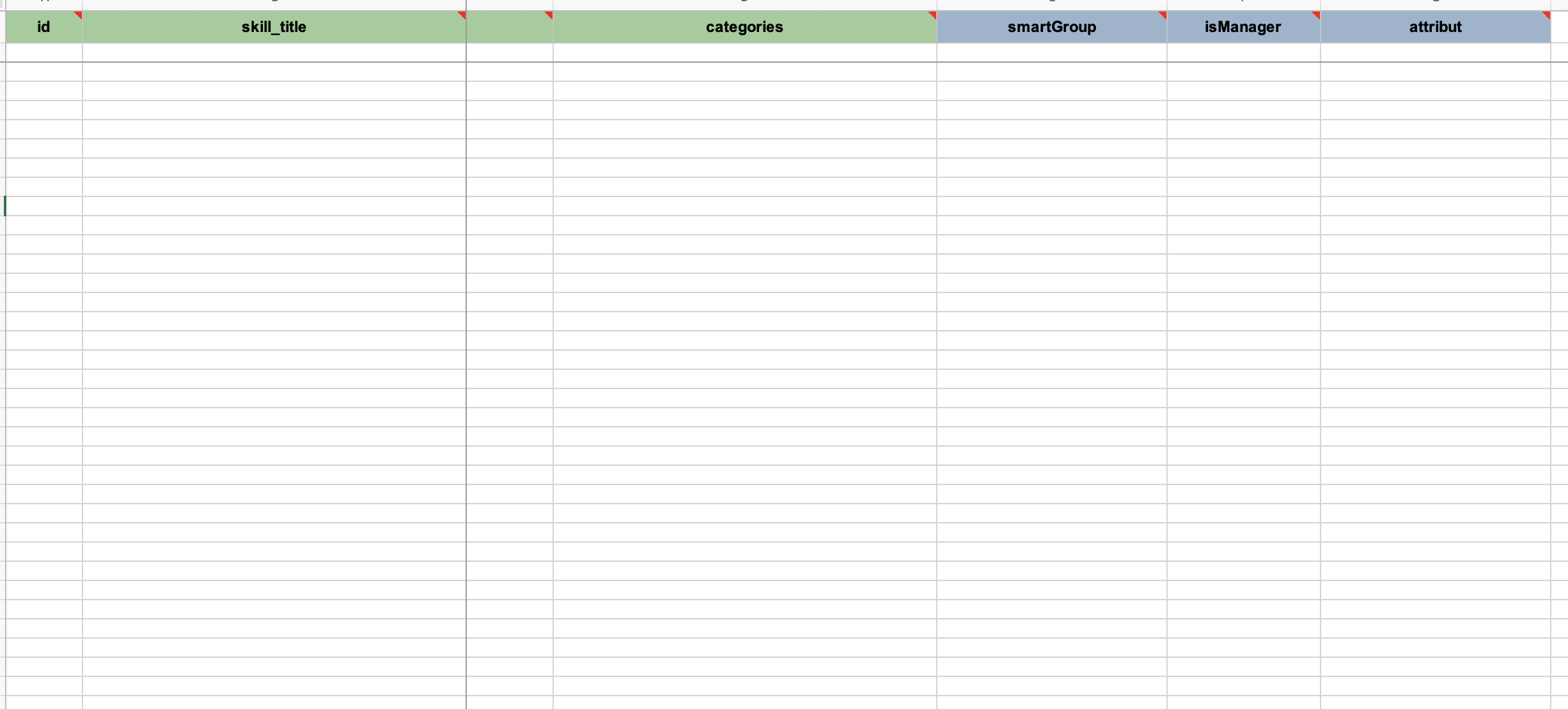
🧩 Rules for Creating Skills
- Skills are not individual
- They are assigned:
- By attribute (role, manager, contract type, etc.)
- Or via Smart Groups